Overview
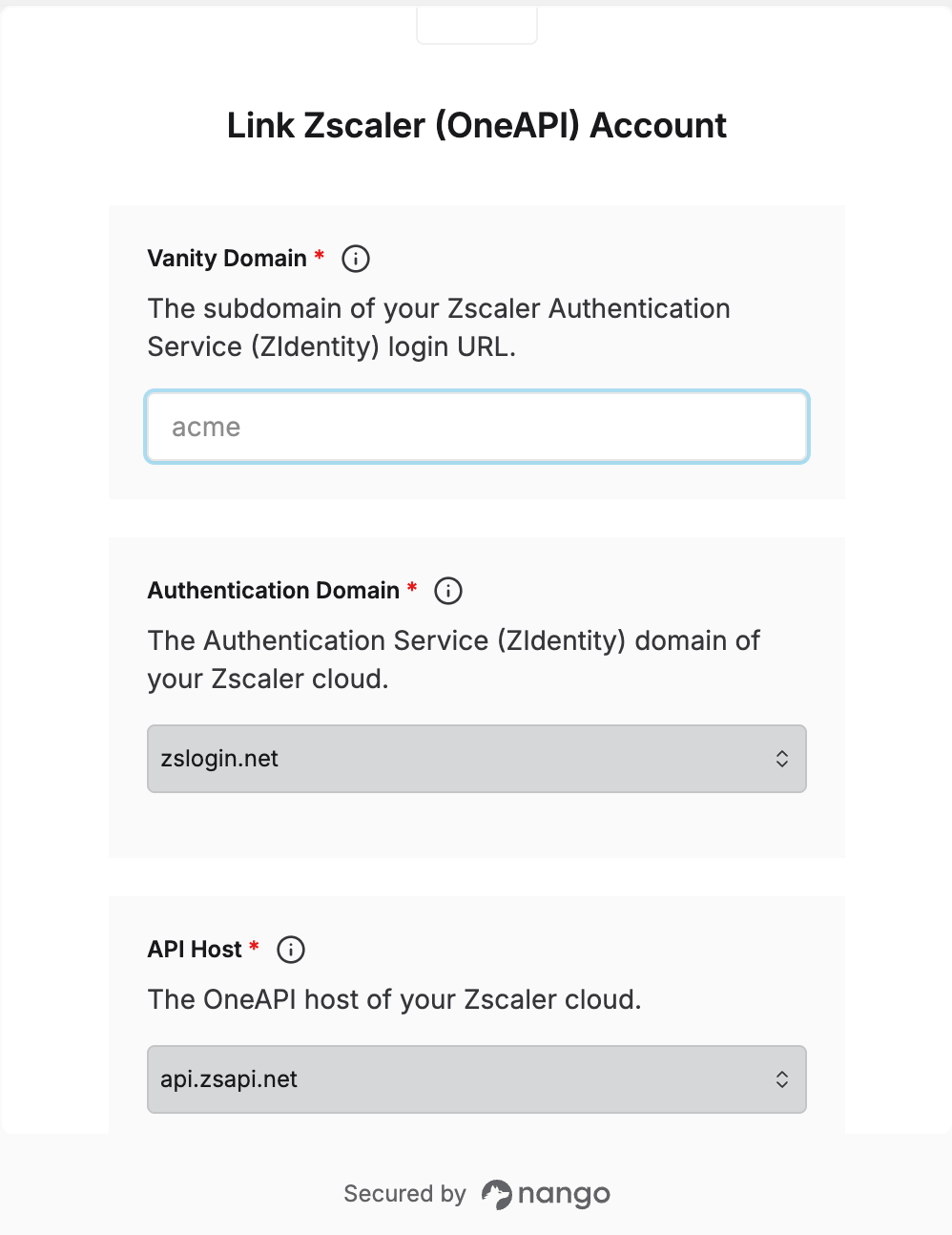
To connect with Zscaler OneAPI, you need:- Vanity Domain, Authentication Domain, and API Host — where your tenant logs in and which Zscaler cloud it runs on.
- Client ID and Client Secret — from an API client you create in ZIdentity.
- ZPA Customer ID — your Zscaler Private Access (ZPA) tenant ID, used in ZPA API paths.
Prerequisites
- A Zscaler tenant on ZIdentity, with a OneAPI subscription.
- An Authentication Service (ZIdentity) admin with full permission on the API Clients and API Resources modules.
Step 1: Find your vanity domain and cloud
Look at the address you use to log in to ZIdentity, such asacme.zslogin.net:
- Your vanity domain is the part before the first dot, such as
acme. - The rest of the address, such as
zslogin.net, tells you which Zscaler cloud your tenant runs on. Pick the matching Authentication Domain and API Host from the table:
Most tenants are on production, which is the default. Always pick the Authentication Domain and API Host from the same row.
Zscaler doesn’t offer a self-hosted OneAPI. Every tenant runs on one of the Zscaler clouds above.
Step 2: Create an API client
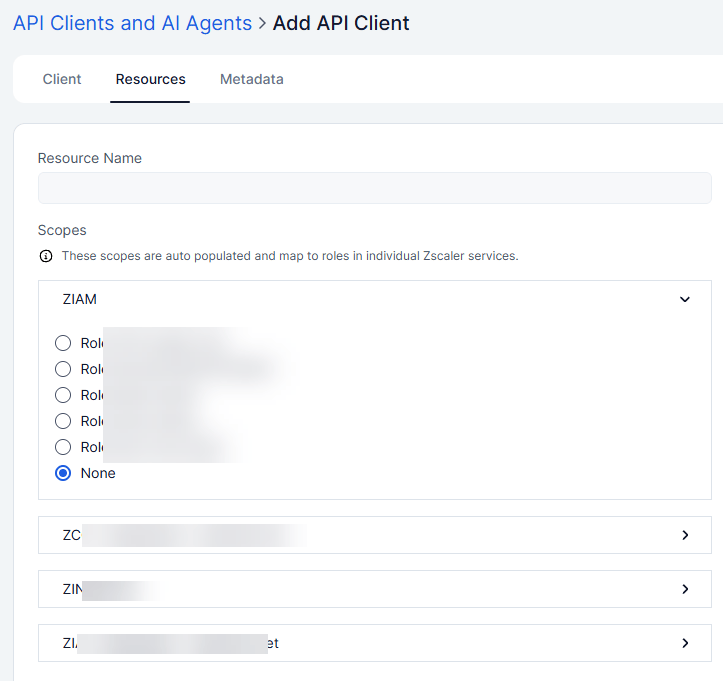
Before you create the API client, add an API role in each Zscaler service you want to access, such as Internet & SaaS (ZIA) and Private Access (ZPA). These roles sync to the Authentication Service and appear as scopes on the API client. Without them, you can’t assign resources to the client.
- In the Zscaler Admin Console, go to Administration > API > API Clients.
- Click Add API Client and select New Client.
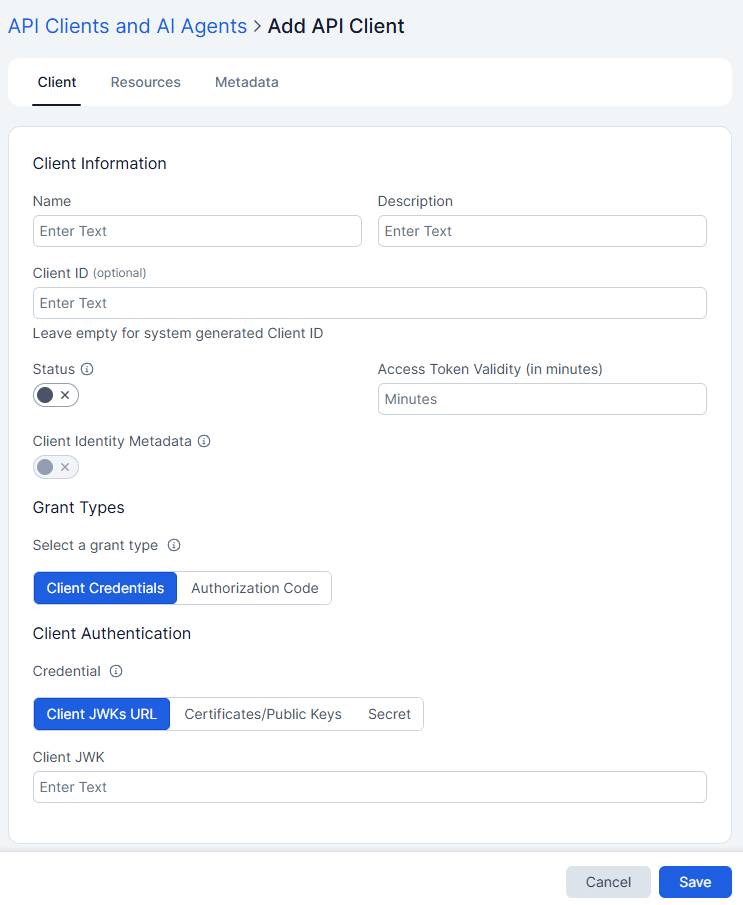
- On the Client tab, fill in:
- Name and Description
- Status — enable it so the client can get access tokens.
- Access Token Validity — in minutes, between 1 minute and 24 hours.
- Grant Types — select Client Credentials.
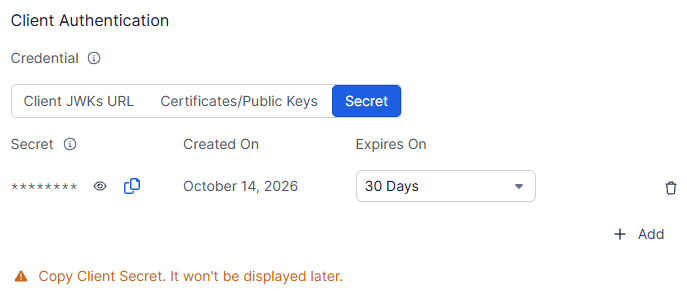
- Under Client Authentication, select Secret and click Add. Copy the secret now, as it isn’t shown again. A secret is valid for 30 to 365 days.
- On the Resources tab, select the API resource (scope) for each Zscaler service the client can access, such as a read-only ZIA role and a read-only ZPA role.
- Click Save.
- Copy the Client ID from the API Clients page. You can also find it in the client’s Edit API Client drawer.
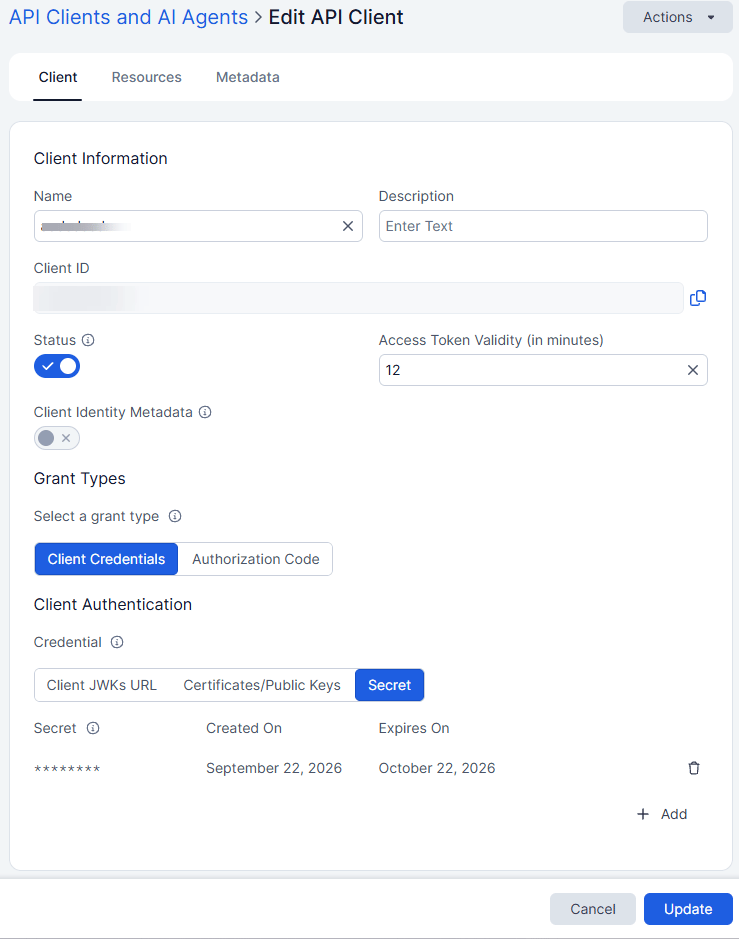
Step 3: Find your ZPA customer ID
In the ZPA admin console, go to Configuration & Control > Public API > API Keys. Your customer ID is shown on that page.Step 4: Enter your details in the Connect UI
- Open the form where you need to authenticate with Zscaler.
- Enter your Vanity Domain, select your Authentication Domain and API Host, and enter your ZPA Customer ID, Client ID, and Client Secret.
- Click Connect.