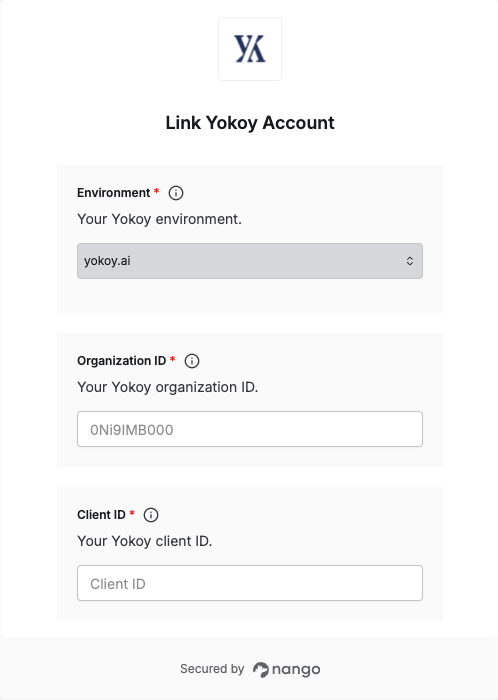
Overview
To authenticate with the Yokoy API, you will need:- Environment - Whether you’re connecting to Yokoy’s production or test environment
- Organization ID - Your Yokoy organization ID
- Client ID - Your OAuth client ID
- Client Secret - Your OAuth client secret
Prerequisites
- A Yokoy account with the developer user role (or ask your Yokoy contact to grant you access to the Developer section)
Instructions
Step 1: Generate your client credentials
- Sign in to the Yokoy app.
- Go to Admin > Developer (at the bottom of the Admin menu).
- Click Generate credentials, then choose OAuth Credentials and click Generate credentials again.
- Enter a unique name to identify these credentials, then click Next.
- Copy the Client ID and Client Secret shown and store them somewhere secure.
Step 2: Find your organization ID
Your organization ID identifies your organization within Yokoy. Ask your Yokoy contact if you don’t already have it.Step 3: Choose your environment
Useyokoy.ai to connect to Yokoy’s production environment, or test.yokoy.ai to connect to Yokoy’s test environment.
Step 4: Enter credentials in the Connect UI
- Open the form where you need to authenticate with Yokoy.
- Enter your Environment, Organization ID, Client ID, and Client Secret in their respective fields.
- Submit the form to connect your account.