Overview
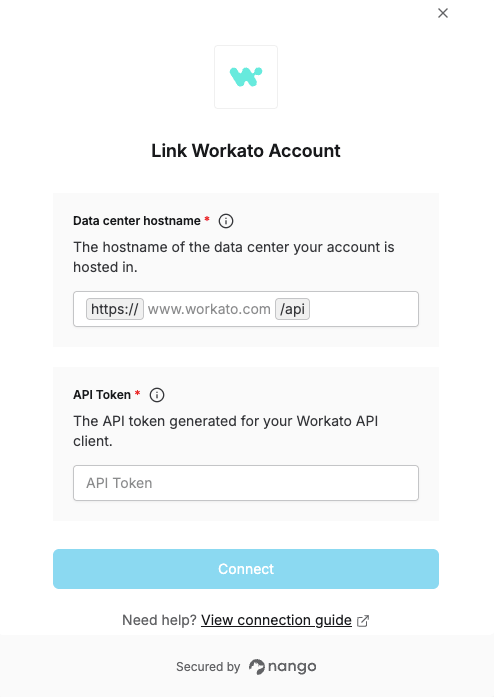
To authenticate with Workato, you need:- Data center hostname - The Workato hostname matching the data center your workspace runs on.
- API Token - A token issued to an API client, used to authorize requests to the Developer API.
Prerequisites
- A pricing plan/contract that includes the Developer API.
- One of the following, to create or edit API clients:
- You are signed in with the root email address of the workspace.
- You have the Environment admin role or the legacy Admin collaborator role.
- You have a custom role with the Client and access profiles privilege.
Instructions
Step 1: Finding your data center hostname
Enter the hostname that matches the data center your Workato workspace runs on:Virtual Private Workato (VPW) customers run on their own private instance and should enter their own instance hostname instead of one from the table above — refer to your private documentation for the correct value.
Step 2: Generating your API token
You must create a client role before creating an API client — the role determines which endpoints the API client can access.- Sign in to your Workato account and go to Workspace Admin.
- Select API clients > Client roles > Add client role.
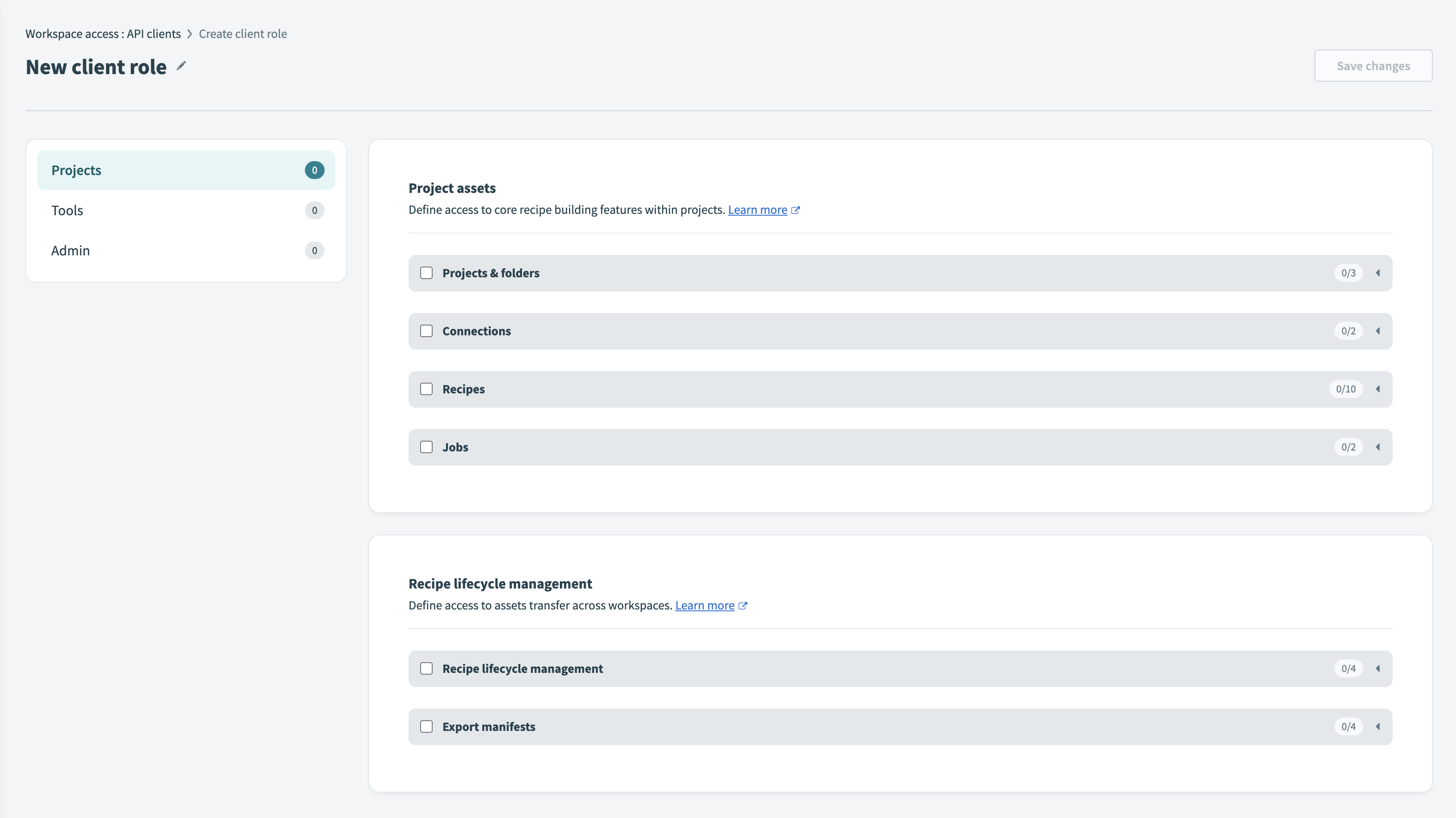
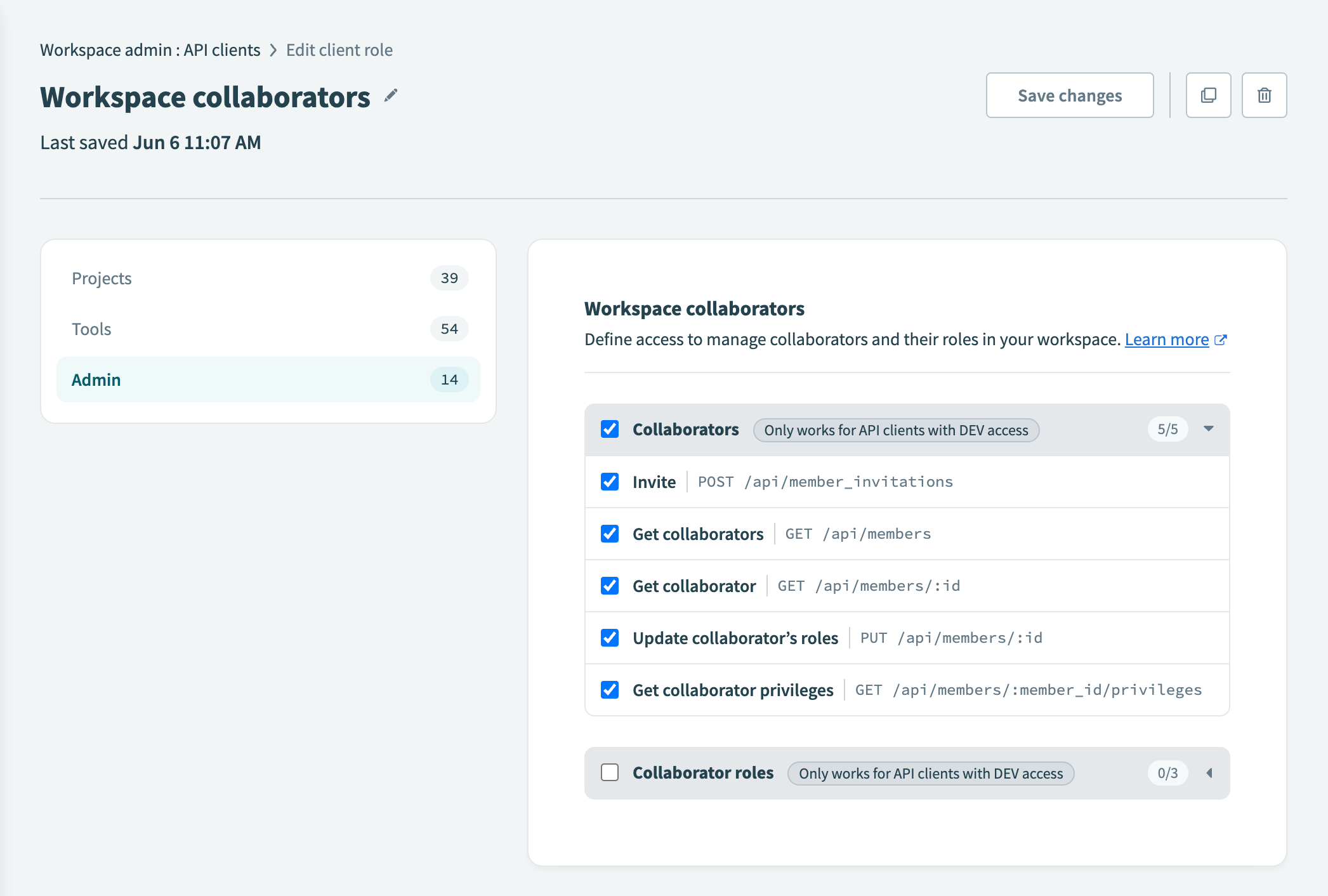
- Name the role (e.g. “Recipe Operator”) and select the endpoints it needs under each section, then save. You can edit the role’s endpoints later if needed.
- Back in API clients, select Create API client.
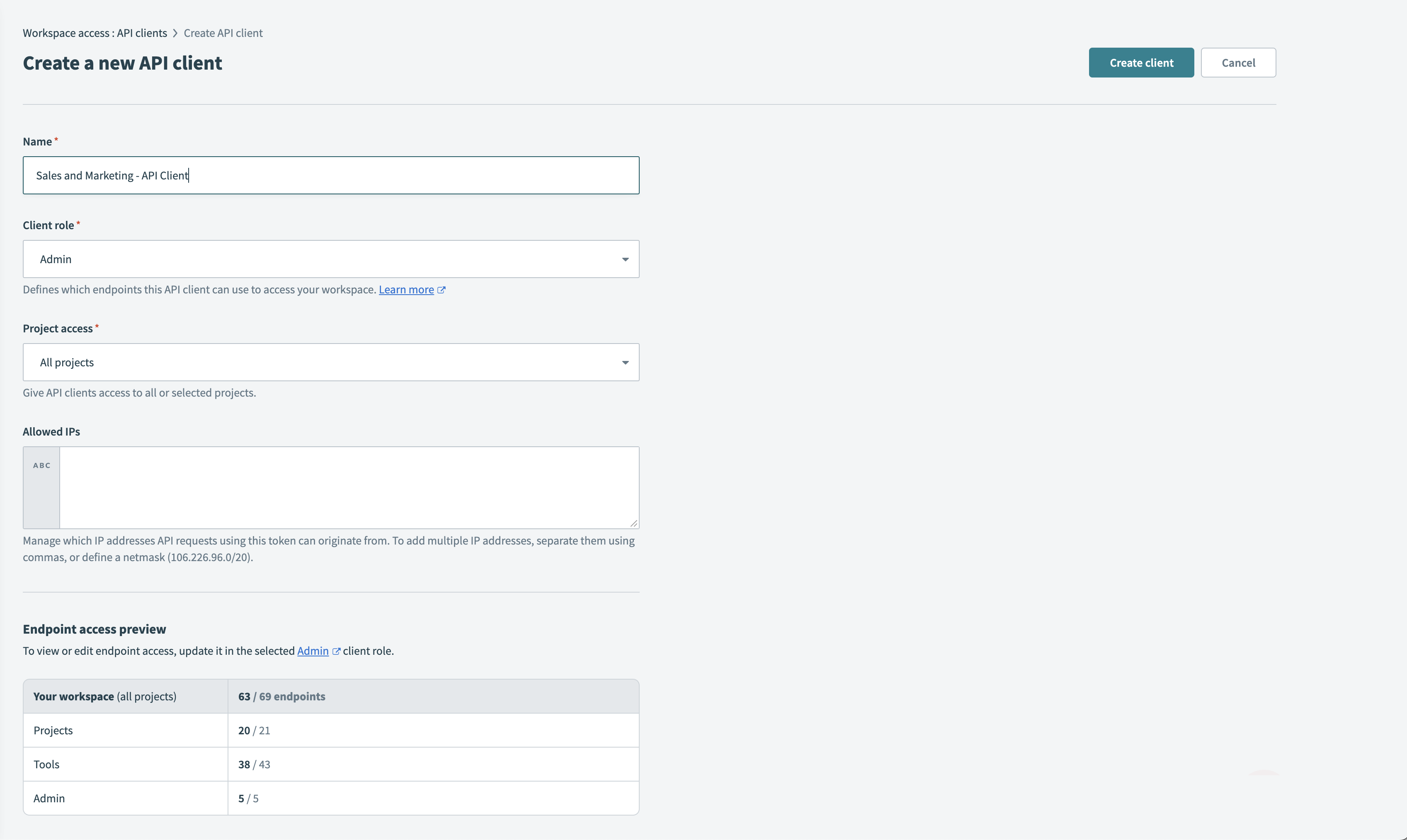
- Name the client (e.g. “Sales and Marketing - Recipe Operator”) and assign the client role you created.
- If your workspace has environments enabled, select the environment the client is allowed to access.
- Select the projects the client is allowed to access — this scopes all project-bound assets, including connections, recipes, folders, lookup tables, properties, and API Platform collections and clients.
- Optionally, restrict the client to specific IP ranges.
- Generate the API token and store it securely (e.g. in AWS Secrets Manager) — it cannot be retrieved again once you leave the page.
Step 3: Enter credentials in the Connect UI
Once you have your Data center hostname and API token:- Open the form where you need to authenticate with Workato.
- Enter your Data center hostname and API Token in their designated fields.
- Submit the form, and you should be successfully authenticated.