Overview
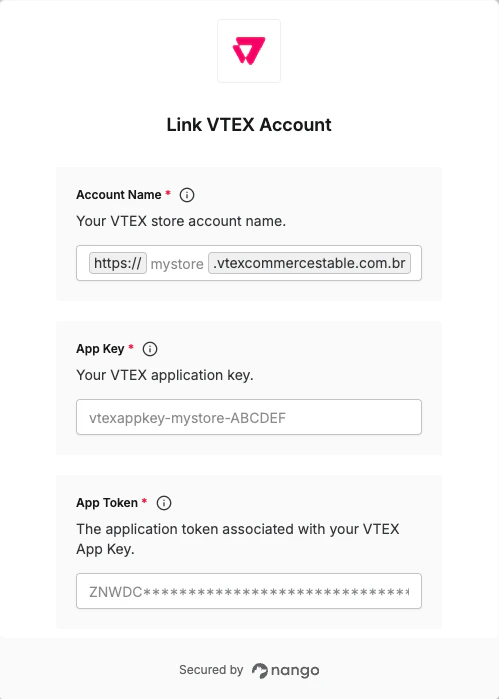
To authenticate with VTEX, you will need:- Account Name — Your VTEX store account name (the subdomain of your VTEX Admin URL).
- App Key — Your VTEX application key (starts with
vtexappkey-). - App Token — The application token associated with your App Key.
Prerequisites
- A VTEX store account with administrator access.
- The User Administrator - RESTRICTED role or a custom role with Edit API Keys permission.
Step 1: Finding Your Account Name
Your account name is the subdomain of your VTEX Admin URL. For example, if you access your store athttps://mystore.myvtex.com, your account name is mystore.
Step 2: Generating an API Key
- In the top bar of the VTEX Admin, click your profile avatar (the first letter of your email), then click Account Settings > API Keys.
- Make sure you are on the Generated tab.
- Click + Generate Key.
- Fill in the Key identification field with a name to identify the API key.
- Select the roles that will be associated with the key. Select only the roles required for the integration — avoid overly permissive roles.
- Click Generate.
- A single-access link to view the new token will appear. Click Copy to copy the link to your clipboard. The link is valid for 24 hours and can only be accessed once.
- Click Close, then open the copied link.
- Click Copy to copy the App Token to your clipboard. Store it securely — this secret is only shown once.
vtexappkey-mystore-ABCDEF) is shown in the Generated tab of the API Keys page.
Step 3: Enter Your Credentials in Nango
Once you have your Account Name, App Key, and App Token:- Open the Nango connection form for VTEX.
- Enter your Account Name, App Key, and App Token in the corresponding fields.
- Click Connect to complete authentication.