Overview
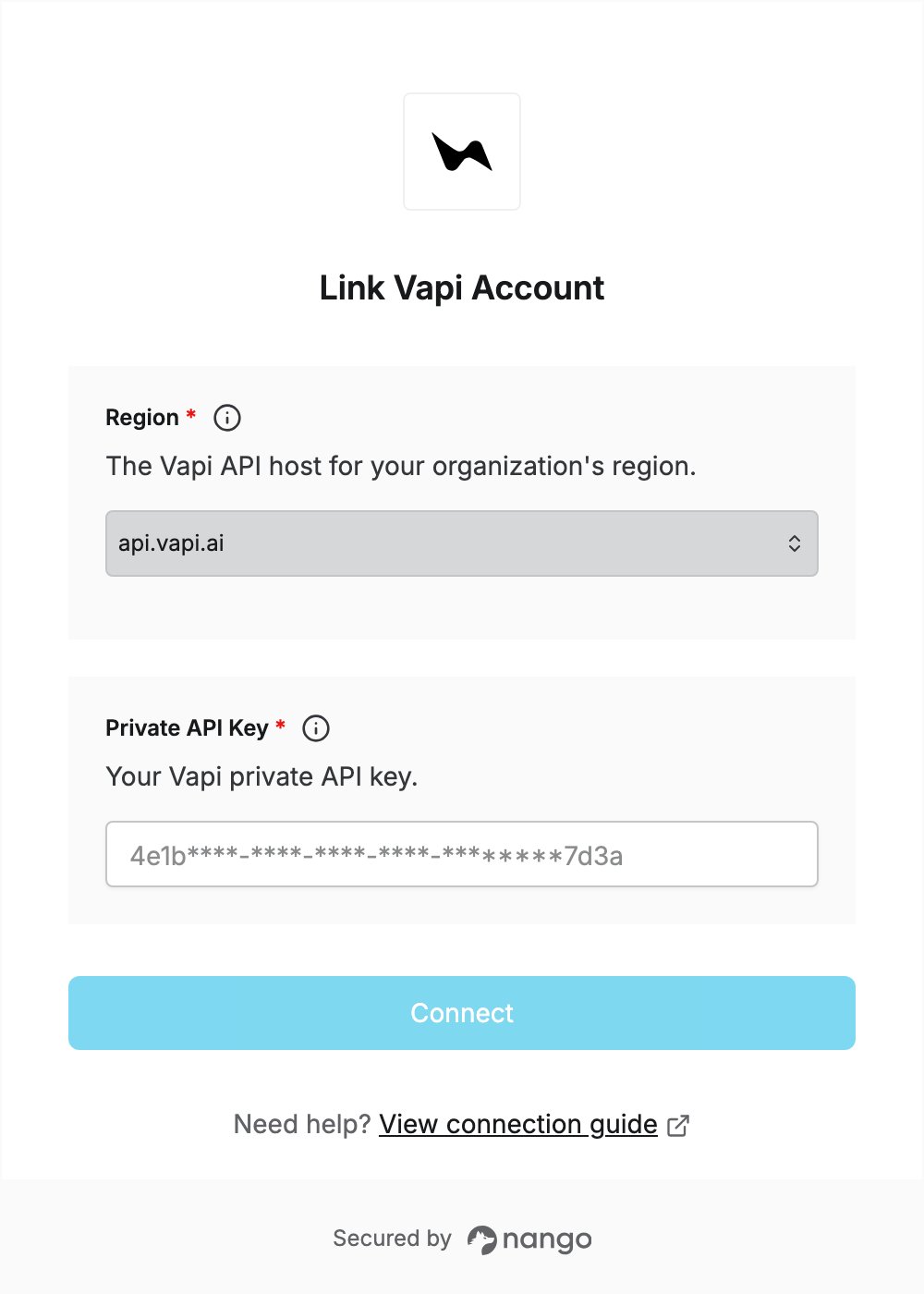
To authenticate with Vapi, you need:- Region — the Vapi API host your organization uses.
- Private API Key — a Vapi private API key.
Prerequisites
- A Vapi account. You can sign up for free.
Step 1: Choose your region
Vapi has two API hosts. Pick the one for the region of your Vapi organization:
The EU region is available only with the Premier Success Package. If your organization uses it, select
api.eu.vapi.ai and create your key in your EU dashboard. Otherwise, select api.vapi.ai. See EU region for details.
Step 2: Create a private API key
- Sign in to the Vapi Dashboard. In the sidebar, under Integrations, click API Keys.
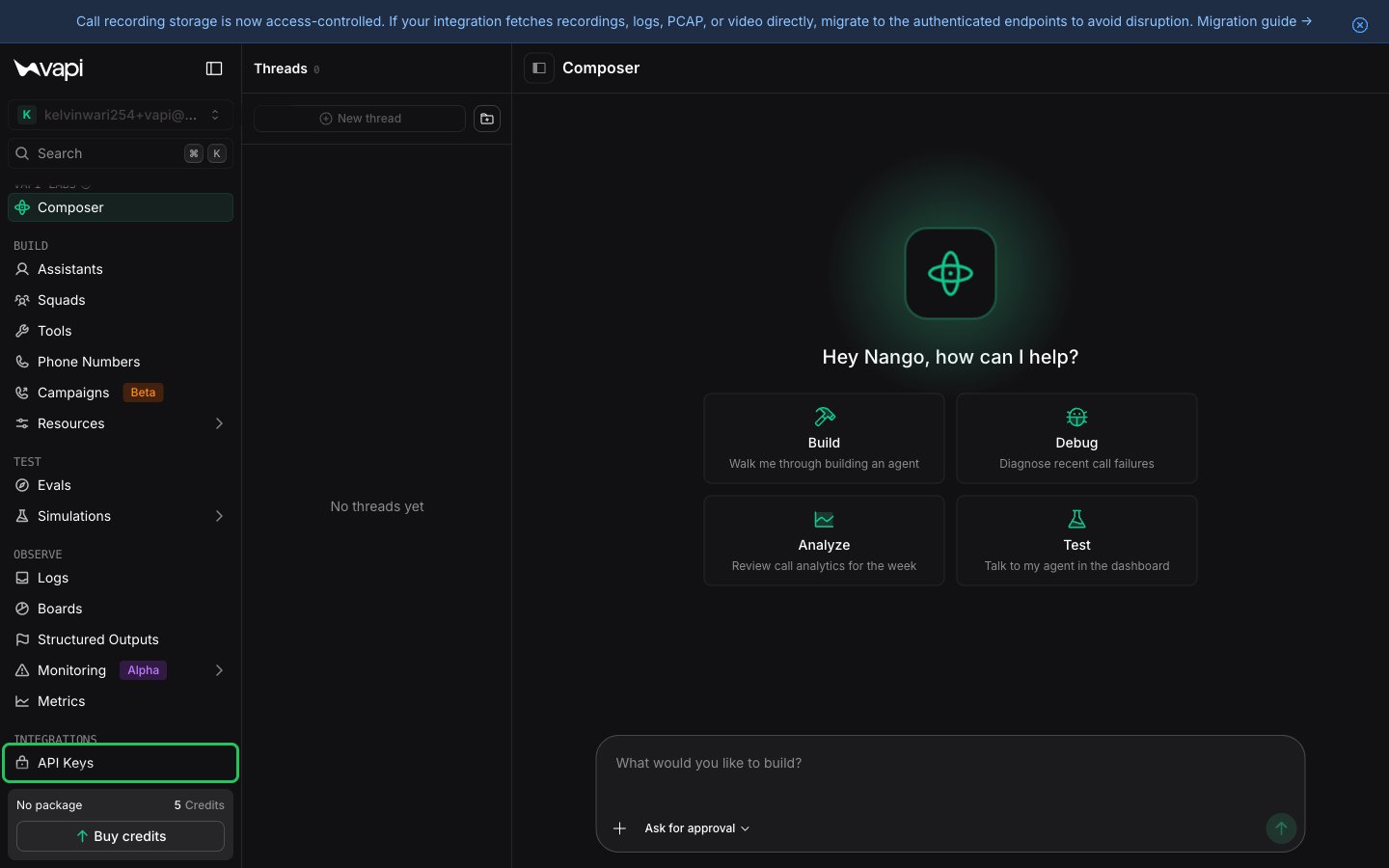
- In the Private API keys section, click Add Key.
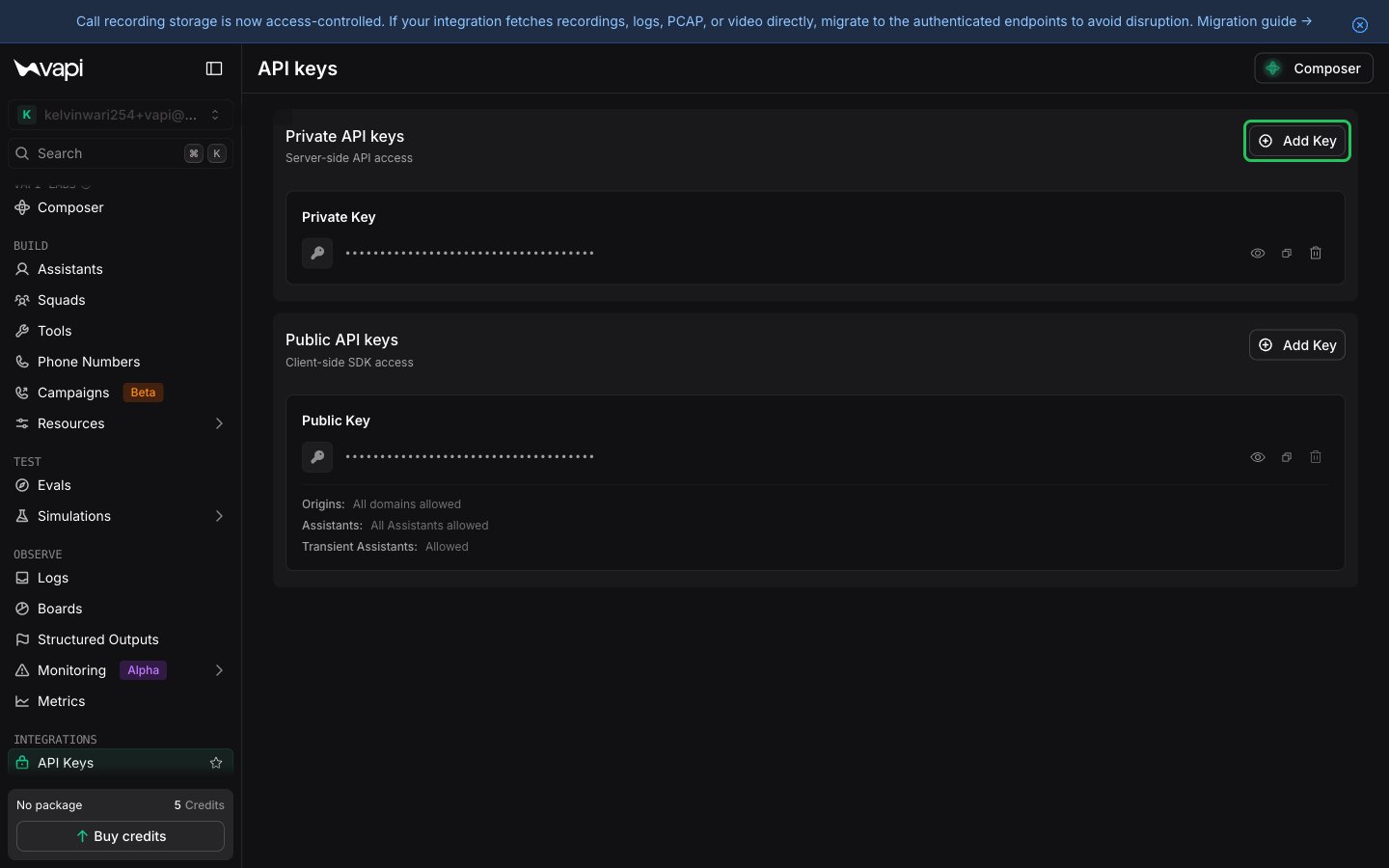
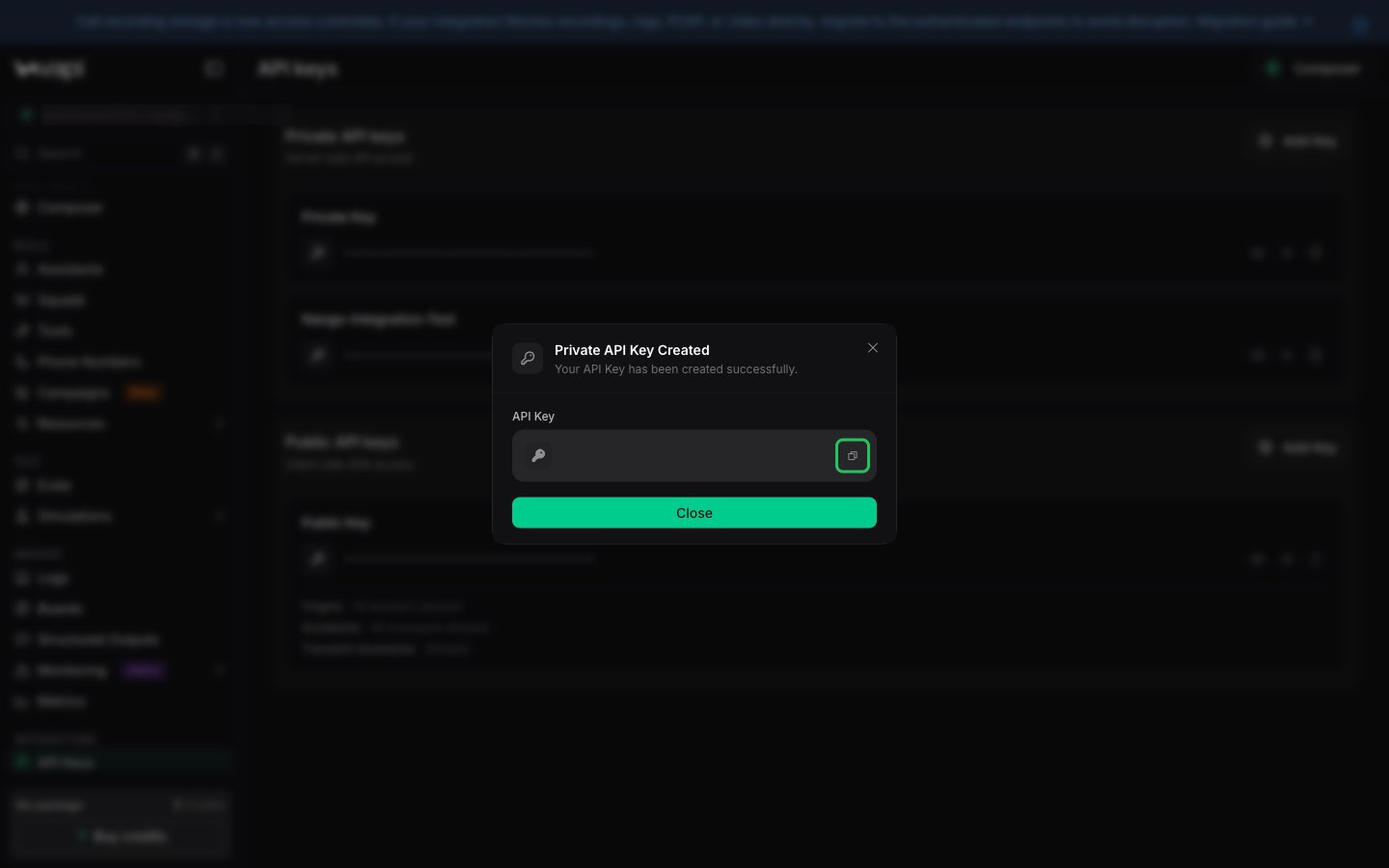
- Enter a descriptive name in Name, leave the other fields at their defaults, and click Create Private Token.
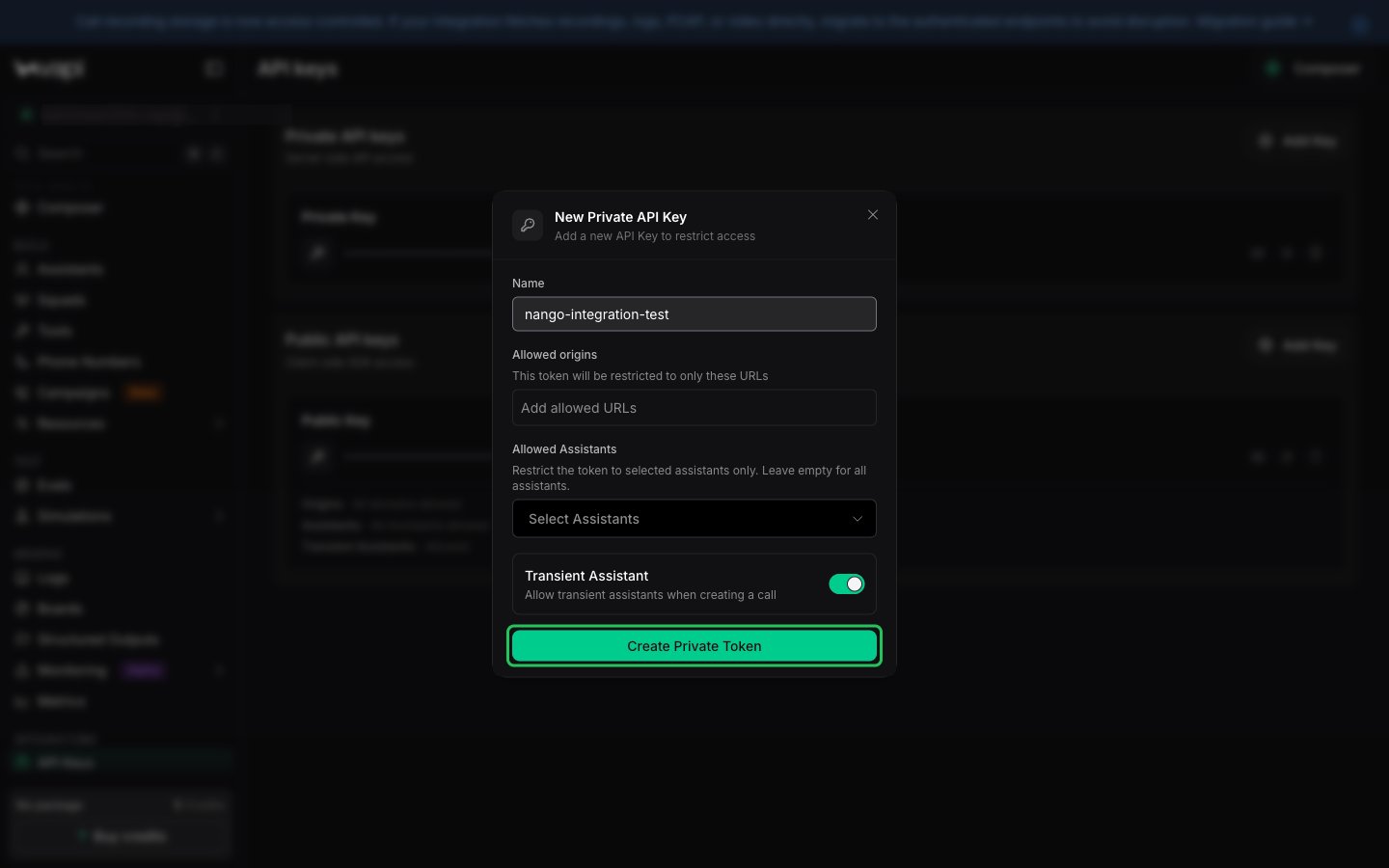
- Click the copy icon next to the new key and store it securely.
Step 3: Enter your credentials in the Connect UI
- Open the form where you need to authenticate with Vapi.
- Select your Region and enter your Private API Key in the designated fields.
- Submit the form, and you should be successfully authenticated.