Overview
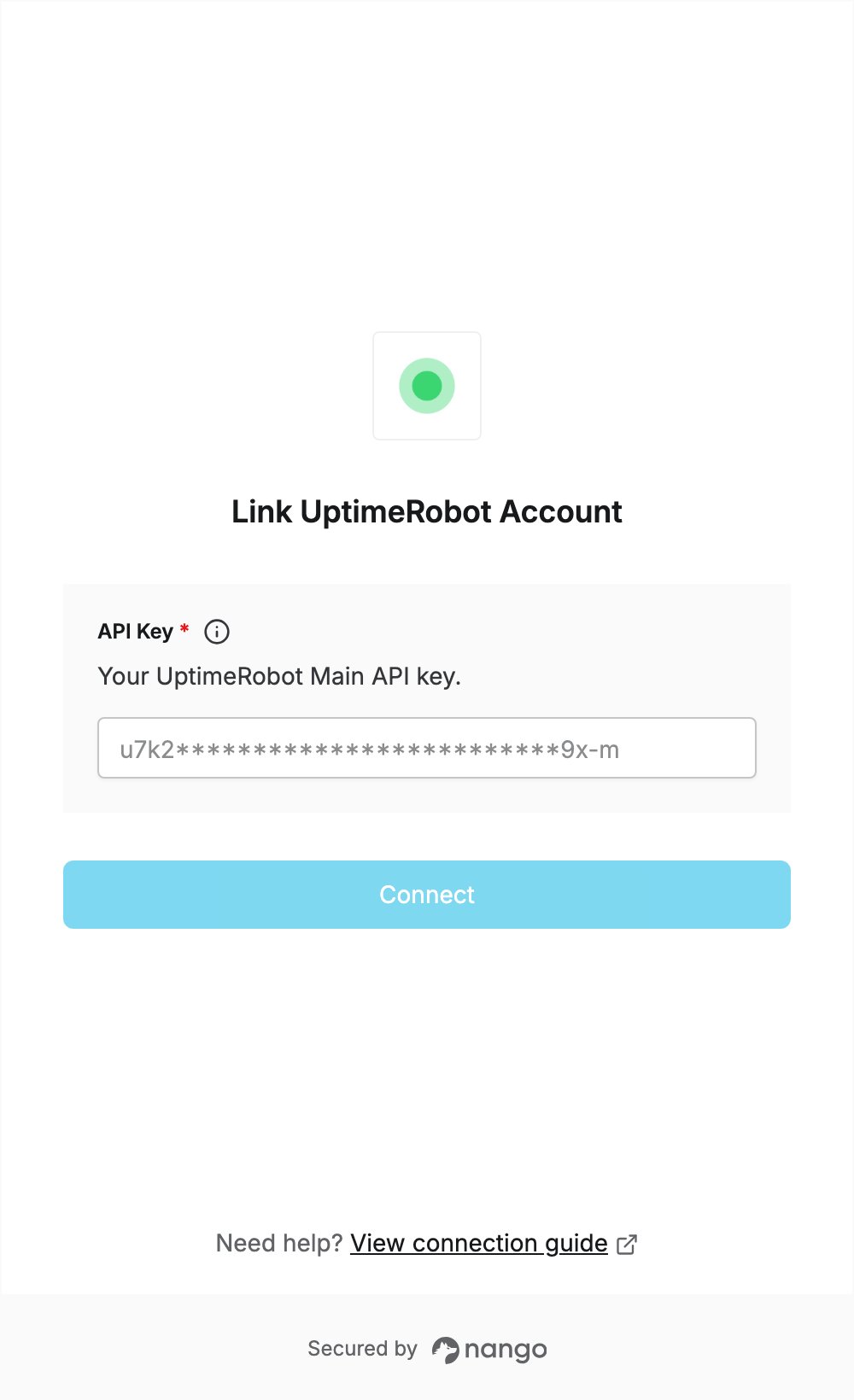
To authenticate with UptimeRobot, you need:- API Key - your UptimeRobot Main API key.
Prerequisites
- An UptimeRobot account. You can sign up for free; API access is included on the Free plan.
Step 1: Create your Main API key
- Log in to the UptimeRobot dashboard.
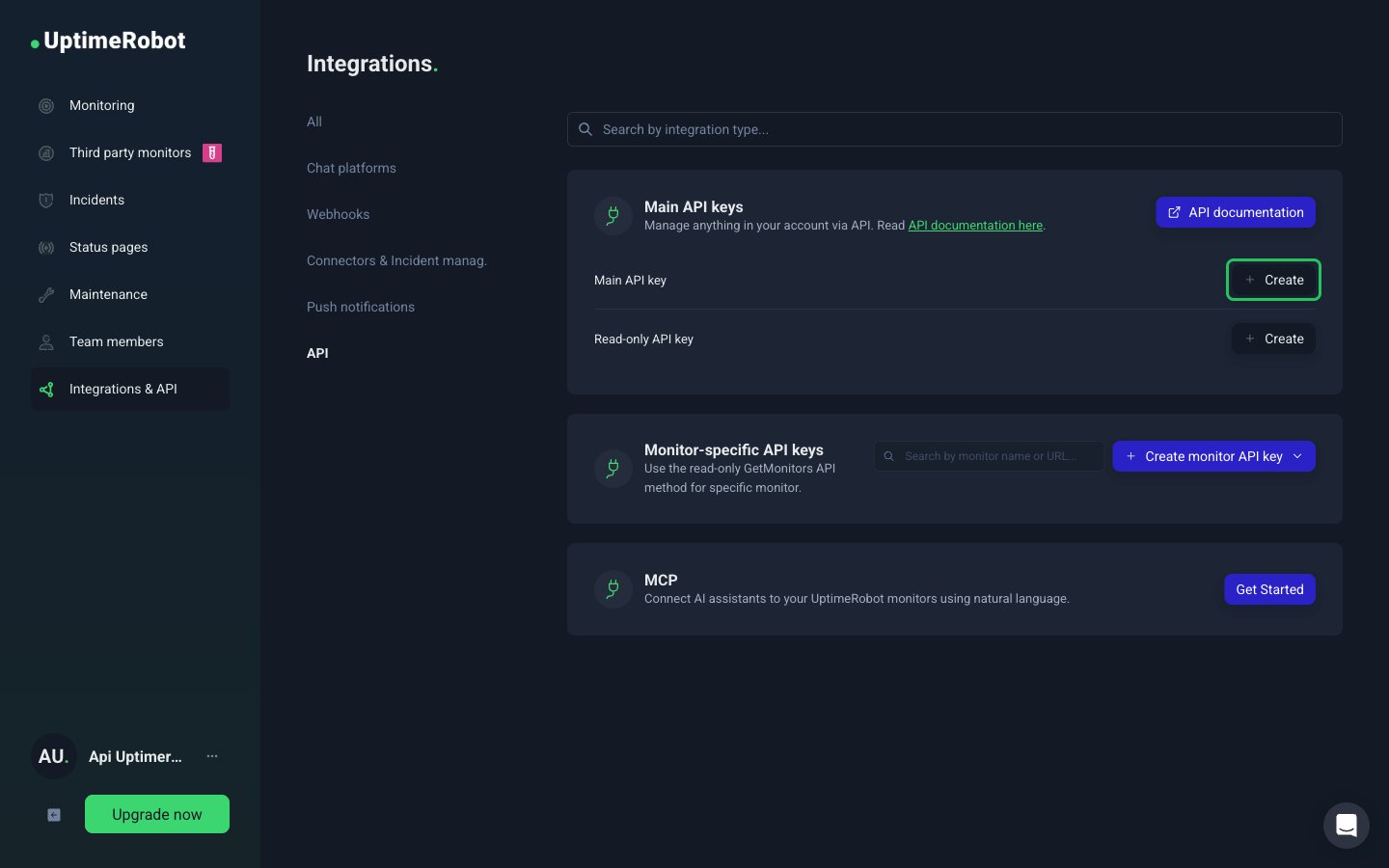
- Click Integrations & API in the left sidebar.
- Choose the API tab.
- Under Main API keys, click Create next to Main API key.
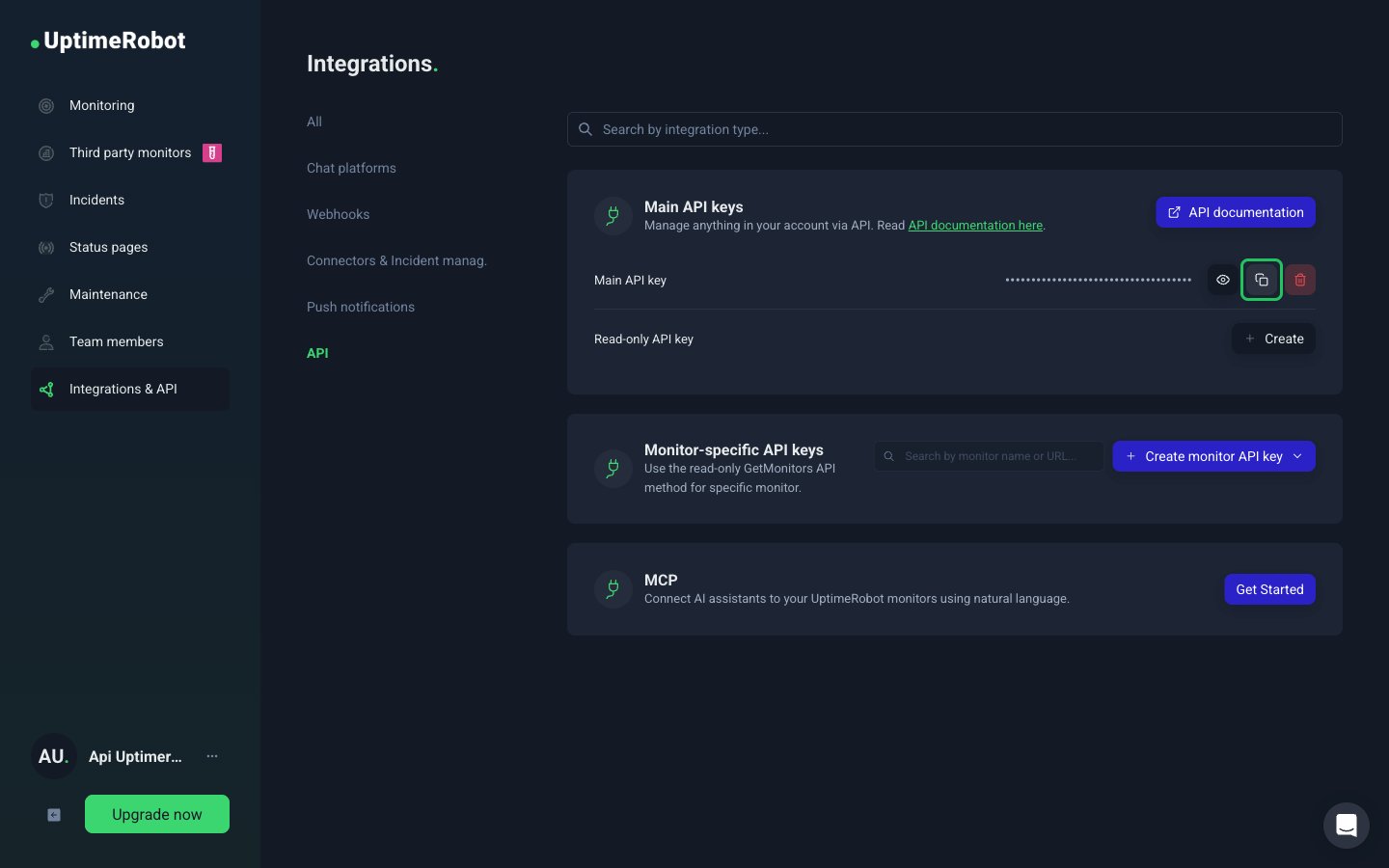
- Click the copy button next to the new key to copy it to your clipboard.
Step 2: Enter your API key in the Connect UI
- Open the form where you need to authenticate with UptimeRobot.
- Enter your API Key in the designated field.
- Click Connect. Nango checks the key with UptimeRobot and rejects it if it is wrong.