Overview
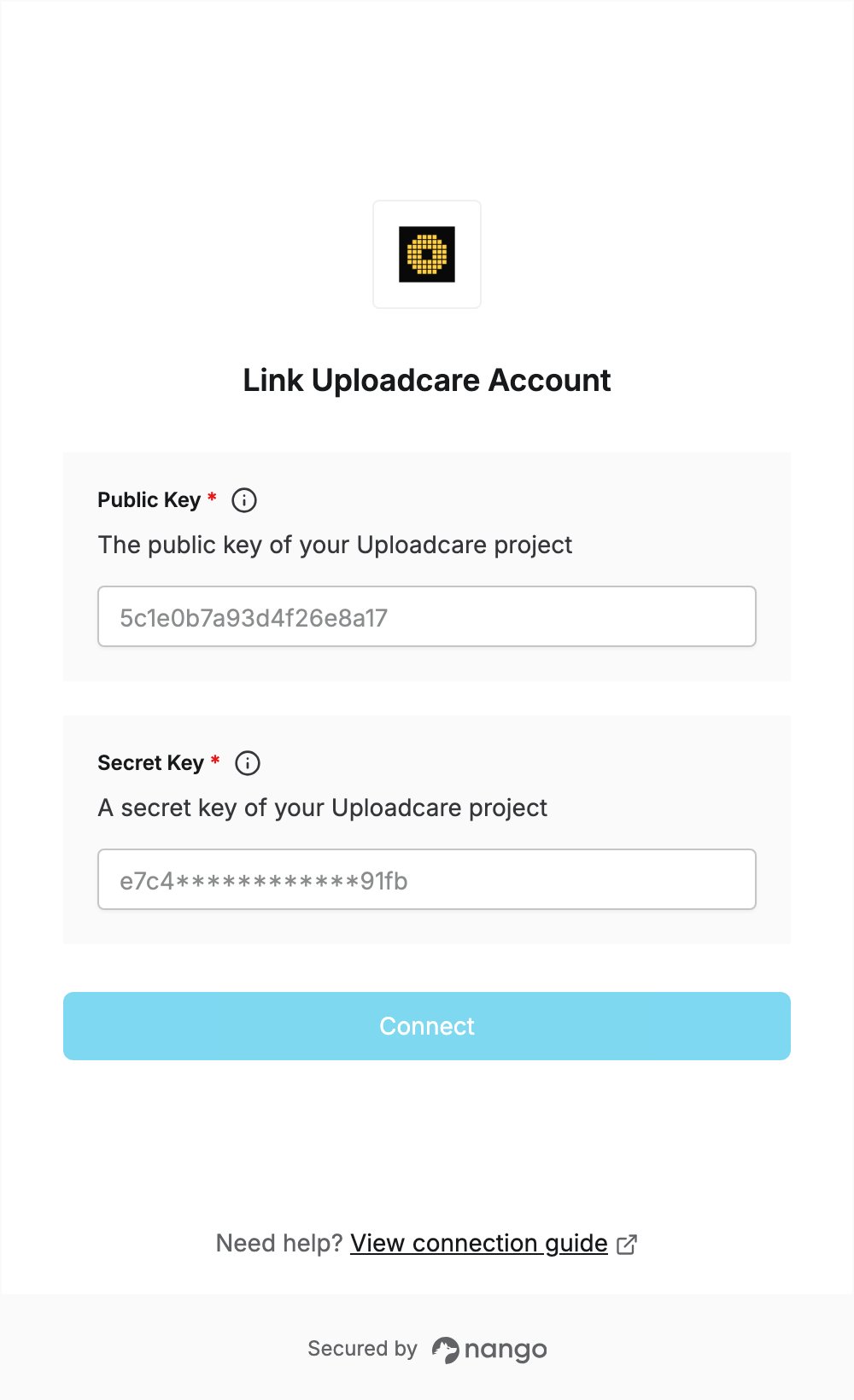
To authenticate with Uploadcare, you need:- Public Key — the public key of your Uploadcare project.
- Secret Key — a secret key of the same project.
Prerequisites
- An Uploadcare account. You can sign up for a Free plan.
Step 1: Copy your public key
- Sign in to the Uploadcare dashboard and open your project.
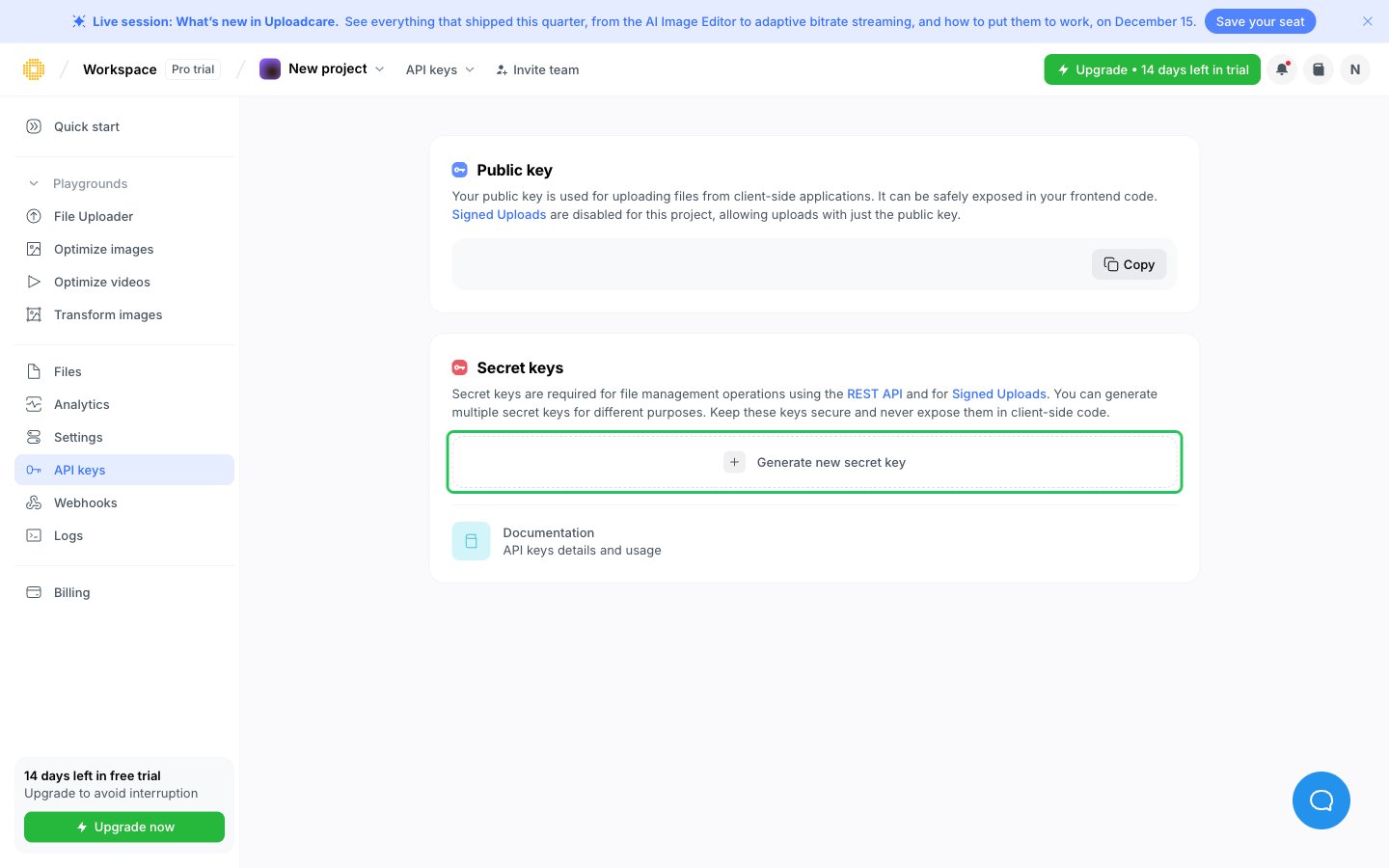
- Click API keys in the project’s left menu.
- Under Public key, click Copy.
Step 2: Generate a secret key
- On the same page, under Secret keys, click Generate new secret key.
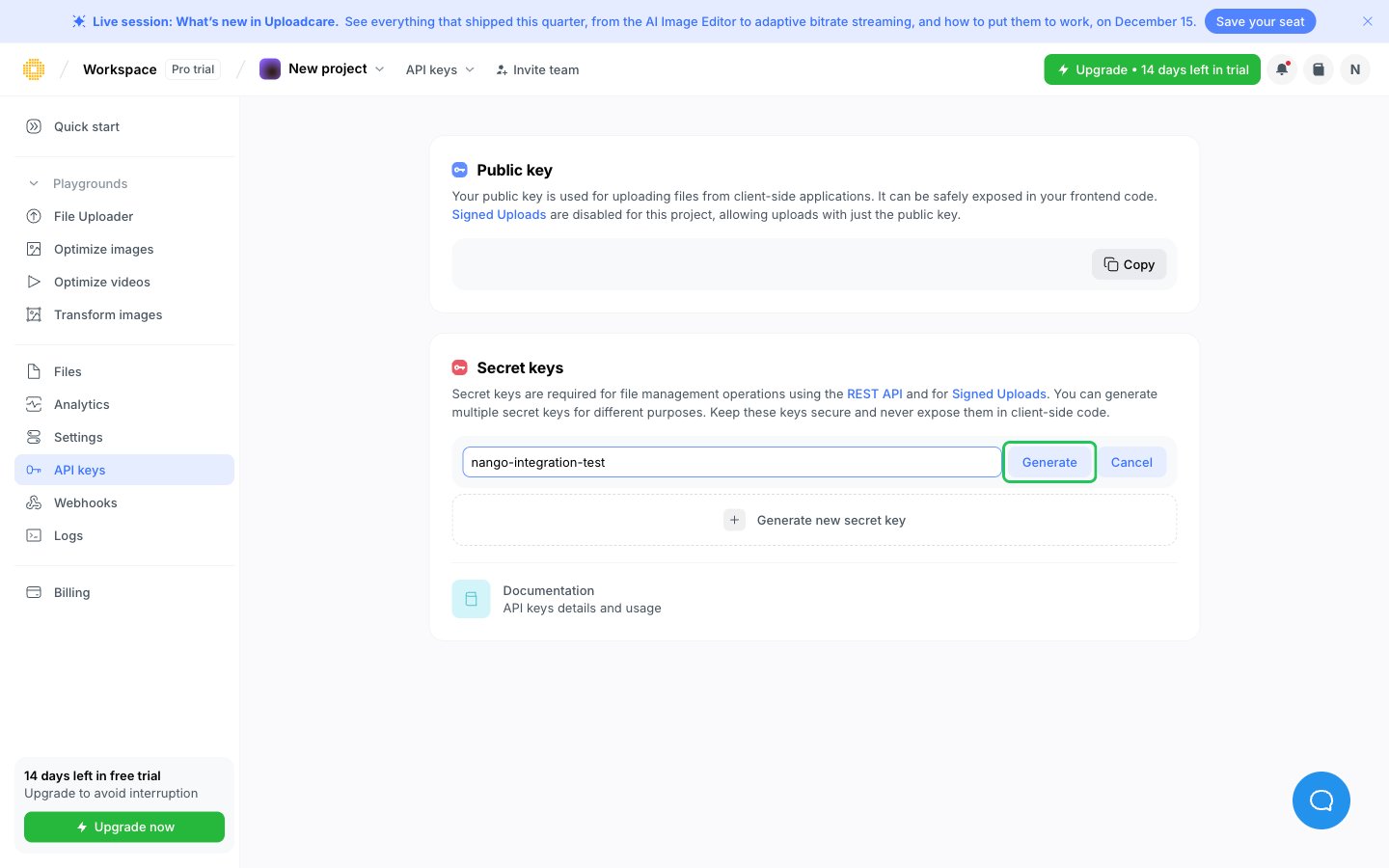
- Enter a name for the key (optional) and click Generate.
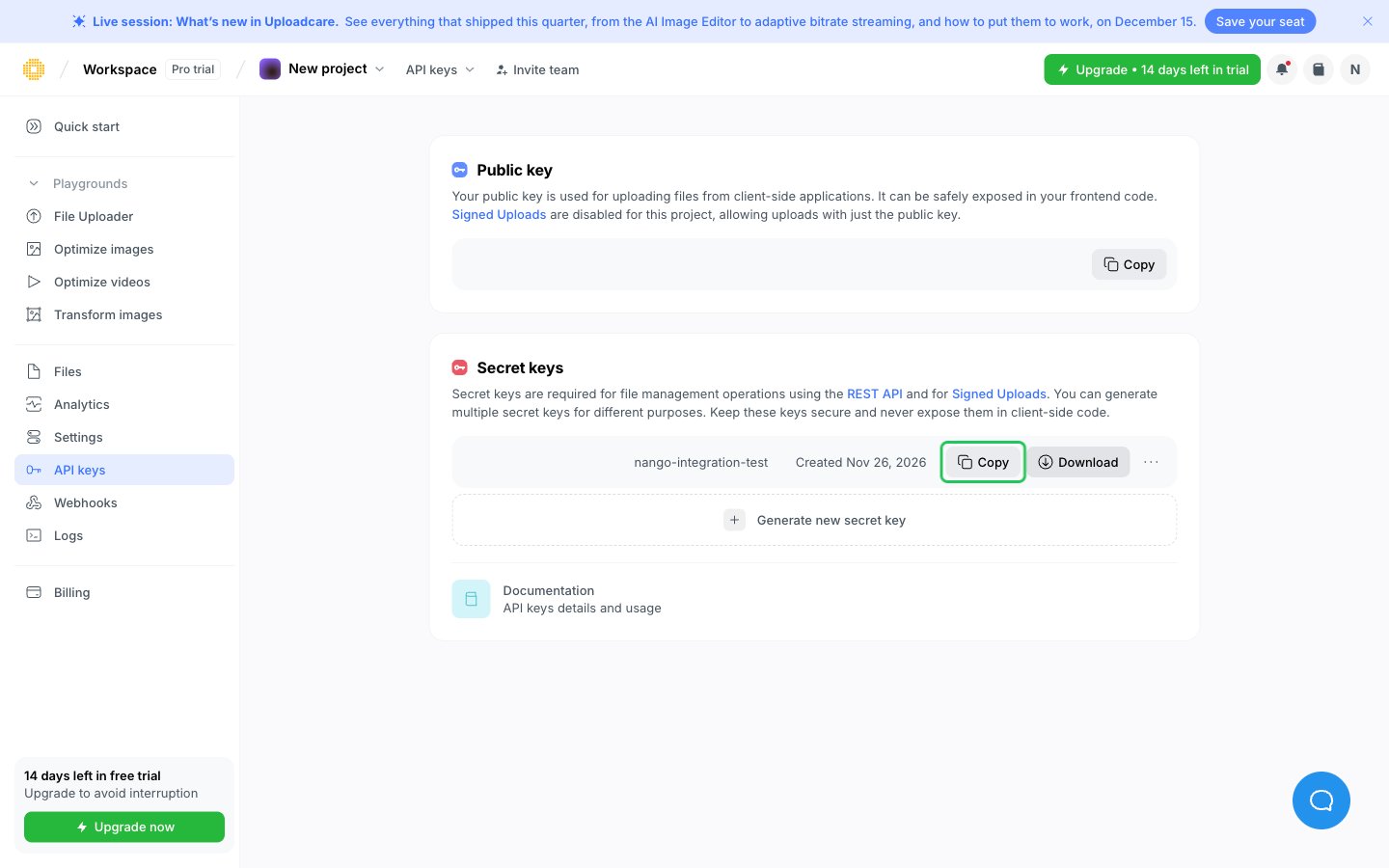
- Next to the new secret key, click Copy (click Show key first if it is shown).
Step 3: Enter your keys in the Connect UI
- Open the form where you need to authenticate with Uploadcare.
- Enter your Public Key and Secret Key in the designated fields.
- Submit the form, and you should be successfully authenticated.