Overview
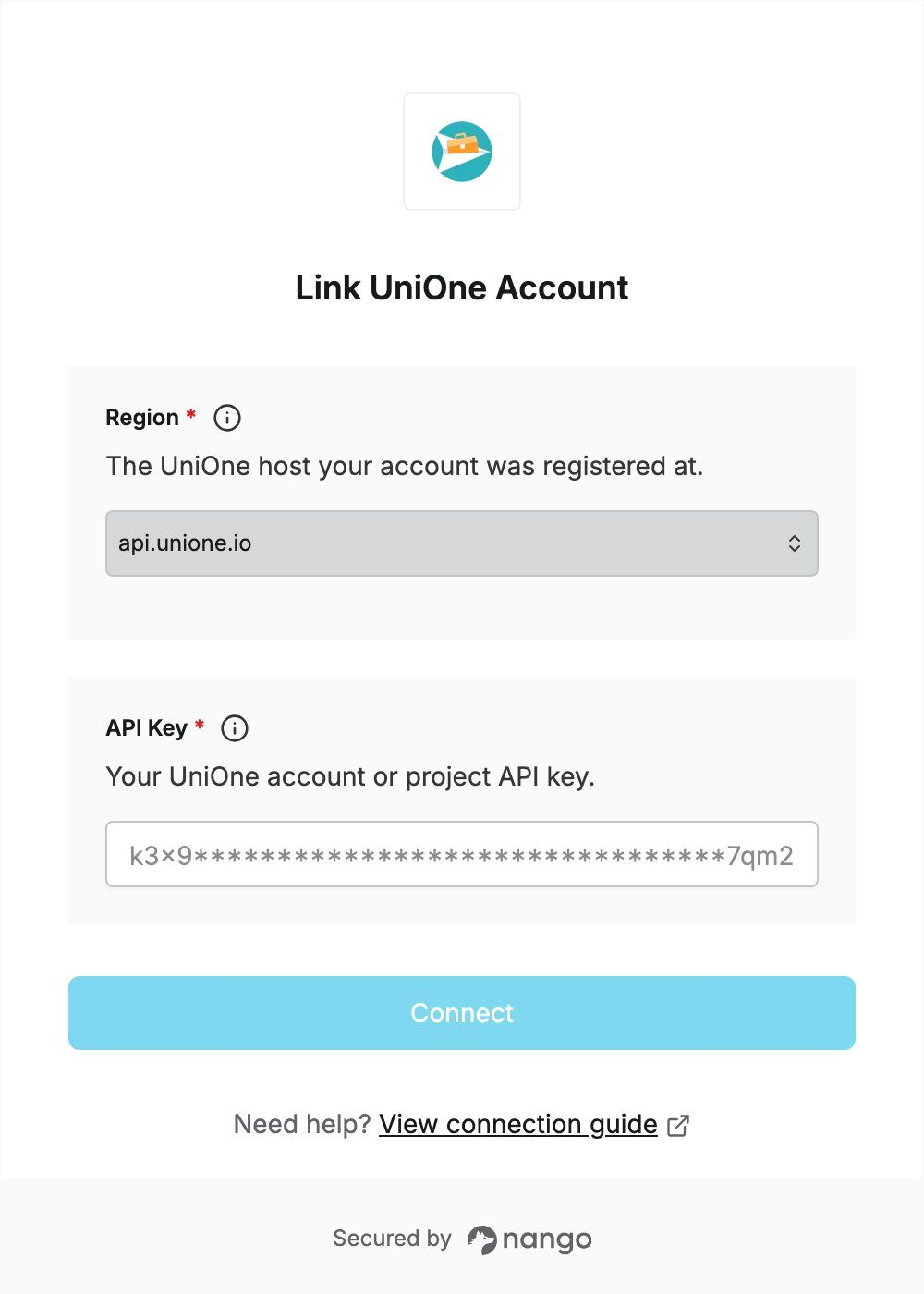
To authenticate with UniOne, you need:- Region — the UniOne host your account was registered at.
- API Key — your UniOne account API key or a project API key.
Prerequisites
- A UniOne account. The Free plan needs no credit card. If you don’t have an account, sign up.
Step 1: Find your region
- Sign in to the UniOne control panel. You are redirected to the host your account was registered at, for example
eu1.unione.ioorus1.unione.io. - In the Connect UI, select that host as your Region.
api.unione.iois UniOne’s preferred host; if the connection fails with it, selecteu1.unione.ioorus1.unione.io, whichever appears in your browser’s address bar.
Step 2: Copy your API key
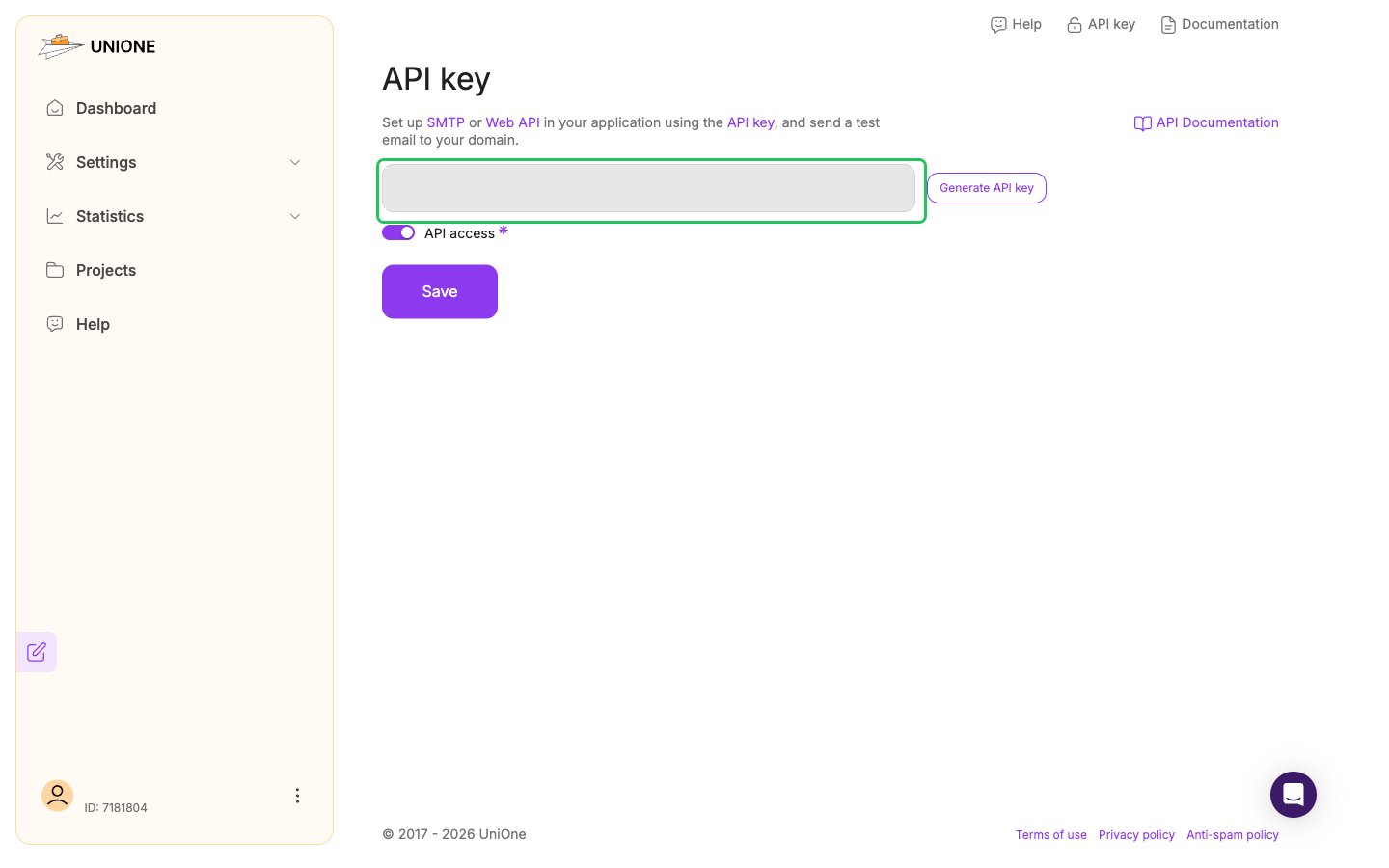
- In the control panel, click API key in the top bar (or go to Settings -> API key).
- Make sure the API access toggle is on.
- Copy the account API key from the key field. Only click Generate API key if you want to replace the current key.
Step 3: Enter your region and API key in the Connect UI
- Open the form where you need to authenticate with UniOne.
- Select your Region and enter your API key in the API Key field.
- Submit the form, and you should be successfully authenticated.