Overview
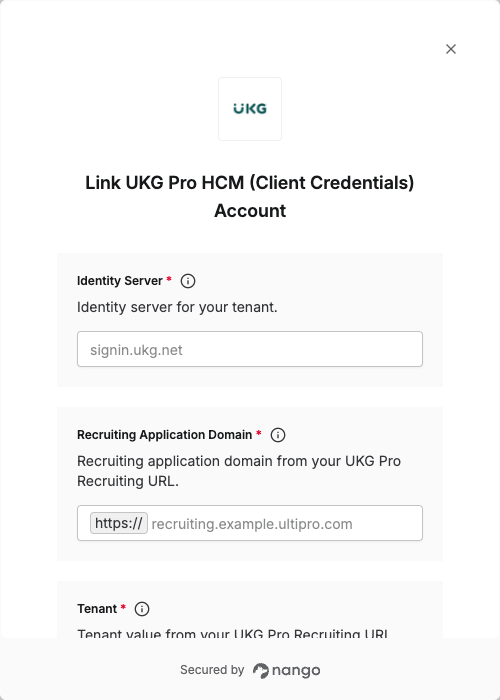
To authenticate with UKG Pro (Client Credentials), you will need:- Client ID – Unique identifier of the identity client provided by UKG customer support.
- Client Secret – Client secret associated with the client ID, provided by UKG customer support.
- Identity Server – Identity server for your tenant (e.g.
signin.ukg.net,signin.ultipro.com), provided by UKG customer support. - Tenant – The tenant value from your UKG Pro Recruiting URL.
- Recruiting Application Domain – The recruiting application domain (hostname) from your UKG Pro Recruiting URL.
Prerequisites
- Your organization must be registered with UKG.
Instructions
Step 1: Getting the credentials from UKG support
The UKG Identity team registers your integration with UKG Pro Recruiting via an offline process. You need the following provided by UKG customer support:- Client ID – Unique identifier of the identity client.
- Client Secret – Secret associated with the client ID.
- Identity Server – Identity server for your tenant (e.g.
signin.ukg.net,signin.ultipro.com).
Step 2: Identify tenant and recruiting application domain
Log in to your UKG Pro Recruiting account and check the URL in the browser address bar. You can identify:- Recruiting Application Domain – The hostname of the Recruiting application (e.g.
recruiting.example.ultipro.com). - Tenant – The tenant value is the segment that follows the first slash after the domain name in the URL.
https://recruiting.example.ultipro.com/UO32145HGOGOG/some-path, the Recruiting Application Domain is recruiting.example.ultipro.com and the tenant is UO32145HGOGOG.
Step 3: Enter credentials in the Connect UI
Once you have your Client ID, Client Secret, Identity Server, Tenant, and Recruiting Application Domain:- Open the form where you need to connect UKG Pro (Client Credentials).
- Enter Identity Server (e.g.
signin.ukg.net), Tenant, and Recruiting Application Domain in their respective fields. - Enter Client ID and Client Secret in their respective fields.
- Submit the form, and you should be successfully authenticated.