Overview
To authenticate with TomTom, you need:- API Key — a TomTom API key from MyTomTom.
Prerequisites
- A TomTom account. The free plan includes API access, with no credit card needed; you can sign up here.
Step 1: Copy your API key
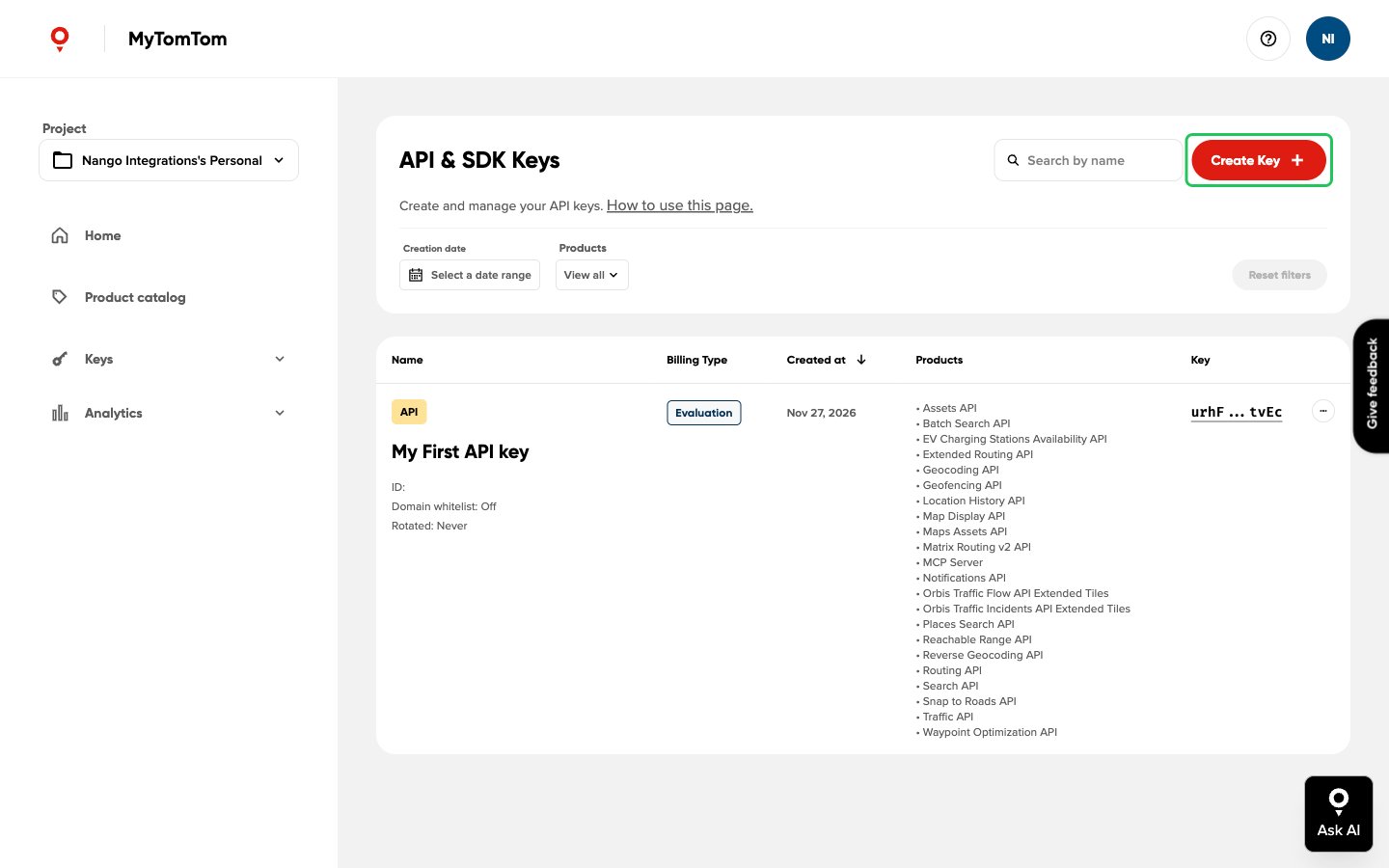
- Sign in to MyTomTom and open API & SDK Keys.
- Use the key MyTomTom created for you (My First API key), or click Create Key, enter a name, select the products the key should work with, and click Create key. Nango checks the key with a Search API request, so include Search API in the key’s products.
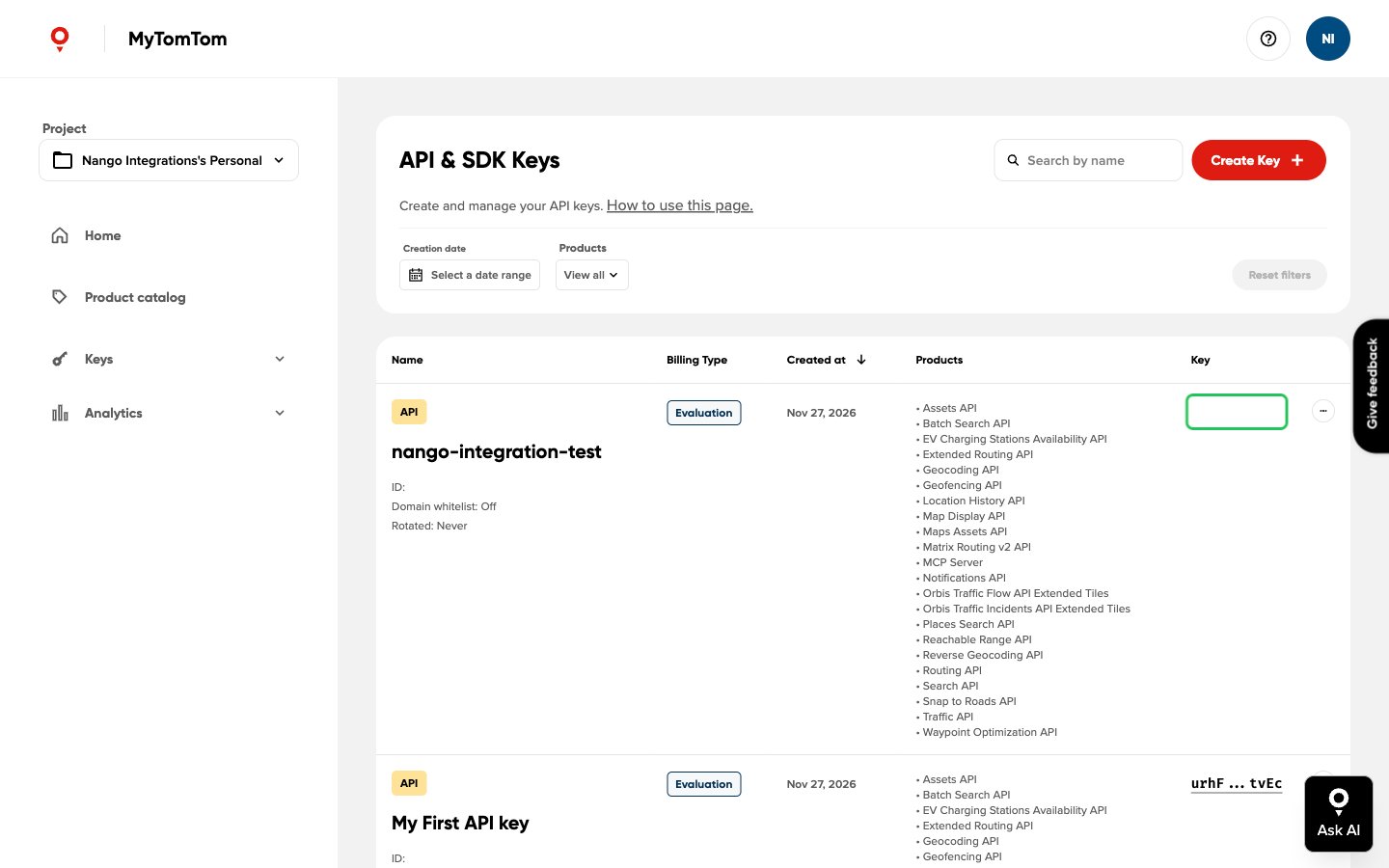
- In the Key column of your key’s row, click the masked key value to copy the key.
Step 2: Enter your API key in the Connect UI
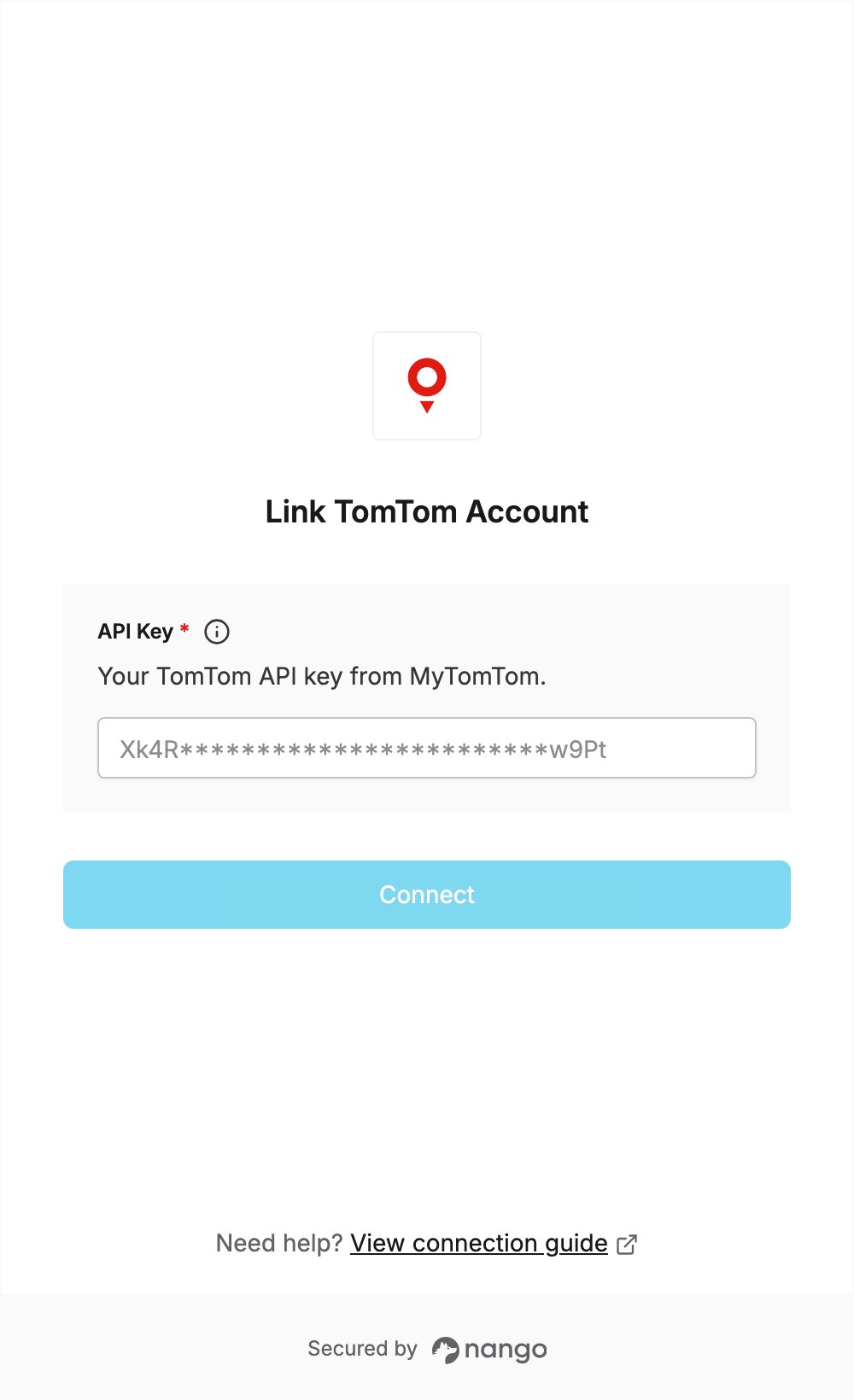
- Open the form where you need to authenticate with TomTom.
- Enter your API Key in the designated field.
- Submit the form, and you should be successfully authenticated.