Overview
To authenticate with TextRazor, you need:- API Key — the API key of your TextRazor account.
Prerequisites
- A TextRazor account. You can sign up for free; the free plan includes API access. Verify your email address with the link TextRazor sends before you log in.
Step 1: Copy your API key
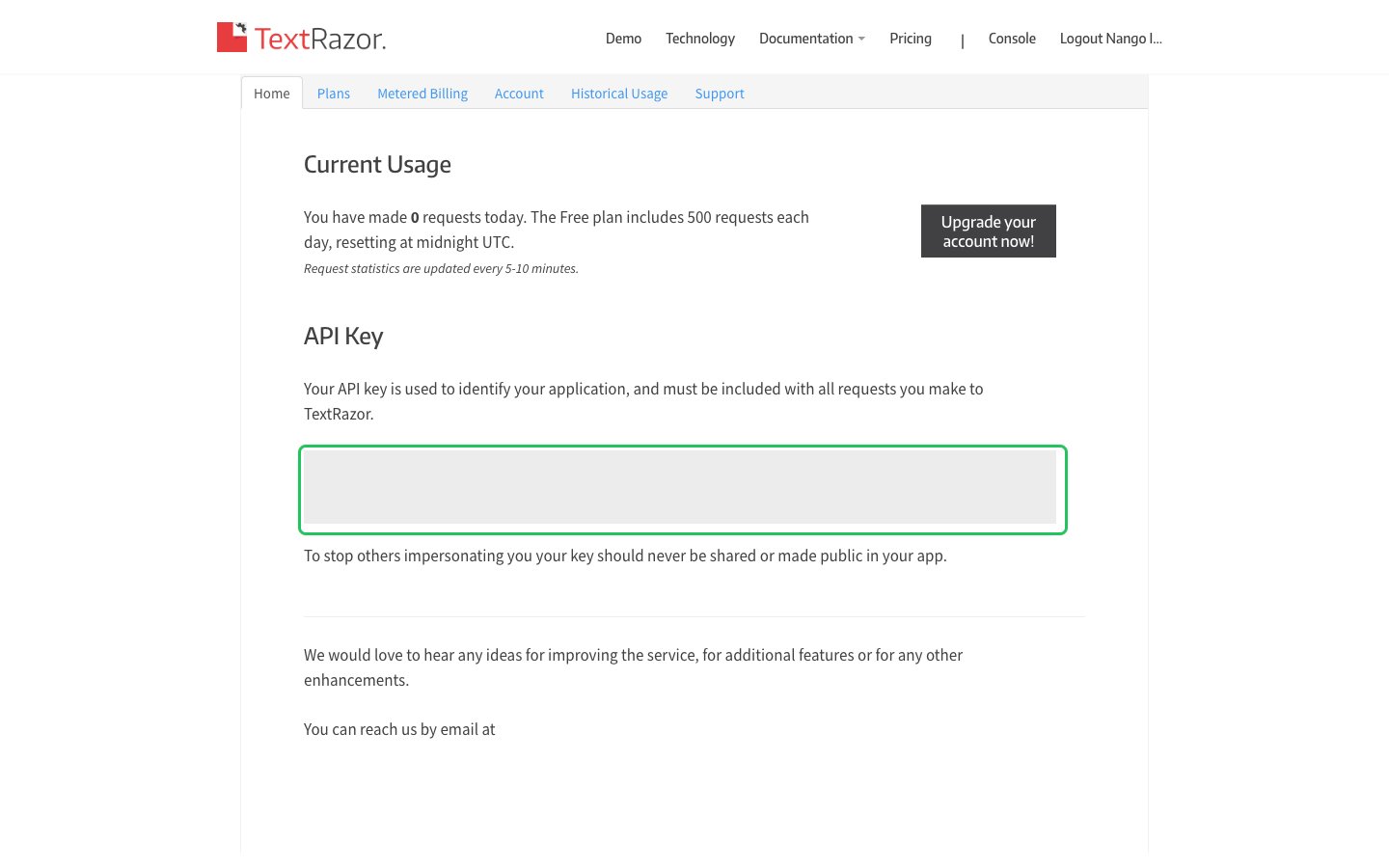
- Log in and open the TextRazor Console. It opens on the Home tab.
- Copy the value under API Key. Each account has one key, created automatically, so there is nothing to create.
Step 2: Enter your API key in the Connect UI
- Open the form where you need to authenticate with TextRazor.
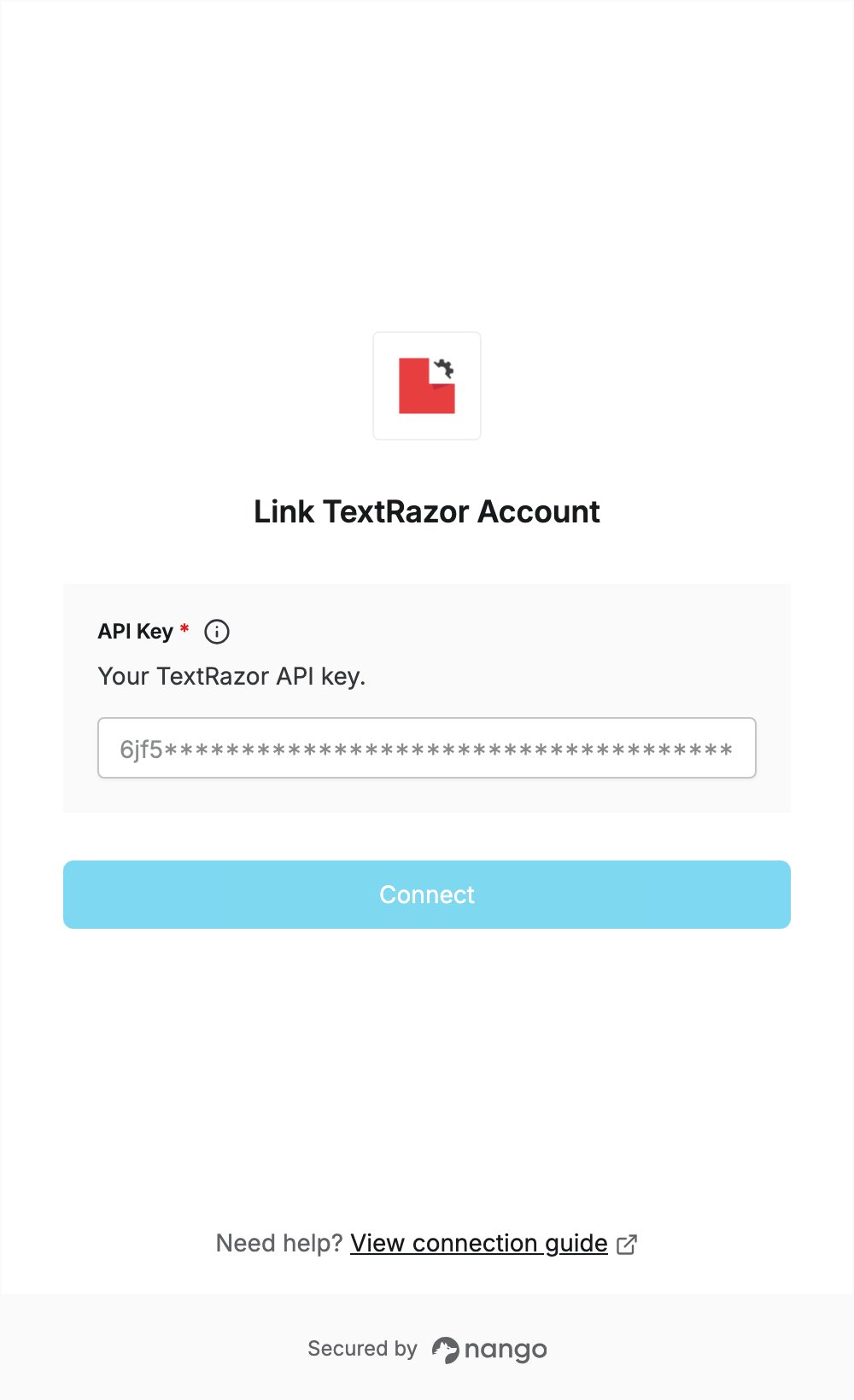
- Paste the key you copied in Step 1 into the API Key field.
- Submit the form. Nango checks the key with TextRazor, and you should be successfully authenticated.