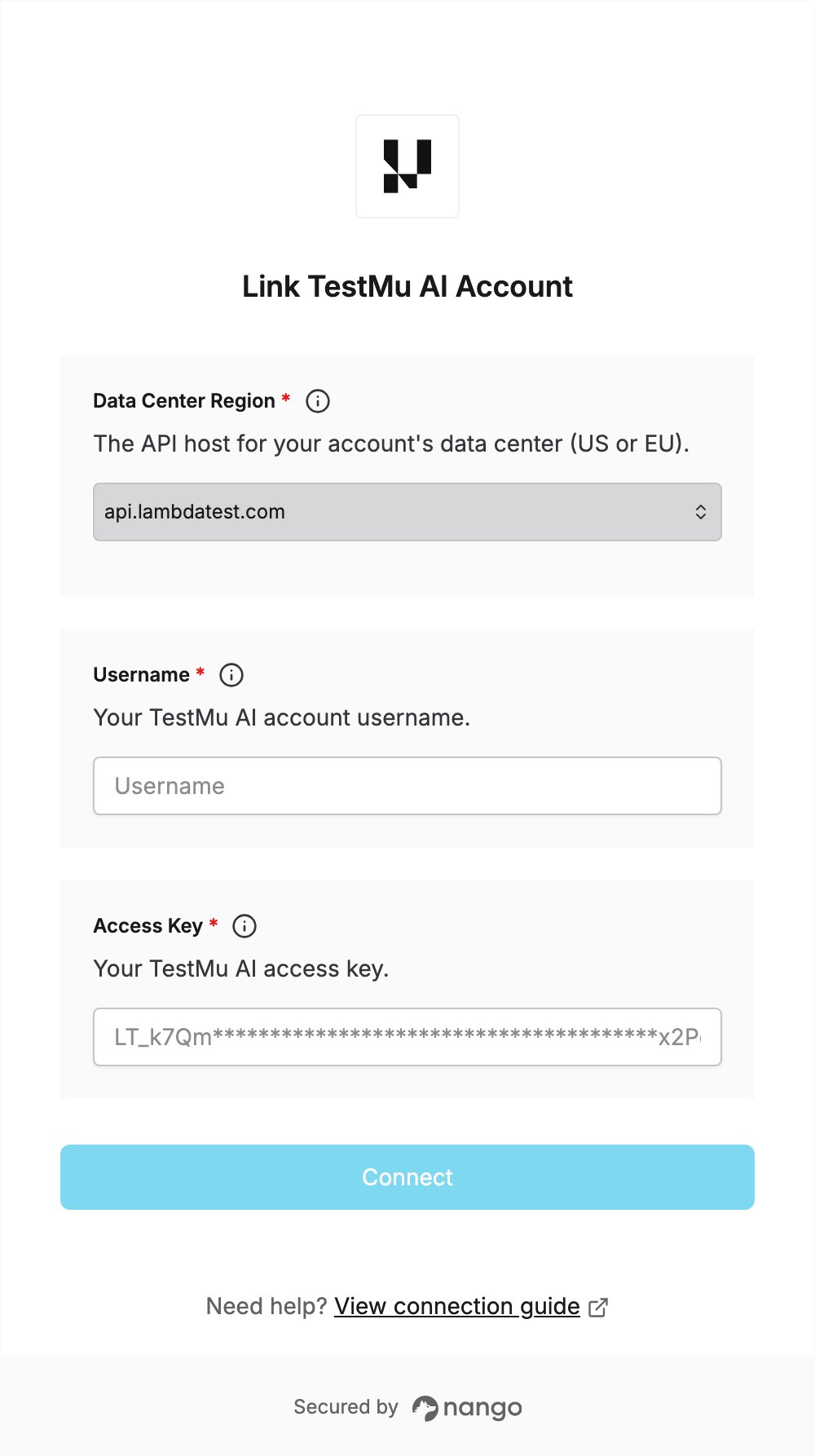
Overview
To authenticate with TestMu AI, you need:- Username — your TestMu AI account username.
- Access Key — the access key of your account.
- Data Center Region — the API host of the data center your account is in.
Prerequisites
- A TestMu AI account. You can sign up at testmuai.com.
Step 1: Copy your username and access key
- Log in to TestMu AI.
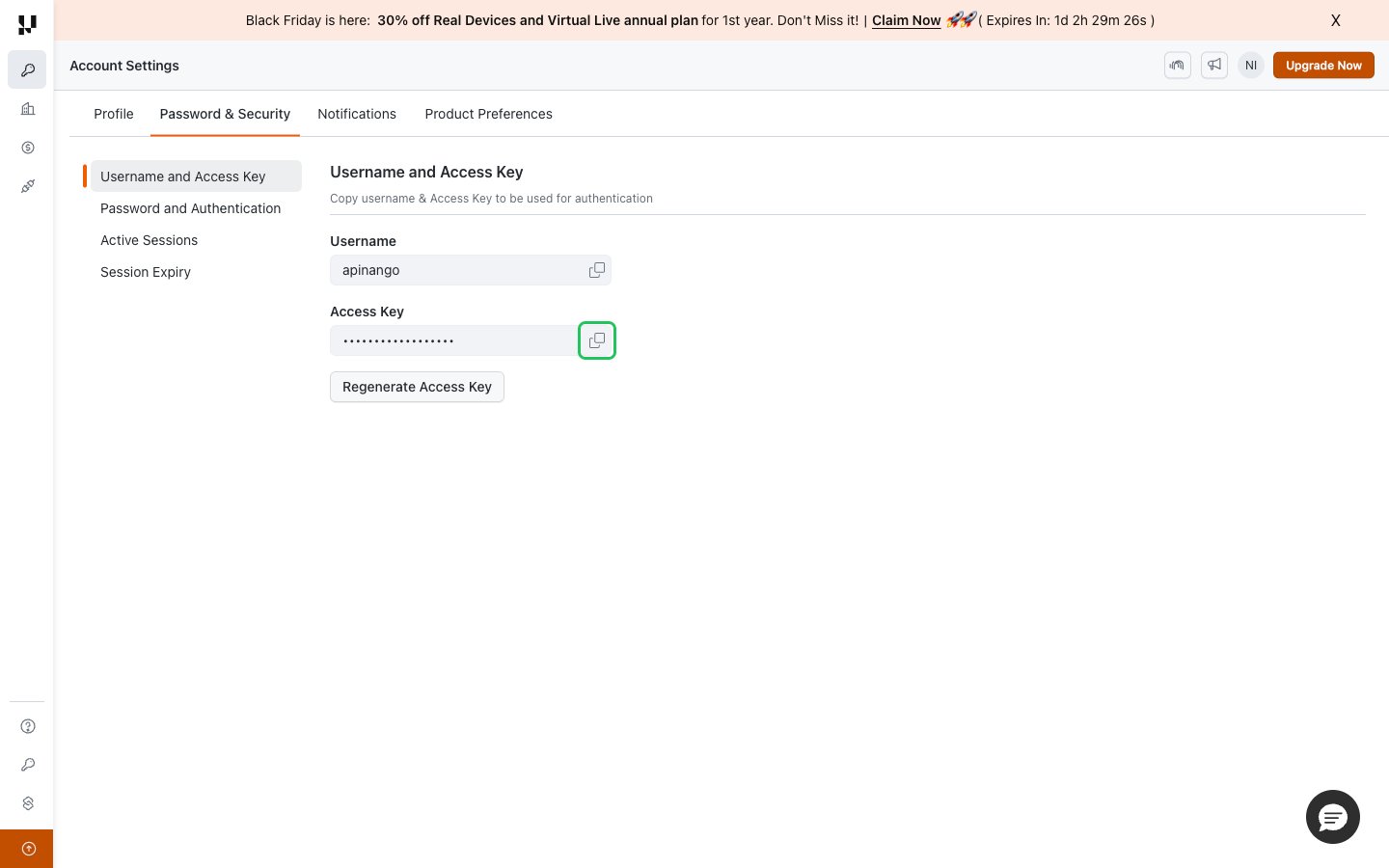
- Open the Profile dropdown in the top right and select Account Settings.
- Open the Password & Security tab, then Username and Access Key.
- Copy the Username. Enter it in the Username field.
- Select the copy button next to Access Key to copy the key. Enter it in the Access Key field.
Step 2: Find your data center region
TestMu AI has a US and an EU data center. Accounts in the EU data center (GDPR) sign in ateu-accounts.lambdatest.com.
- If you sign in at
eu-accounts.lambdatest.com, selecteu-api.lambdatest.com. - Otherwise, select
api.lambdatest.com.
Step 3: Enter your credentials in the Connect UI
- Open the form where you need to authenticate with TestMu AI.
- Select your Data Center Region, then enter your Username and Access Key in the designated fields.
- Submit the form, and you should be successfully authenticated.