Overview
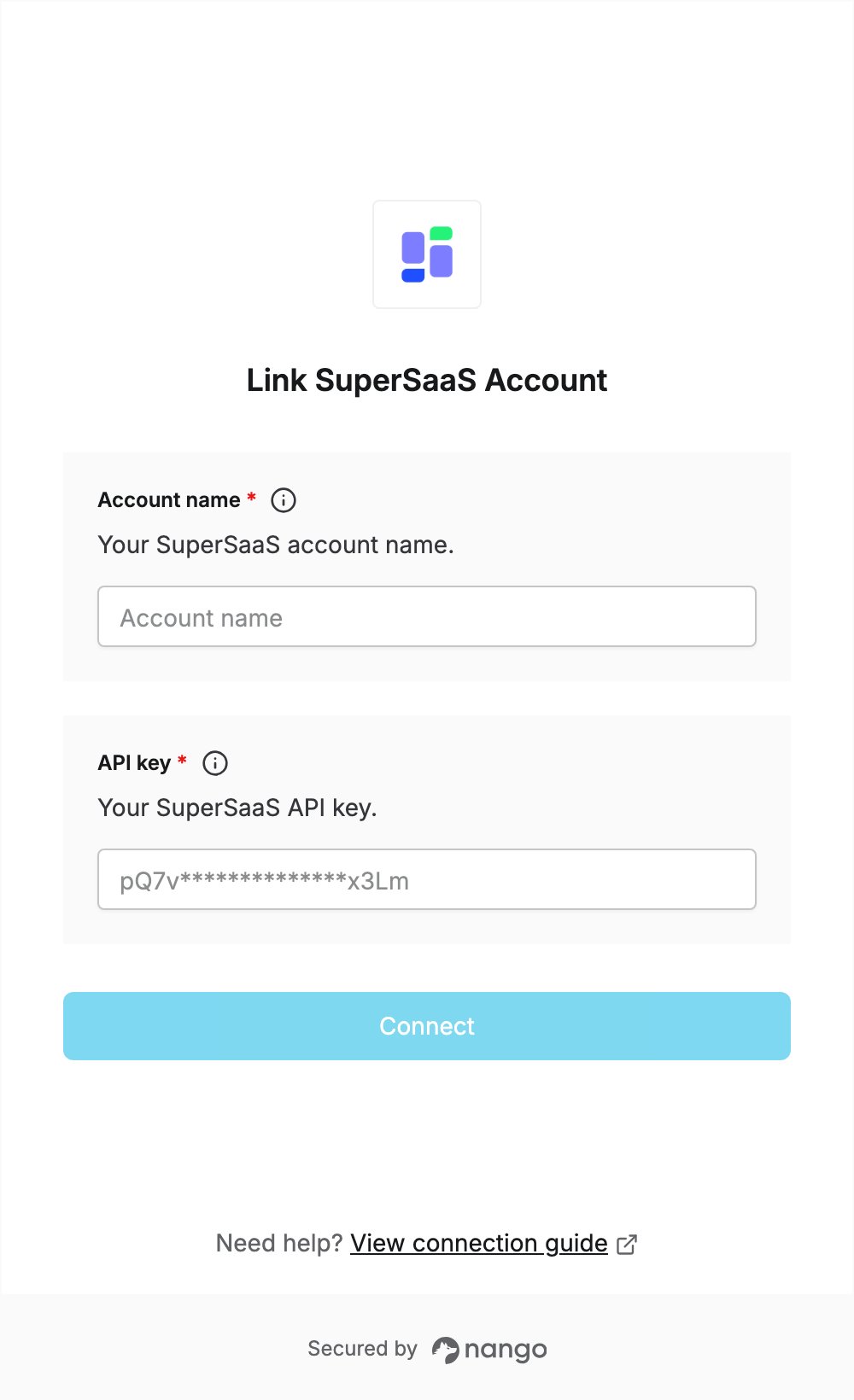
To authenticate with SuperSaaS, you need:- Account name — the name of your SuperSaaS account, chosen at signup.
- API key — the API key of your SuperSaaS account, from the Account Info page.
Prerequisites
- A SuperSaaS account. If you don’t have one, sign up. SuperSaaS offers a free version with no time limit and no credit card requirement.
Step 1: Find your account name
- Sign in to your SuperSaaS account.
- On the SuperSaaS Administrator Dashboard, click Account Info in the left menu.
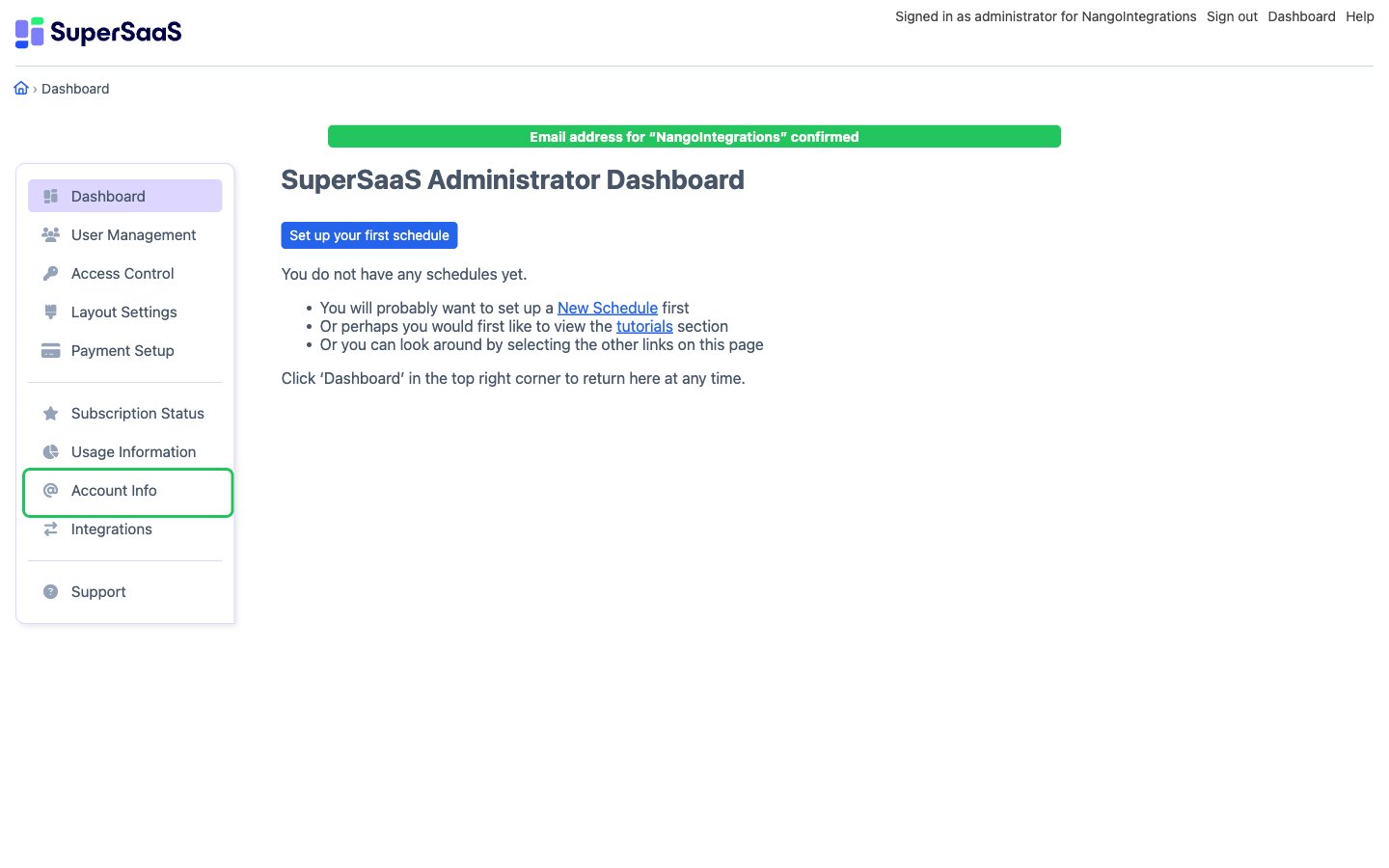
- Note the Account name at the top of the Account Info page. You will enter it in the Account name field.
Step 2: Generate your API key
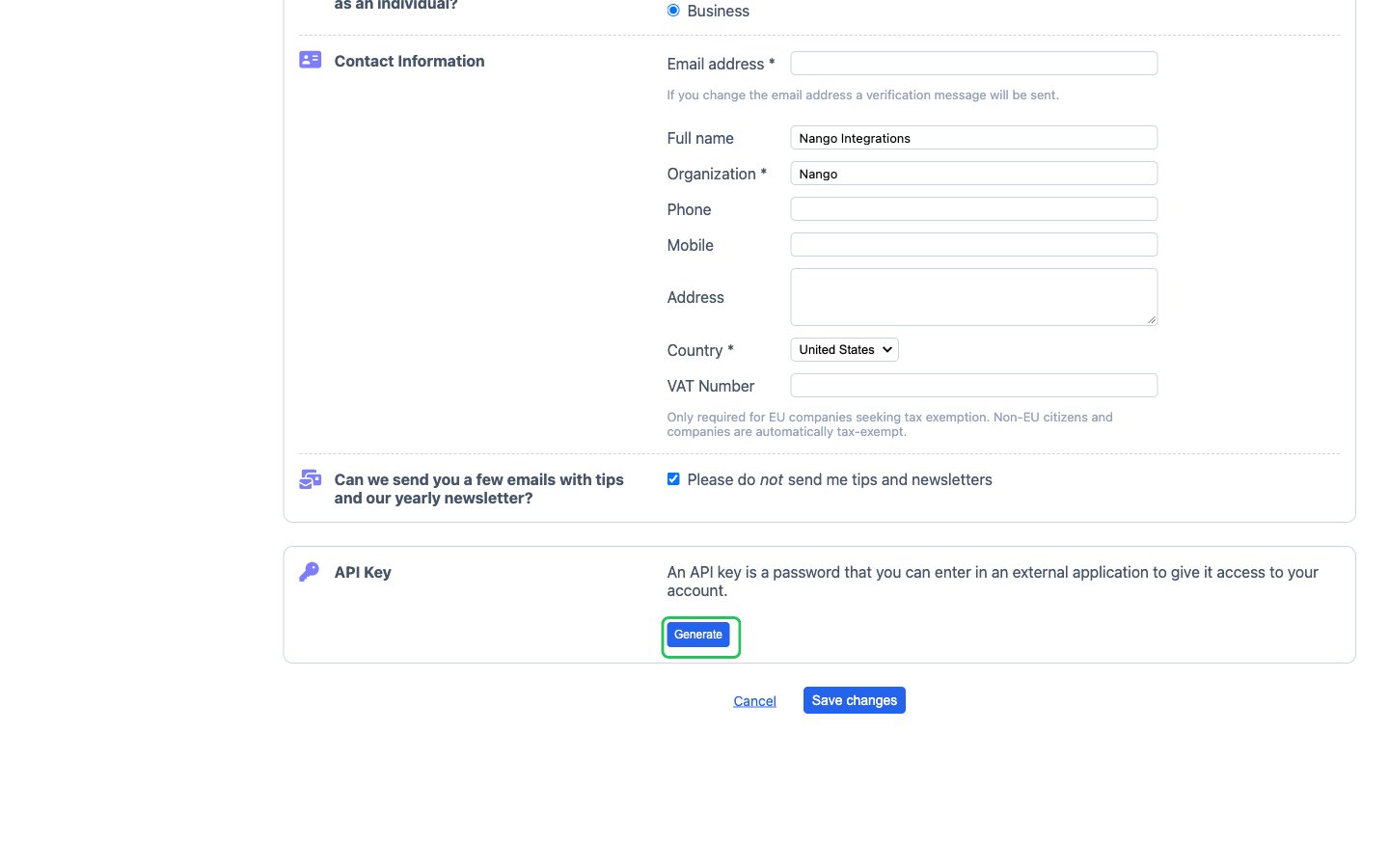
- On the same Account Info page, scroll to the API Key section at the bottom.
- Click Generate. If a key already exists, the section shows it with a Roll key button instead: copy the existing key rather than rolling it, since Roll key replaces it.
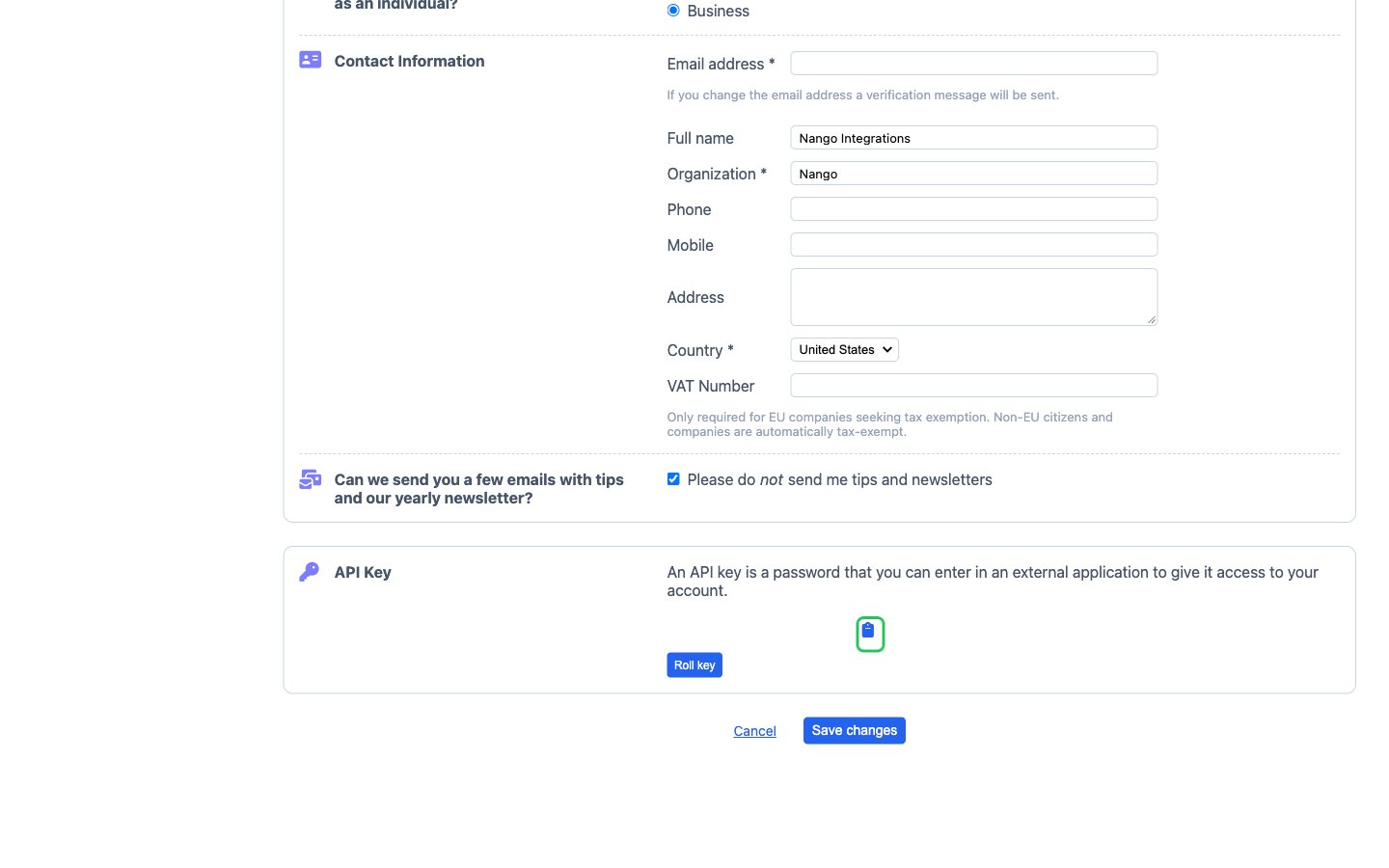
- Copy the API key with the copy icon next to it.
Step 3: Enter your credentials in the Connect UI
- Open the form where you need to authenticate with SuperSaaS.
- Enter your account name in the Account name field.
- Enter your API key in the API key field.
- Submit the form, and you should be successfully authenticated.