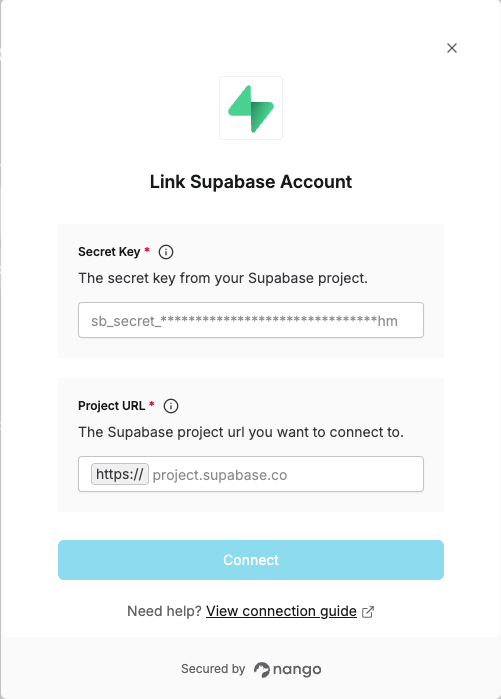
Overview
To authenticate with Supabase, you need the following:- Project URL – The unique project reference URL for your Supabase project.
- Secret key – The secret API key for your Supabase project (e.g. sb_secret_…).
Prerequisites
- You must have administrative access to your Supabase project.
- Ensure you have permission to view or manage secret keys.
Instructions
Step 1: Find your Project URL
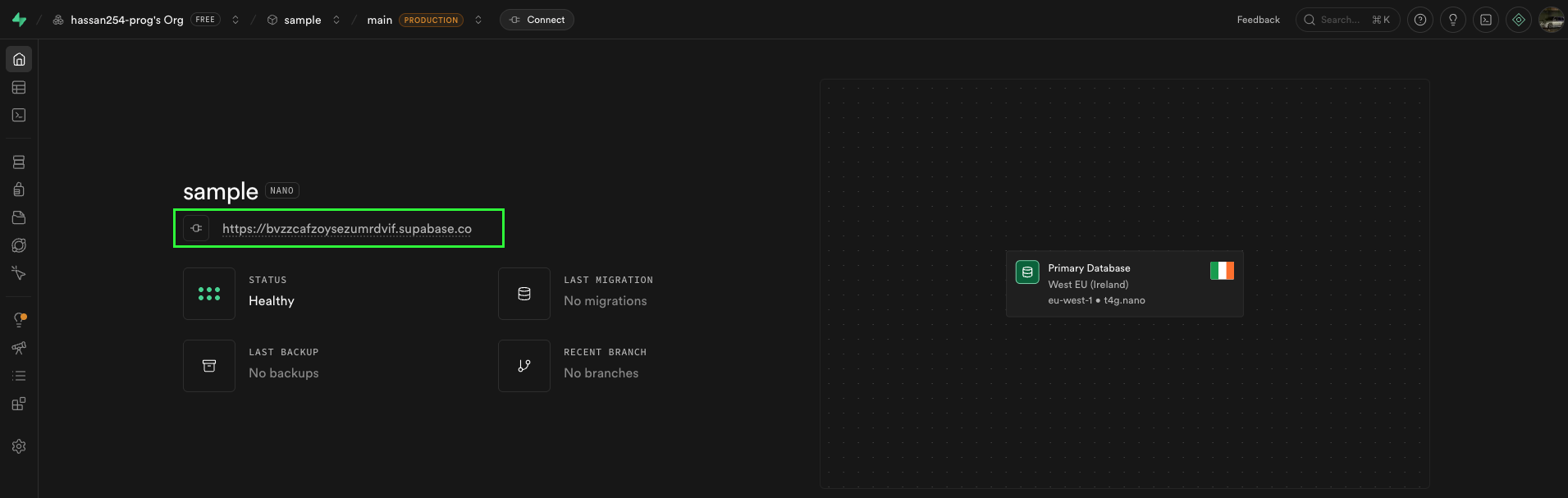
- Go to your Supabase dashboard and select your project by clicking on it.
- Your Project URL will be displayed to you.
Step 2: Finding your secret key
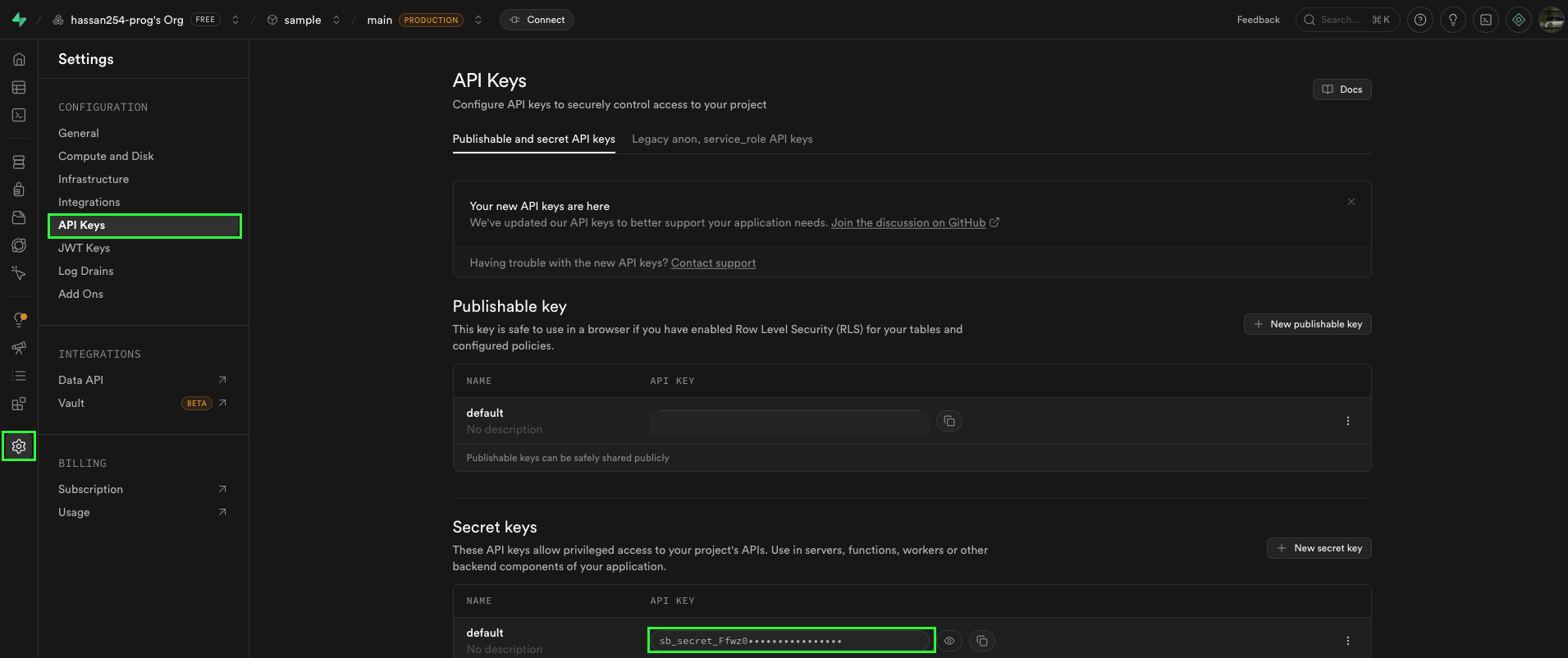
- From the left navigation bar, click on the Settings icon.
- Click the API keys button to open the API keys page.
- Copy your secret key.
Step 3: Enter credentials in the Connect UI
Once you have your Project URL and secret key:- Open the form where you need to authenticate with Supabase.
- Enter your Project URL and Secret key in their respective fields.
- Submit the form; you should then be successfully authenticated.