Overview
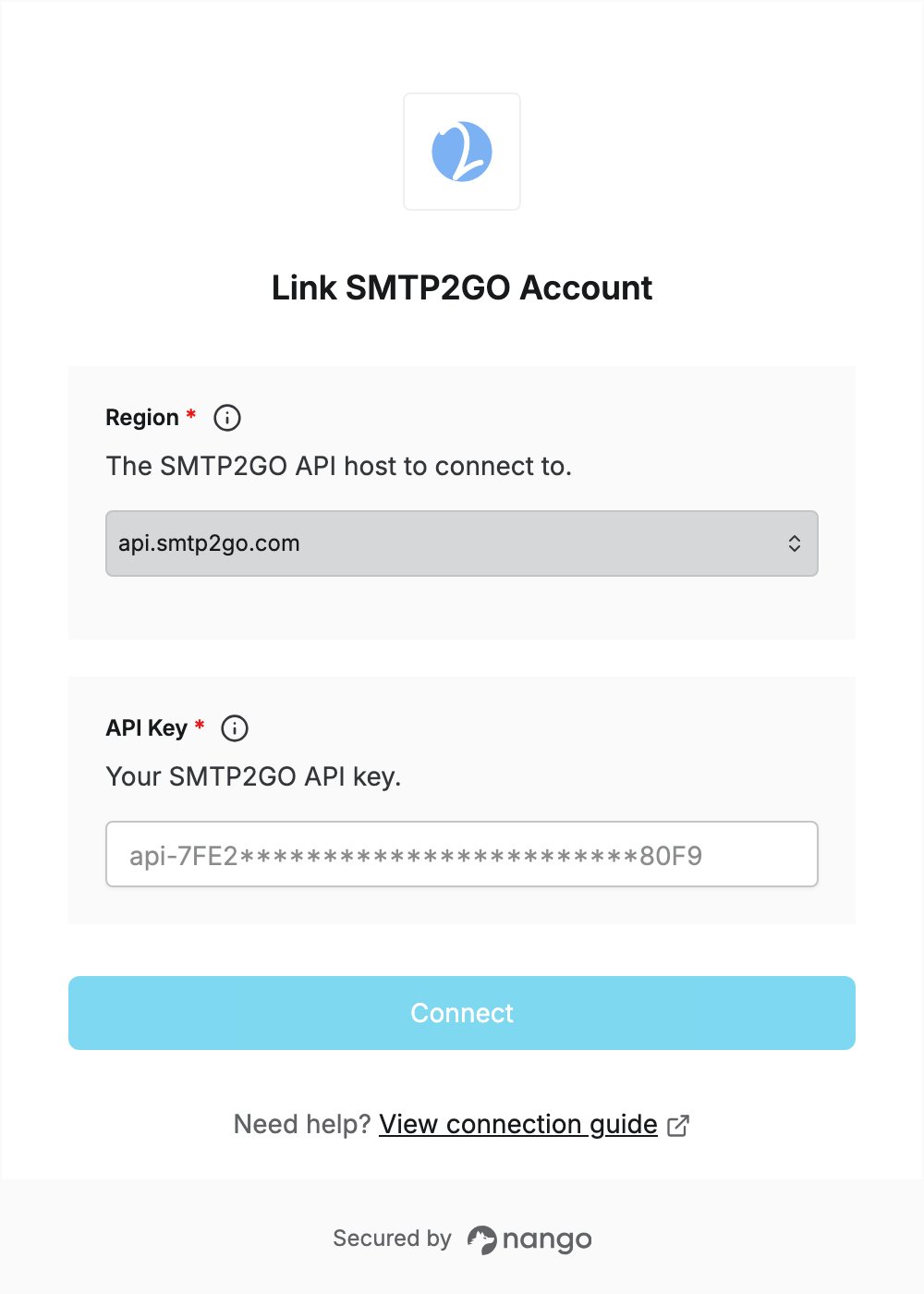
To authenticate with SMTP2GO, you need:- Region — the SMTP2GO API host to connect to.
- API Key — an SMTP2GO API key.
Prerequisites
- An SMTP2GO account. You can start a free account.
Step 1: Choose your region
SMTP2GO has a global API host and one host per region:
The API Keys page of the SMTP2GO app shows your API Base URL under Connection information. SMTP2GO recommends a region-specific host where possible, to connect to the region closest to you. See Endpoints for details.
Step 2: Create an API key
- Log in to the SMTP2GO app.
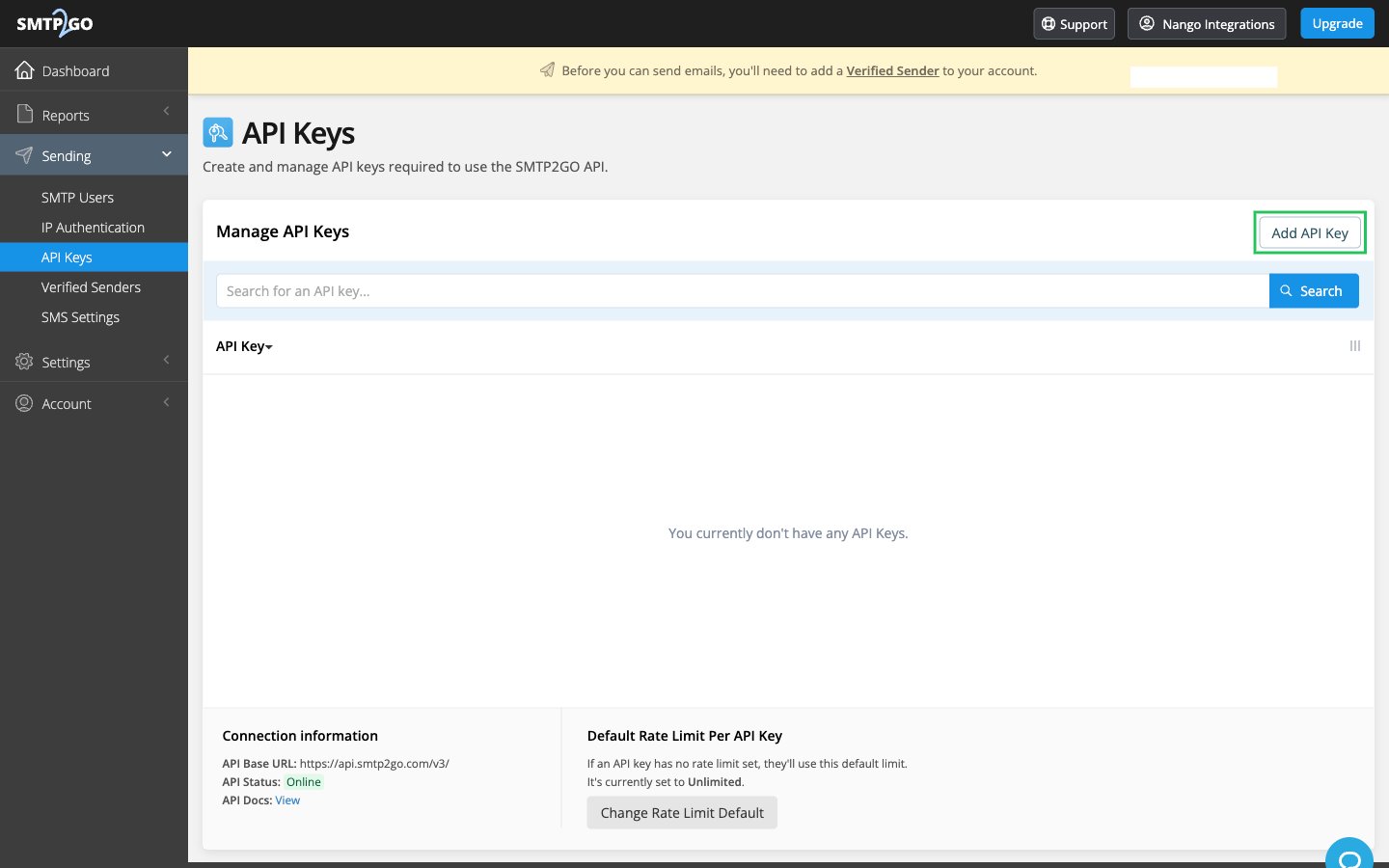
- In the left-side menu, go to Sending > API Keys, then click Add API Key.
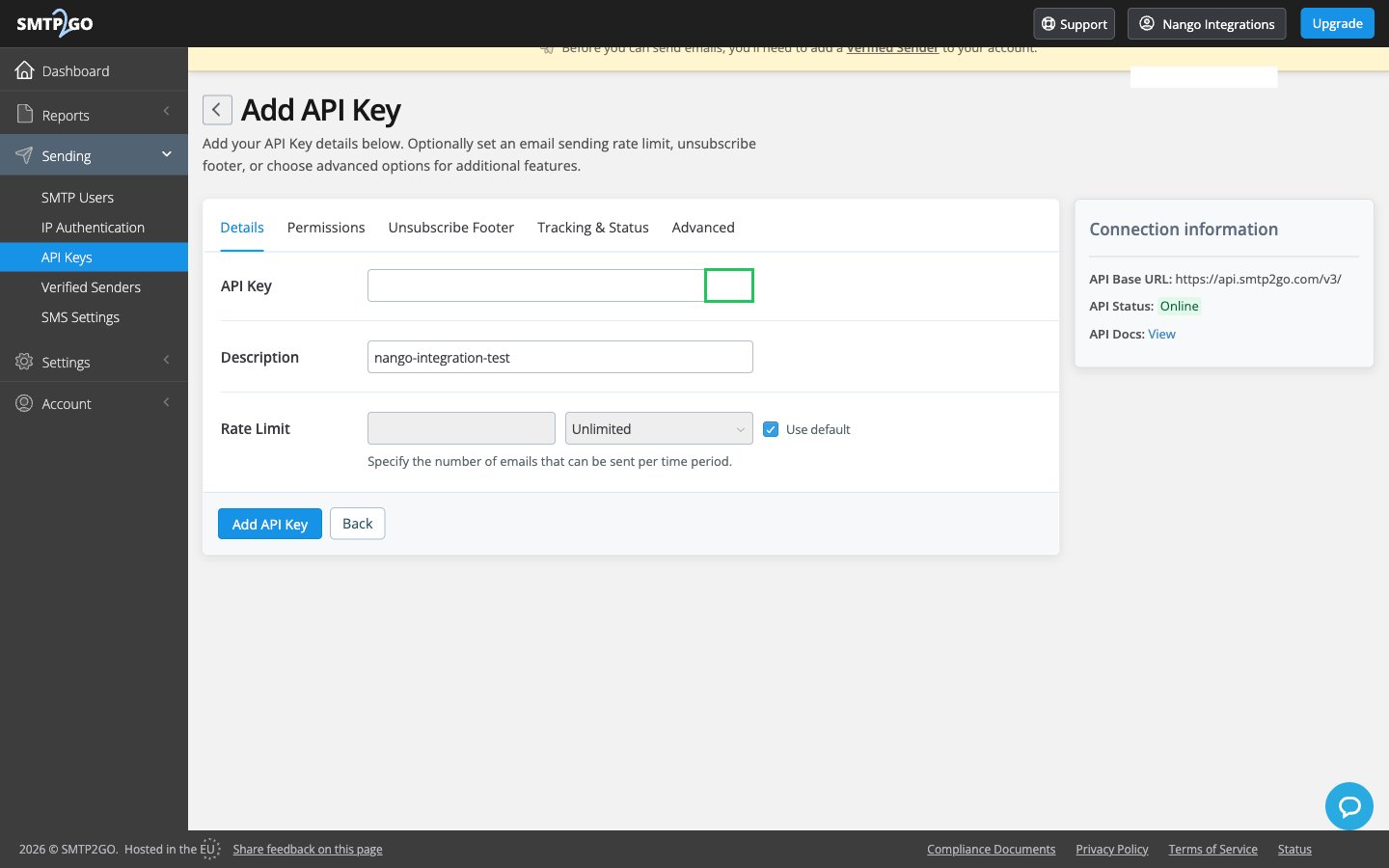
- On the Details tab, copy the generated API key (it starts with
api-) and enter a description.
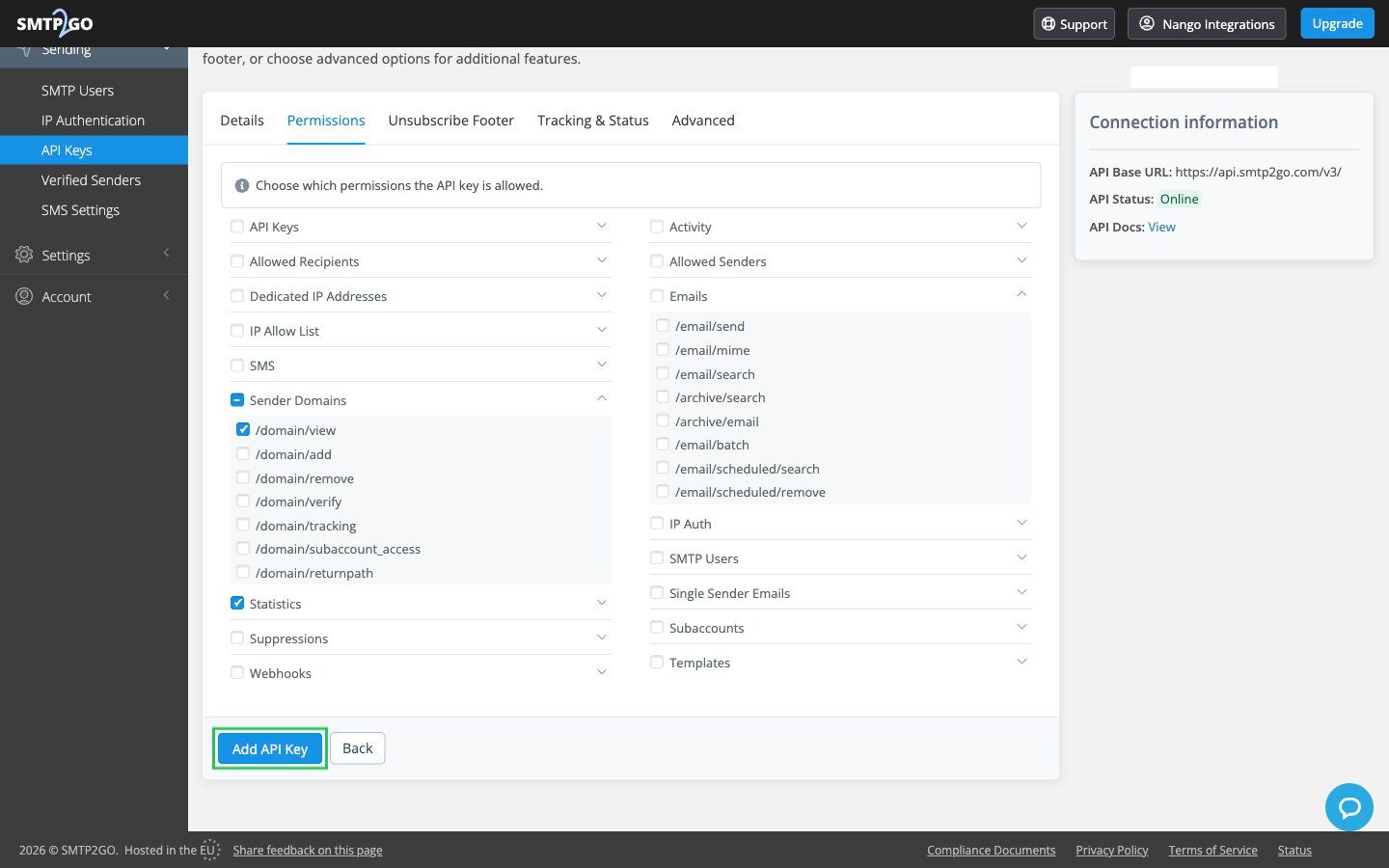
- On the Permissions tab, select the endpoints your integration needs, then click Add API Key to save the key.
Step 3: Enter your credentials in the Connect UI
- Open the form where you need to authenticate with SMTP2GO.
- Select your Region and enter your API Key in the designated fields.
- Submit the form, and you should be successfully authenticated.