Overview
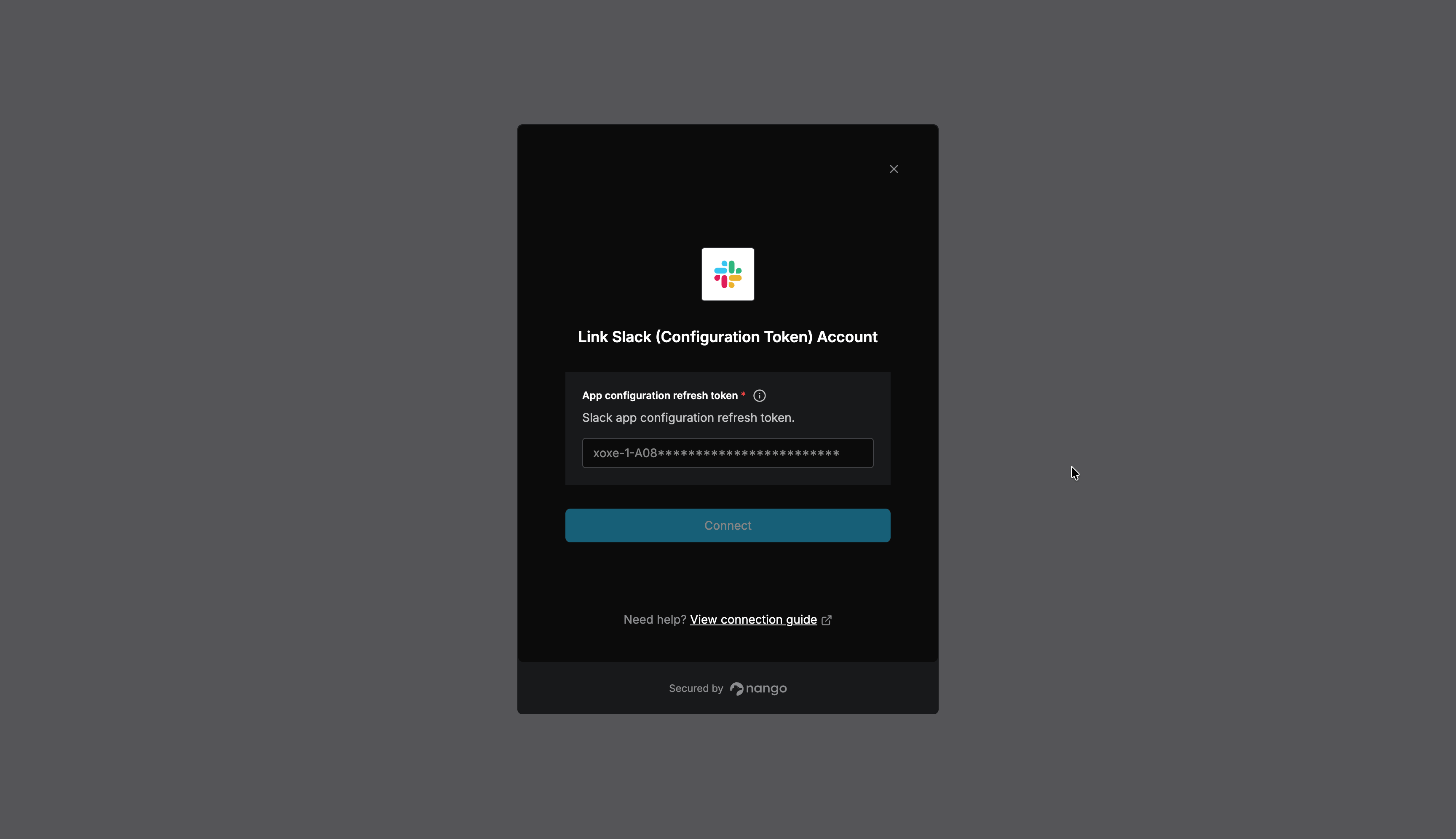
To authenticate with the Slack App Manifest APIs, you will need:- App configuration refresh token - The refresh token from “Your App Configuration Tokens” at api.slack.com/apps.
An app configuration token is tied to your Slack user account and one workspace — not to a specific app. It can create new apps and manage the configuration of any app your account owns in that workspace. Apps created via the Manifest APIs are homed in this workspace.
Prerequisites:
- A Slack account that is a member of the workspace where apps will be created and managed.
Instructions:
Step 1: Generate an app configuration token
- Go to api.slack.com/apps and sign in.
- Scroll below your list of apps to the Your App Configuration Tokens section.
- Click Generate Token.
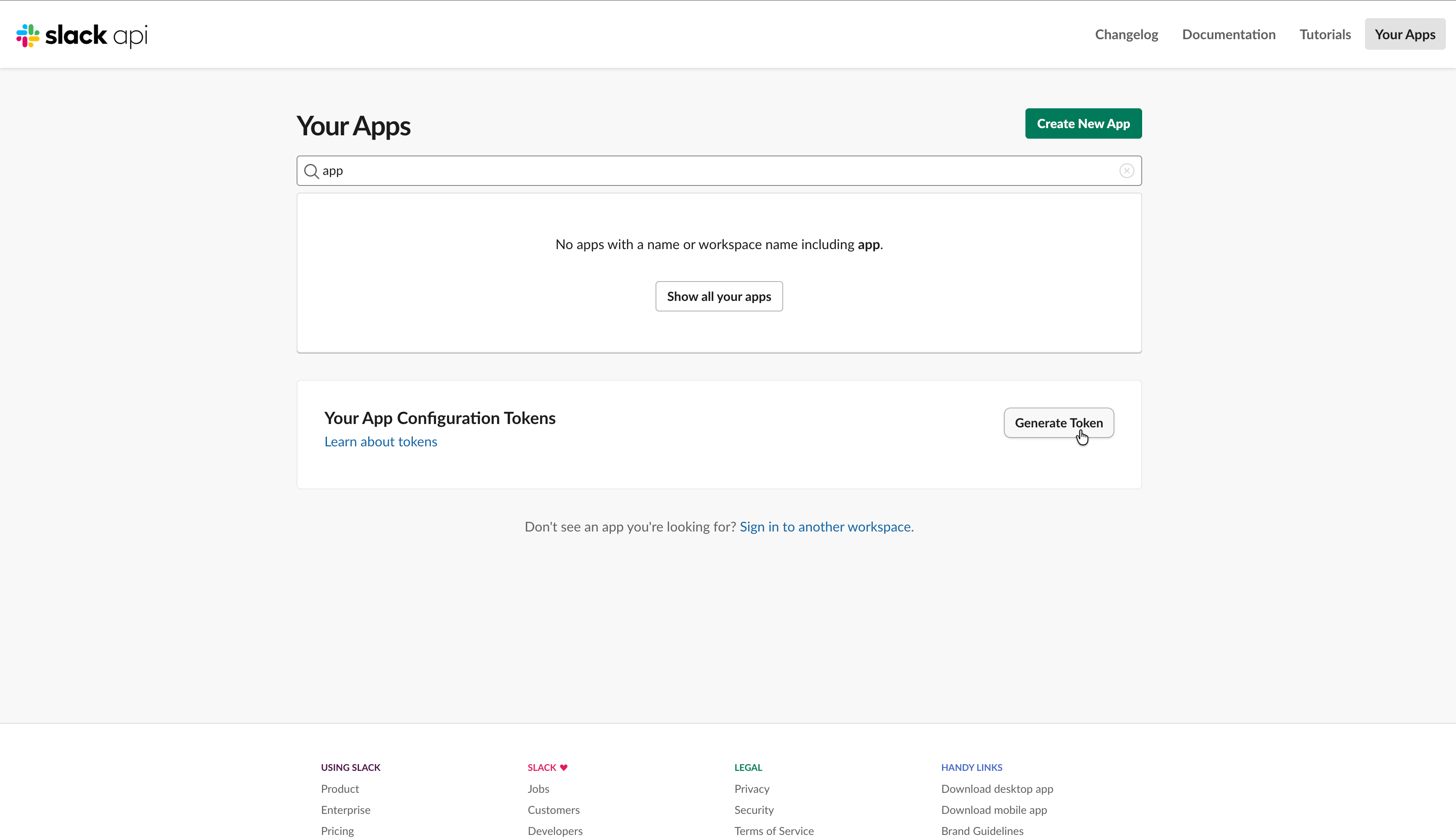
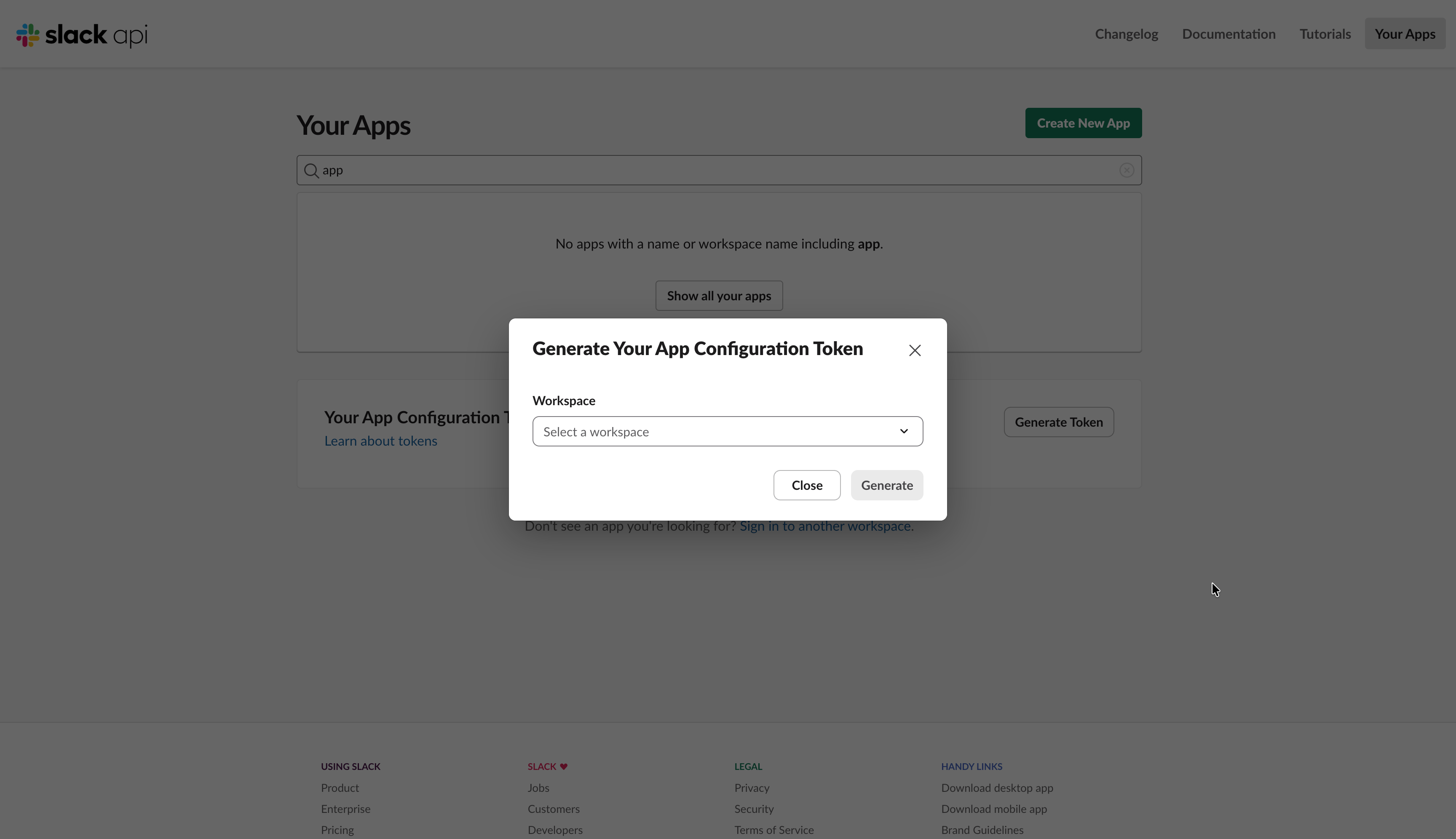
- Select the workspace where apps should be created and managed, then confirm.
- In the token list, copy the Refresh Token (it starts with
xoxe-1-) and store it securely.
Step 2: Enter the refresh token in the Connect UI
Once you have your App configuration refresh token:- Open the form where you need to authenticate with the Slack App Manifest APIs.
- Enter your App configuration refresh token.
- Submit the form, and you should be successfully authenticated.