Overview
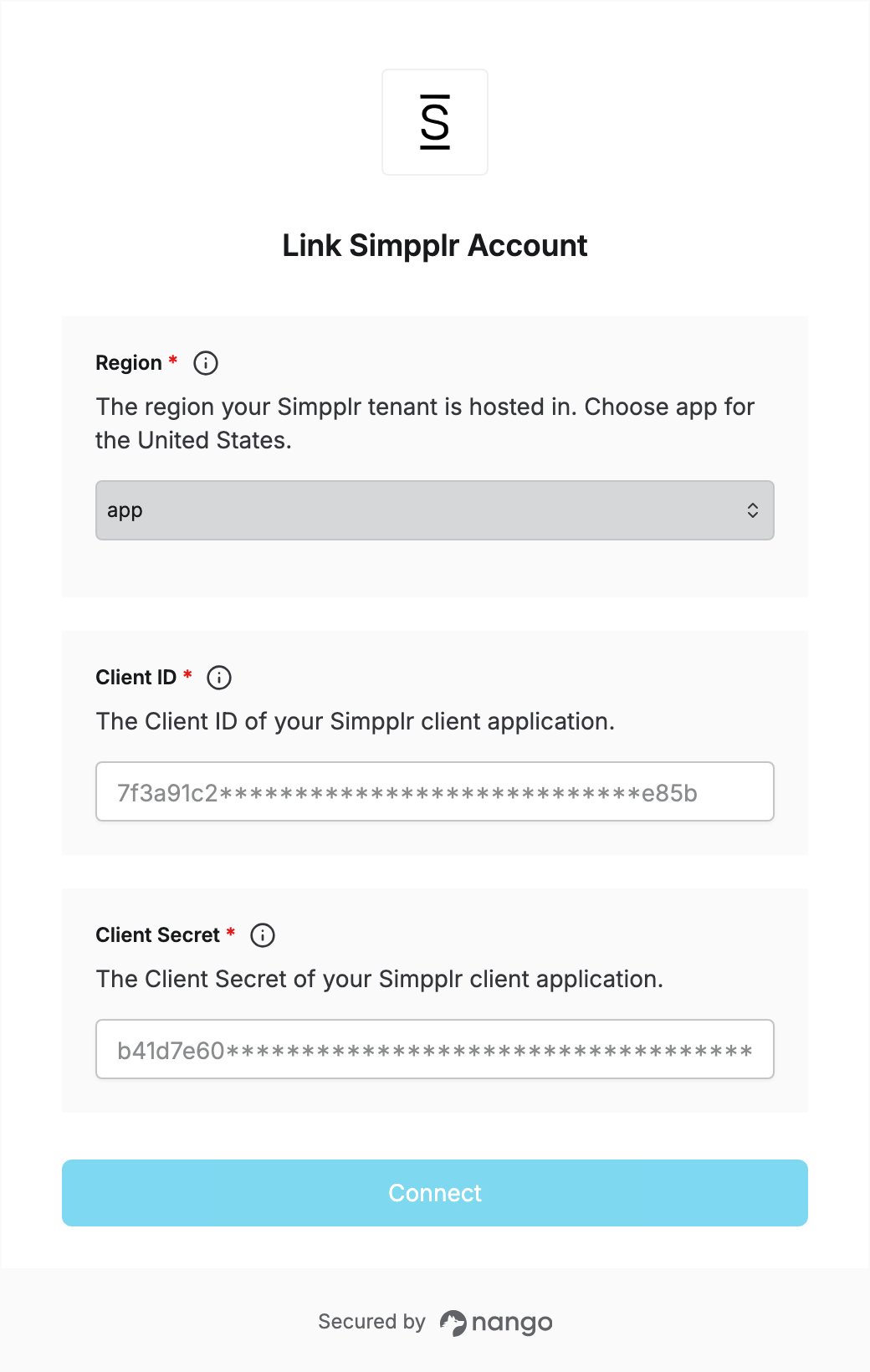
To authenticate with Simpplr, you will need:- Client ID - The Client ID of a Simpplr client application.
- Client Secret - The Client Secret issued with that Client ID.
- Region - The region your Simpplr tenant is hosted in.
Prerequisites
- You must have the app manager role in your Simpplr tenant.
- Your tenant must run on Simpplr’s own platform. Deployments that run as a managed package inside Salesforce authenticate through Salesforce instead; use Nango’s
salesforceintegration for those.
Instructions
Step 1: Create a client application
- Log in to your Simpplr tenant as an app manager.
- Click your profile image in the top right corner.
- Go to Manage > Application > Integrations > Client application and click Add.
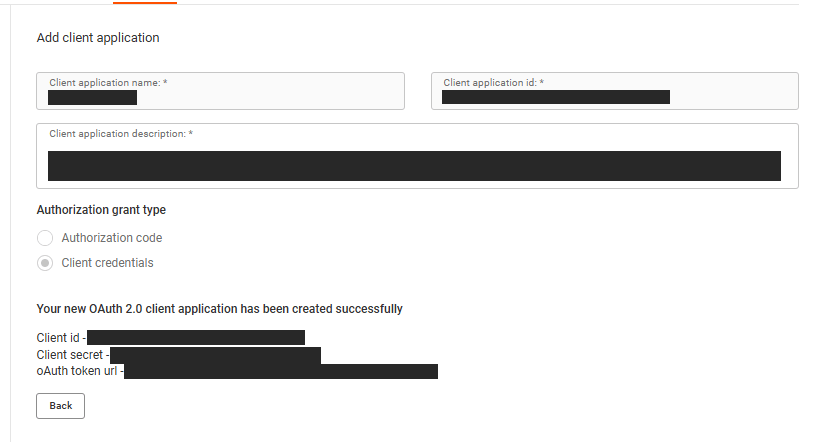
- Fill in the registration form:
- Application name and description - Notes to help you identify the application.
- Client application ID - Any random UUID you generate.
- Grant type - Select Client credentials. This is the grant the Simpplr B2B API uses. Do not select Authorization code, which is for the User API and is not supported here.
- Save the form, then copy the Client ID and Client Secret.
Step 2: Find your region
Read the region from the host in your tenant’s OAuth token URL:
Nango sends both the token request and all API calls to the host for the region you pick, so a wrong value points the connection at another region’s tenant and authentication fails.
Step 3: Enter credentials in the Connect UI
Once you have your Client ID, Client Secret, and Region:- Open the form where you need to authenticate with Simpplr.
- Select your Region from Step 2.
- Enter your Client ID in the Client ID field.
- Enter your Client Secret in the Client Secret field.
- Submit the form, and you should be successfully authenticated.