Overview
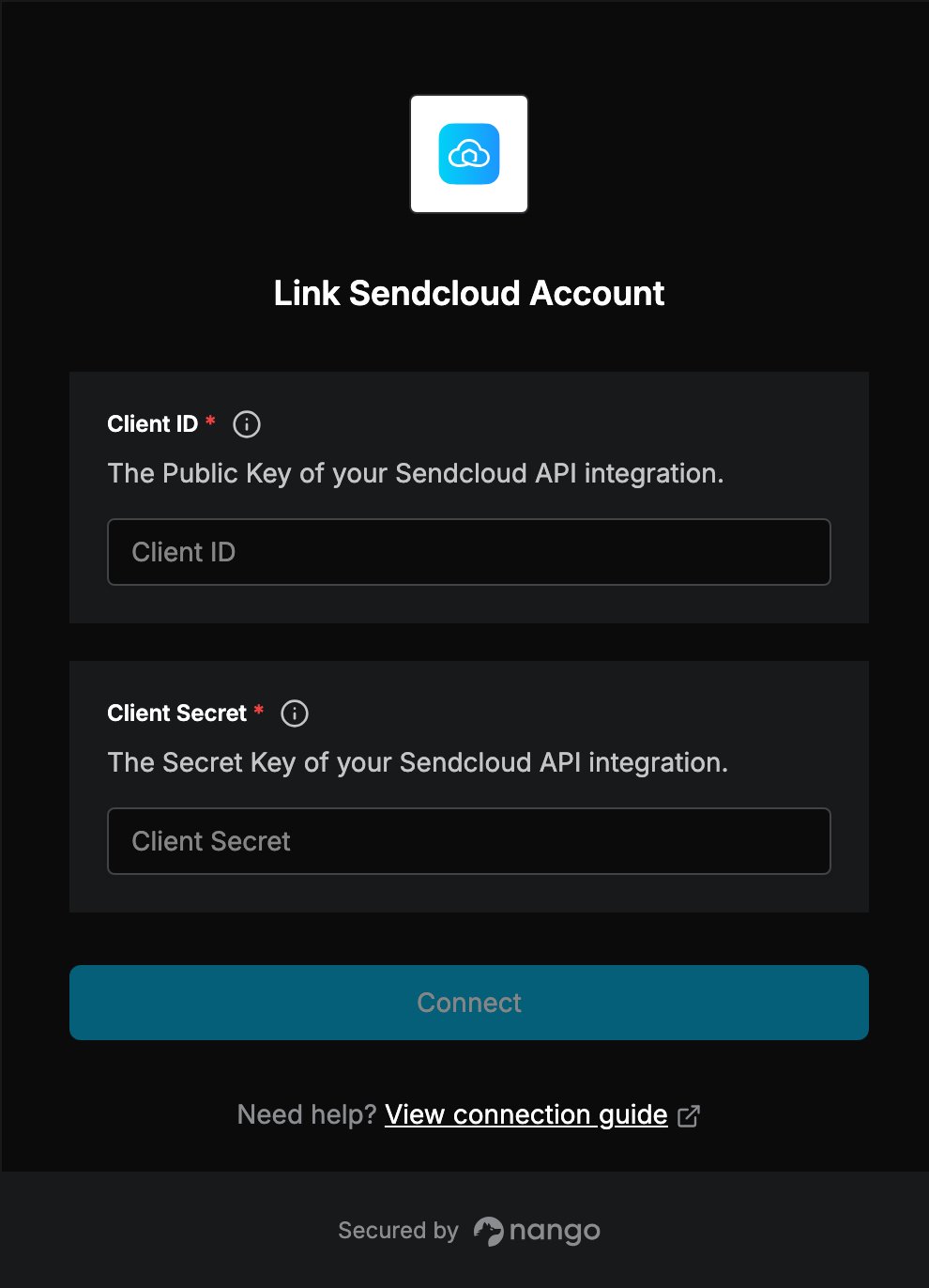
To authenticate with Sendcloud, you need:- Client ID — the Public Key of a Sendcloud API integration.
- Client Secret — the Secret Key of the same Sendcloud API integration.
Prerequisites
- A Sendcloud account. If you don’t have one, register a Sendcloud account.
Step 1: Create your Sendcloud API integration
- Log in to your Sendcloud account and go to Integrations.
- Find Sendcloud API in the list of integrations and click Connect.
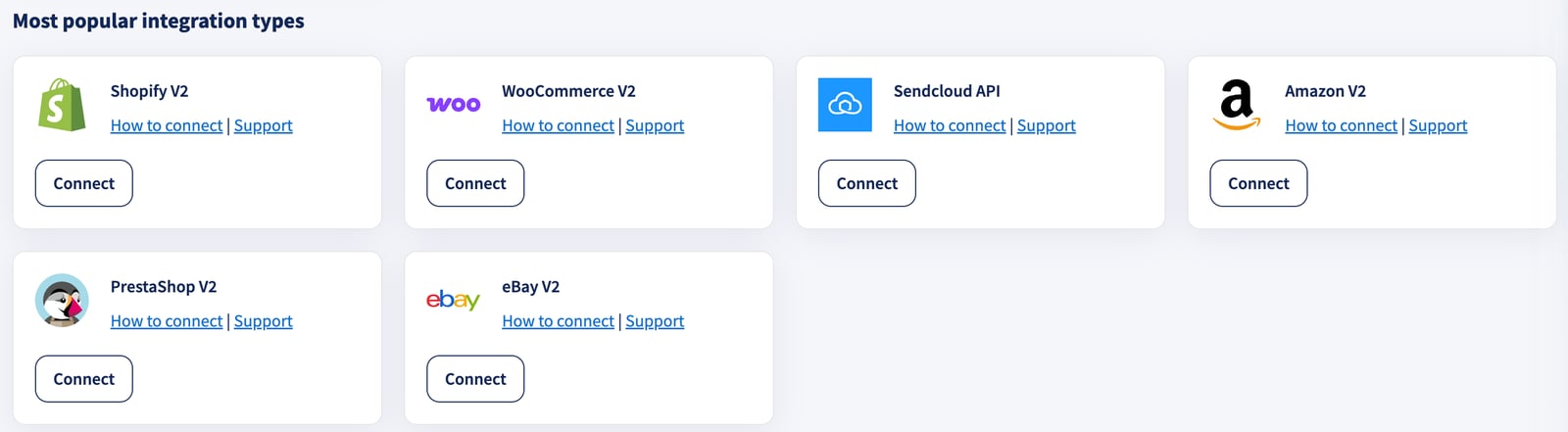
- Enter a name for the API integration and click Save.
- Sendcloud automatically generates a Public Key and a Secret Key for the integration. Copy both.
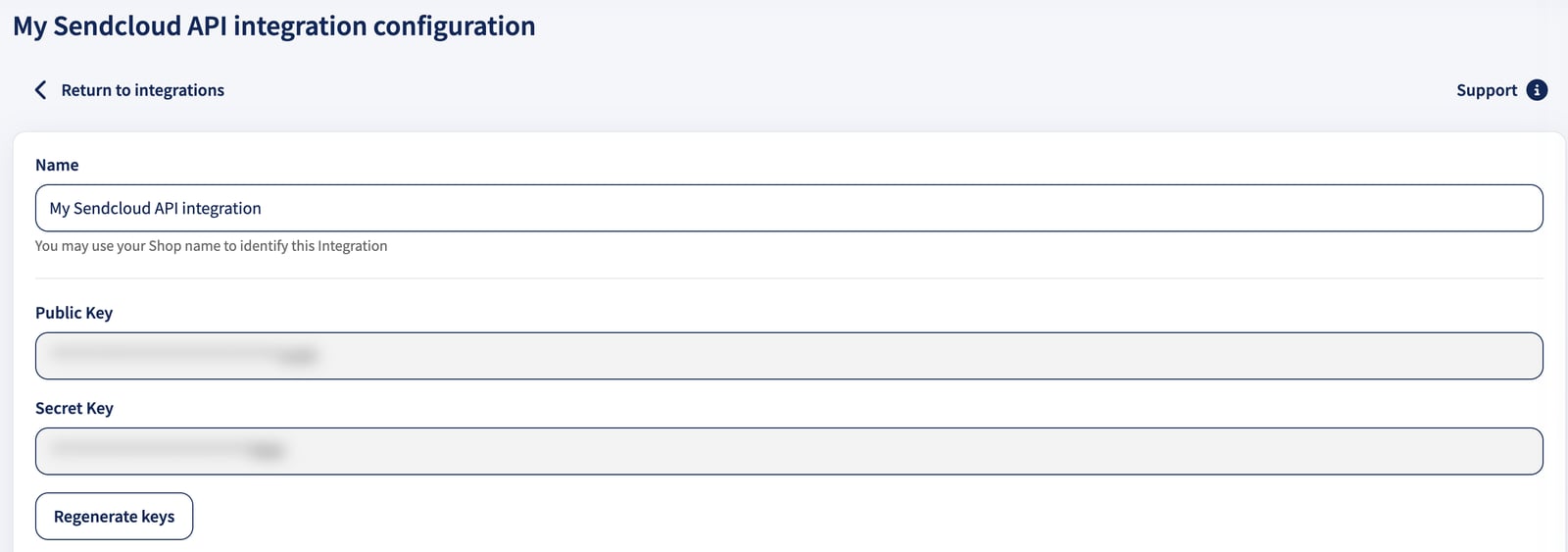
Do not share your Secret Key in publicly accessible areas such as GitHub or client-side code.
Step 2: Enter your credentials in the Connect UI
Once you have your Public Key and Secret Key:- Open the form where you need to authenticate with Sendcloud.
- Enter your Public Key in the Client ID field.
- Enter your Secret Key in the Client Secret field.
- Submit the form, and you should be successfully authenticated.