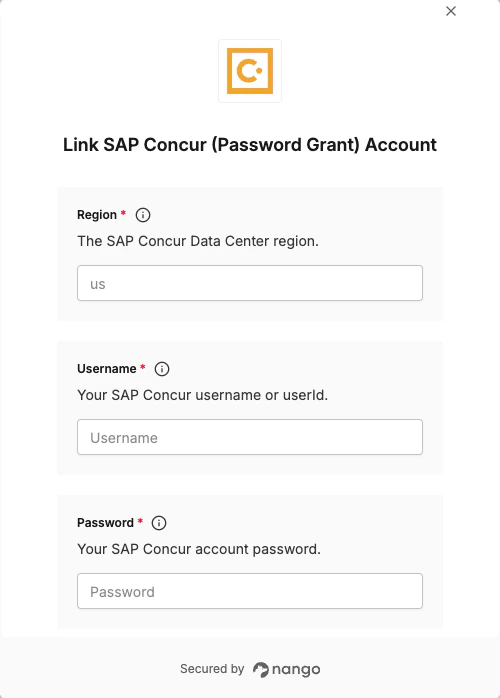
Overview
To connect to SAP Concur using the password grant, you’ll need:- Client ID - Unique identifier for your OAuth 2.0 application
- Client Secret - Secret key paired with your Client ID
- Username - Your SAP Concur username or userId
- Password - Your SAP Concur account password
- Region - Data center region based on your account’s geolocation
Prerequisites:
- Administrator access to SAP Concur
- Registered company account with SAP Concur
Instructions
Step 1: Get your client credentials
- Log in to your SAP Concur App Management portal
- Navigate to Administration > OAuth 2.0 Application Management
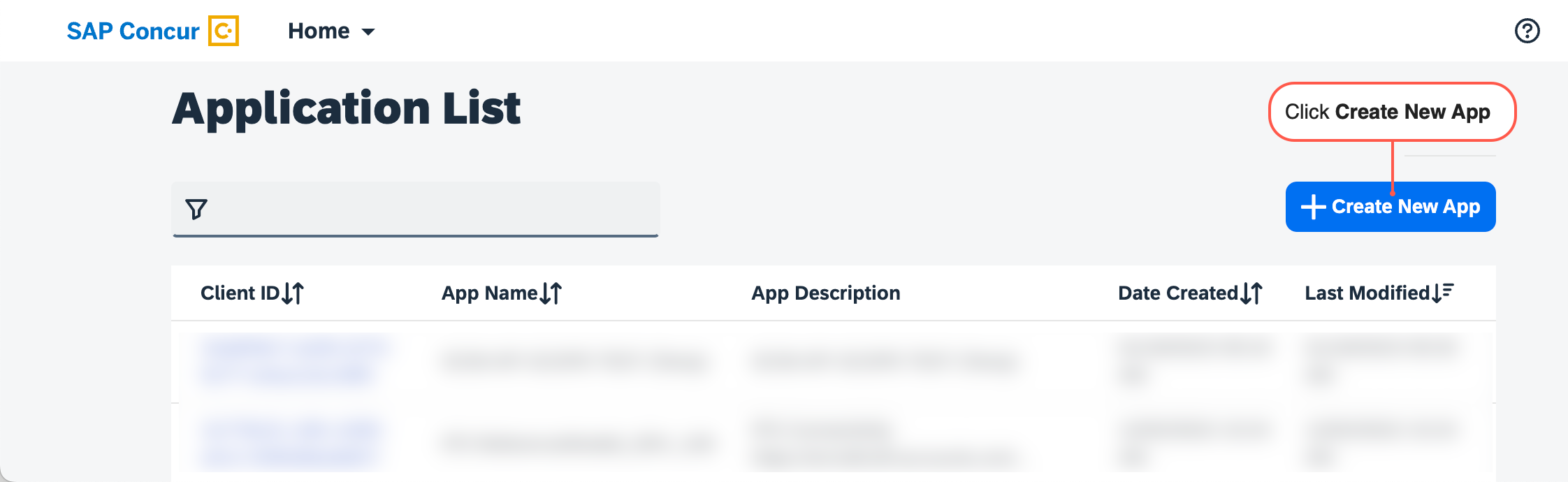
- Click Create New App
- Fill in the required fields:
- Application Name
- Grant Types — enable Password
- Required API Scopes (add all scopes your integration needs)
- Click Submit
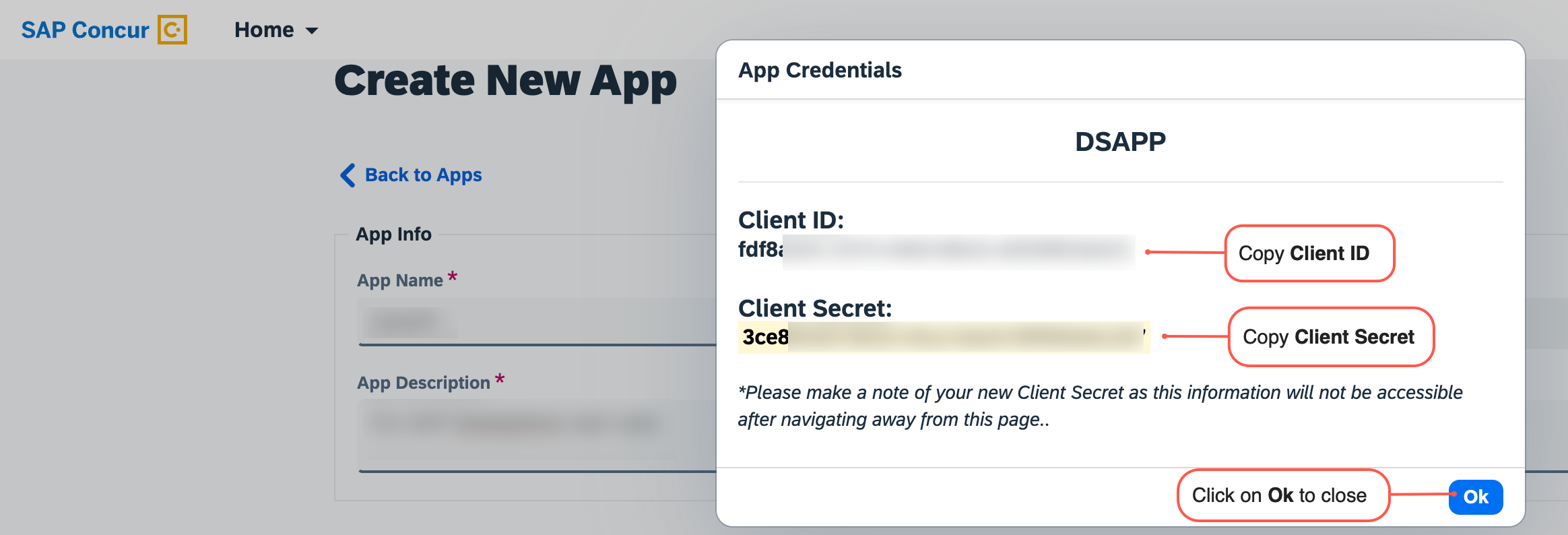
- Copy and save the generated Client ID and Client Secret
Step 2: Get your user credentials
- Use the username (or userId) and password of the SAP Concur user account you want to connect. These are the same credentials used to log in to the SAP Concur web UI.
Step 3: Determine your region
- Use the region that matches your company’s account geolocation. The region is visible in your browser’s address bar when logged into SAP Concur — it is the subdomain before
.api.concursolutions.com.
Step 4: Enter credentials in the Connect UI
Once you have your Client ID, Client Secret, Username, Password, and Region:- Open the Nango connection form to authenticate with SAP Concur.
- Enter your Client ID, Client Secret, Username, Password, and Region in their respective fields.
- Submit the form to complete authentication.