Overview
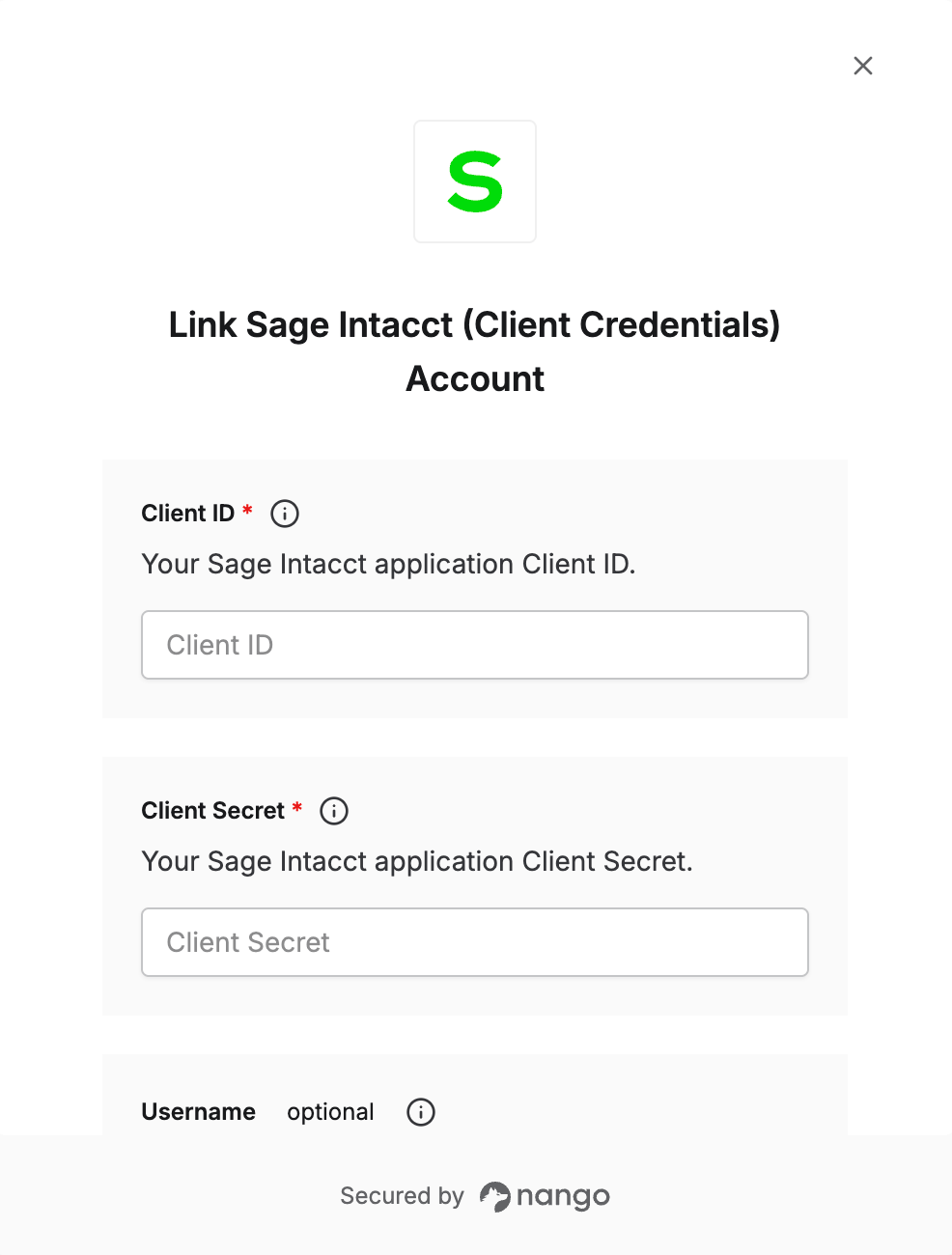
To authenticate with Sage Intacct using Client Credentials, you will need:- Client ID (conditional) — Your Sage Intacct application Client ID. Only asked here if not already registered on the integration.
- Client Secret (conditional) — Your Sage Intacct application Client Secret. Only asked here if not already registered on the integration.
- Username (optional) — The Web Services user ID in
userId@companyIdformat (e.g.Admin@MyCompany). Append|entityIdfor multi-entity companies. Required if not using Session ID. - Session ID (optional) — A valid UI or API session ID. Required if not using Username.
If the Connect UI form doesn’t show Client ID and Client Secret fields, your workspace already registered them
on the integration setting — every connection reuses them
automatically, so skip straight to Step 4. Otherwise, follow all the steps below to get your own values.
Prerequisites
- An active Sage Intacct account with administrator access
- A Sage Intacct Web Services developer license
Instructions
Step 1: Create a Web Services user
If your company already has a Web Services user defined for your application, you can skip this step.- Have an admin log in to the company and navigate to Company → Admin → Web Services Users → Add.
- Create a new Web Services user and assign the necessary permissions or role.
- Note the User ID — you will need it for the Username field later.
- Note your Company ID: navigate to Company → Setup → Company and look at the Company ID field. You will need it to format the Username as
userId@companyId.
Step 2: Register an API client
Follow How to register your own Sage Intacct (Client Credentials) app to create a Sage developer workspace, register an application, and obtain your Client ID and Client Secret.Step 3: Authorize the client application
- In Sage Intacct, navigate to Company → Setup → Company → [Edit] → Security → Authorized Client Applications → Add.
- Enter the Client ID from Step 2.
- Enter the Web Services User ID from Step 1. This field is case-sensitive — enter it exactly as it was created.
Step 4: Enter credentials in the Connect UI
- Open the form where you need to authenticate with Sage Intacct.
- If Client ID and Client Secret fields are shown, enter the values from Step 2, or the ones your integration developer gave you. Either way, that client must already be authorized (Step 3) — Sage Intacct rejects requests from a client that isn’t.
- Enter either your Username or a valid Session ID — one of the two is required.
- Username format:
userId@companyId(e.g.Admin@MyCompany). For multi-entity companies, append the entity ID:userId@companyId|entityId(e.g.Admin@MyCompany|Central Region).
- Username format:
- Submit the form.