Overview
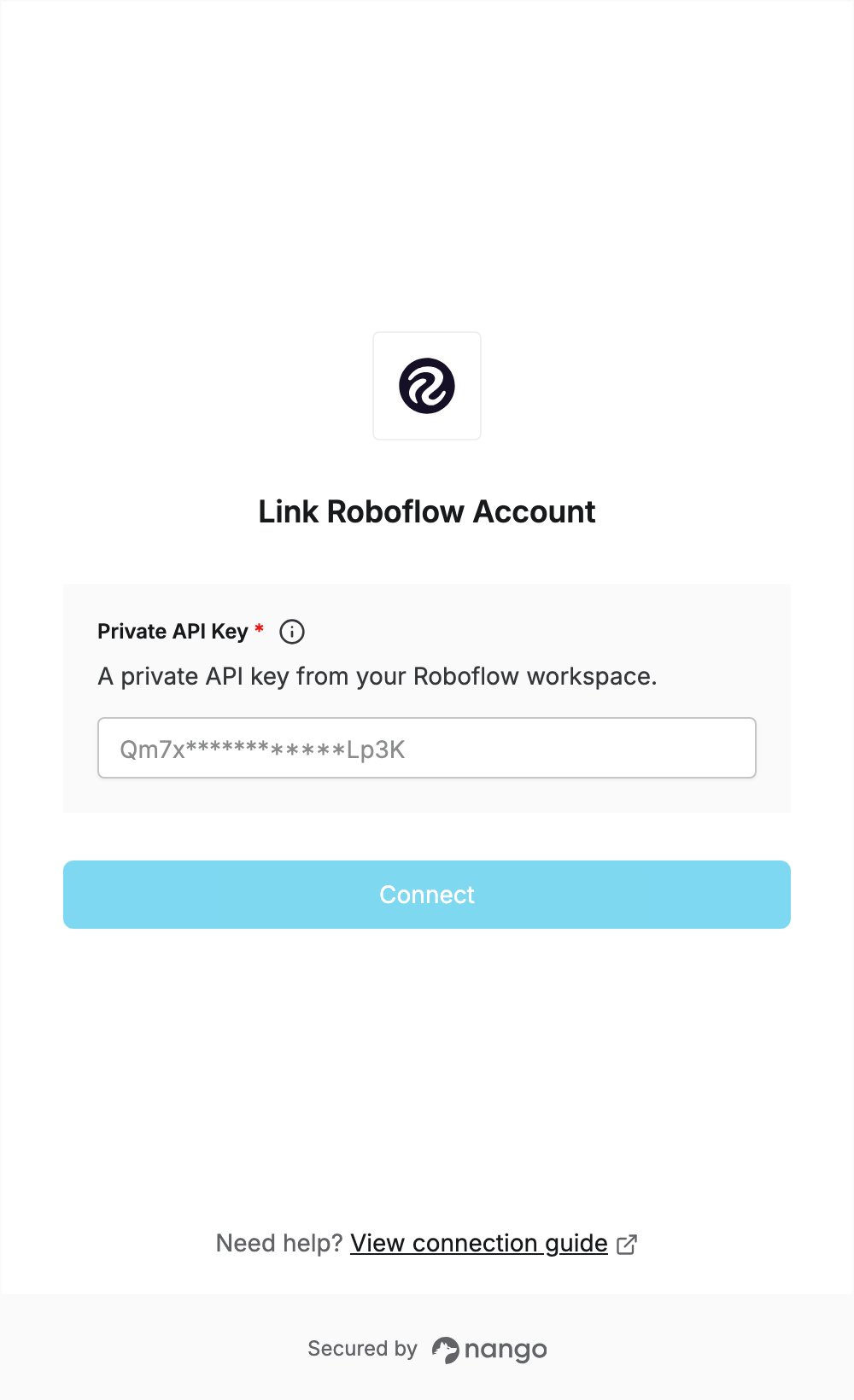
To authenticate with Roboflow, you need:- Private API Key — a private API key from your Roboflow workspace.
Prerequisites
- A Roboflow account. The free Core plan includes API access; you can sign up at app.roboflow.com.
Step 1: Create a private API key
- Sign in to Roboflow and open your workspace.
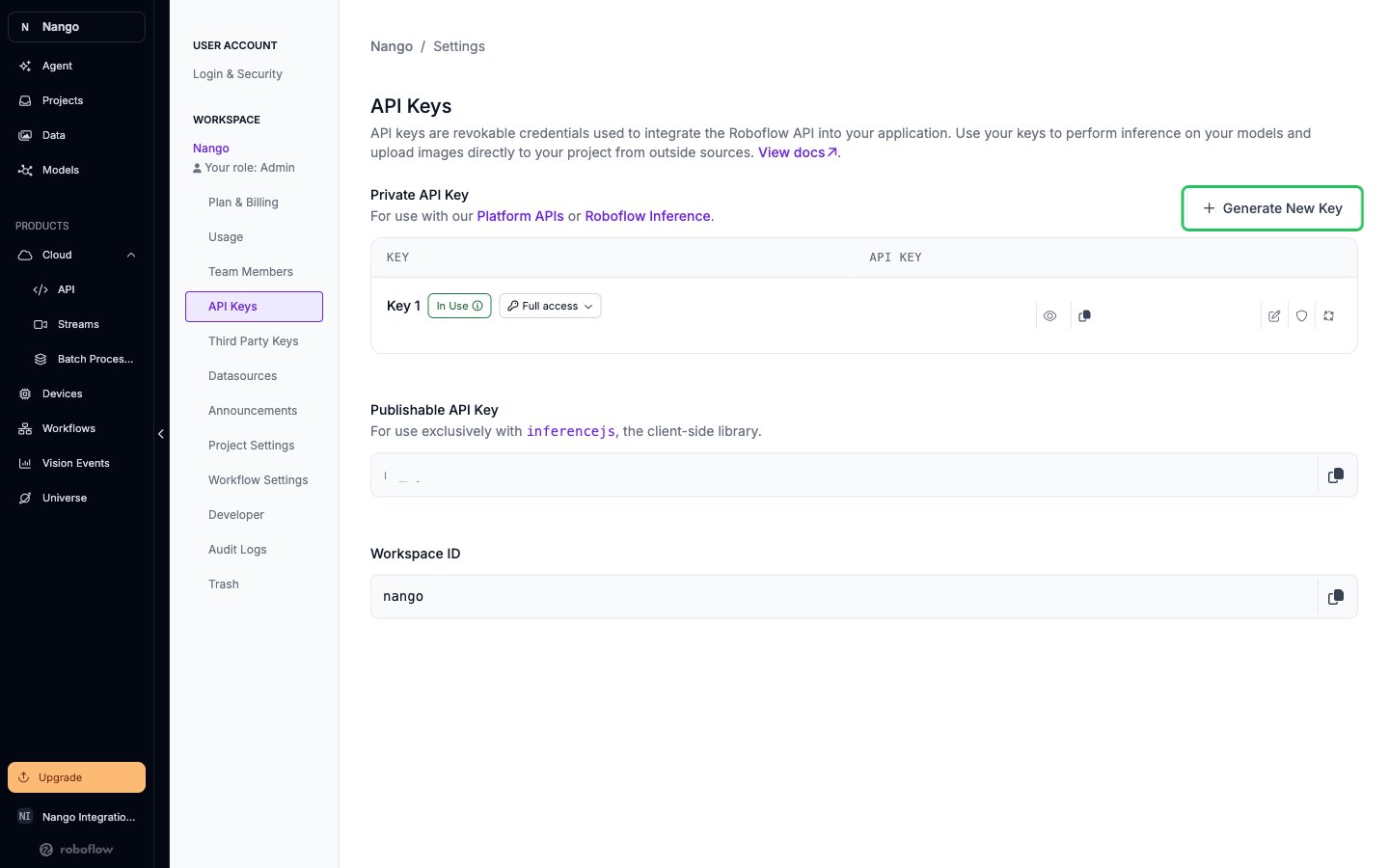
- Go to Settings > API Keys.
- Under Private API Key, click Generate New Key.
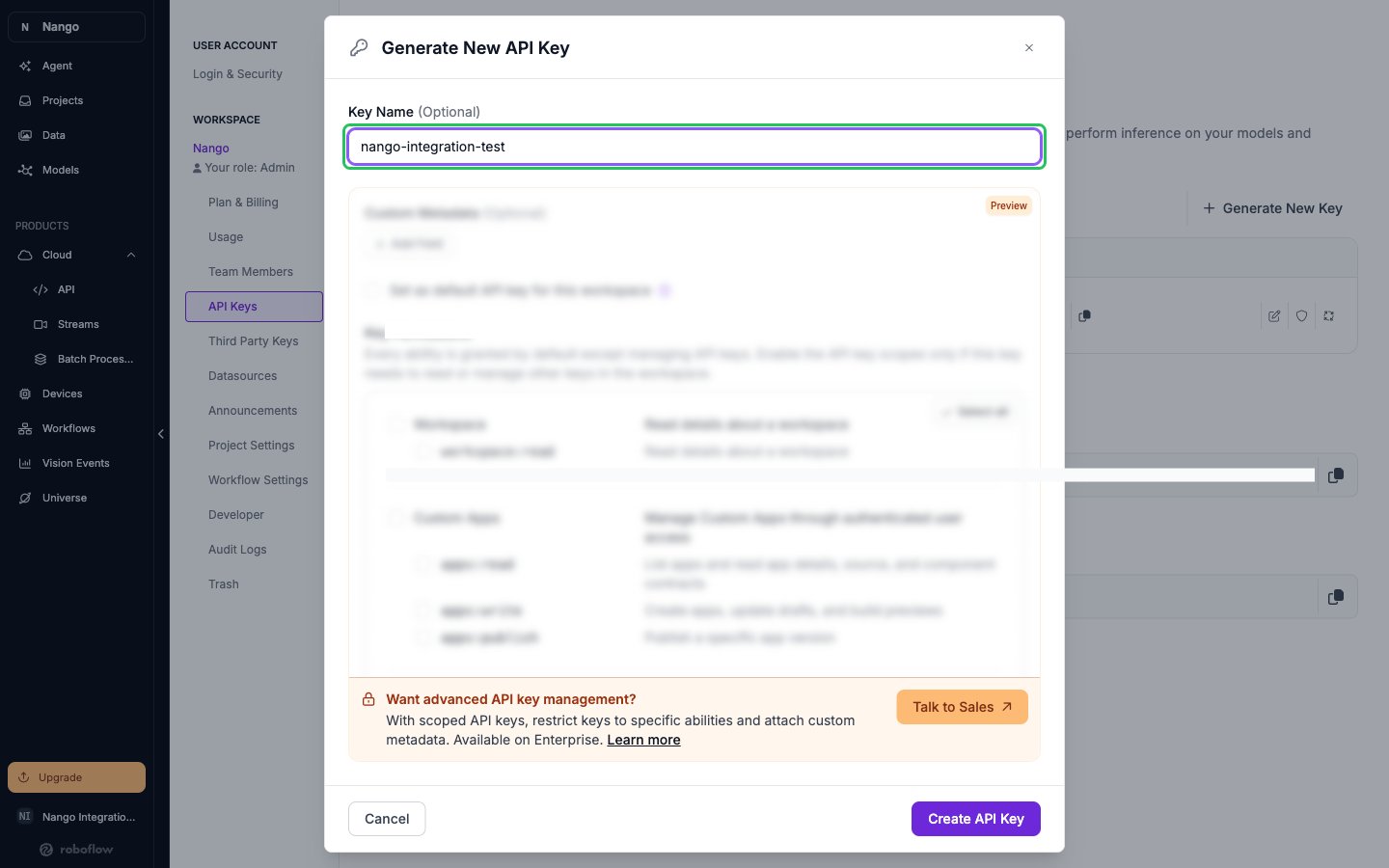
- Enter a Key Name and click Create API Key.
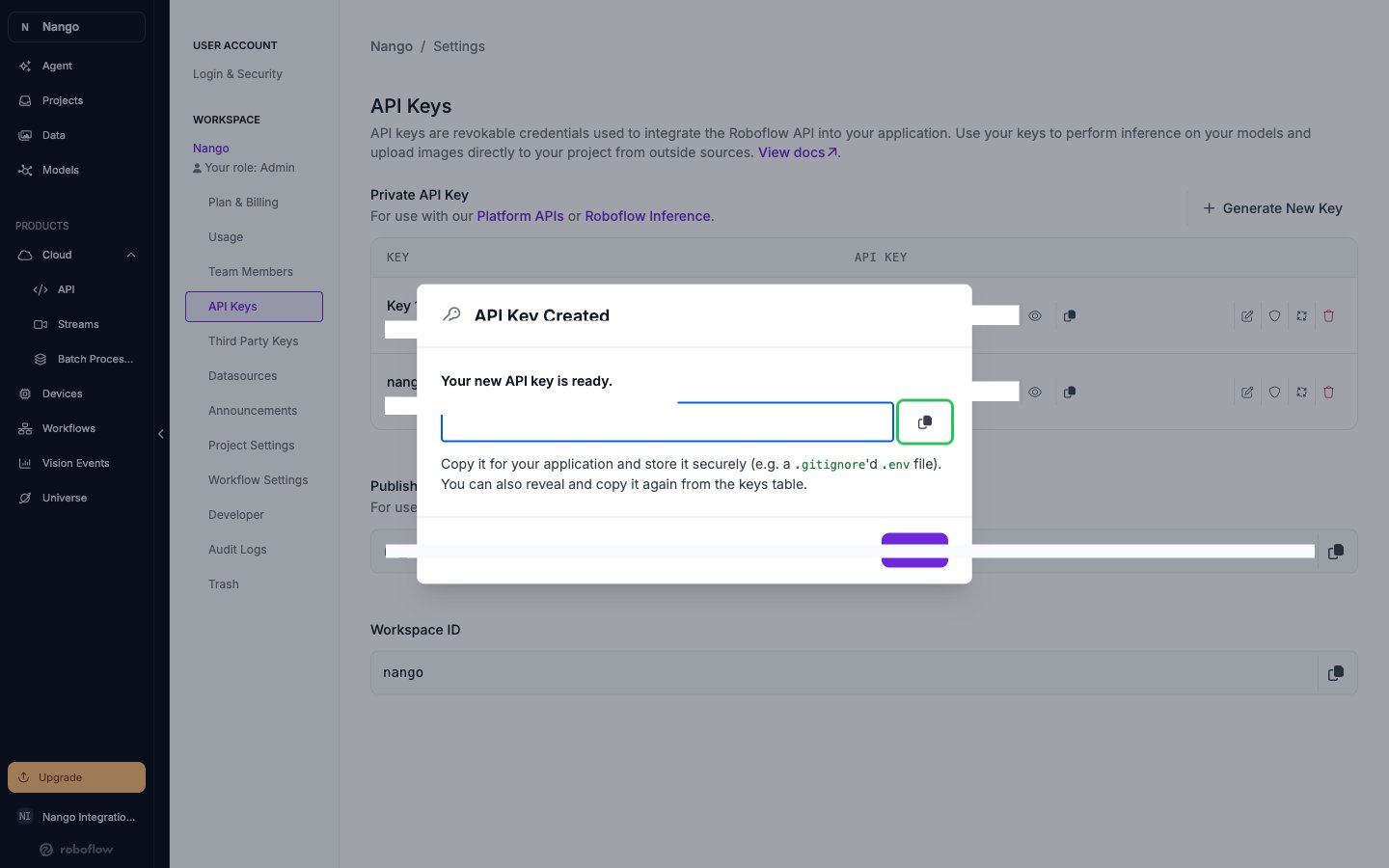
- Copy the key from the API Key Created dialog, then click Done.
Use the private API key, not the publishable API key: the publishable key is limited to inference and model downloads.
Step 2: Enter your API key in the Connect UI
- Open the form where you need to authenticate with Roboflow.
- Enter your Private API Key in the designated field.
- Submit the form, and you should be successfully authenticated.