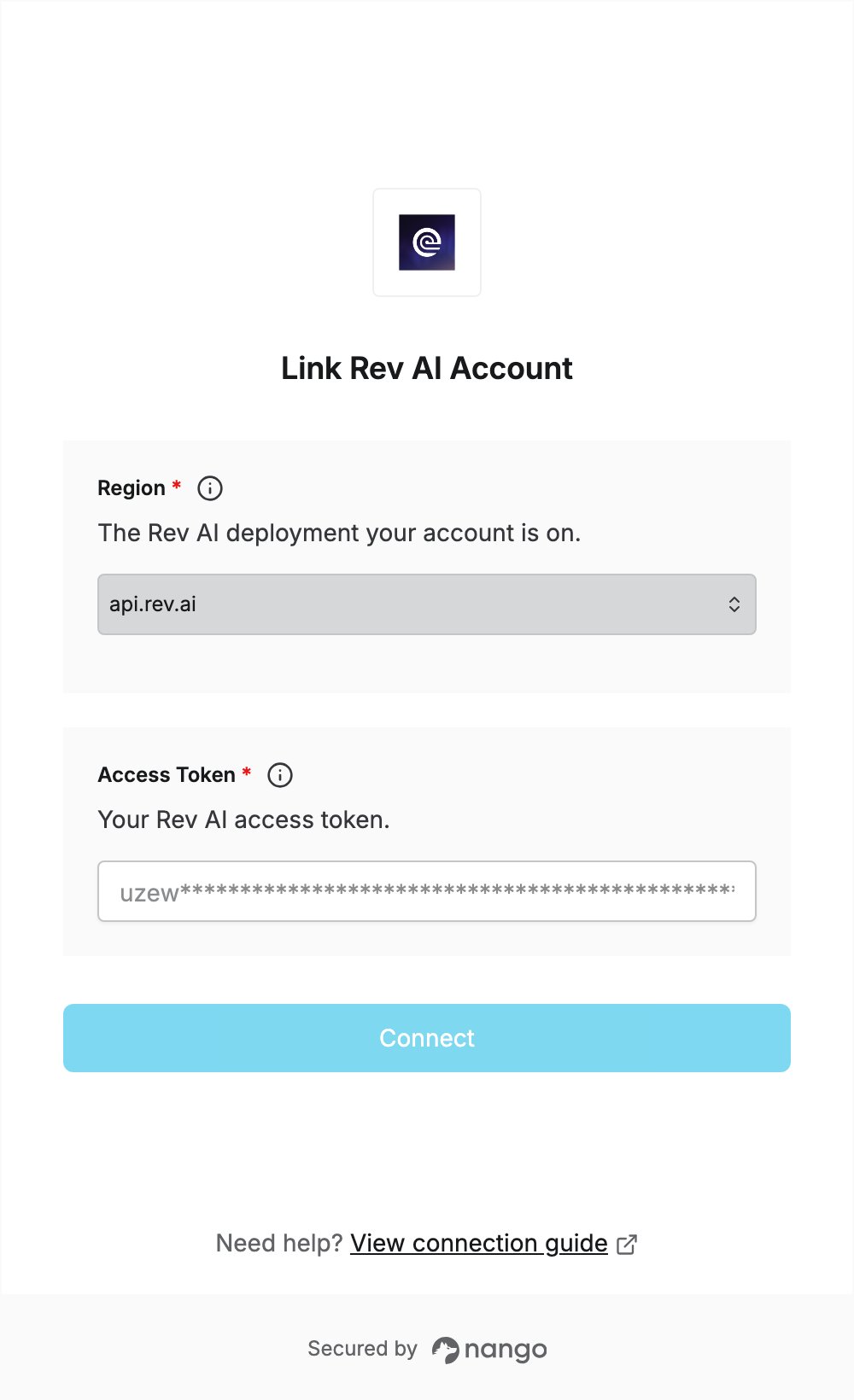
Overview
To authenticate with Rev AI, you need:- Region - the Rev AI deployment your account is on.
- Access Token - a Rev AI access token.
Prerequisites
- A Rev AI account. If you don’t have one, sign up for a free account.
Step 1: Find your region
Rev AI runs two deployments, each with its own API host:
The flag under the Rev AI logo in the dashboard sidebar shows your deployment. Pick
api.rev.ai unless Rev AI support or your Customer Success Manager set up EU access for your account. A token used against the wrong deployment is denied access.
Step 2: Generate an access token
- Log in to Rev AI.
- In the left sidebar, click Access Token.
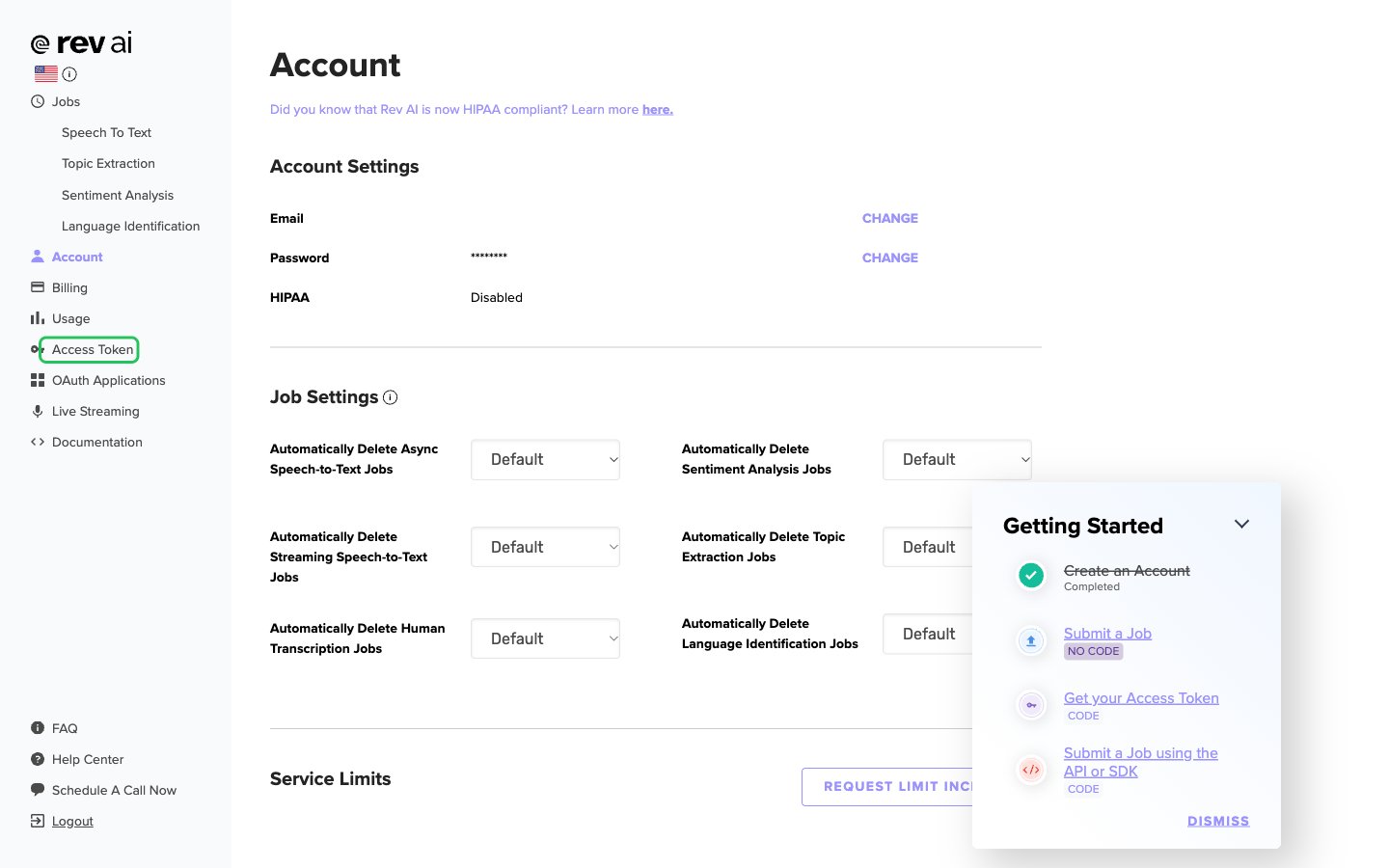
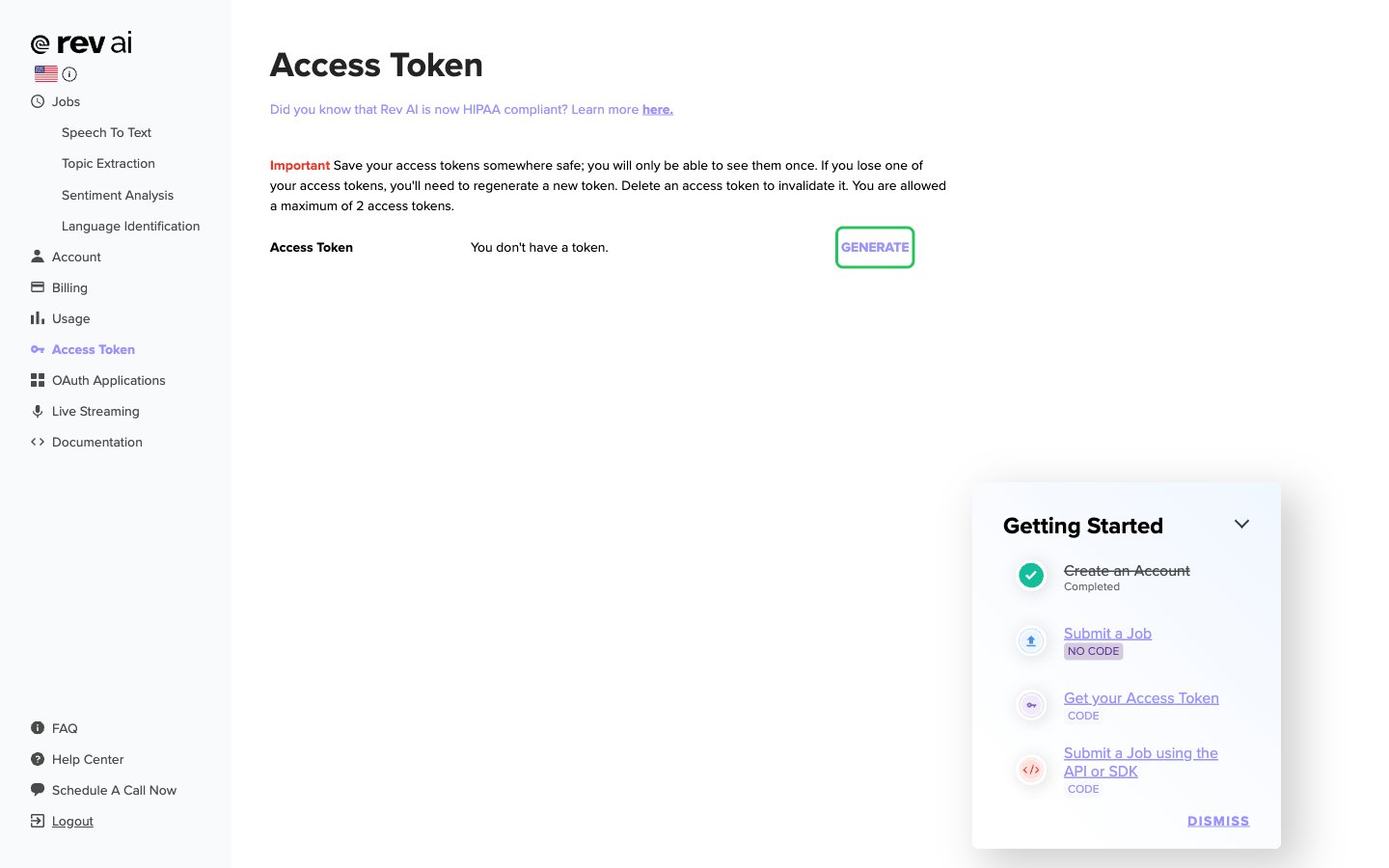
- Click Generate (or Generate New Access Token if you already have a token).
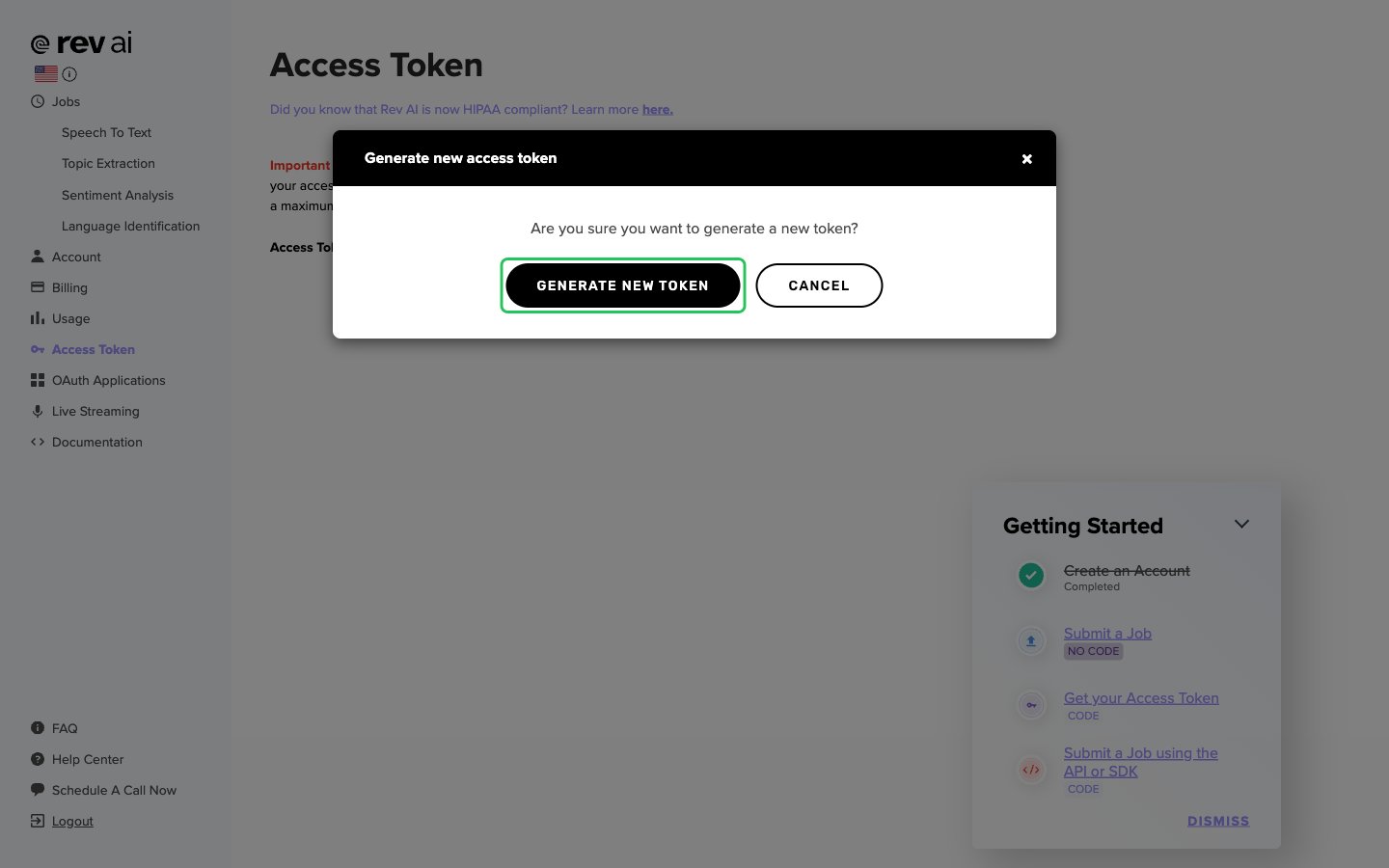
- In the Generate new access token dialog, click Generate New Token.
- Copy the New Access Token right away and store it somewhere safe.
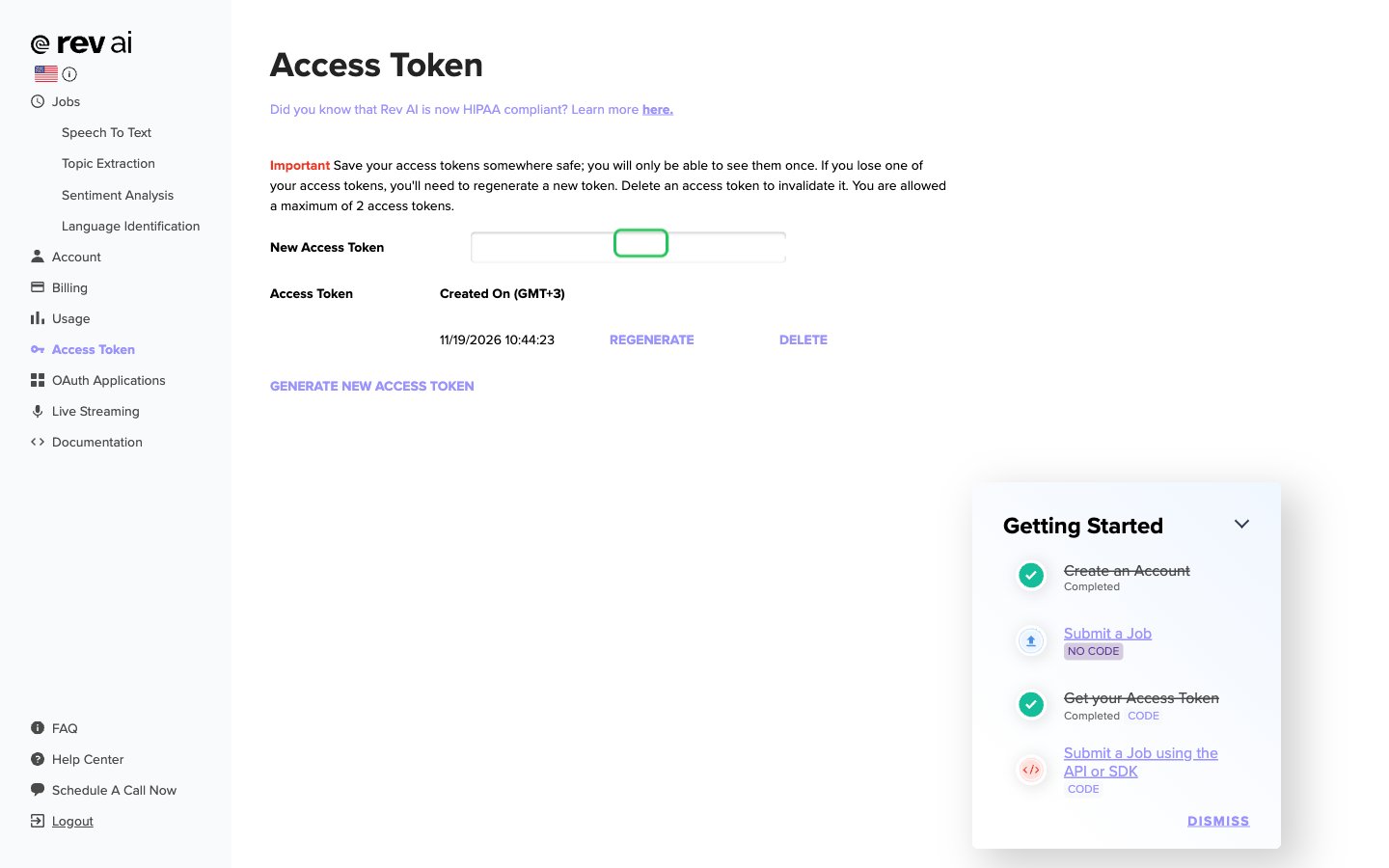
Rev AI shows each access token only once, and an account can have at most 2 access tokens at a time. If you lose a token, generate a new one and delete the old one.
Step 3: Enter your credentials in the Connect UI
- Open the form where you need to authenticate with Rev AI.
- Select your Region and enter your Access Token.
- Click Connect. Nango checks the token with Rev AI before saving the connection.