Overview
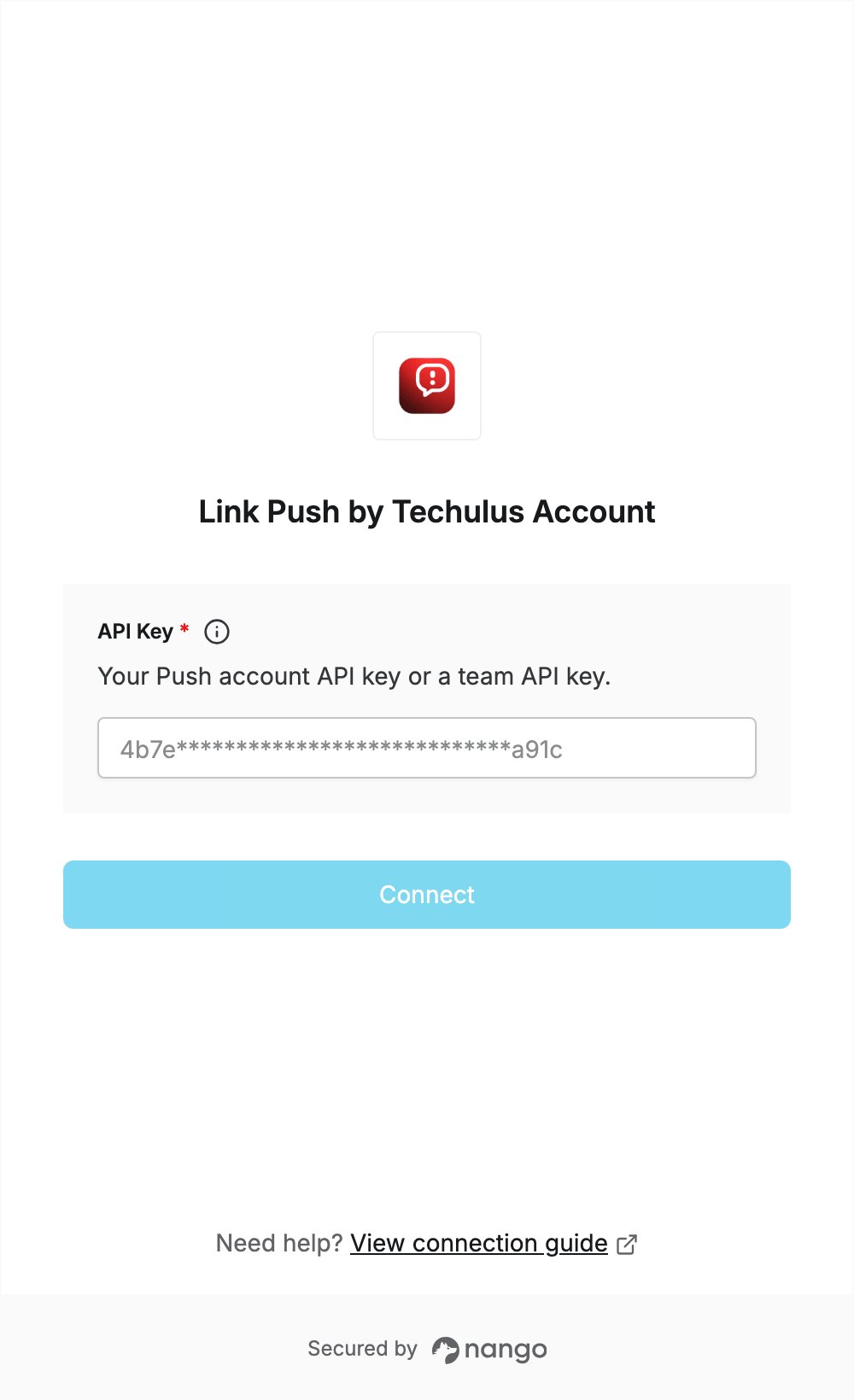
To authenticate with Push by Techulus, you need:- API Key — your Push account API key, or a team API key.
Prerequisites
- A Push account. The Free plan includes API access. If you don’t have an account, sign up in the Push console.
- To receive notifications, install the Push app on an iOS or Android device, sign in to your account, and allow notifications.
Step 1: Copy your API key
Use the account API key to notify all devices in your account, or a team API key to notify the devices of every member of that team. Account API key- Sign in to the Push console.
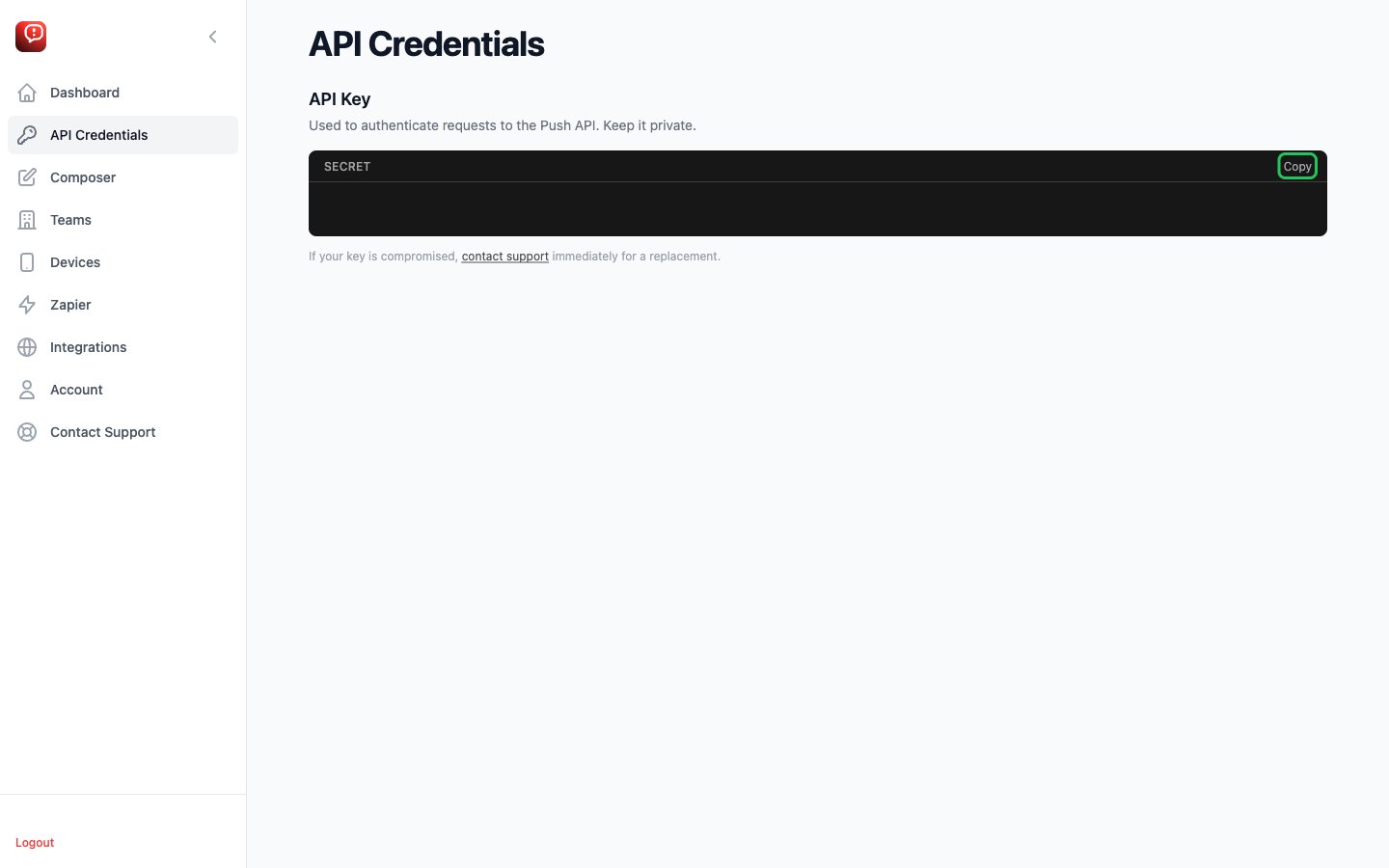
- In the left sidebar, click API Credentials.
- Under API Key, click Copy. The key is created with your account; if it is compromised, contact Push support for a replacement.
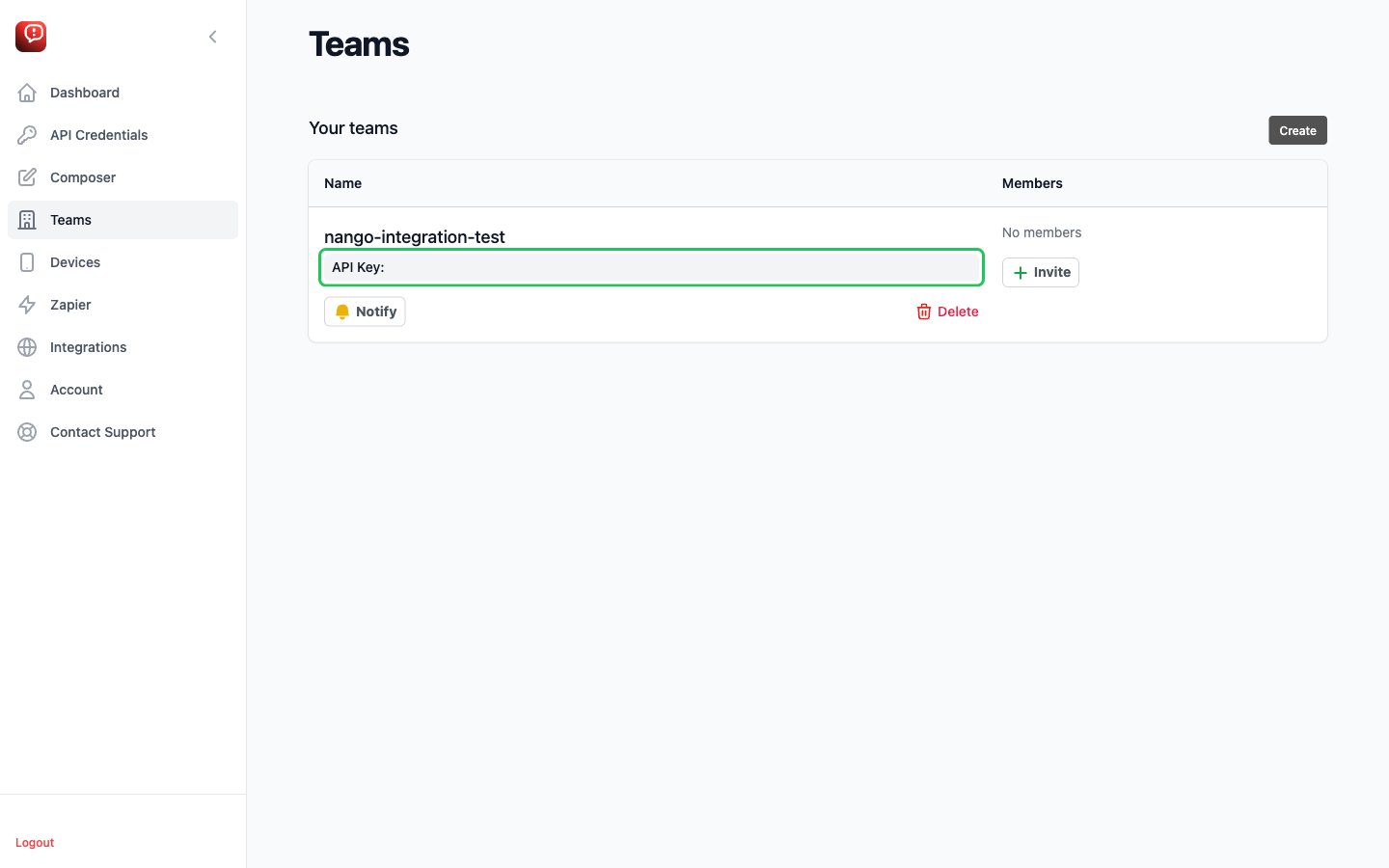
- In the left sidebar of the Push console, click Teams.
- To add a team, click Create, enter a team name, then click Confirm.
- Copy the key shown next to API Key under the team name.
Step 2: Enter your API key in the Connect UI
- Open the form where you need to authenticate with Push by Techulus.
- Enter your account or team API key in the API Key field.
- Submit the form. The connection is saved without checking the key: if the key is wrong, the first API request returns an authentication error.