Overview
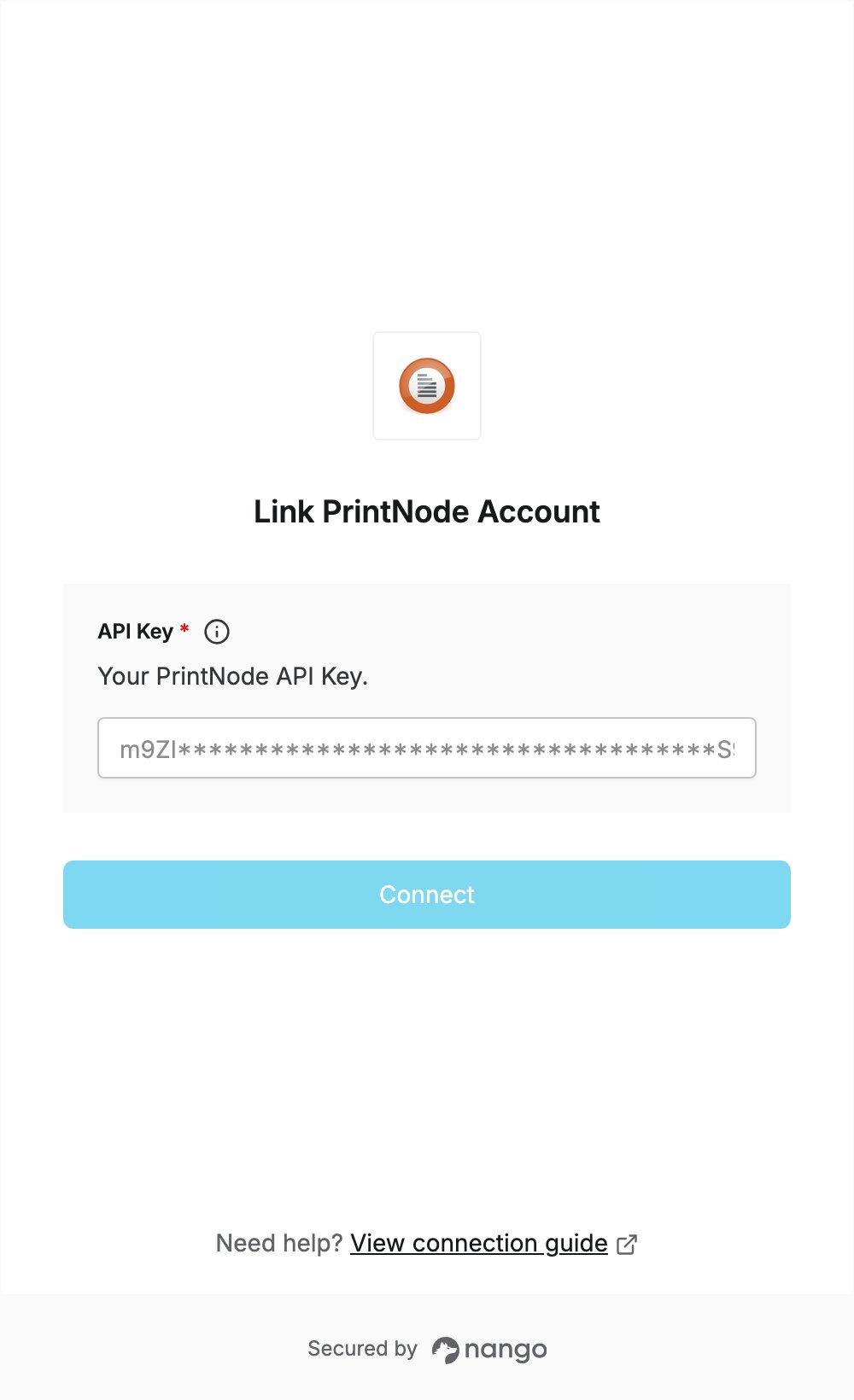
To authenticate with PrintNode, you need:- API Key — an API key from your PrintNode account.
Prerequisites
- A PrintNode account. Sign up if you don’t have one; signing up is free.
Step 1: Create an API key
- Log in to the PrintNode web app and click API Keys in the top navigation.
- If PrintNode asks for your account password to view API Keys, enter it and click NEXT.
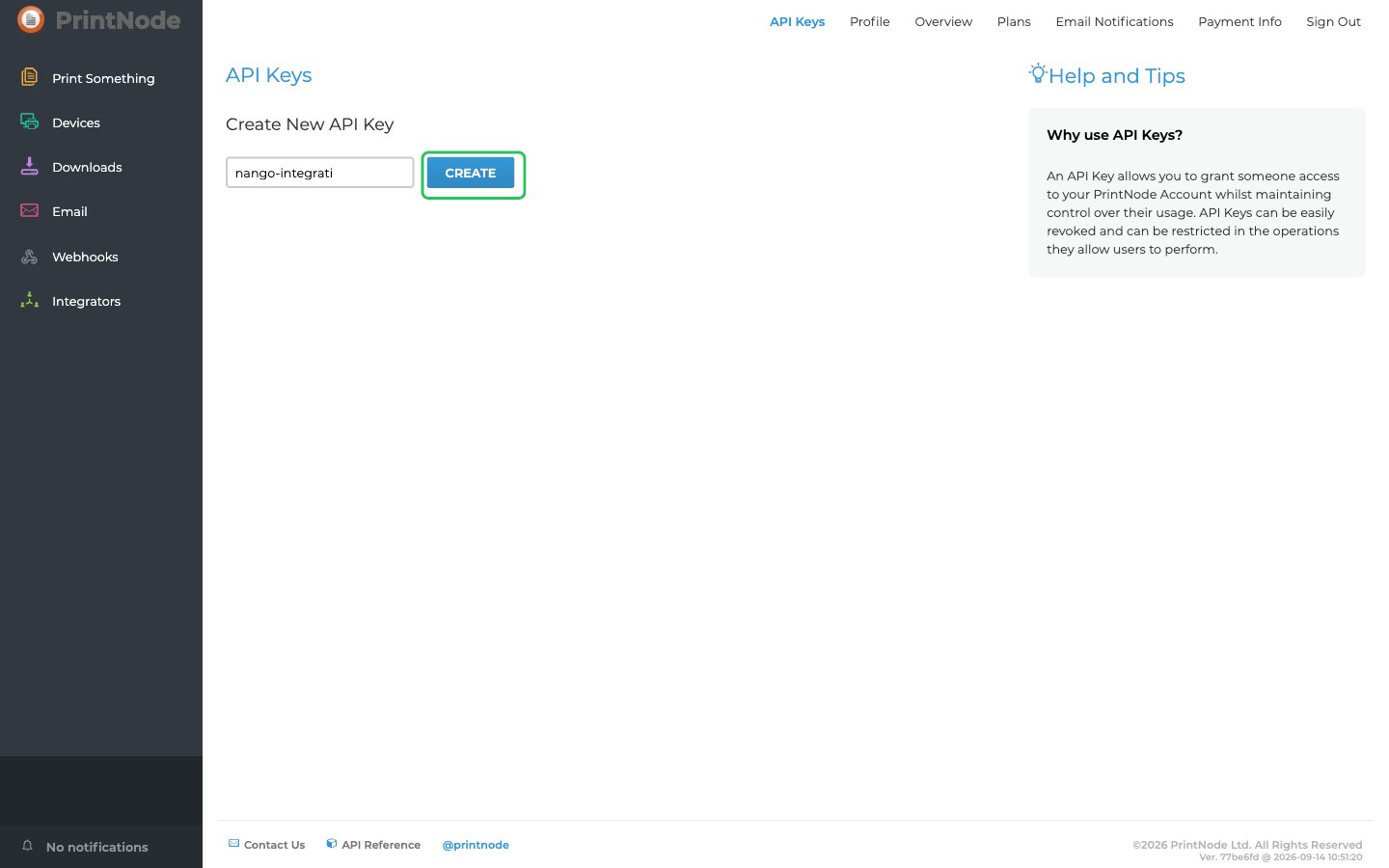
- Under Create New API Key, enter a description for the key (up to 15 characters) and click CREATE.
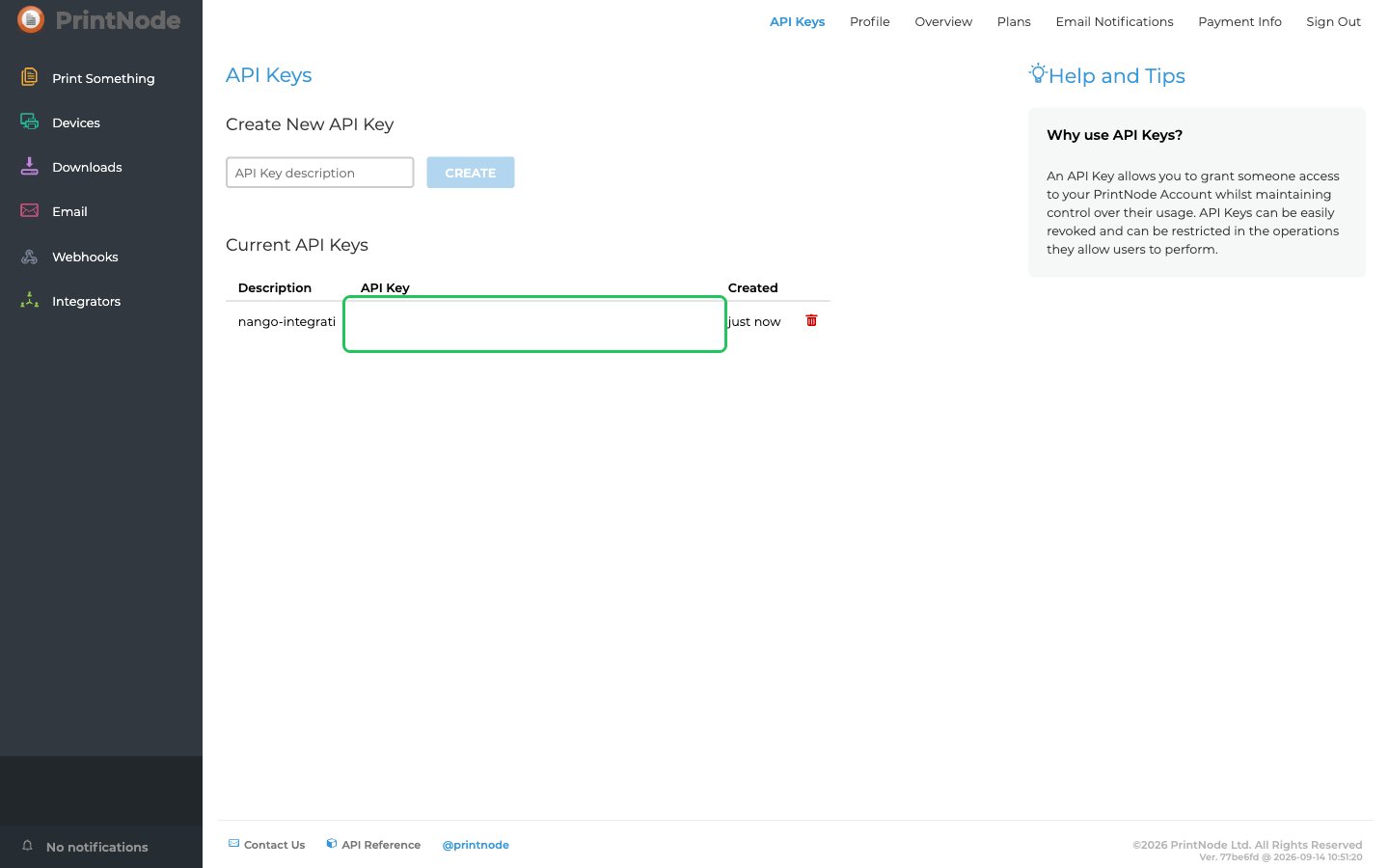
- Your new key appears under Current API Keys. Copy the value from the API Key column.
Step 2: Enter your API key in the Connect UI
- Open the form where you need to authenticate with PrintNode.
- Paste your key into the API Key field. PrintNode needs no password.
- Submit the form. Nango checks the key with PrintNode, and a wrong key is rejected.