Overview
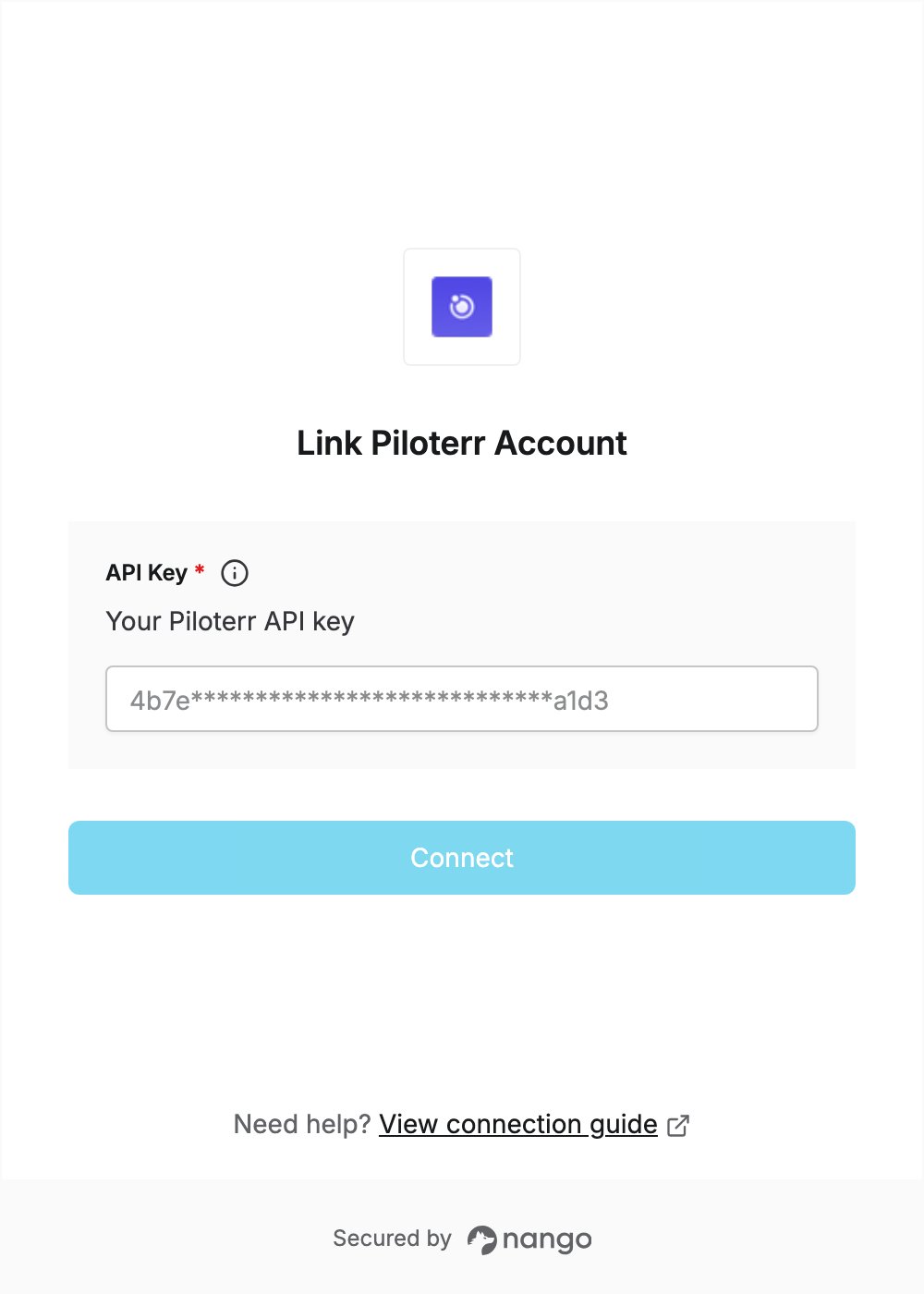
To authenticate with Piloterr, you need:- API Key — an API key from your Piloterr workspace.
Prerequisites
- A Piloterr account. If you don’t have one, sign up; the free trial includes API access with no credit card.
Step 1: Create an API key
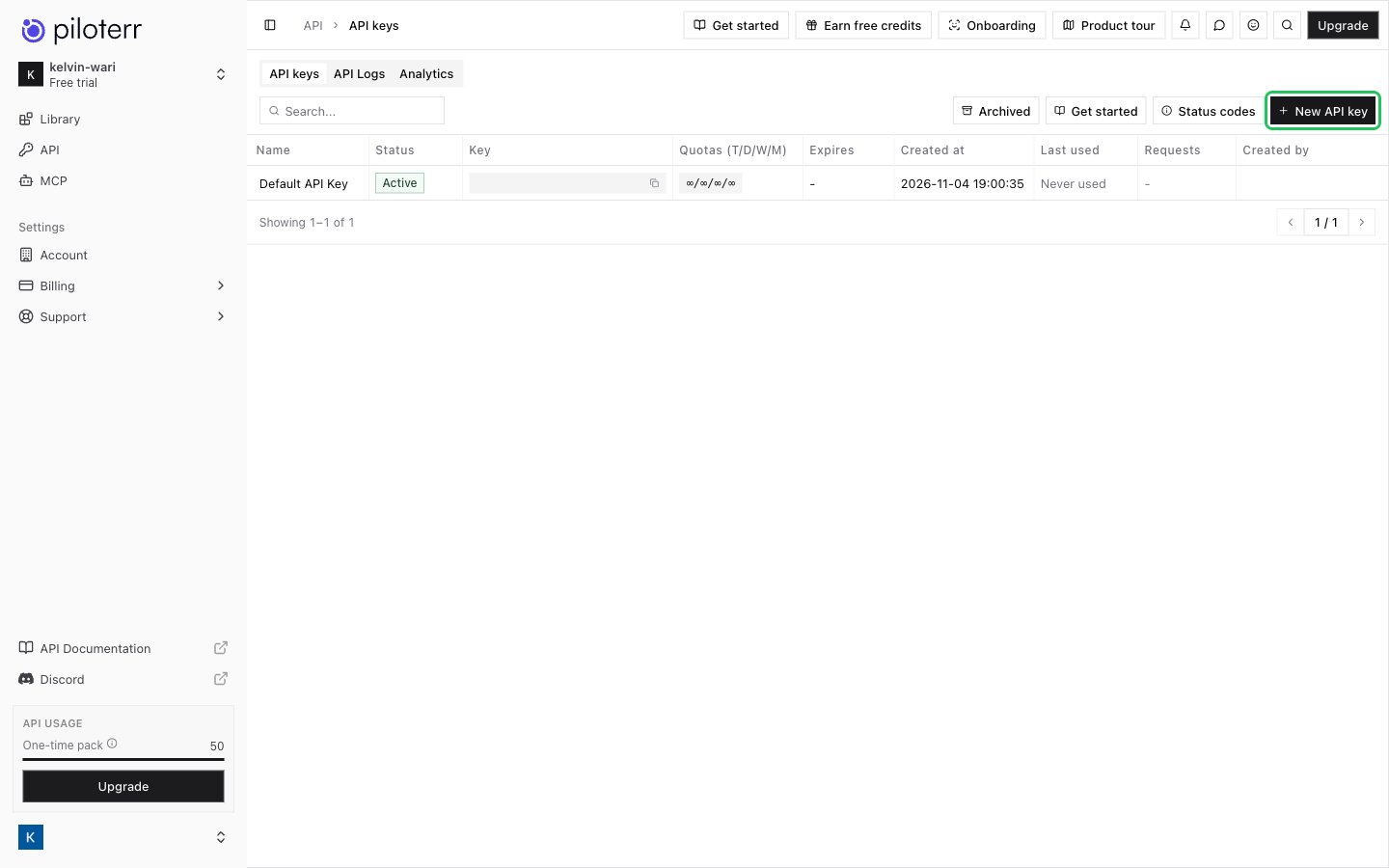
- Sign in to Piloterr and click API in the sidebar to open the API keys tab.
- Click New API key.
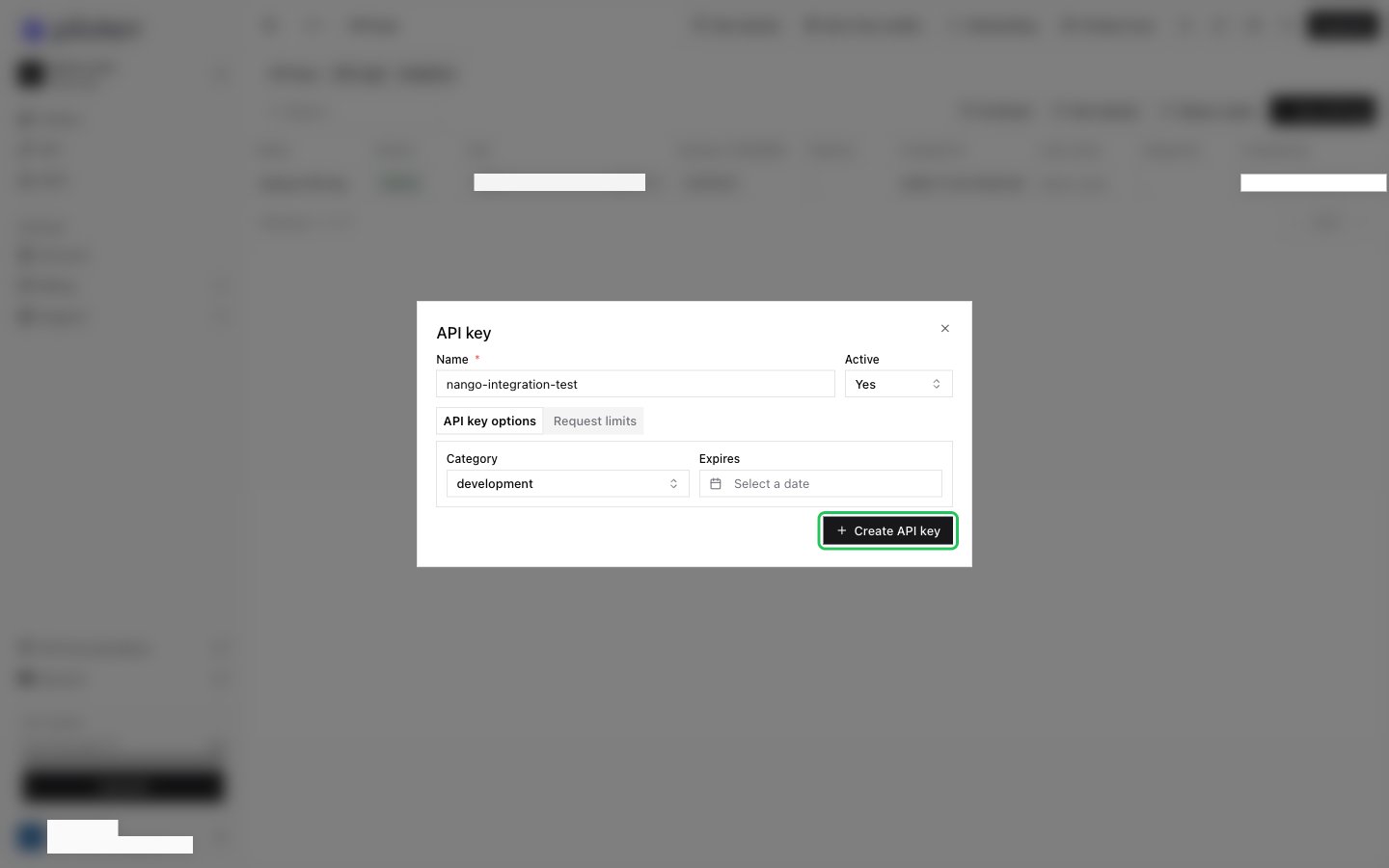
- Enter a Name (for example,
nango-integration) and pick a Category (for example,development). You can also set an expiry date, and request limits in the Request limits tab. - Click Create API key.
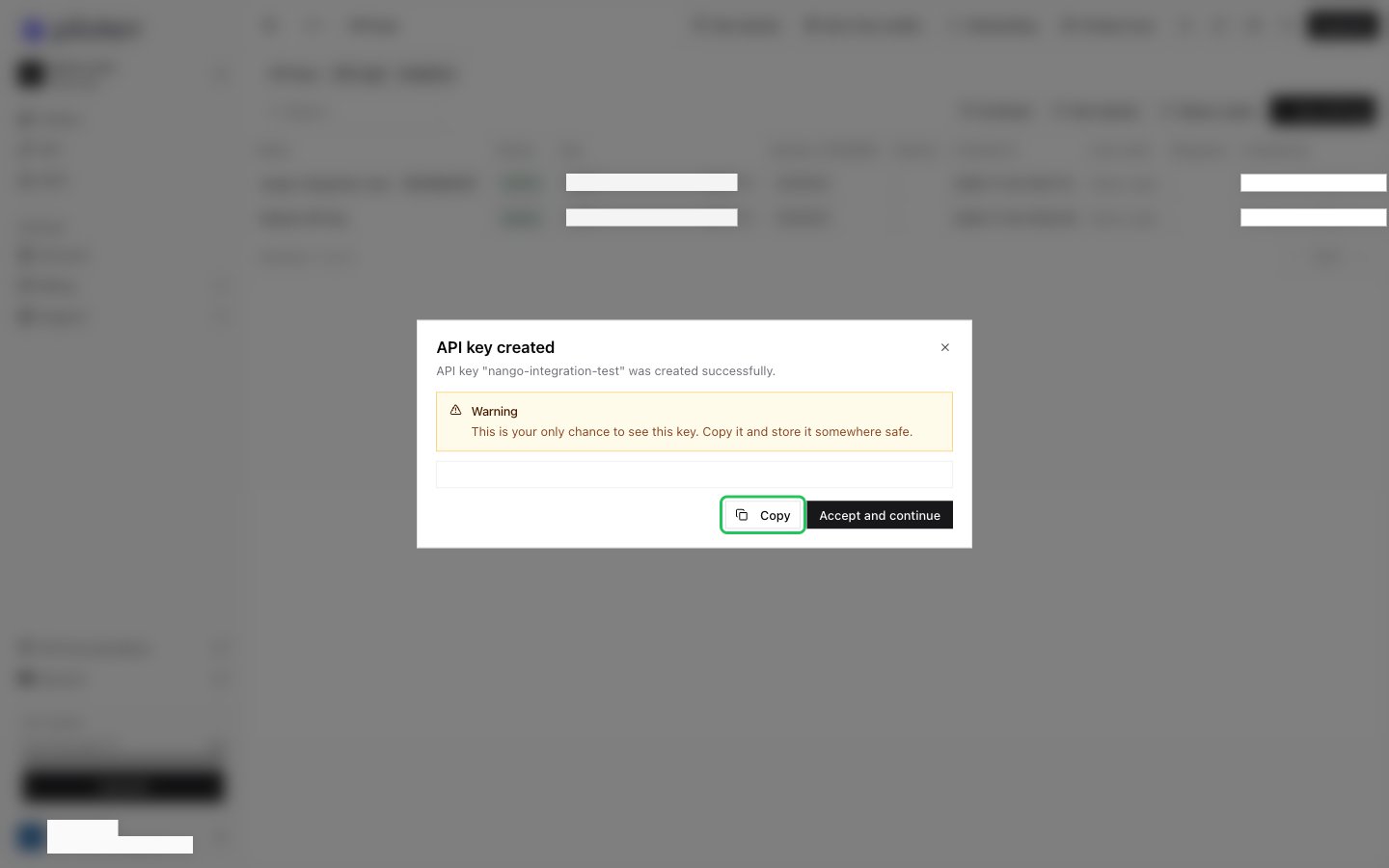
- In the API key created dialog, click Copy to copy the key, then click Accept and continue. The key is shown only once.
Step 2: Enter your API key in the Connect UI
- Open the form where you need to authenticate with Piloterr.
- Enter your API key in the API Key field.
- Submit the form, and you should be successfully authenticated.