Overview
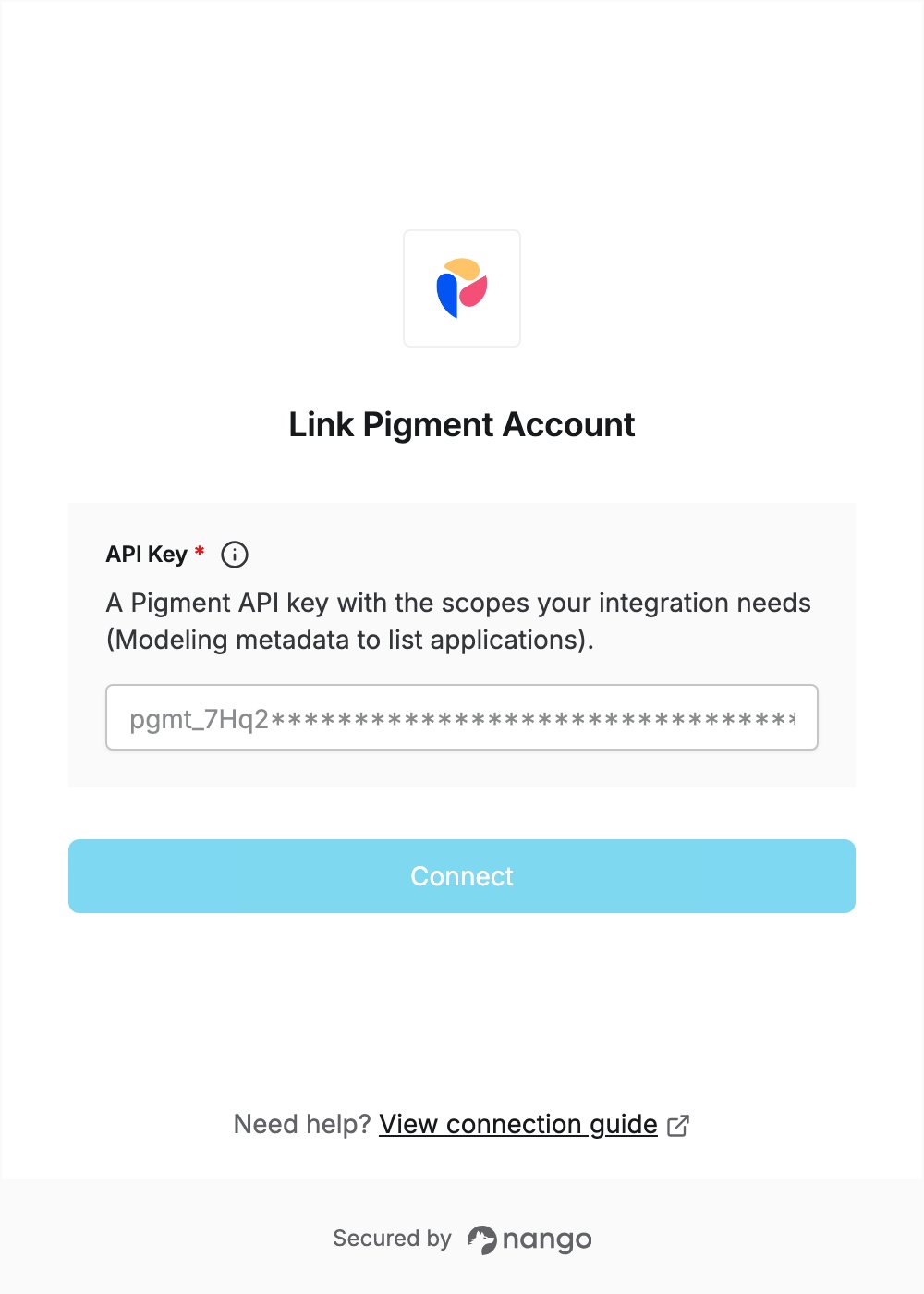
To authenticate with Pigment, you need:- API Key — a Pigment API key with the scopes your integration needs (Modeling metadata to list applications).
Prerequisites
- A Pigment account that can manage API keys in Workspace settings. If you don’t have a workspace, start a free trial.
Step 1: Create an API key
- Sign in to Pigment.
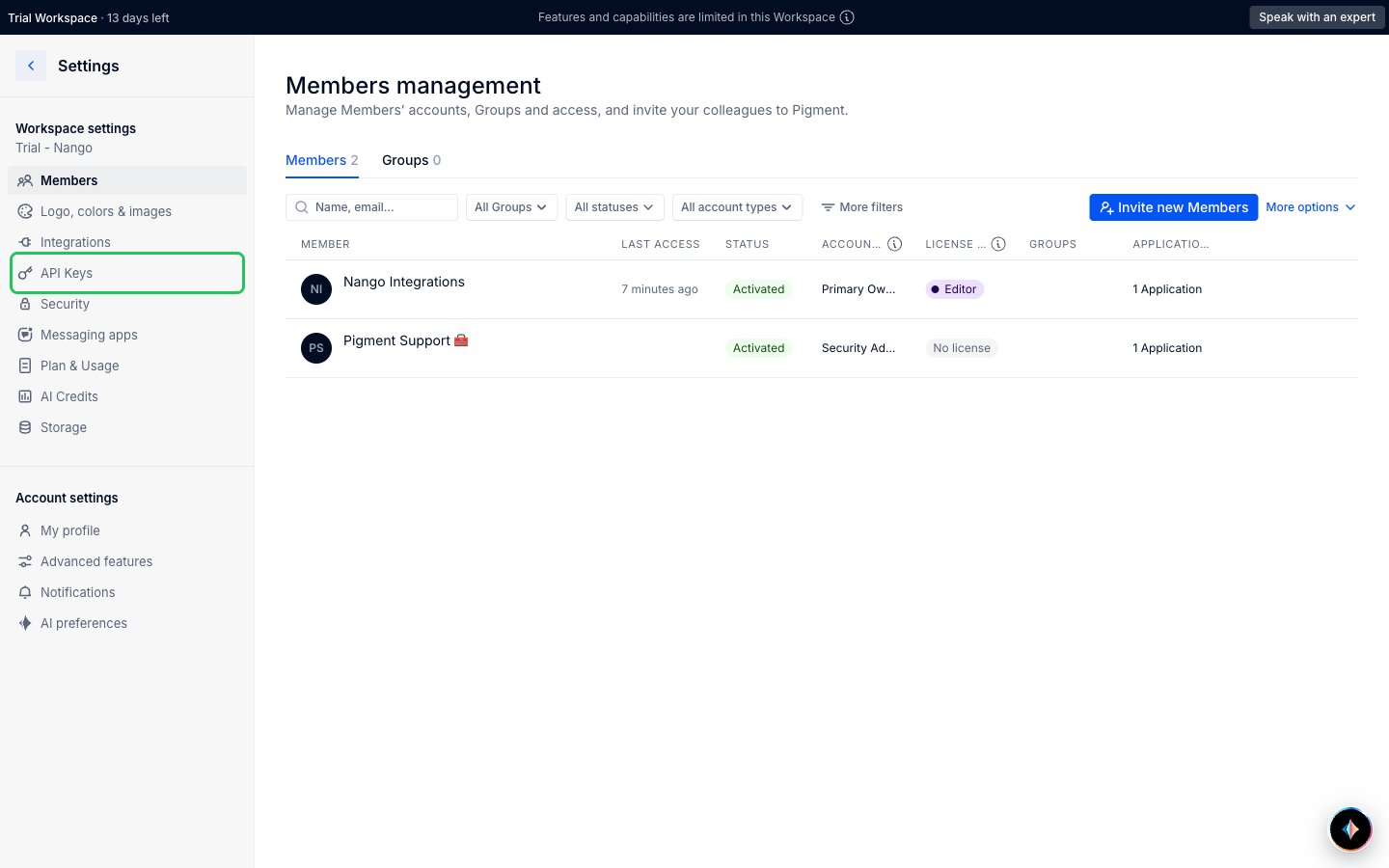
- In the left sidebar, click Settings, then click API Keys under Workspace settings.
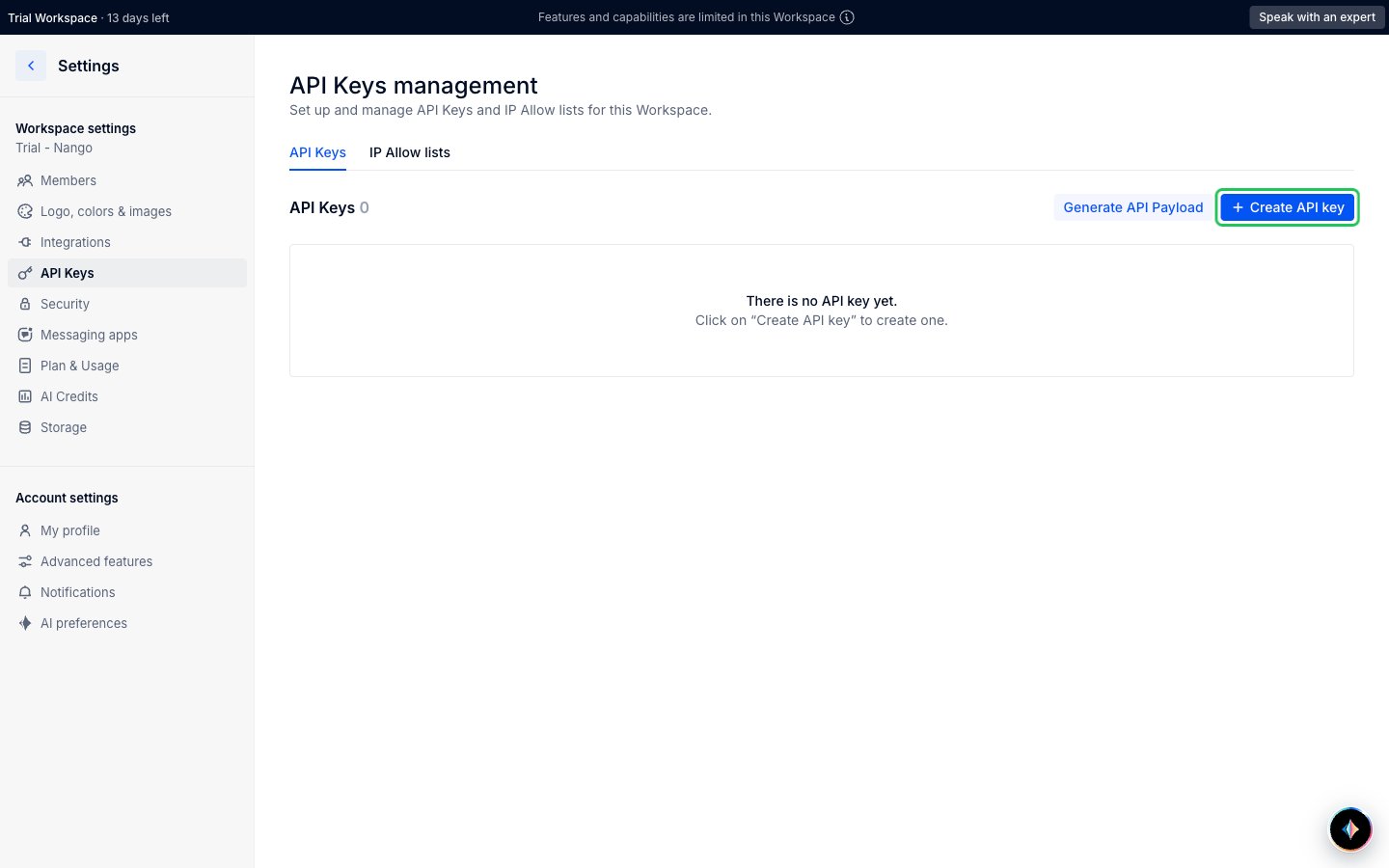
- On the API Keys management page, click + Create API key.
-
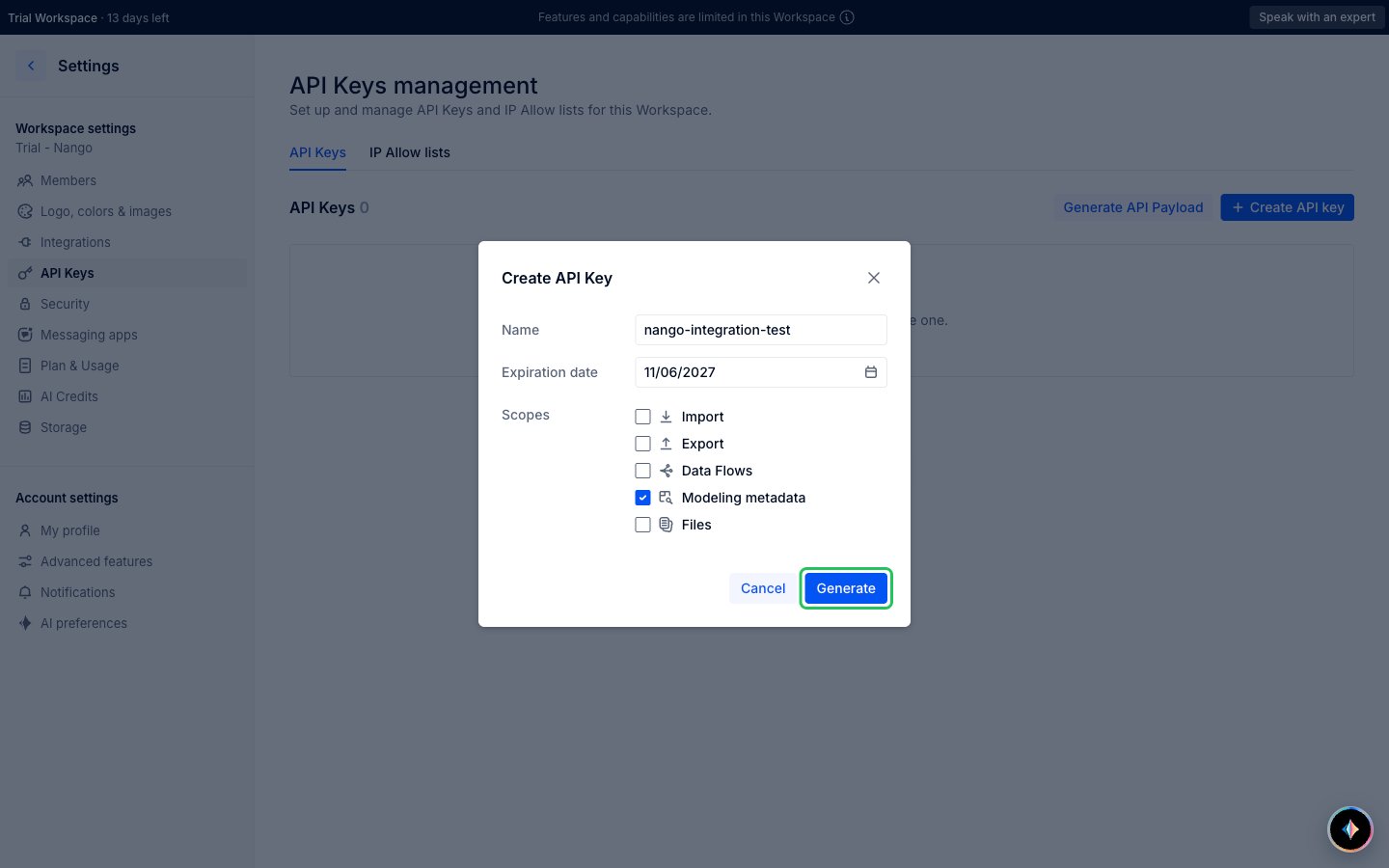
Enter a Name, keep or change the Expiration date, and tick the Scopes your integration needs, then click Generate:
- Modeling metadata for the metadata endpoints (applications, blocks, views and import configurations).
- Import or Export for the import and export endpoints.
- Files for the File Storage endpoints and Data Flows for the Data Flow endpoints.
- Copy the key with the copy icon.
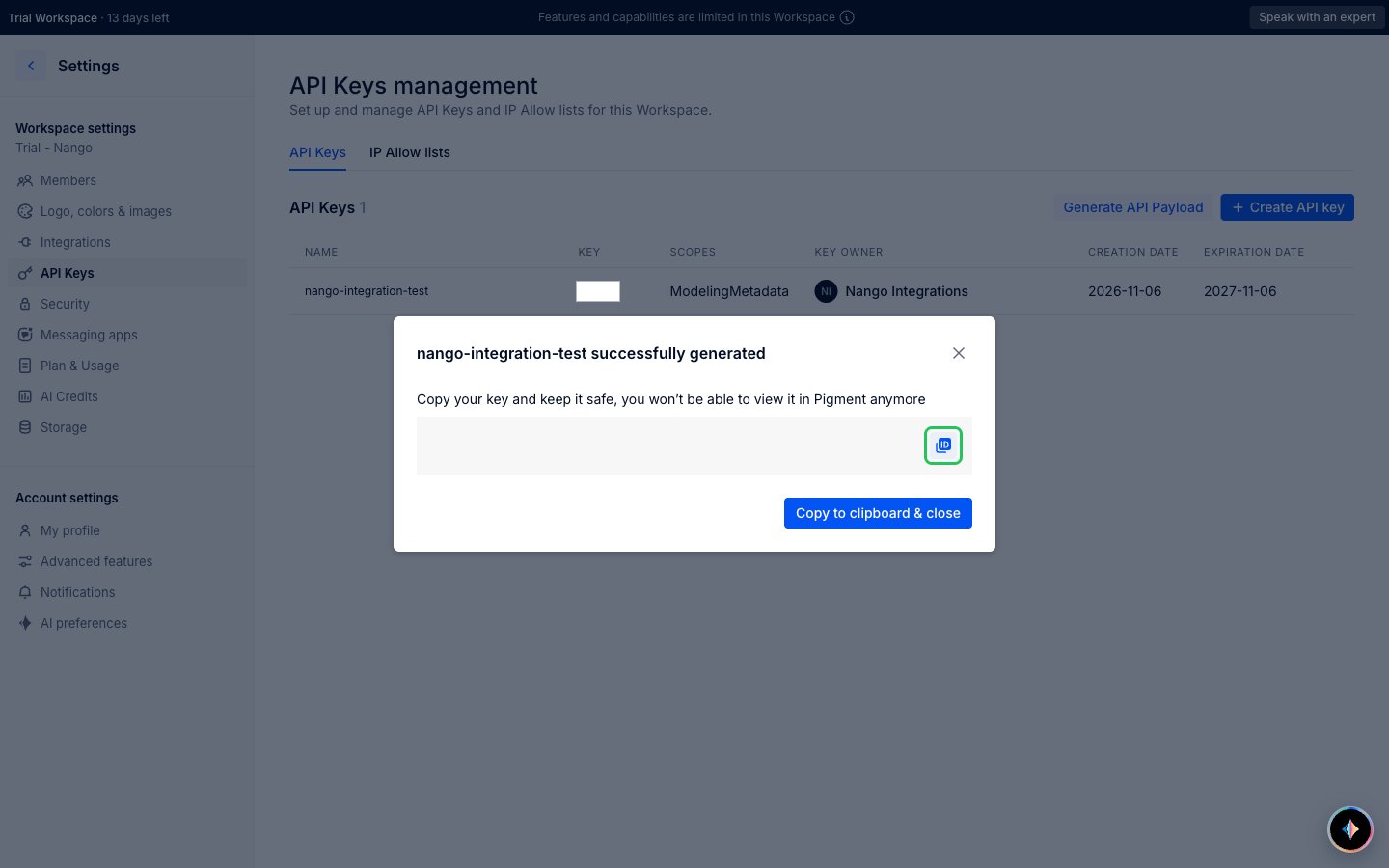
Pigment shows the key only once. Copy it before you close the dialog. The key inherits the workspace, data visibility and permissions of the user who created it.
Step 2: Enter your API key in the Connect UI
- Open the form where you need to authenticate with Pigment.
- Paste your API key in the API Key field.
- Submit the form. The connection is saved without checking the key: if the key is wrong, the first API request returns an authentication error.