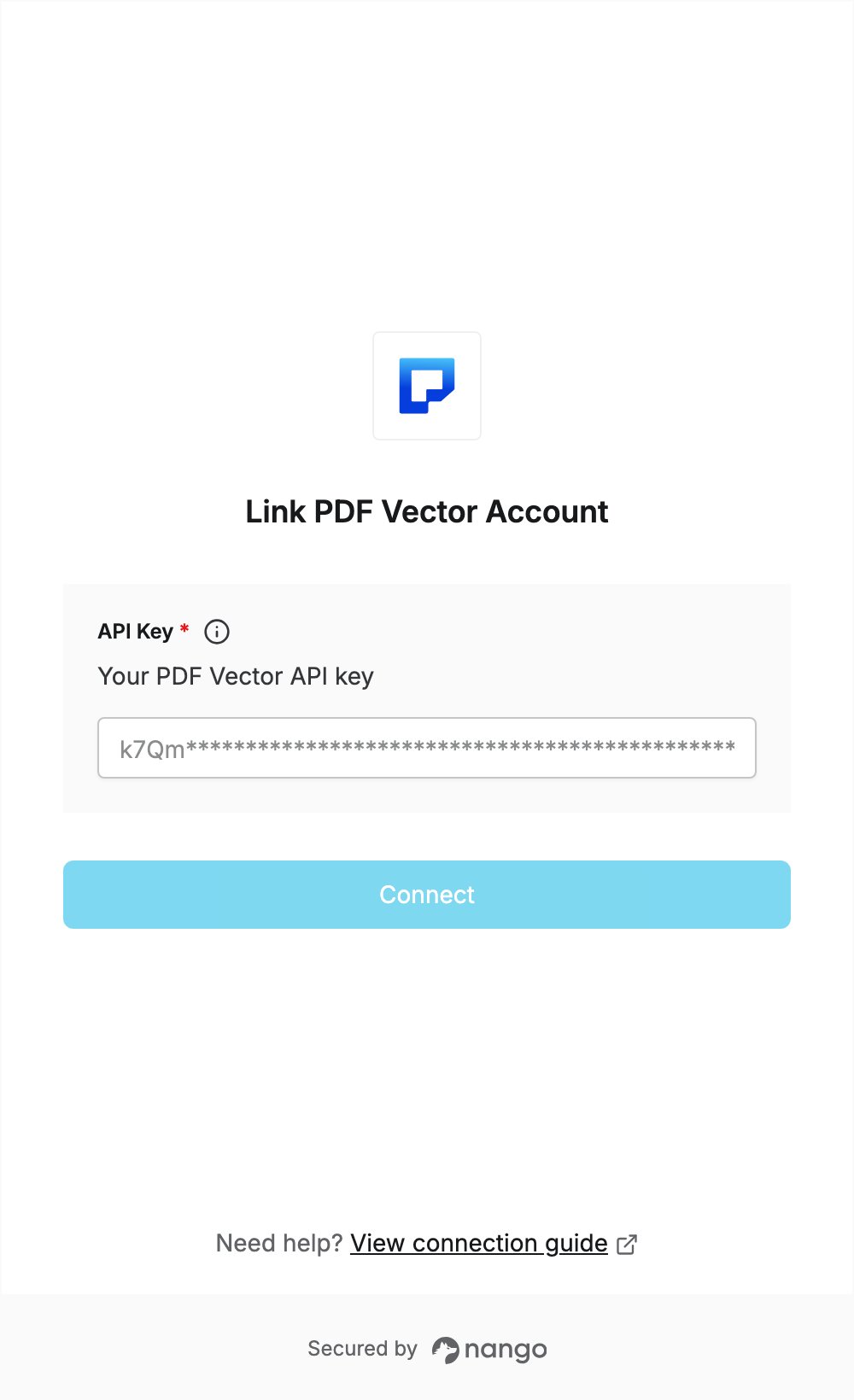
Overview
To authenticate with PDF Vector, you need:- API Key — an API key from your PDF Vector instance settings.
Prerequisites
- A PDF Vector account. You can sign up for free, no credit card required.
Step 1: Create an API key
- Log in to the PDF Vector dashboard.
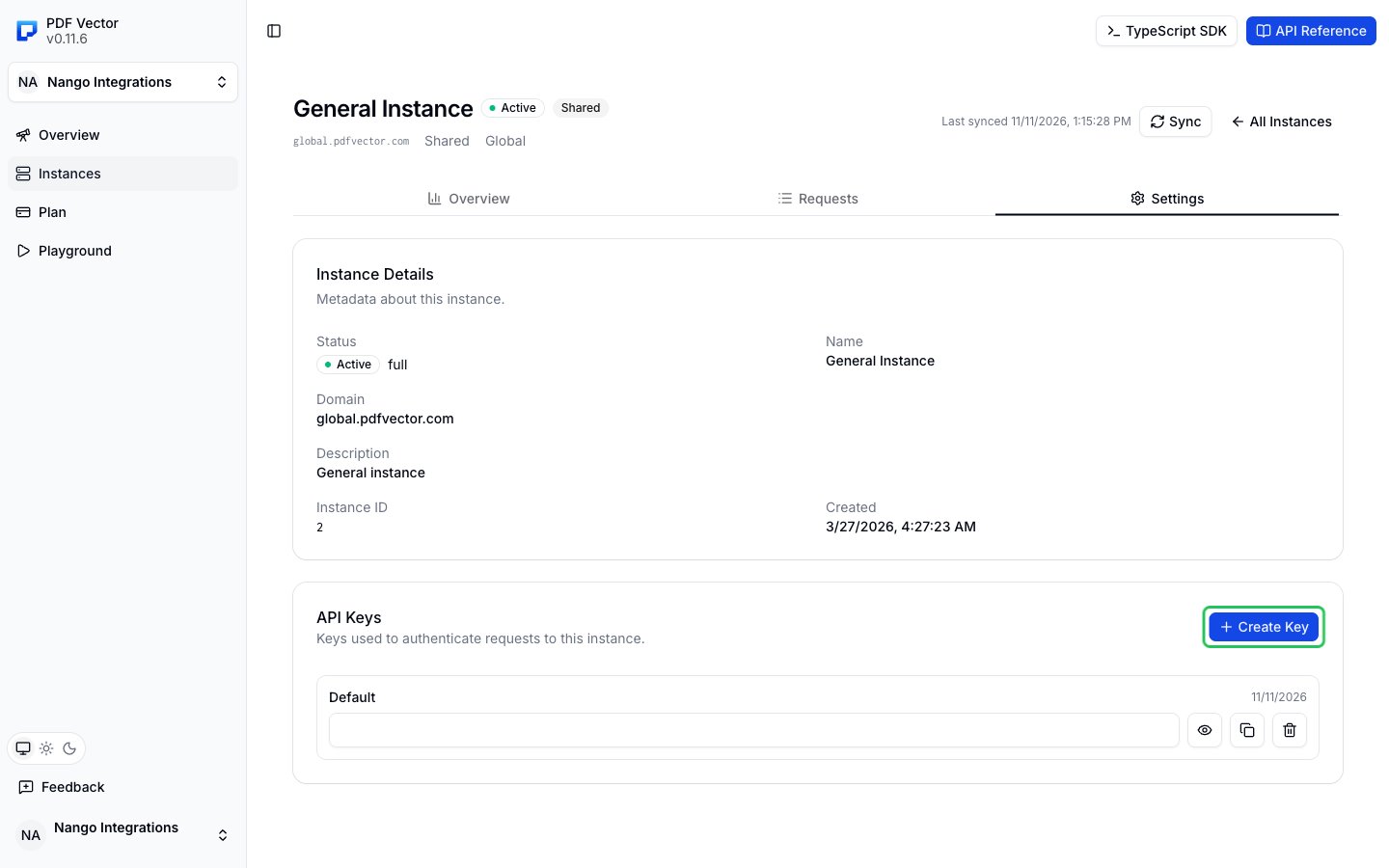
- In the left sidebar, click Instances, then click General Instance (
global.pdfvector.com). - Open the Settings tab and, in the API Keys section, click Create Key.
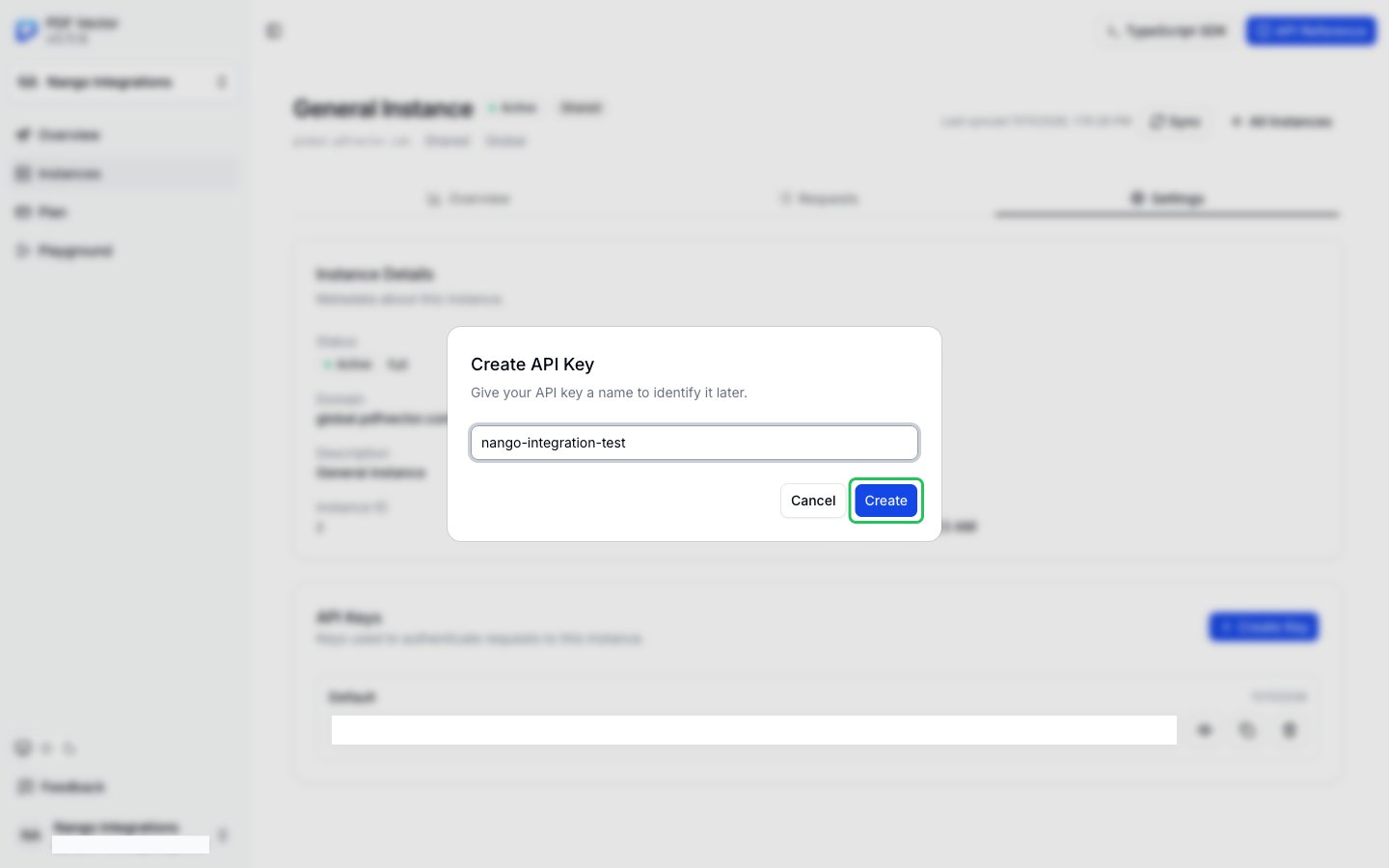
- Enter a name for the key (for example,
nango) and click Create.
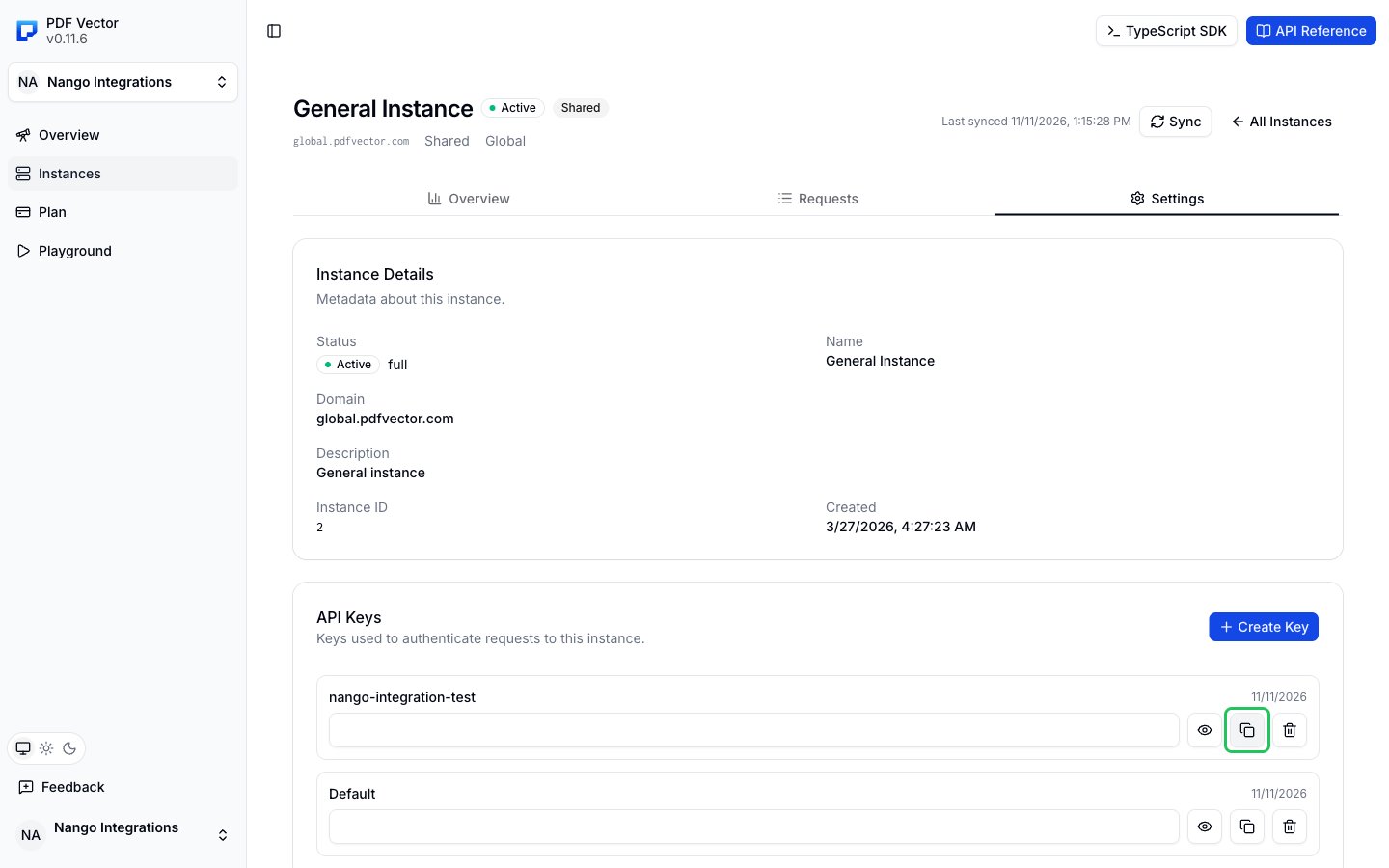
- The new key appears in the API Keys list. Click the copy button next to it to copy the key.
Step 2: Enter your API key in the Connect UI
- Open the form where you need to authenticate with PDF Vector.
- Enter your key in the API Key field.
- Submit the form. The connection is saved without checking the key: if the key is wrong, the first API request returns an authentication error.