Overview
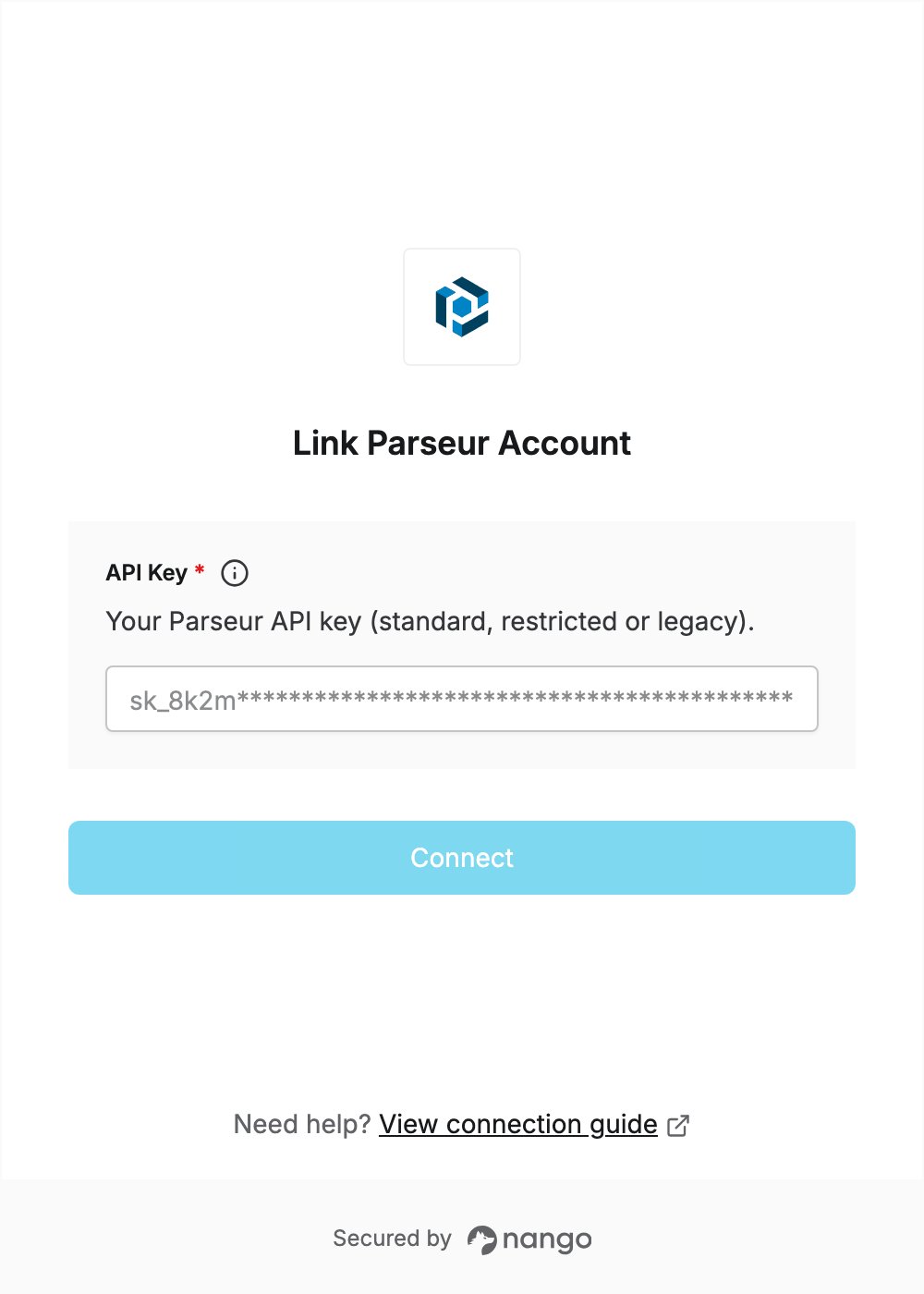
To authenticate with Parseur, you need:- API Key — an API key of your Parseur account.
Prerequisites
- A Parseur account. API access is available on the Free plan. If you don’t have an account, sign up.
Step 1: Create an API key
- Log in to Parseur.
- Click Account in the left sidebar, then API keys (direct link).
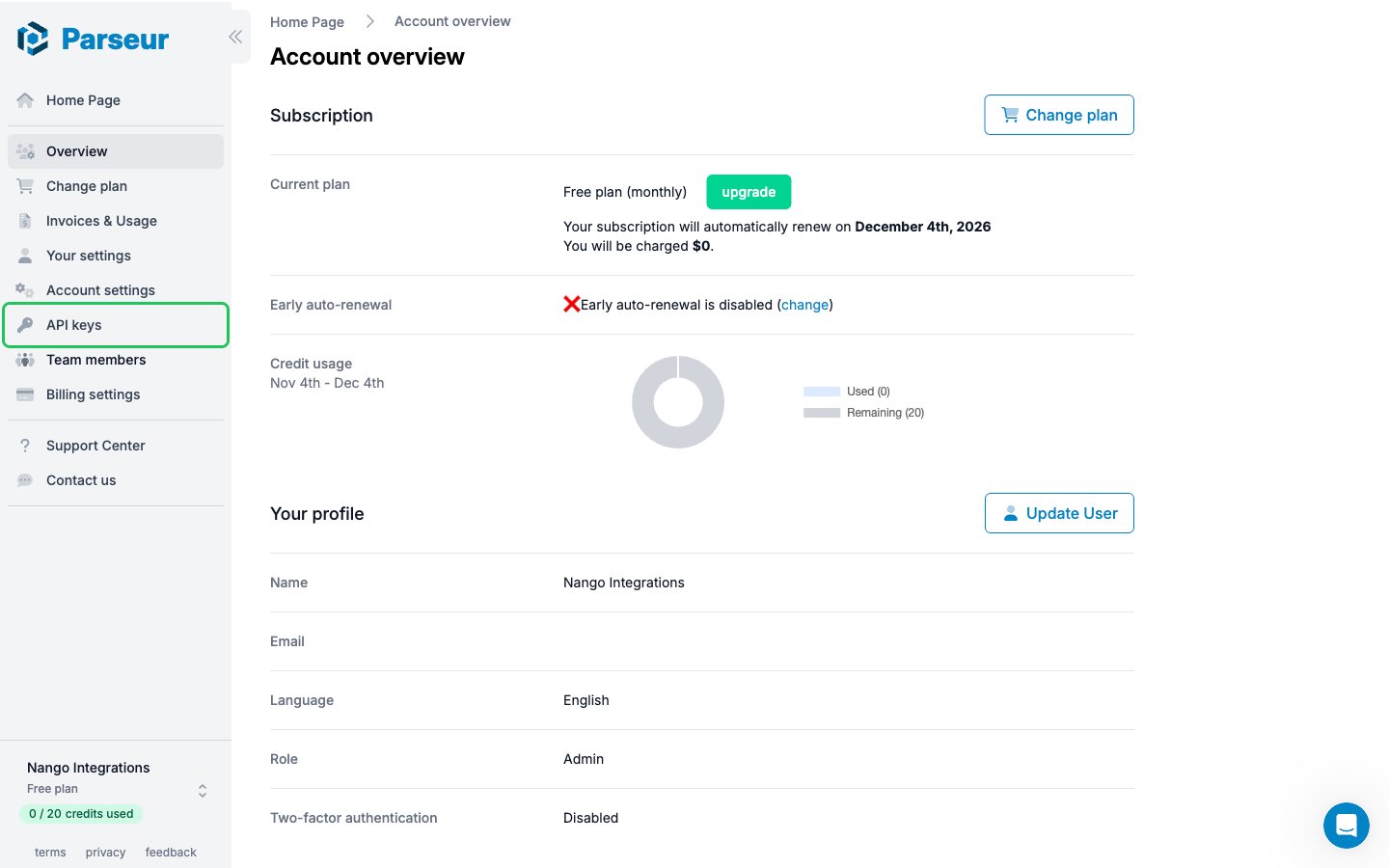
- Click Create new API key.
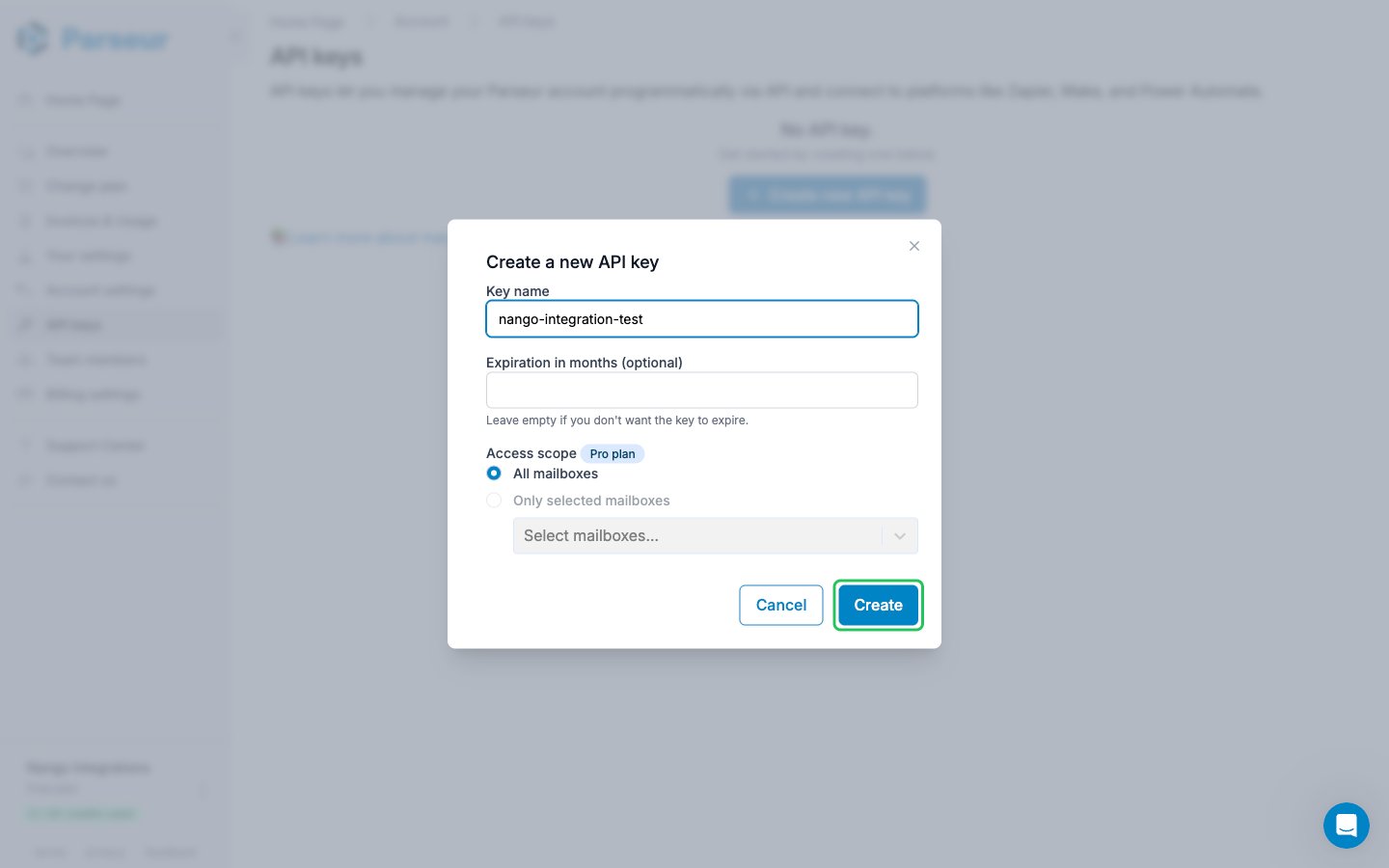
- Enter a Key name, for example
Nango integration. - Optionally set Expiration in months. Leave it empty for a key that never expires. The expiration cannot be changed later.
- Under Access scope, keep All mailboxes selected, or pick Only selected mailboxes to create a restricted key (Pro plan and higher).
- Click Create.
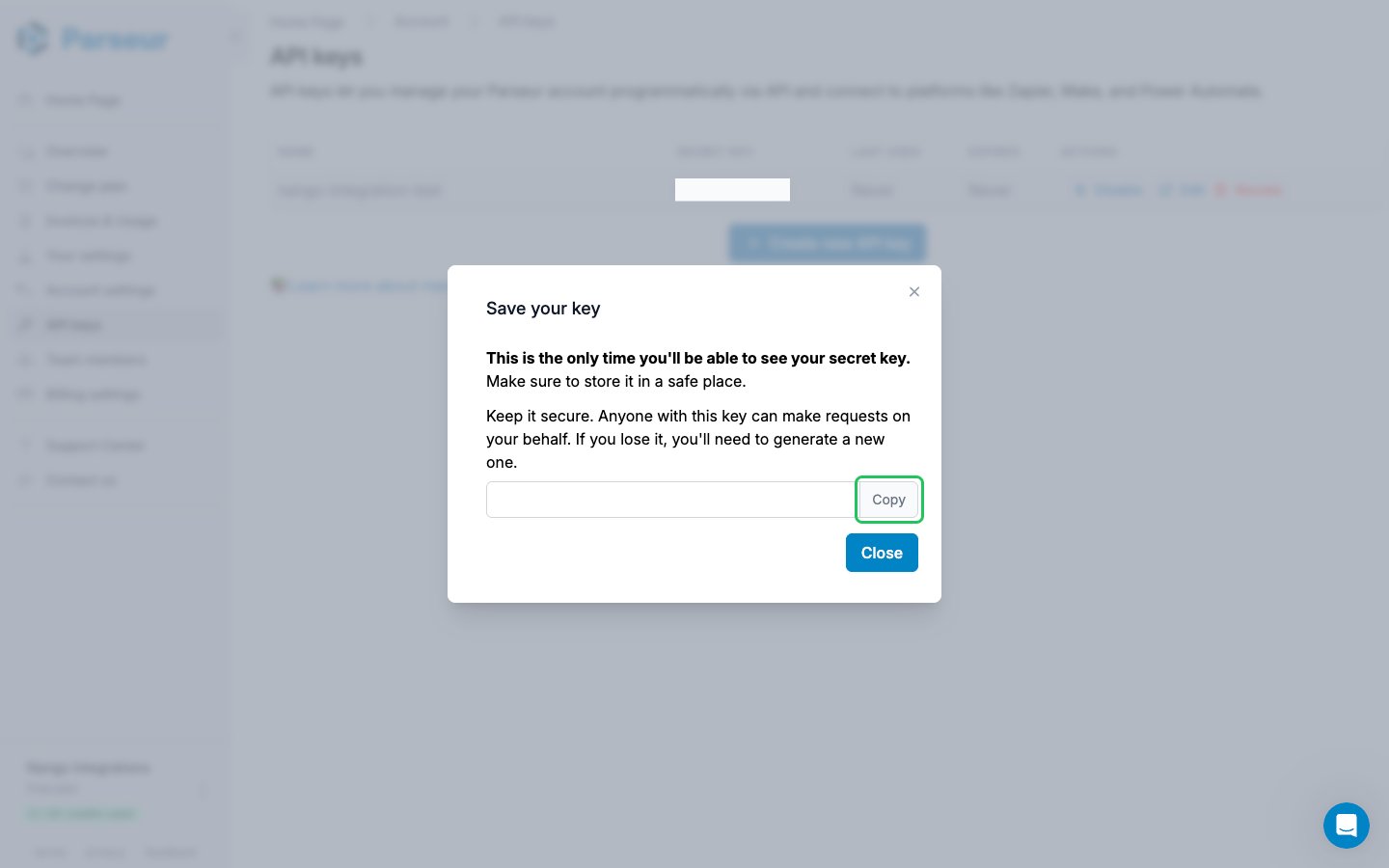
- In the Save your key dialog, click Copy. The secret key is shown only once.
Accounts created before August 18, 2025 also have a Legacy API key on the API keys page. It works too, but Parseur recommends creating a new key.
Step 2: Enter your API key in the Connect UI
- Open the form where you need to authenticate with Parseur.
- Enter your API Key in the designated field.
- Submit the form, and you should be successfully authenticated.