Overview
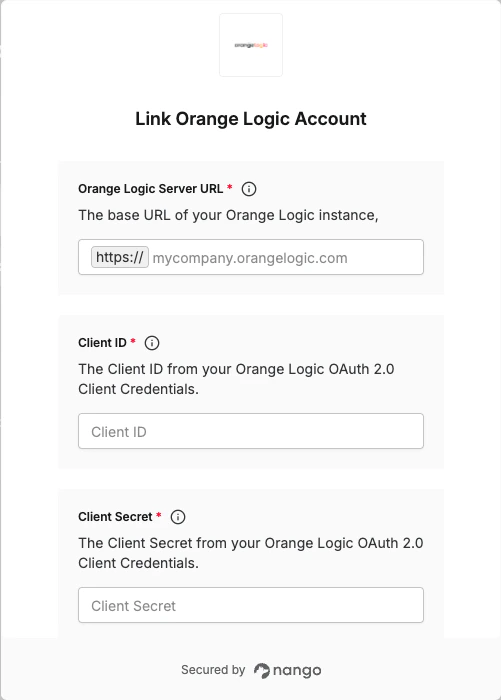
To authenticate with Orange Logic, you will need:- Server URL - The base URL of your Orange Logic instance.
- Client ID - Your OAuth 2.0 Client ID.
- Client Secret - Your OAuth 2.0 Client Secret.
Prerequisites:
- You must have an Orange Logic account with administrator access or access to the Administration panel.
Instructions:
Step 1: Find your Orange Logic URL
Your Orange Logic Server URL is the hostname of your Orange Logic instance (e.g.,mycompany.orangelogic.com, without the https:// prefix). You can find it in the address bar when logged into Orange Logic.
Step 2: Obtain Client Credentials
- Log in to the Orange Logic interface.
- Go to Administration > Contacts > Accounts and select the account type of the user you want to authenticate. In most situations, select OAuth Client Application Accounts.
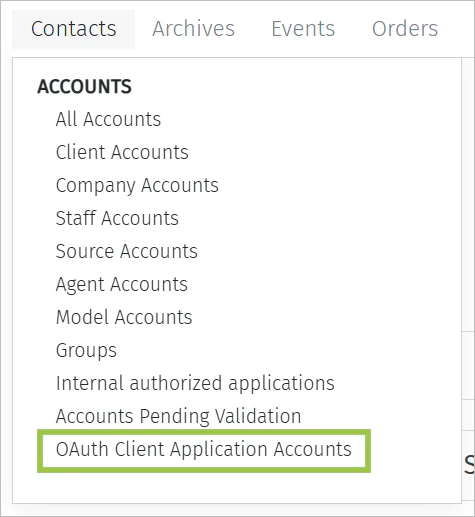
- Search for the user account.
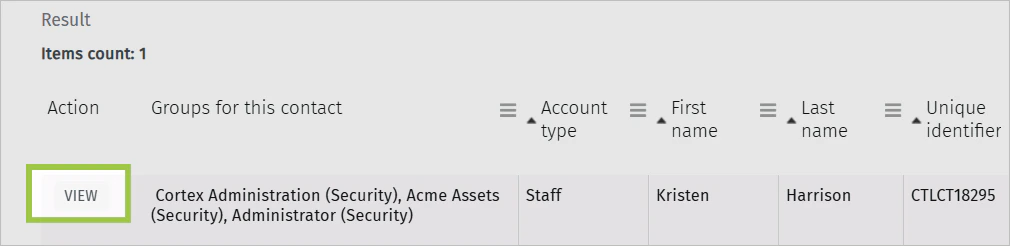
- Click View next to the user you want to authenticate. The user’s Account information opens.
- Click the OAuth 2.0 Client Credentials button to open the Client Credentials window.
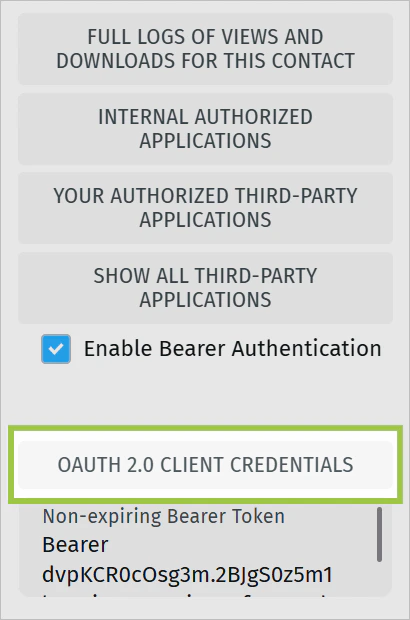
- Copy the Client ID and Client Secret.
Step 3: Enter credentials in the Connect UI
- Open the form where you need to authenticate with Orange Logic.
- Enter your Server URL, Client ID and Client Secret in their respective fields.
- Submit the form to complete authentication.