Overview
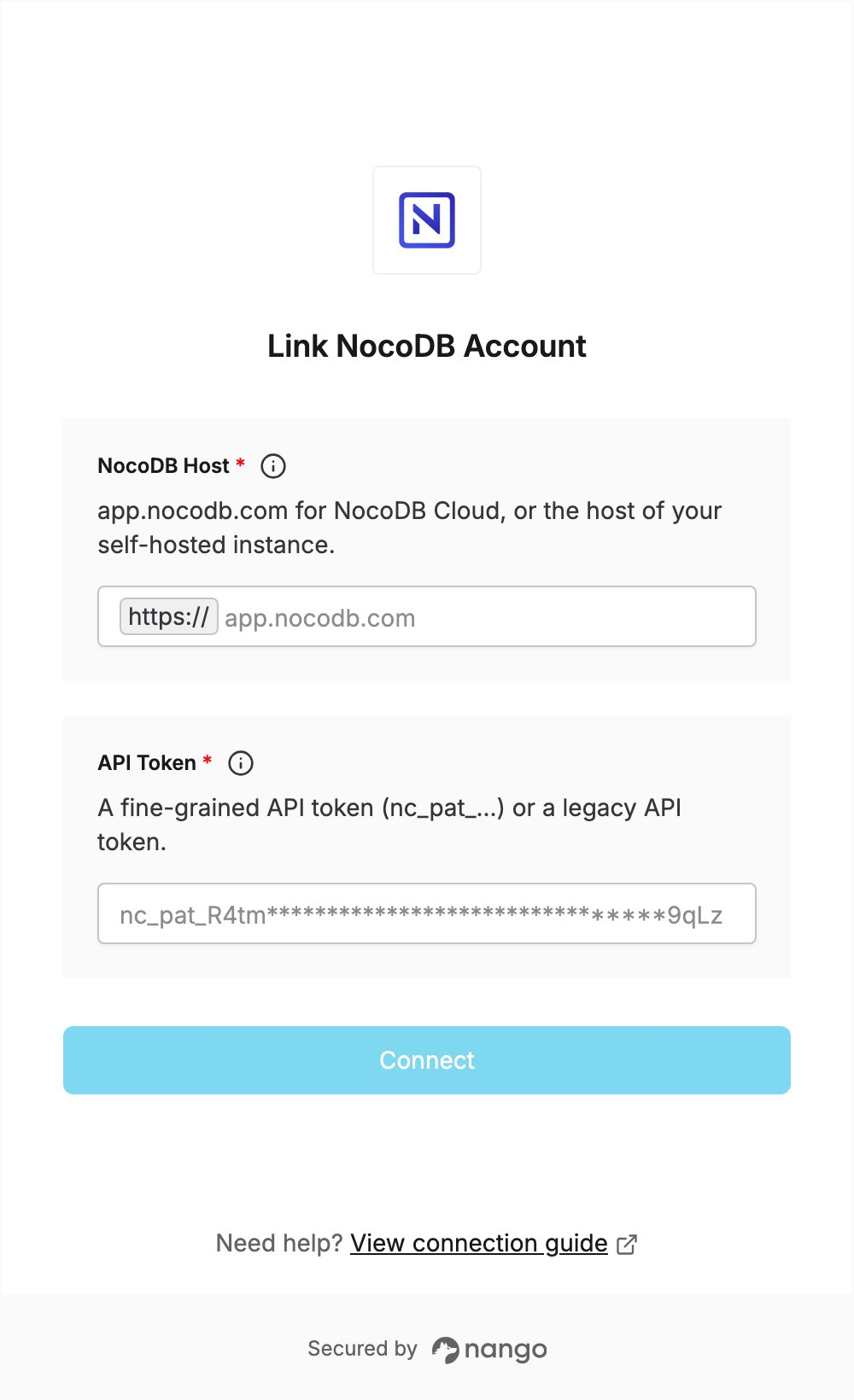
To authenticate with NocoDB, you need:- NocoDB Host — the host of your NocoDB instance.
- API Token — a NocoDB API token.
Prerequisites
- A NocoDB account, on NocoDB Cloud or on a self-hosted instance. If you don’t have one, sign up for NocoDB Cloud for free.
Step 1: Find your NocoDB host
- On NocoDB Cloud, your host is
app.nocodb.com. - On a self-hosted instance, use the host you open NocoDB at, for example
nocodb.example.comforhttps://nocodb.example.com. Enter only the host, withouthttps://, a trailing slash or a path. Your instance must be reachable over HTTPS from Nango.
Step 2: Create an API token
- Sign in to NocoDB.
- In the bottom-left corner of the sidebar, click your user to open the user menu, then click API Tokens (also under Account Settings > API Tokens).
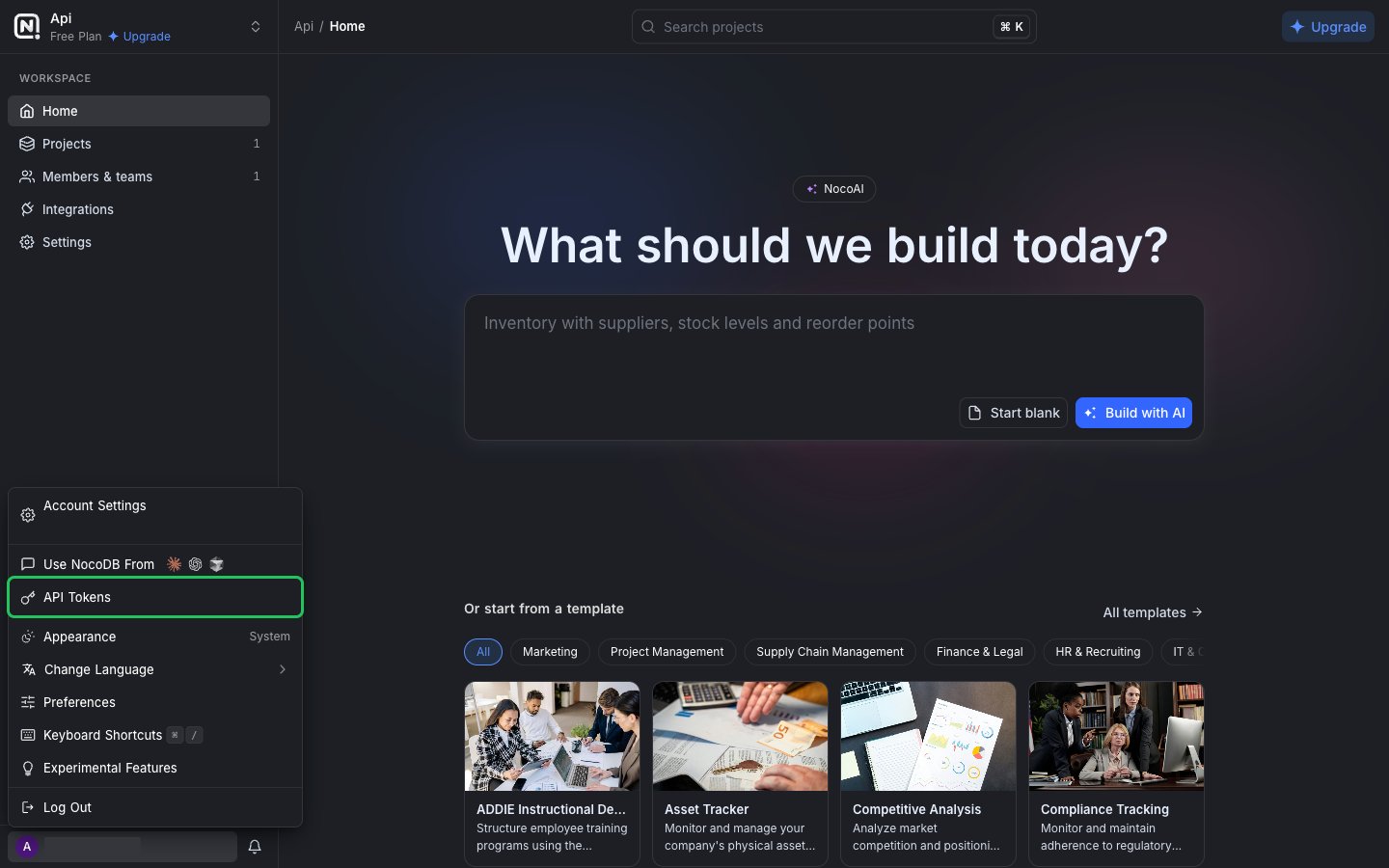
- Click Create New API Token.
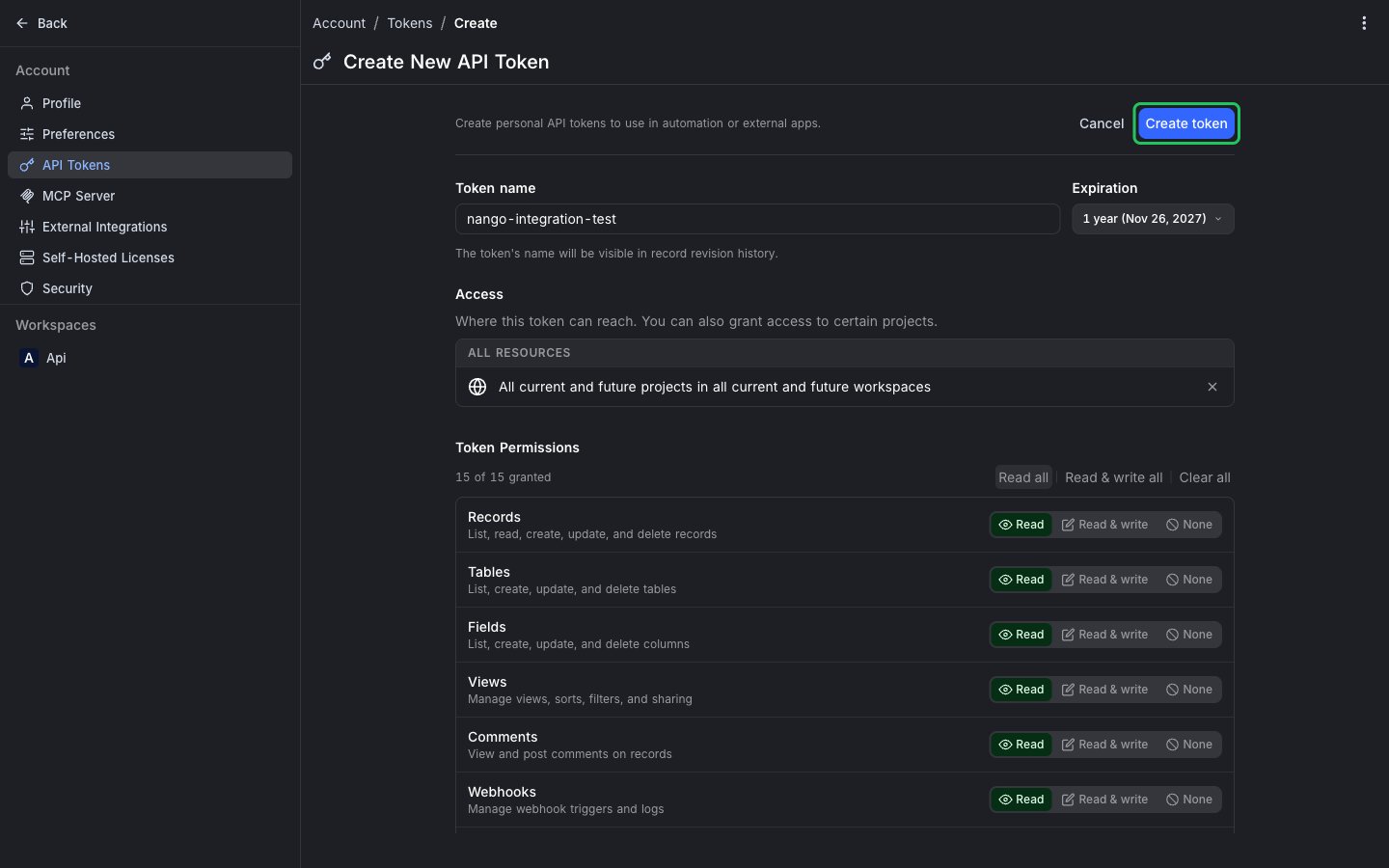
- Enter a Token name, choose an Expiration, set Access to all resources or to specific projects, and set the Token Permissions your integration needs (Read all is enough for read-only access). Then click Create token.
- Click Copy token and store the token somewhere safe.
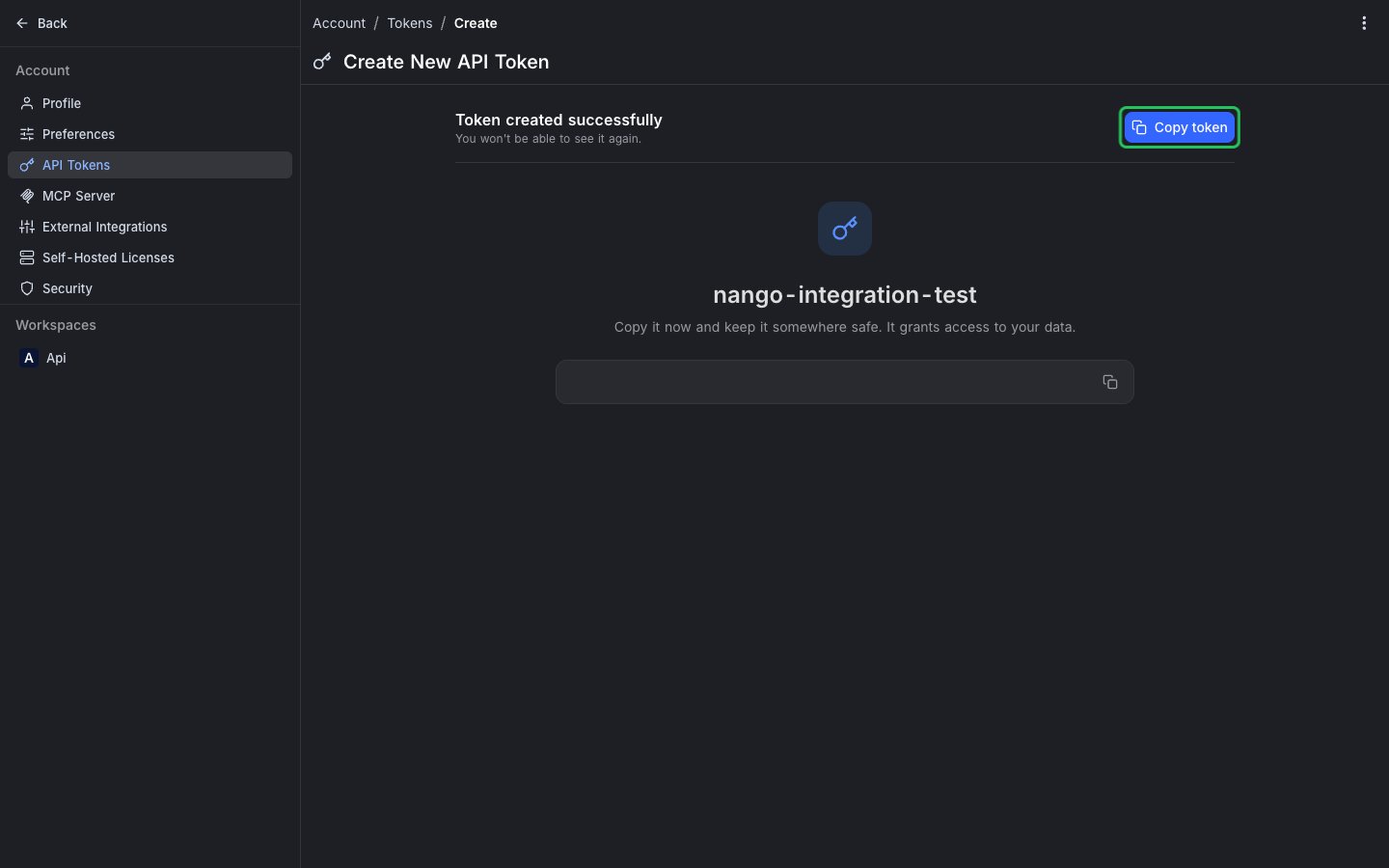
NocoDB shows the token only once. Copy it before you leave the page.
Step 3: Enter your credentials in the Connect UI
- Open the form where you need to authenticate with NocoDB.
- Enter your NocoDB host in the NocoDB Host field.
- Paste your token in the API Token field.
- Submit the form. Nango checks the token with NocoDB and rejects a token NocoDB does not accept.