Overview
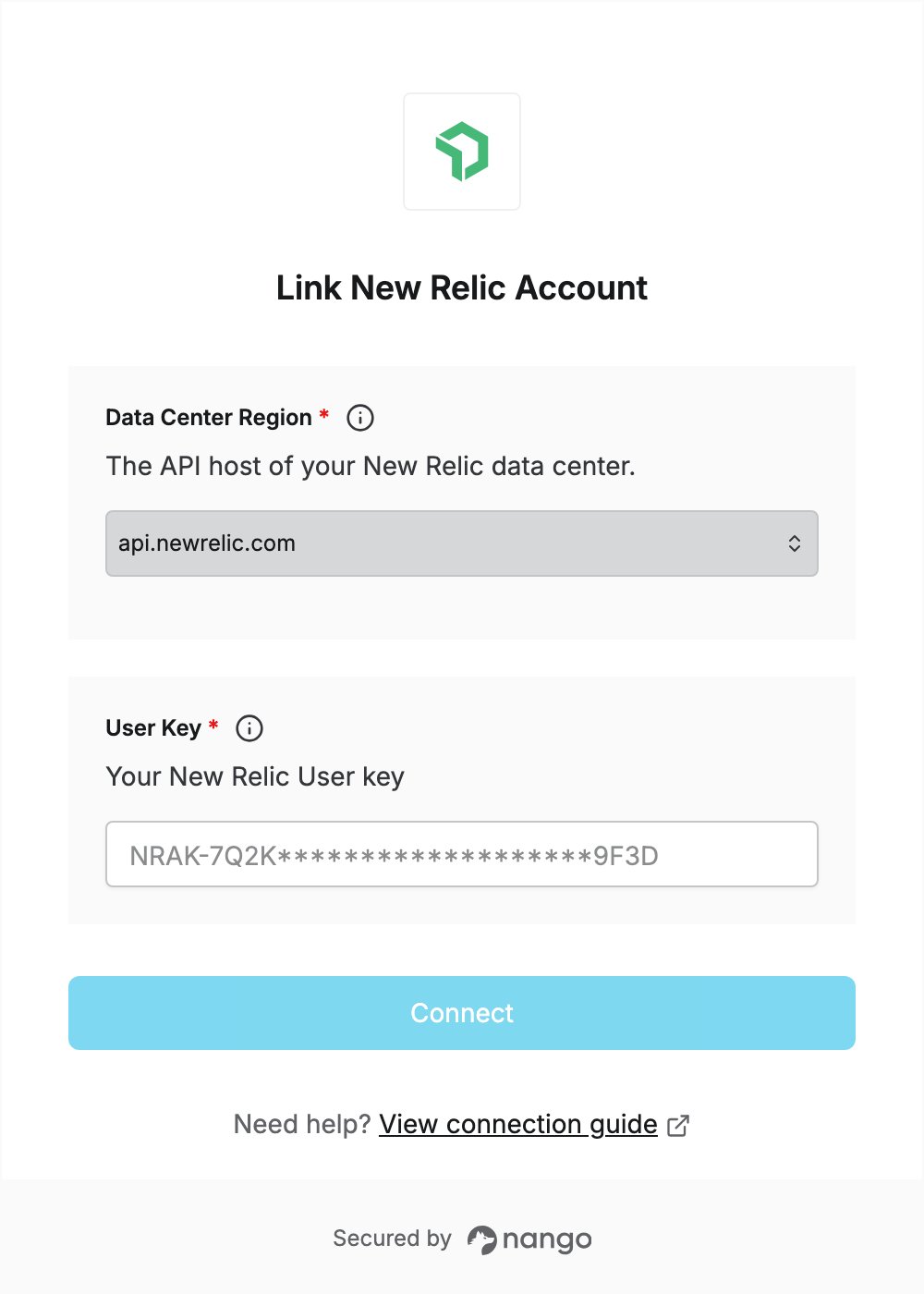
To authenticate with New Relic, you need:- Data Center Region — the New Relic data center that hosts your account (US, EU or JP).
- User Key — a New Relic User key, which starts with
NRAK-.
Prerequisites
- A New Relic account. If you don’t have one, sign up for free.
Step 1: Find your data center region
Your data center is the one your account was created in. Check the address you use to log in to New Relic and pick the matching region:Step 2: Create a User key
- Log in to New Relic, open the user menu and click API keys.
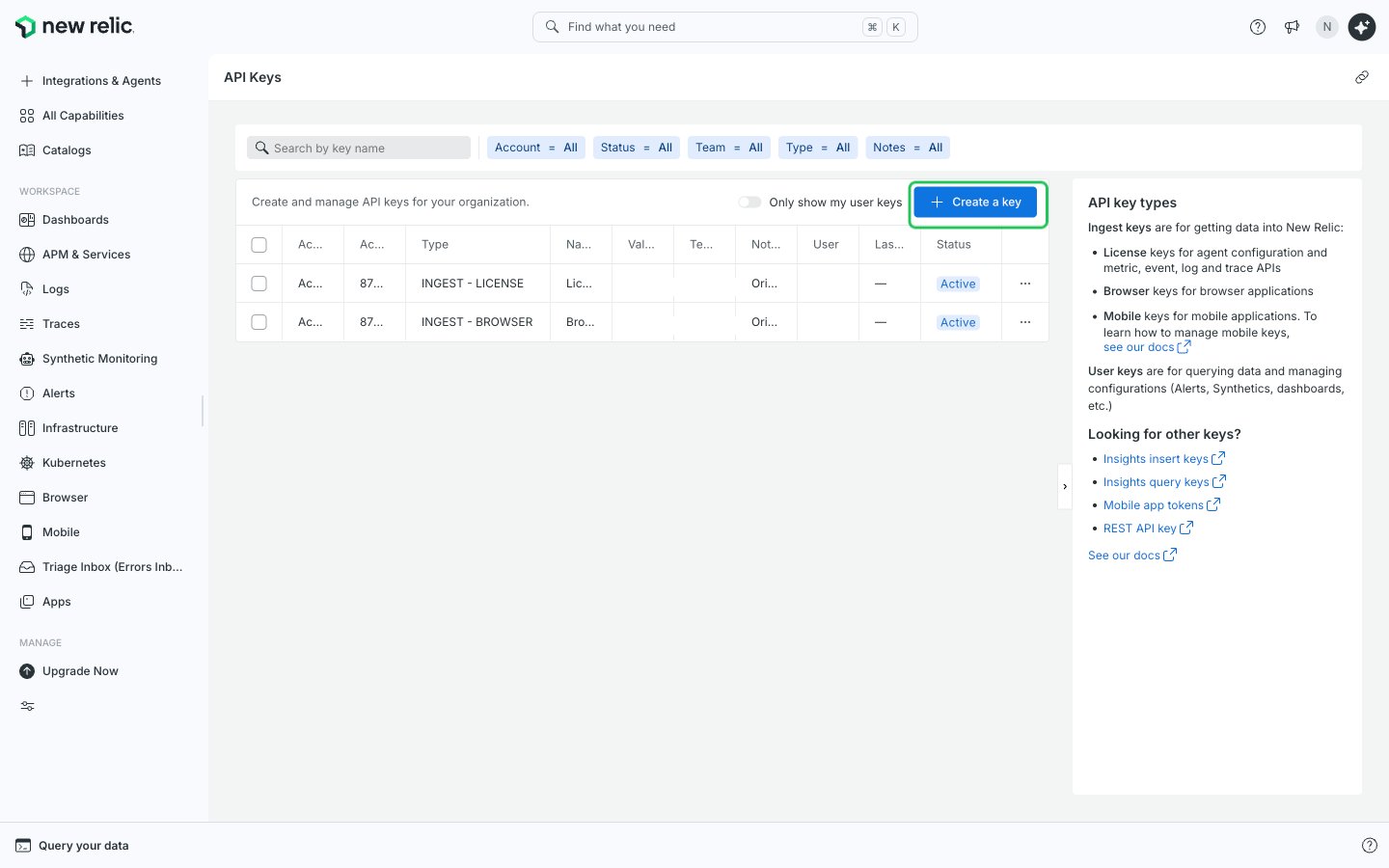
- Click Create a key in the top-right corner.
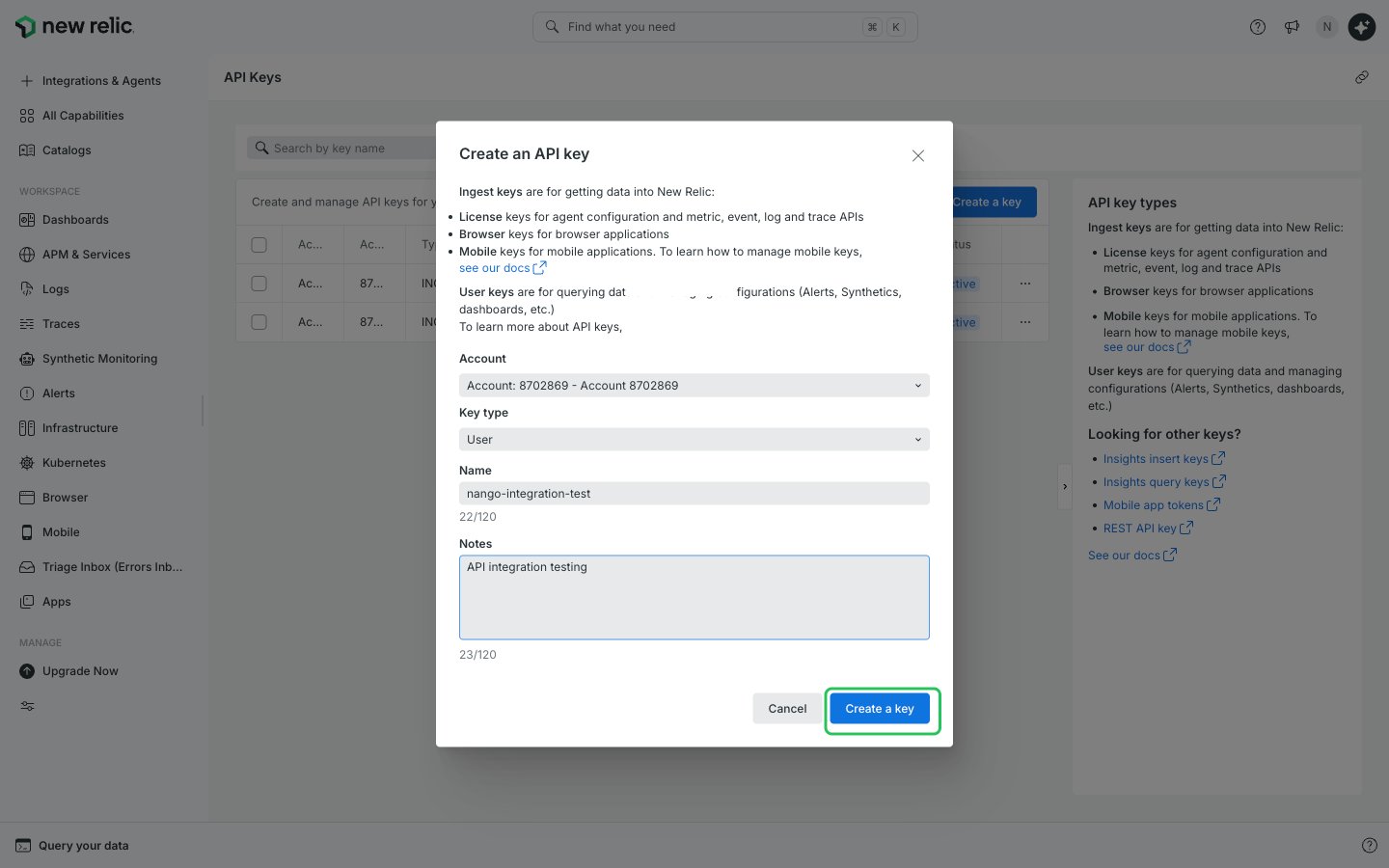
- Choose the account, keep User as the Key type, enter a name and optional notes, then click Create a key.
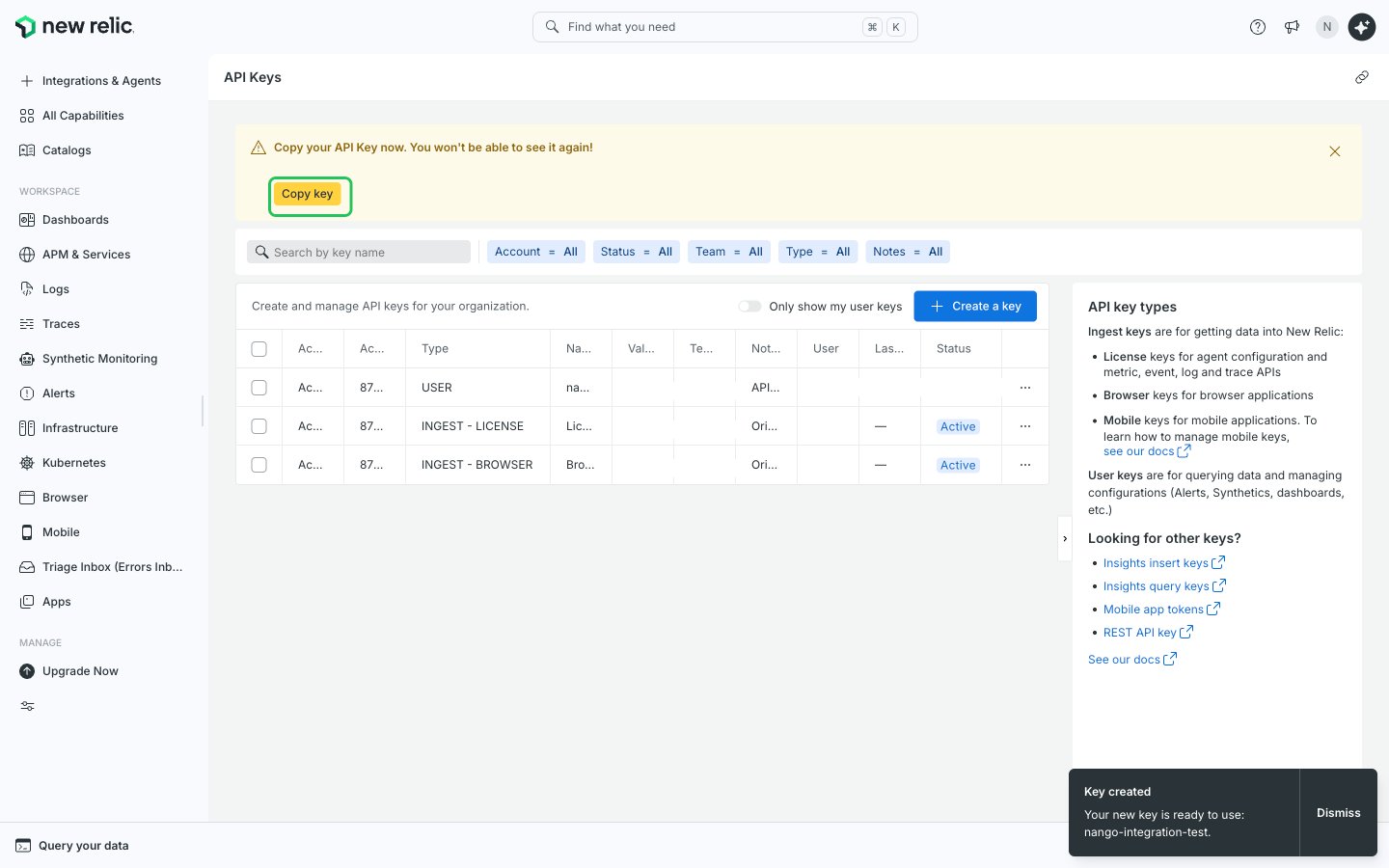
- Click Copy key in the banner to copy the new User key.
Step 3: Enter your region and User key in the Connect UI
- Open the form where you need to authenticate with New Relic.
- Select your Data Center Region and enter your User key in the User Key field.
- Submit the form, and you should be successfully authenticated.