Overview
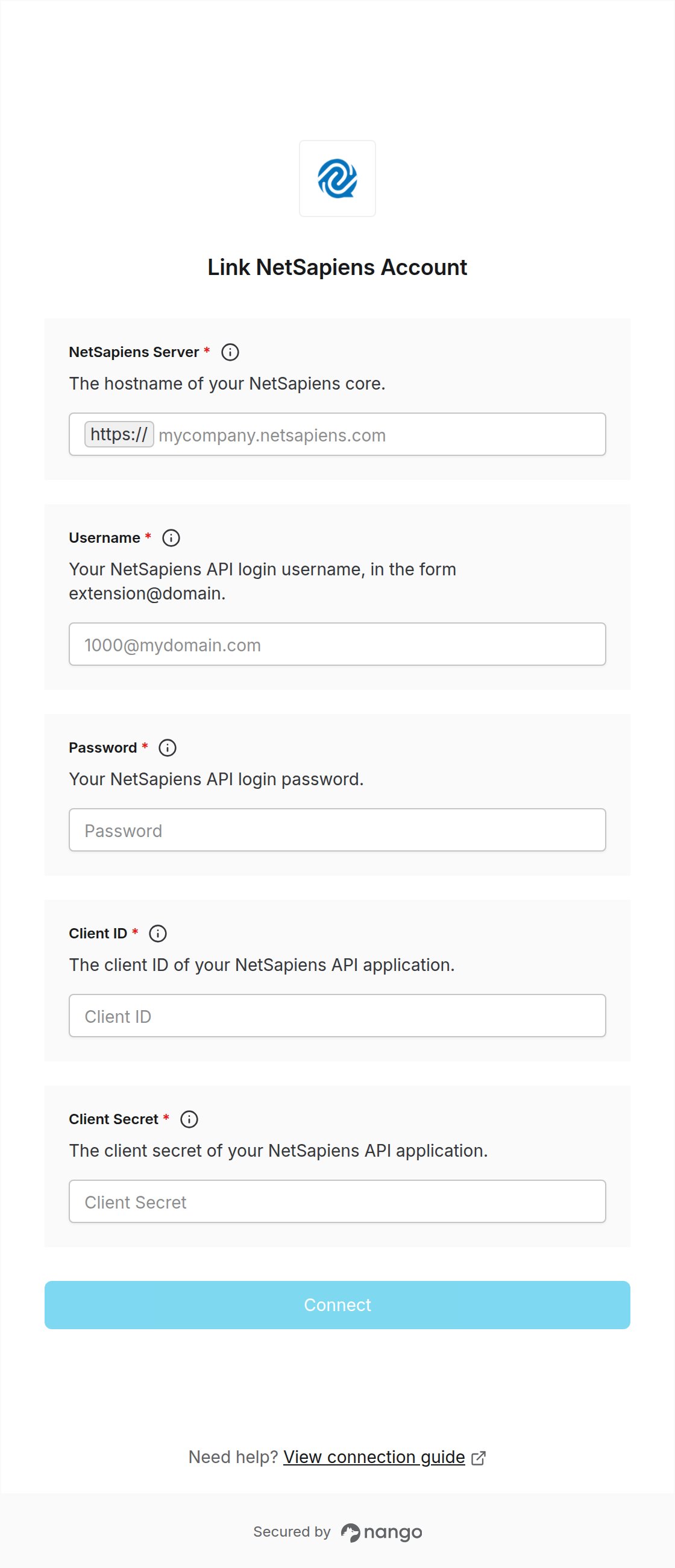
To authenticate with NetSapiens, you need:- NetSapiens Server - The hostname of the NetSapiens core that serves your account.
- Username - The login of the NetSapiens user the integration acts as.
- Password - That user’s password.
- Client ID - The OAuth client ID issued for API access on your platform.
- Client Secret - The OAuth client secret that pairs with the client ID.
Prerequisites
- A NetSapiens account on a core that exposes API v2 (
/ns-api/v2). - An OAuth client ID and secret for that core. These are issued by the service provider that operates the platform (or its support team), not self-registered.
Instructions
Step 1: Locate your NetSapiens server hostname
- Open the web portal you use to manage your NetSapiens account, for example
https://mycompany.netsapiens.com/portal/. - Copy the hostname portion only, for example
mycompany.netsapiens.com. Do not includehttps://, a port, or a path. - Confirm the core exposes API v2 by opening
https://<server>/ns-api/v2/versionin a browser. A404means the hostname is wrong or the core does not run API v2.
Step 2: Create or locate your API client
- Ask your NetSapiens service provider (or, if you operate the platform, your platform administrators) for an OAuth Client ID and Client Secret for API access.
- Store the secret securely; you will need it when connecting.
Step 3: Gather your API user login
- Decide which NetSapiens user the integration should act as. Its scope (Super User, Reseller, Office Manager, …) determines what the connection can read.
- Note the user’s Username in the format used to log in to the portal, for example
1000@mydomain.com. - Note the user’s Password. If the user has multi-factor authentication enabled, use a dedicated API user without MFA instead; the Connect UI cannot complete an MFA challenge.
Step 4: Enter credentials in the Connect UI
- Open the form where you need to authenticate with NetSapiens.
- Enter your NetSapiens Server, Username, Password, Client ID, and Client Secret in their respective fields.
- Submit the form, and you should be successfully authenticated.