Overview
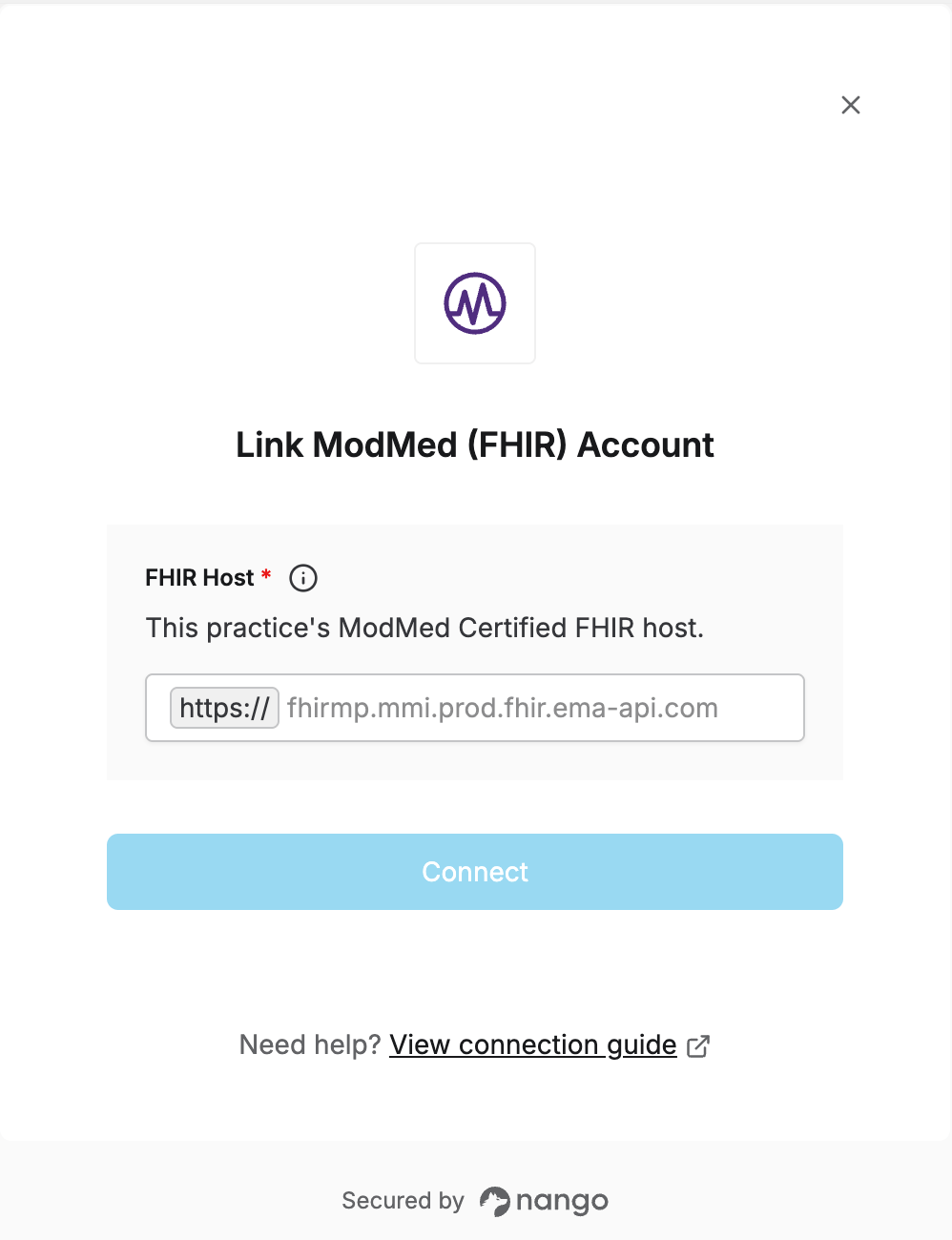
To authenticate with the ModMed Certified FHIR API, you need:- FHIR Host — the host of the practice’s Certified FHIR endpoint. Nango uses it as the base for all proxied API calls.
Prerequisites
- You’ve set up the integration’s Client ID, Key ID, Private Key, and Scope in Nango — see the setup guide.
- A practice admin has added your developer app’s Client ID to their practice.
Step 1: Finding your FHIR Host
Each ModMed practice has its own Certified FHIR endpoint. Look up the practice in ModMed’s FHIR endpoint directory. Endpoints follow the formathttps://<practice>.<specialty>.prod.fhir.ema-api.com/fhir/r4/.
Enter only the host — without https:// or the /fhir/r4/ path, e.g. acme.mmi.prod.fhir.ema-api.com.
Step 2: Enter your FHIR Host in the Connect UI
Once you have it:- Open the form where you need to authenticate with ModMed (FHIR).
- Enter your FHIR Host in the designated field.
- Submit the form, and you should be successfully authenticated.