Overview
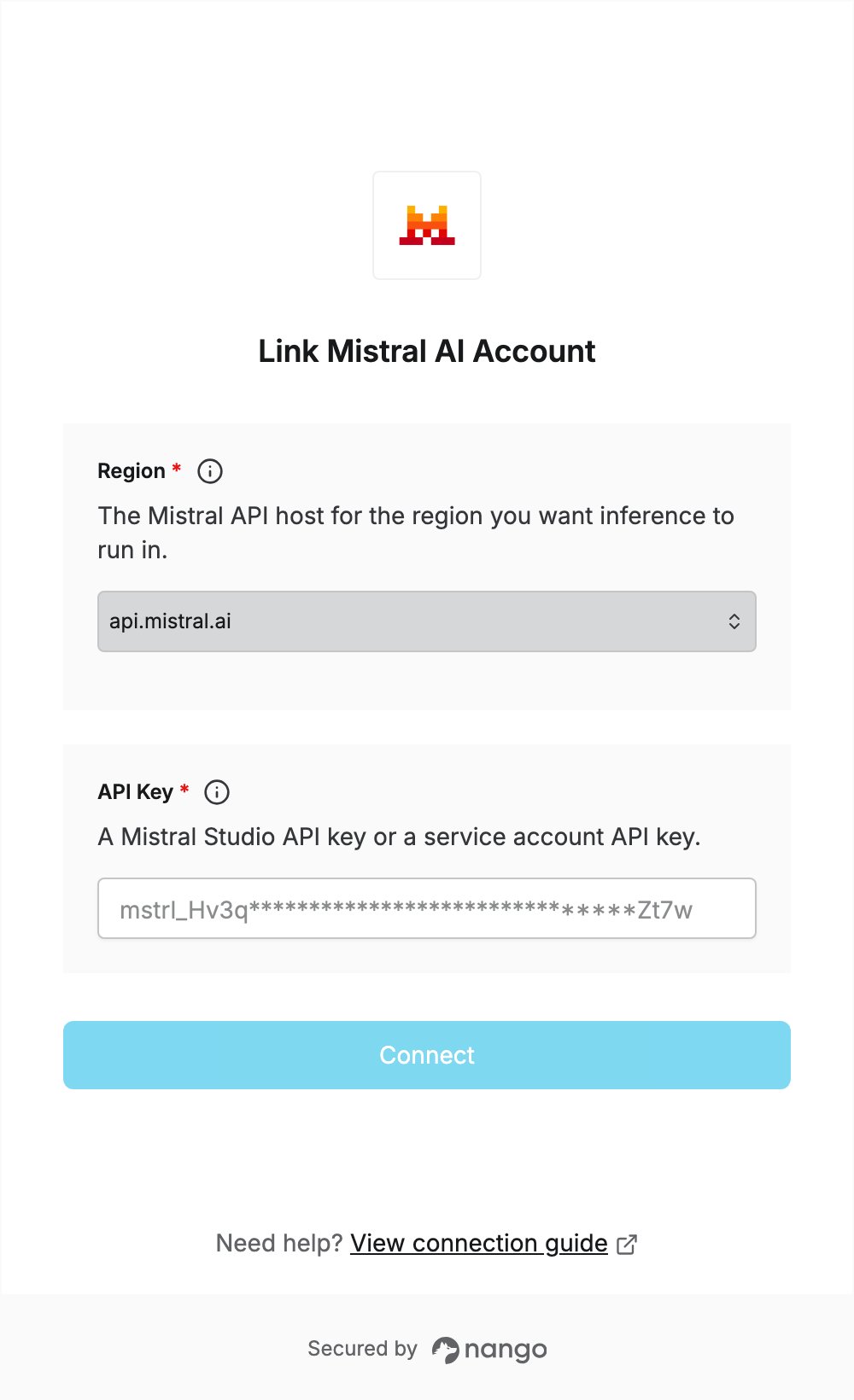
To authenticate with Mistral AI, you need:- Region — the Mistral API host your requests go to.
- API Key — a Mistral Studio API key or a service account API key.
Prerequisites
- A Mistral AI account. You can sign up at console.mistral.ai.
Step 1: Choose your region
Mistral has a global API host and two regional ones. Select the value that matches where you want inference to run:
Use the global host when you do not need a specific inference location. Agents, Batch and the Files API are not available on the regional hosts. See Regional inference for details.
Step 2: Create an API key
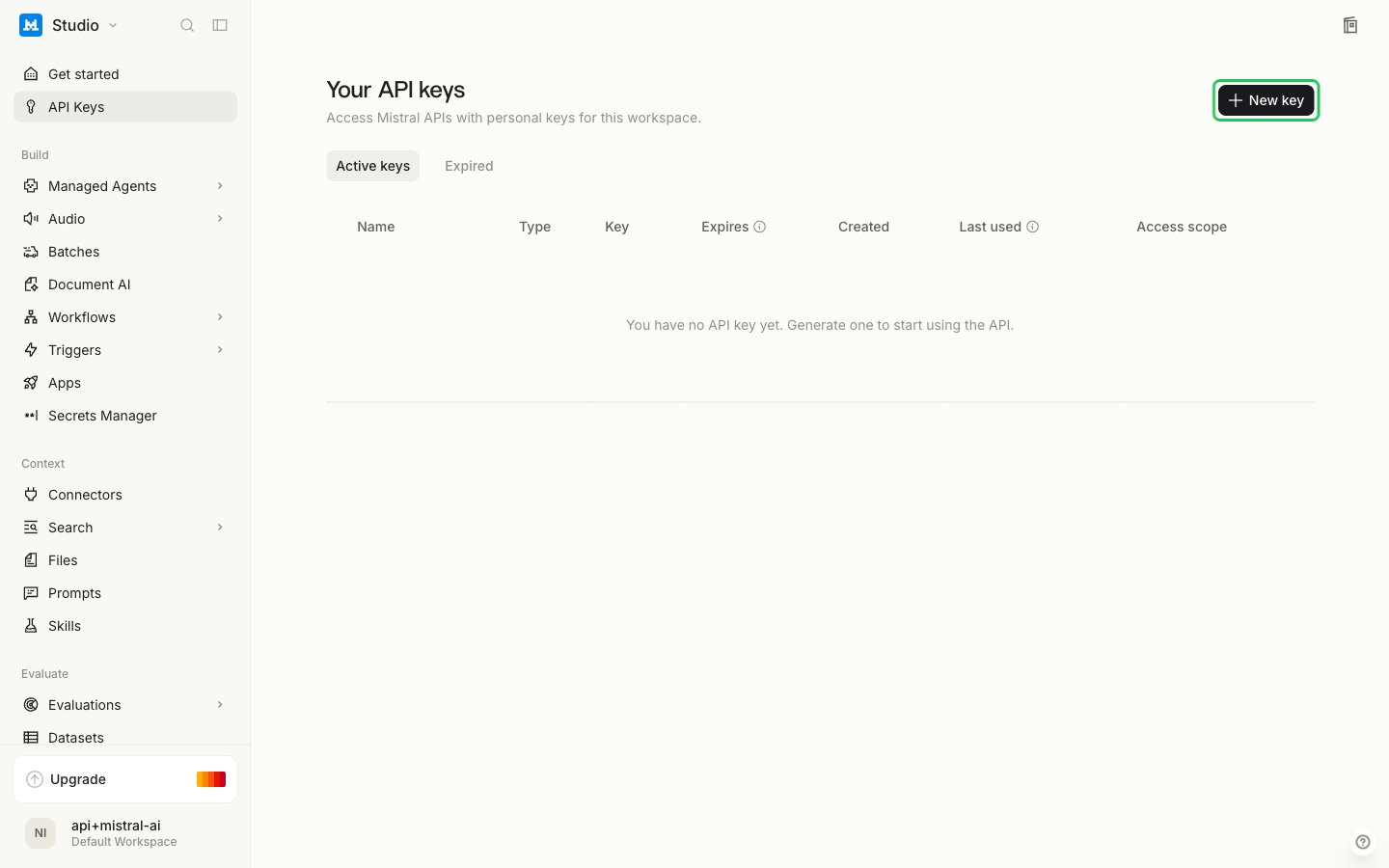
- Sign in to Mistral Studio, open API Keys and click New key.
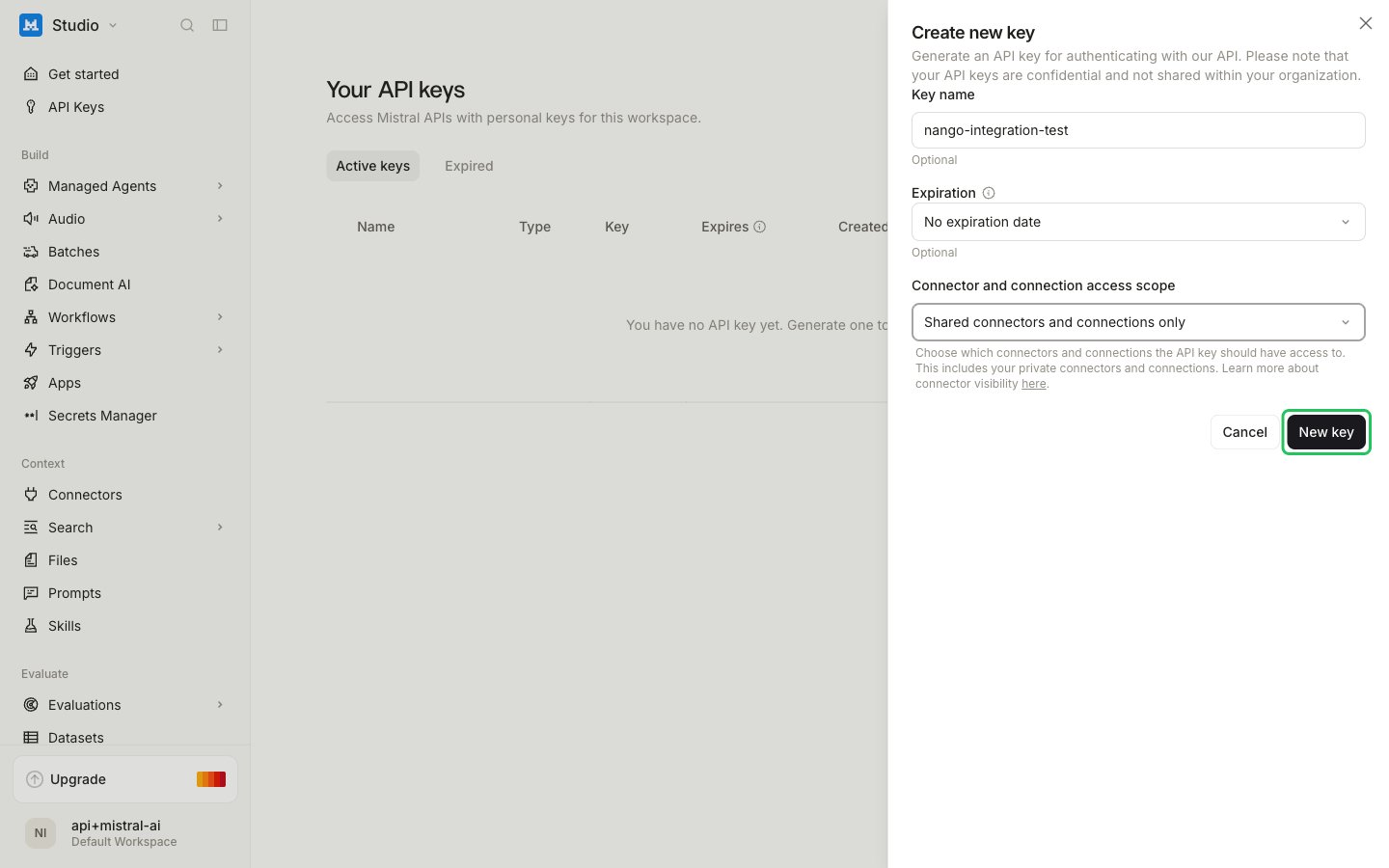
- Enter a Key name, optionally set an Expiration, and choose the Connector and connection access scope. Then click New key.
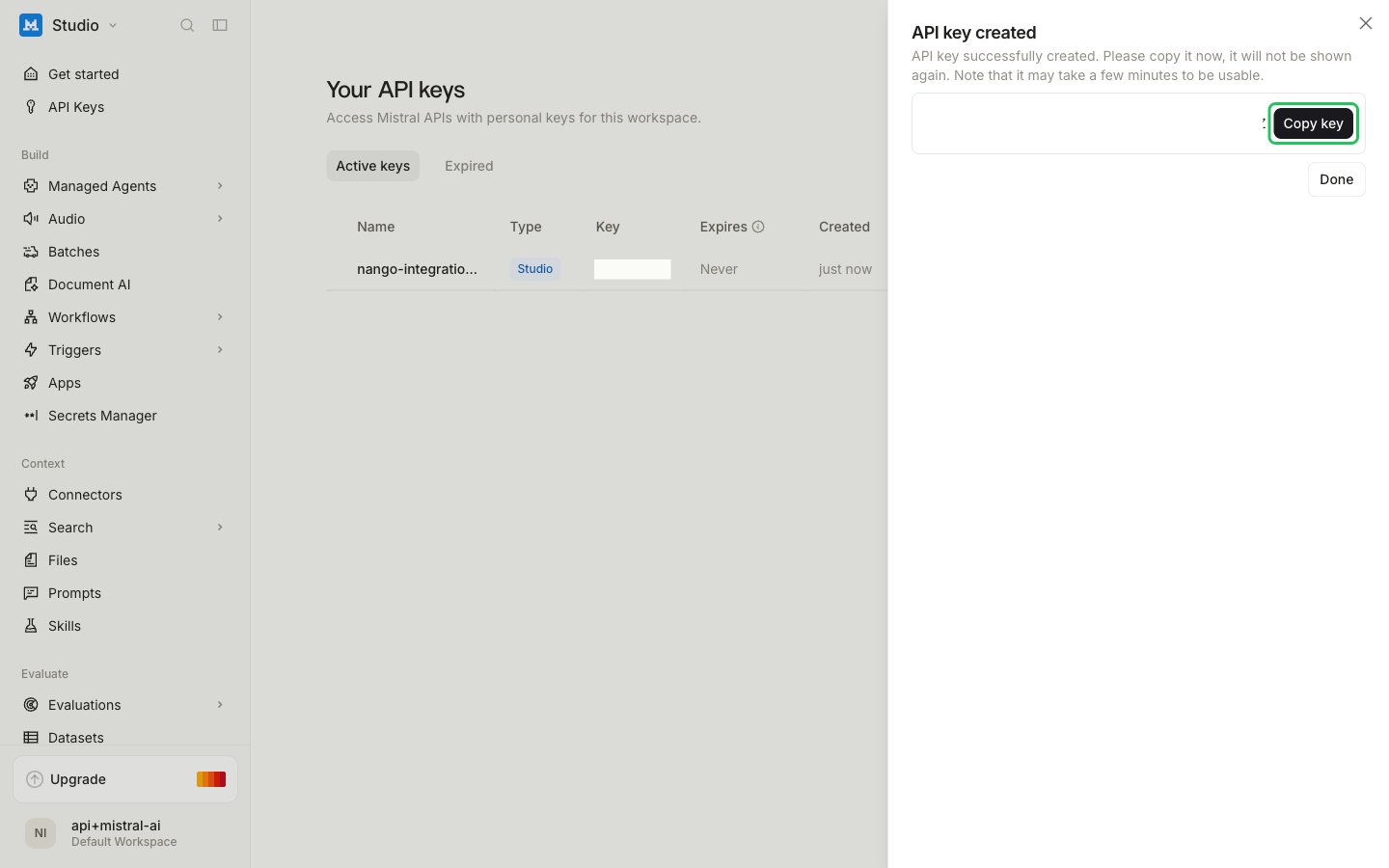
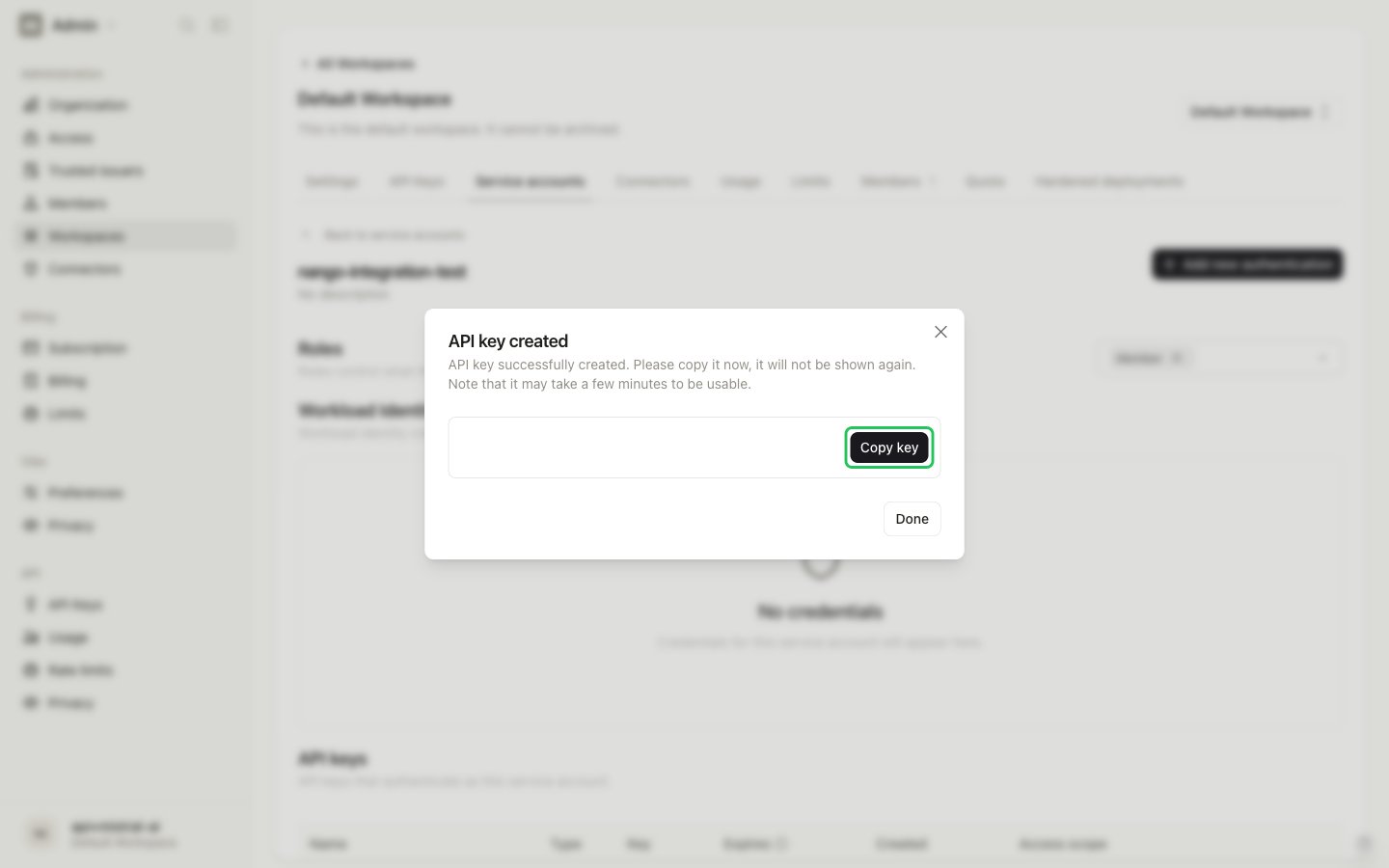
- Copy the key. It is shown only once and cannot be retrieved after you close the dialog.
Step 3: Enter your credentials in the Connect UI
- Open the form where you need to authenticate with Mistral AI.
- Select your Region and enter your API Key in the designated fields.
- Submit the form, and you should be successfully authenticated.