Overview
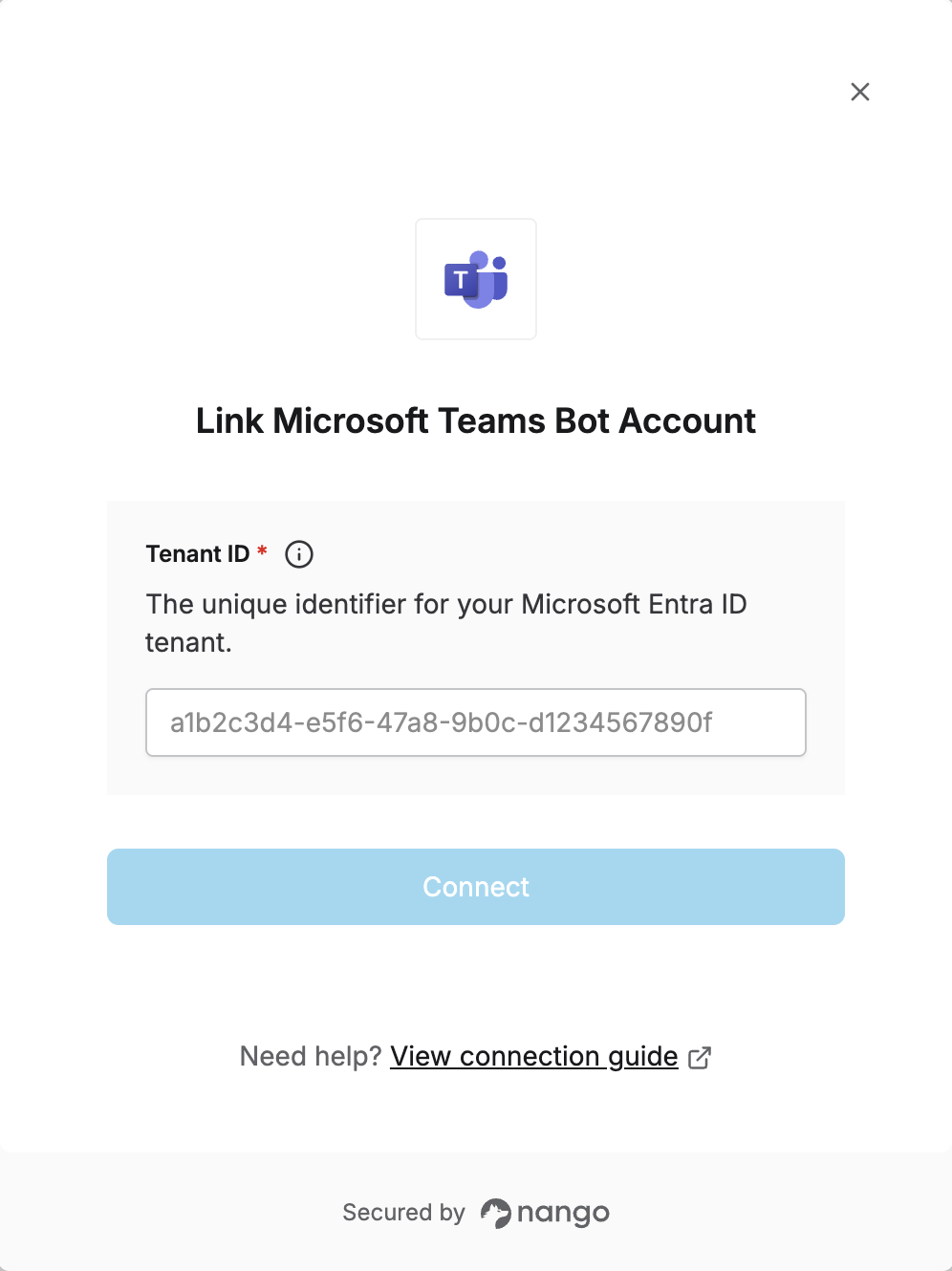
To connect Microsoft Teams Bot in Nango, you need to provide:- Tenant ID — The unique identifier for your Microsoft Entra ID tenant with an active MS Teams subscription.
Step 1: Finding your Tenant ID
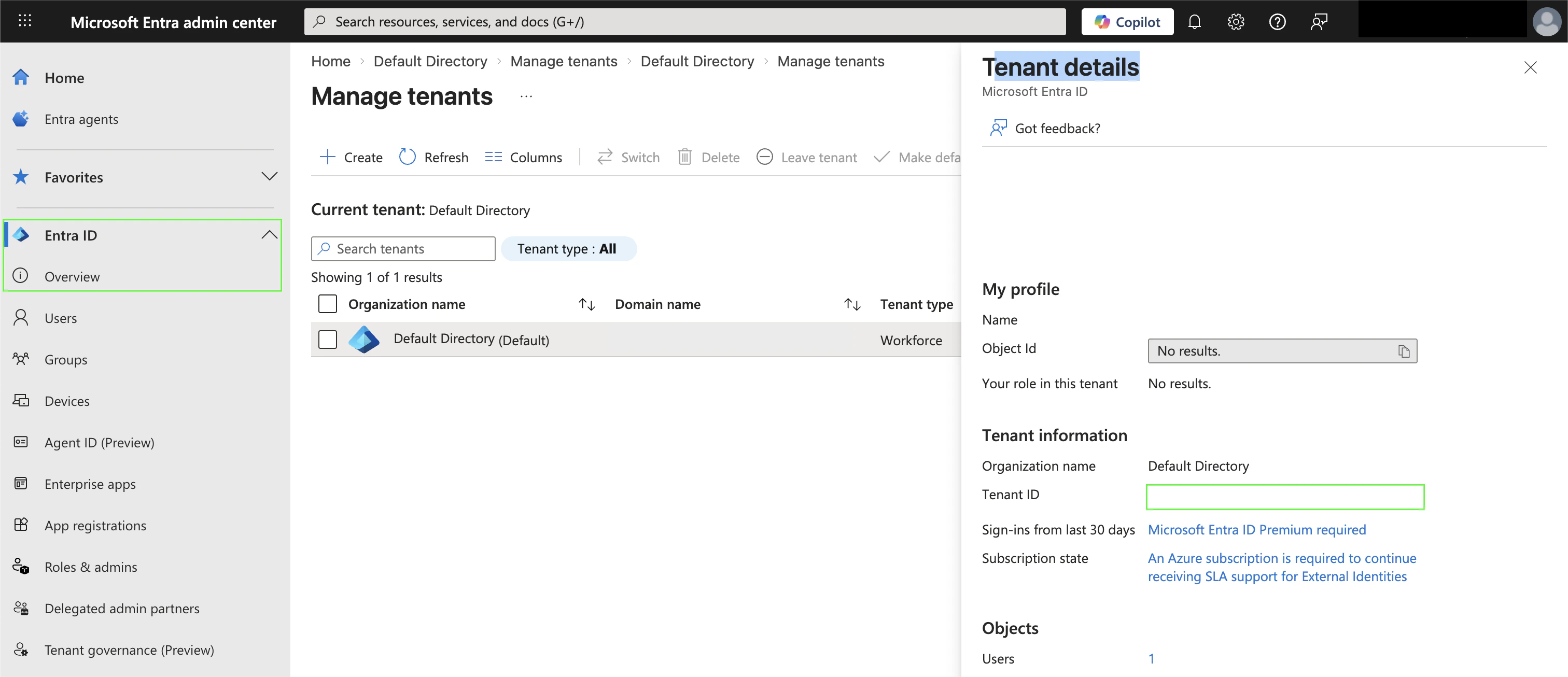
- Sign in to your Microsoft Entra admin center.
- If you have multiple tenants, go to Entra ID > Overview in the left menu, click Manage tenants, and switch to the tenant with an active Microsoft Teams subscription.
- Your Tenant ID (a GUID such as
a1b2c3d4-e5f6-47a8-9b0c-d1234567890f) is displayed under Tenant details.
Step 2: Enter values in the Connect UI
Once you have your Tenant ID:- Open the form where you need to authenticate with Microsoft Teams Bot.
- Enter your Tenant ID in its designated field.
- Submit the form, and you should be successfully authenticated.