Overview
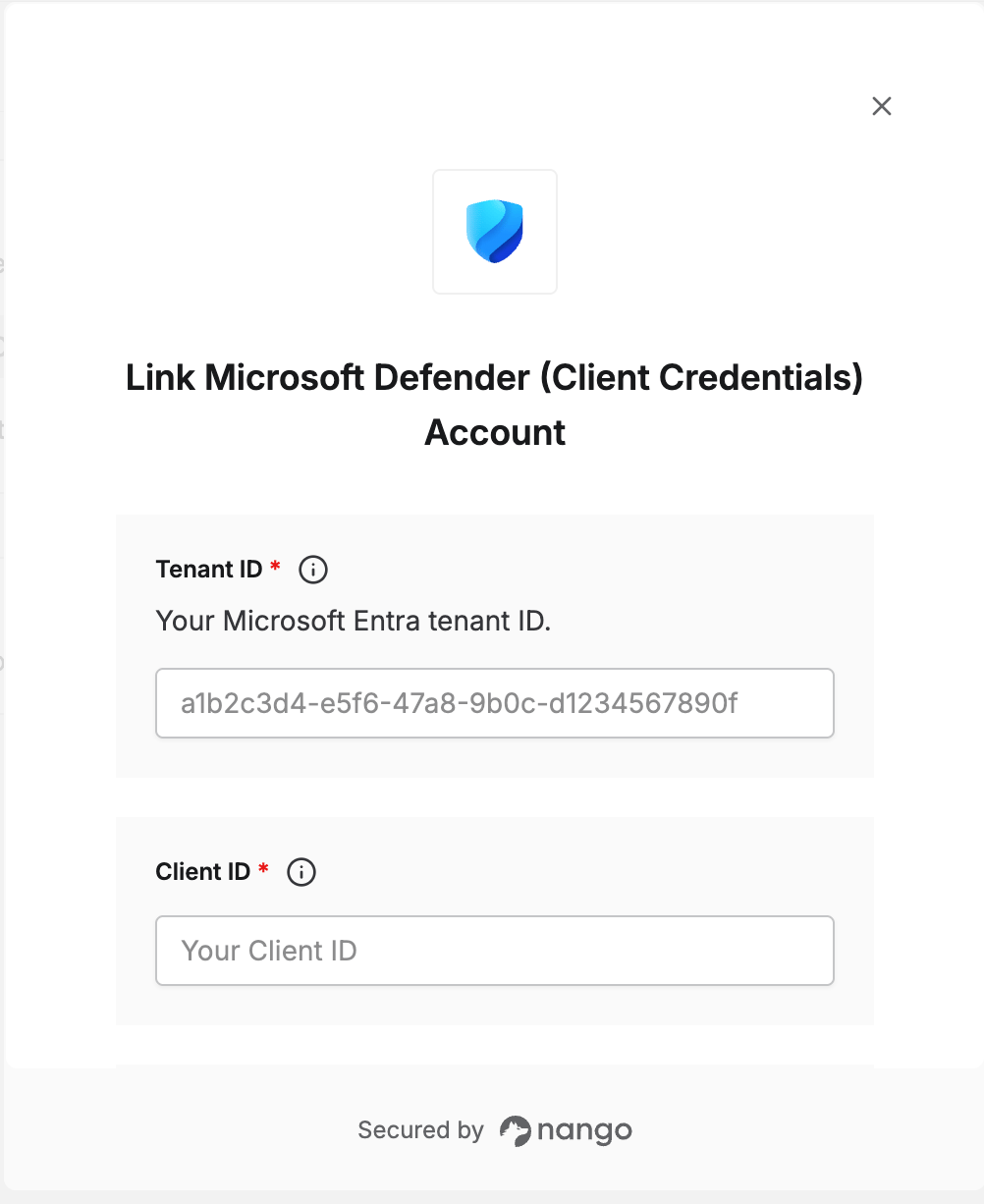
To authenticate with Microsoft Defender (Client Credentials), you need:- Tenant ID — the ID of the Microsoft Entra tenant where your app is registered.
- Client ID — the ID Microsoft Entra ID assigns to your app.
- Client Secret — a secret that lets your app access Defender for Endpoint without a signed-in user.
Prerequisites
- A Microsoft Defender for Endpoint (Plan 1 or 2) or Microsoft Defender for Business subscription.
- A Microsoft Entra role that can register apps, such as Application Administrator, and an admin who can grant tenant-wide consent.
Step 1: Register an app in Microsoft Entra ID
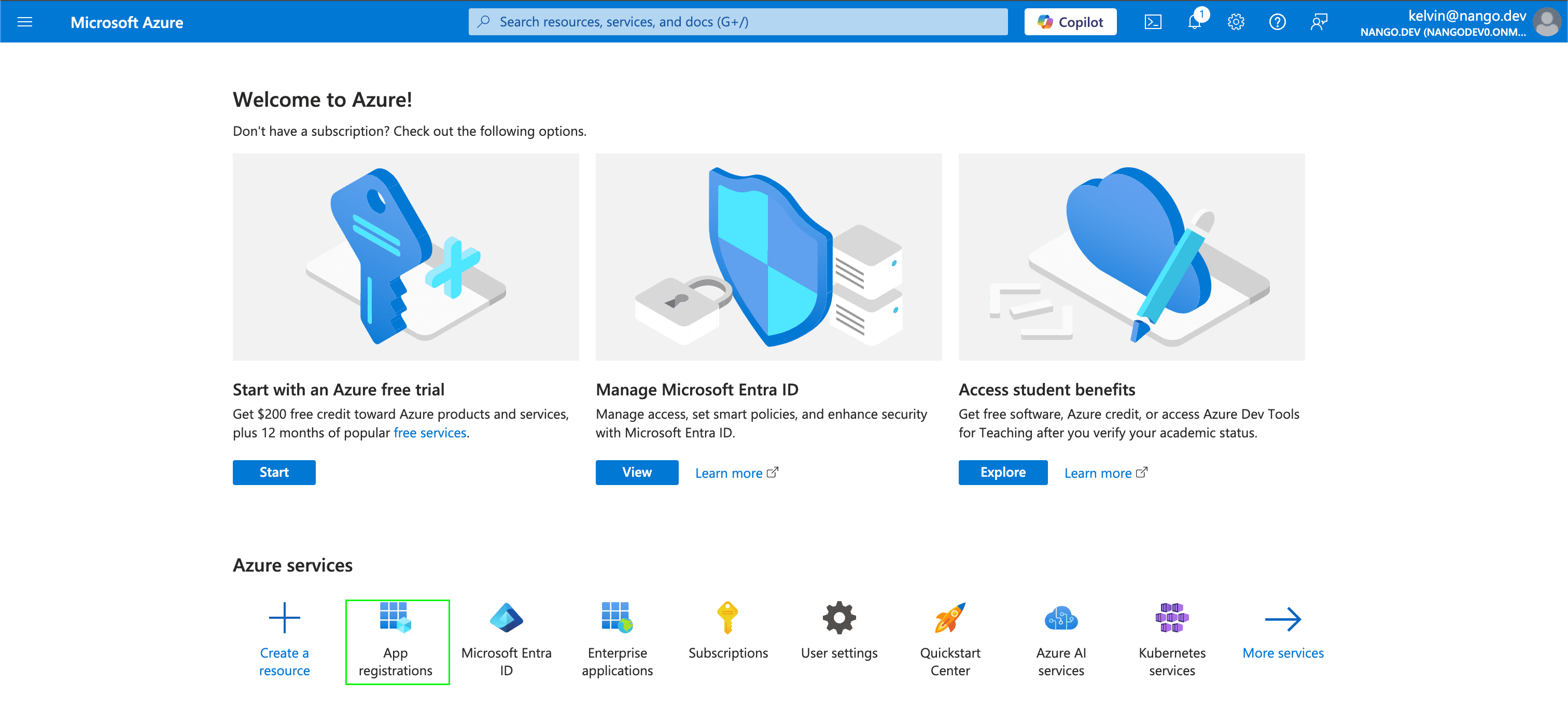
- Sign in to the Azure portal and open App registrations.
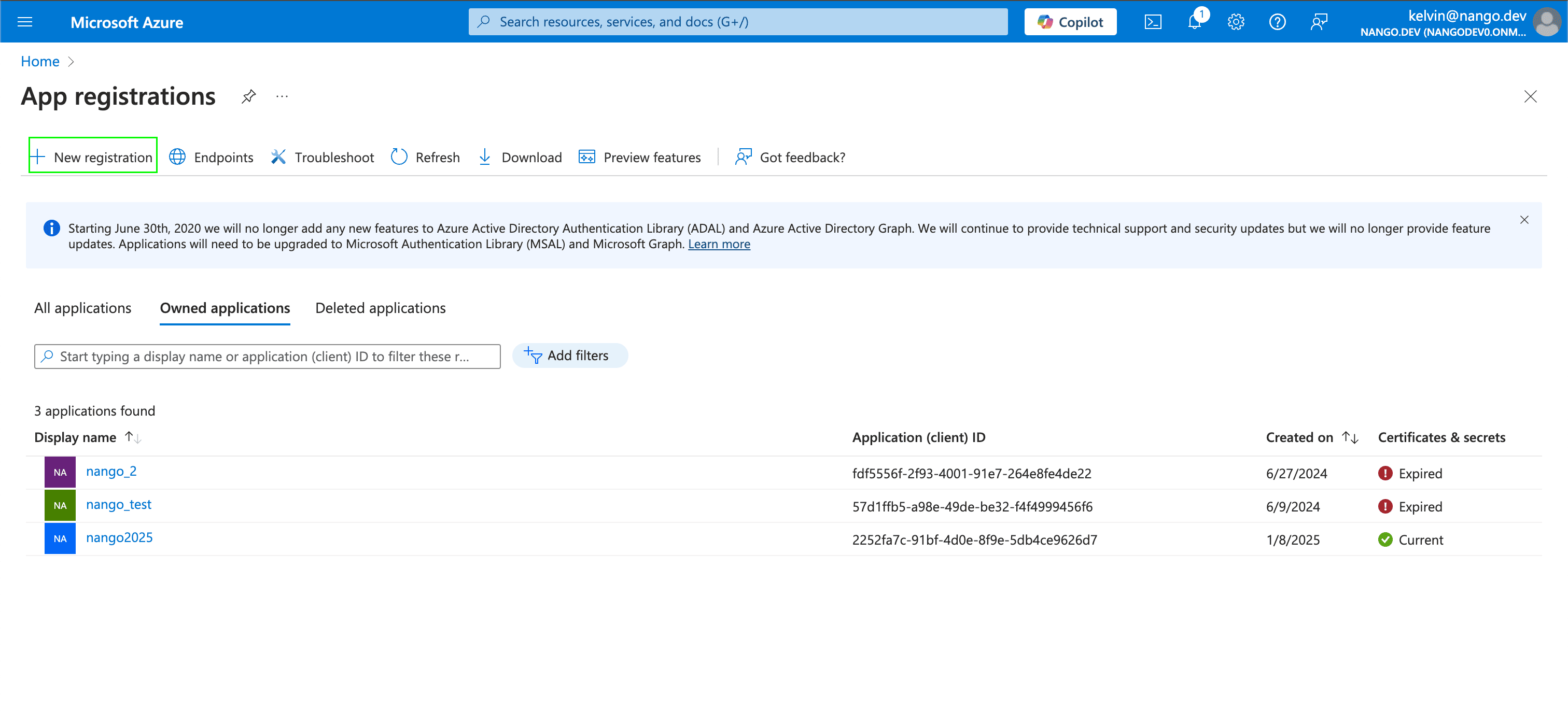
- Select New registration.
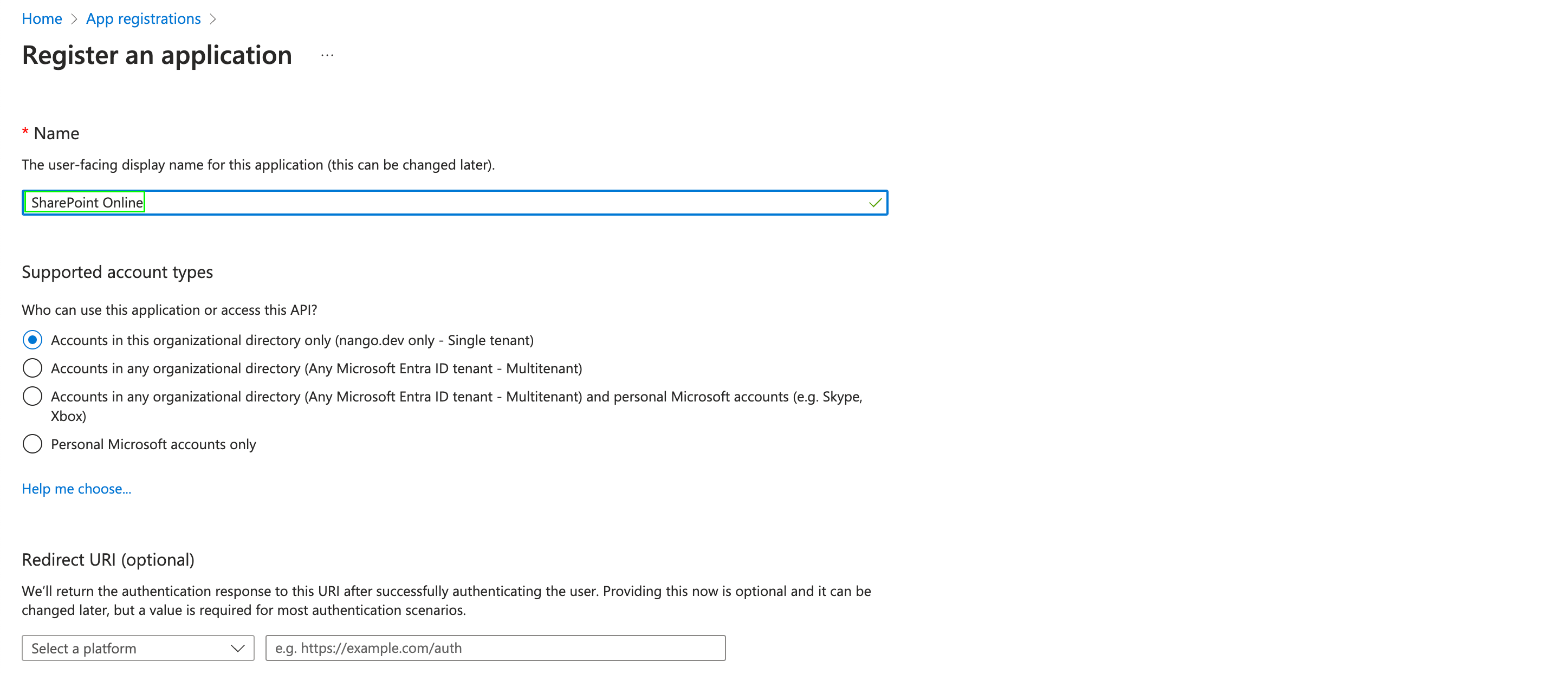
- Enter a name for your app and select Register.
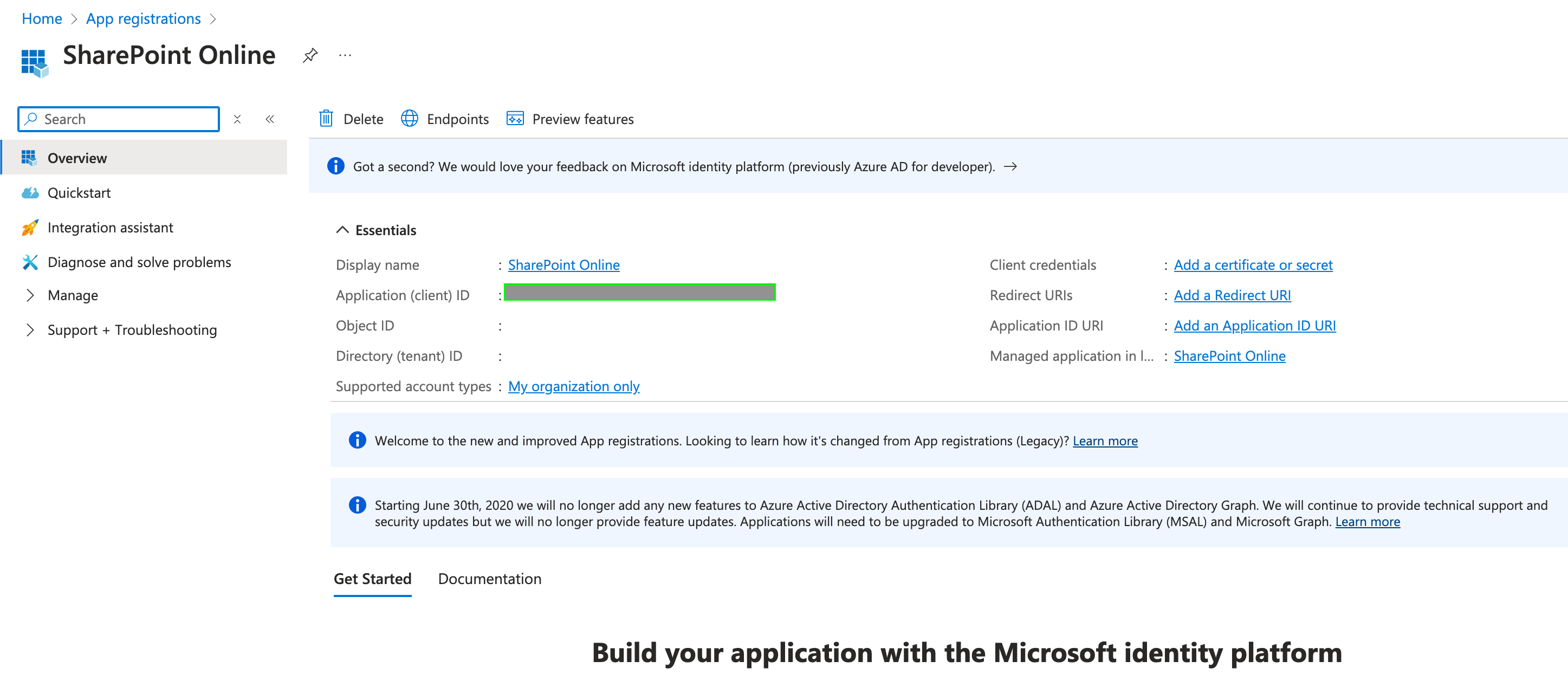
- On the app’s Overview page, copy the Application (client) ID and the Directory (tenant) ID. These are your Client ID and Tenant ID.
Step 2: Add API permissions
- In your app, go to API permissions > Add a permission > APIs my organization uses.
- Search for WindowsDefenderATP and select it.
- Select Application permissions, choose the permissions your integration needs (for example,
Alert.Read.Allto read alerts orMachine.Read.Allto read devices), then select Add permissions. - Select Grant admin consent for [your tenant].
Each Defender for Endpoint API lists the permission it needs in the Permissions section of its reference page. Without it, requests return
403 Forbidden.Step 3: Create a client secret
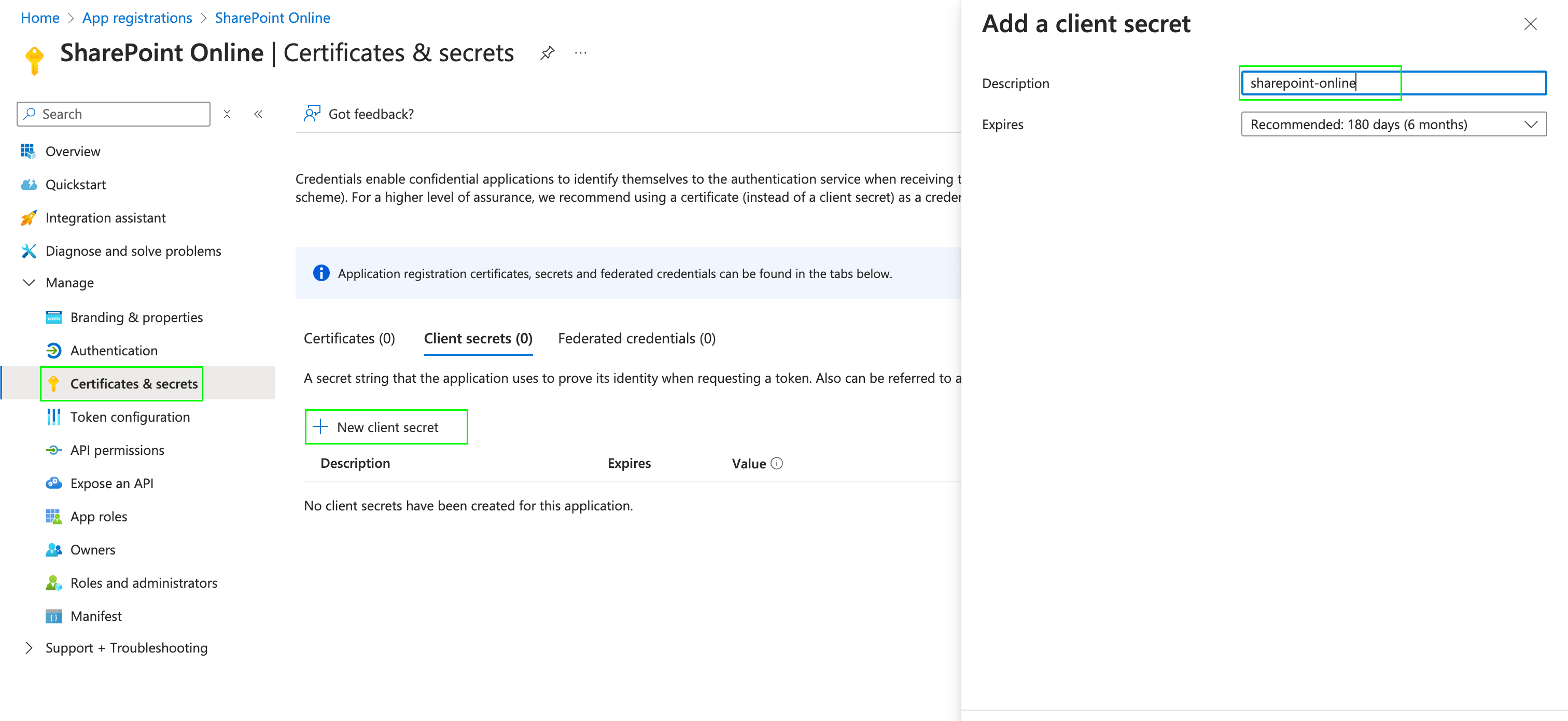
- In your app, go to Certificates & secrets > New client secret.
- Enter a description and an expiry, then select Add.
- Copy the secret’s Value. This is your Client Secret.
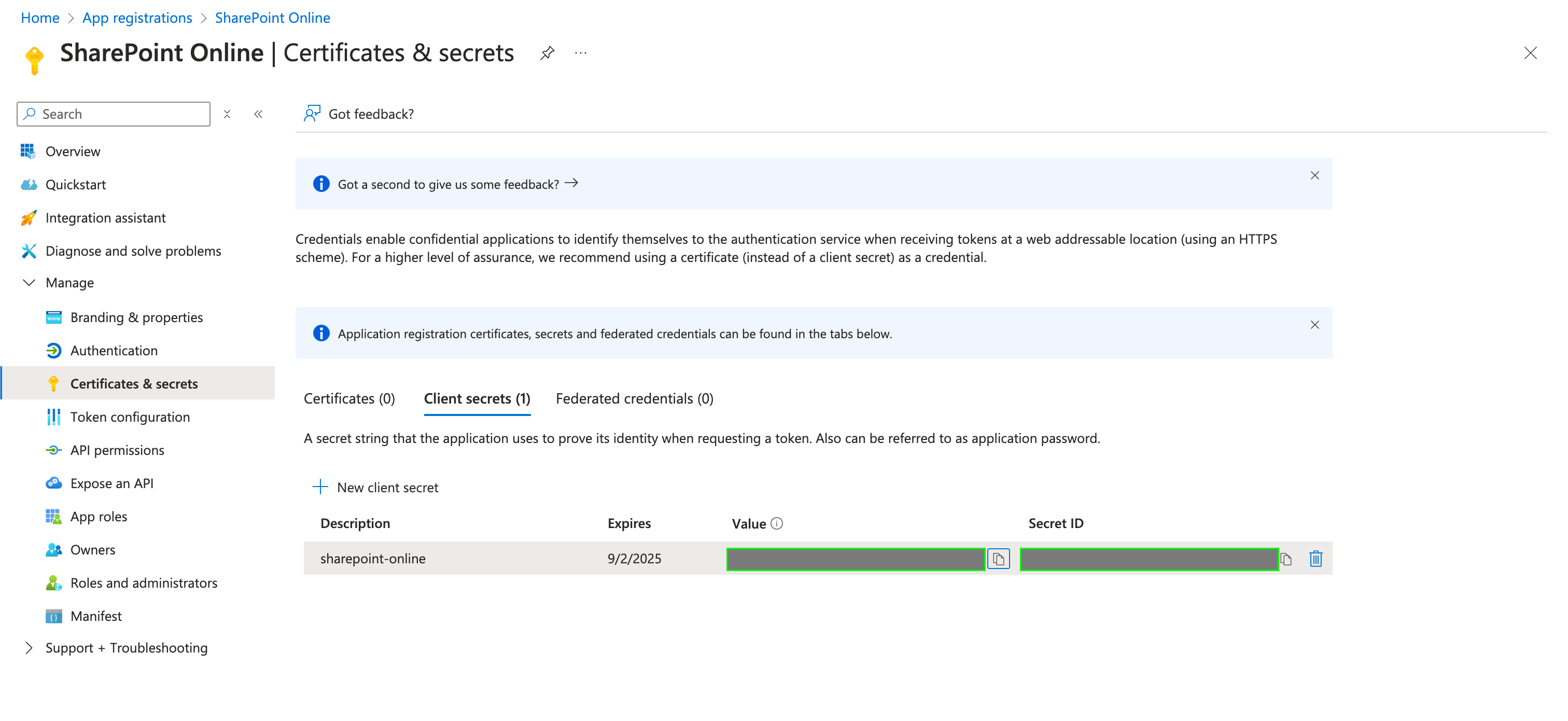
Microsoft only shows the secret value once. Save it somewhere secure before leaving the page. When the secret expires, create a new one and update it in Nango.
Step 4: Enter your credentials in the Connect UI
- Open the form where you need to authenticate with Microsoft Defender (Client Credentials).
- Enter your Tenant ID, Client ID, and Client Secret in the designated fields.
- Submit the form, and you should be successfully authenticated.