Overview
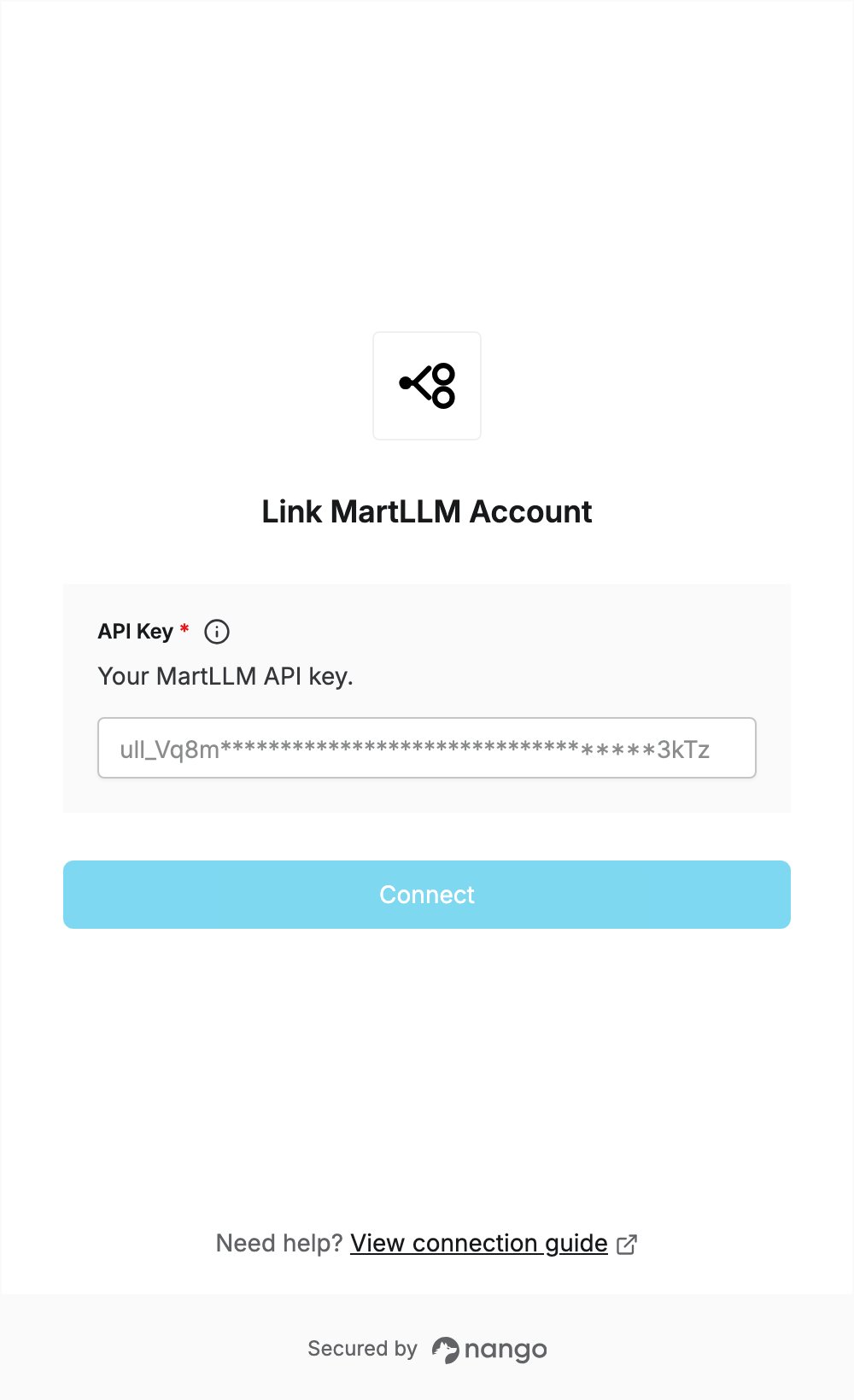
To authenticate with MartLLM, you need:- API Key - A MartLLM API key that lets Nango call the MartLLM API on behalf of your account.
Prerequisites
- A MartLLM account. Sign up with your email (a 6-digit code) or with Google.
Step 1: Copy your API key
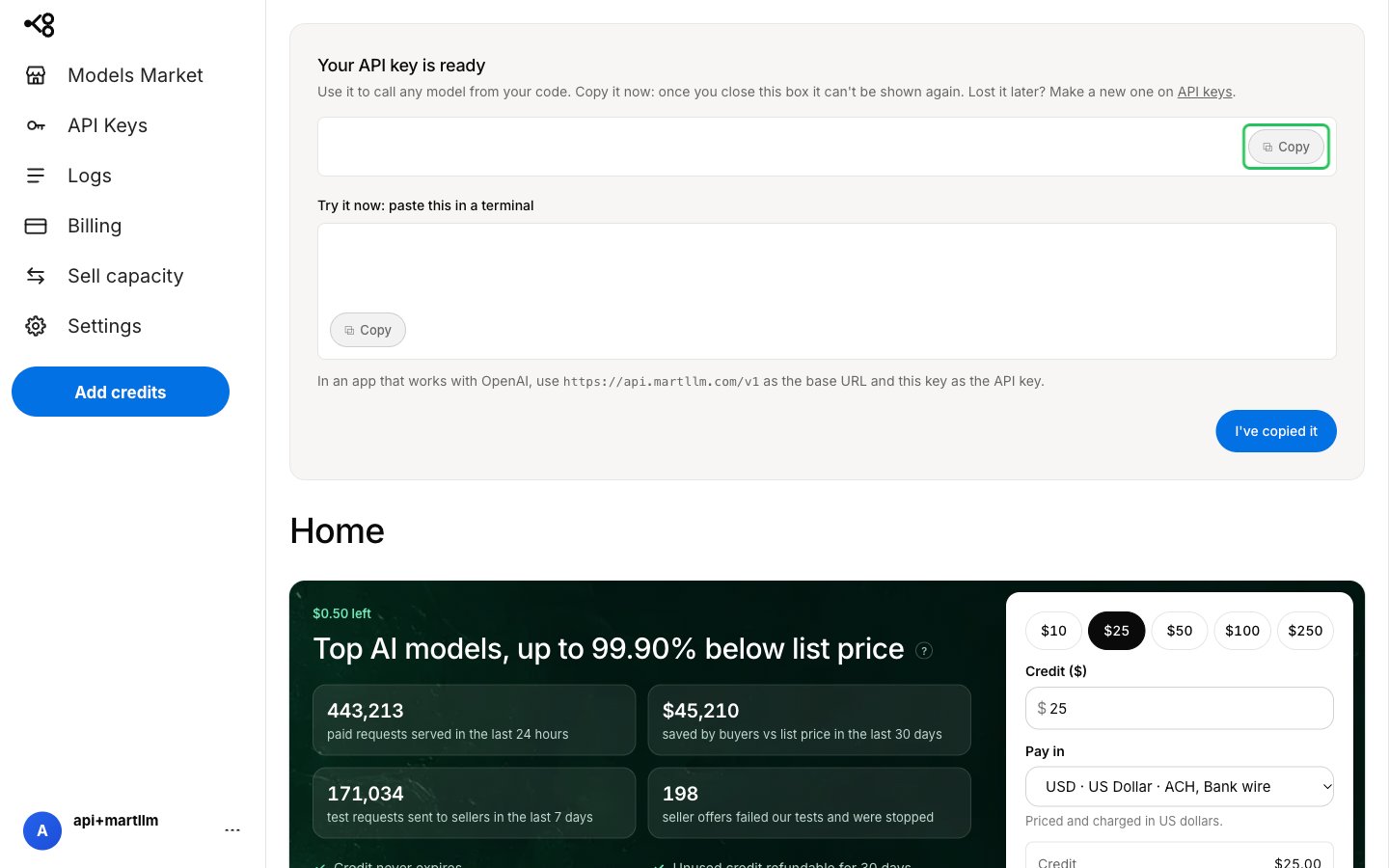
- After you sign up, your first API key is shown at the top of the dashboard under Your API key is ready. Click Copy before you press I’ve copied it: the key is never shown again.
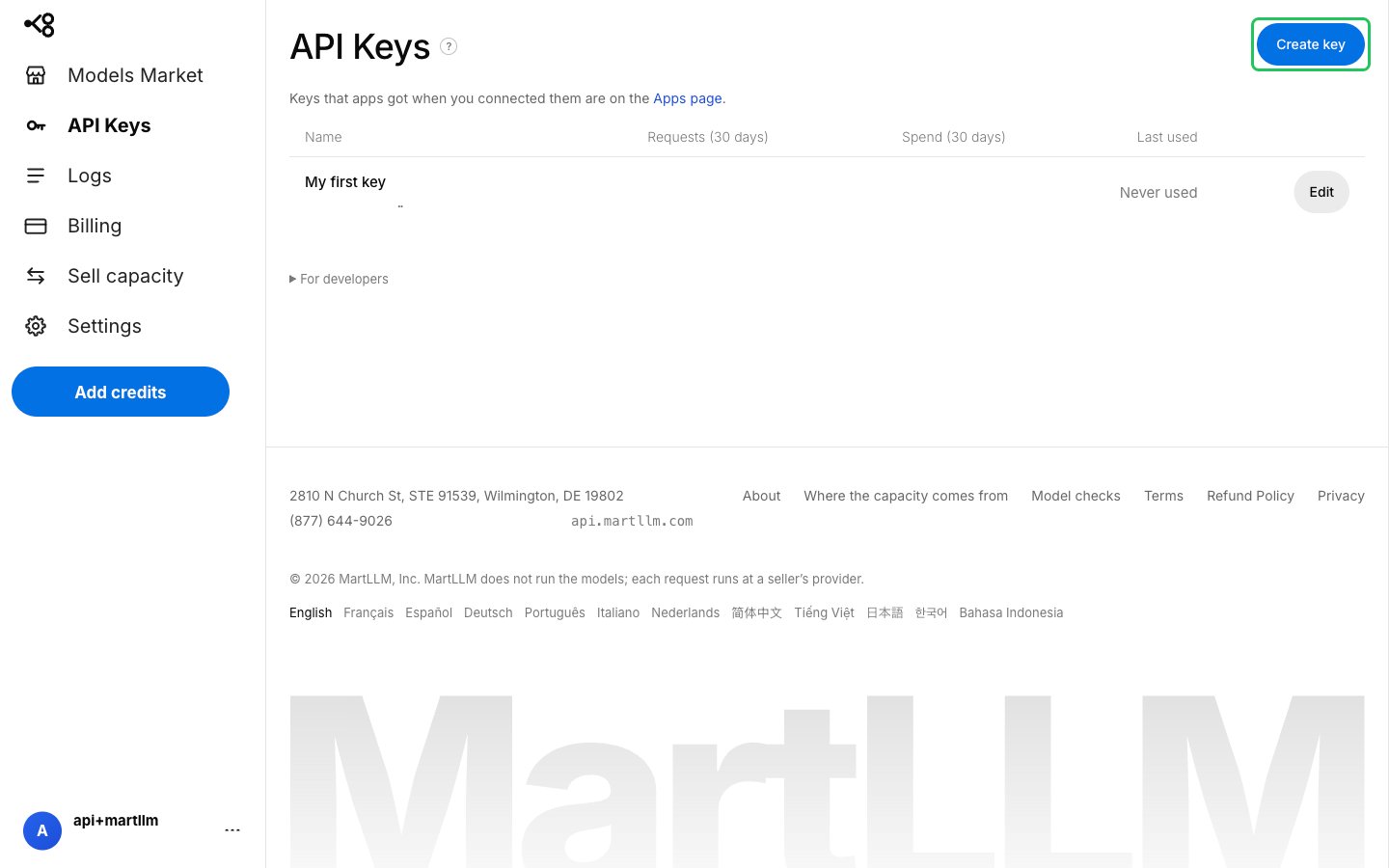
- To create another key, open API Keys in the dashboard (keys page) and click Create key.
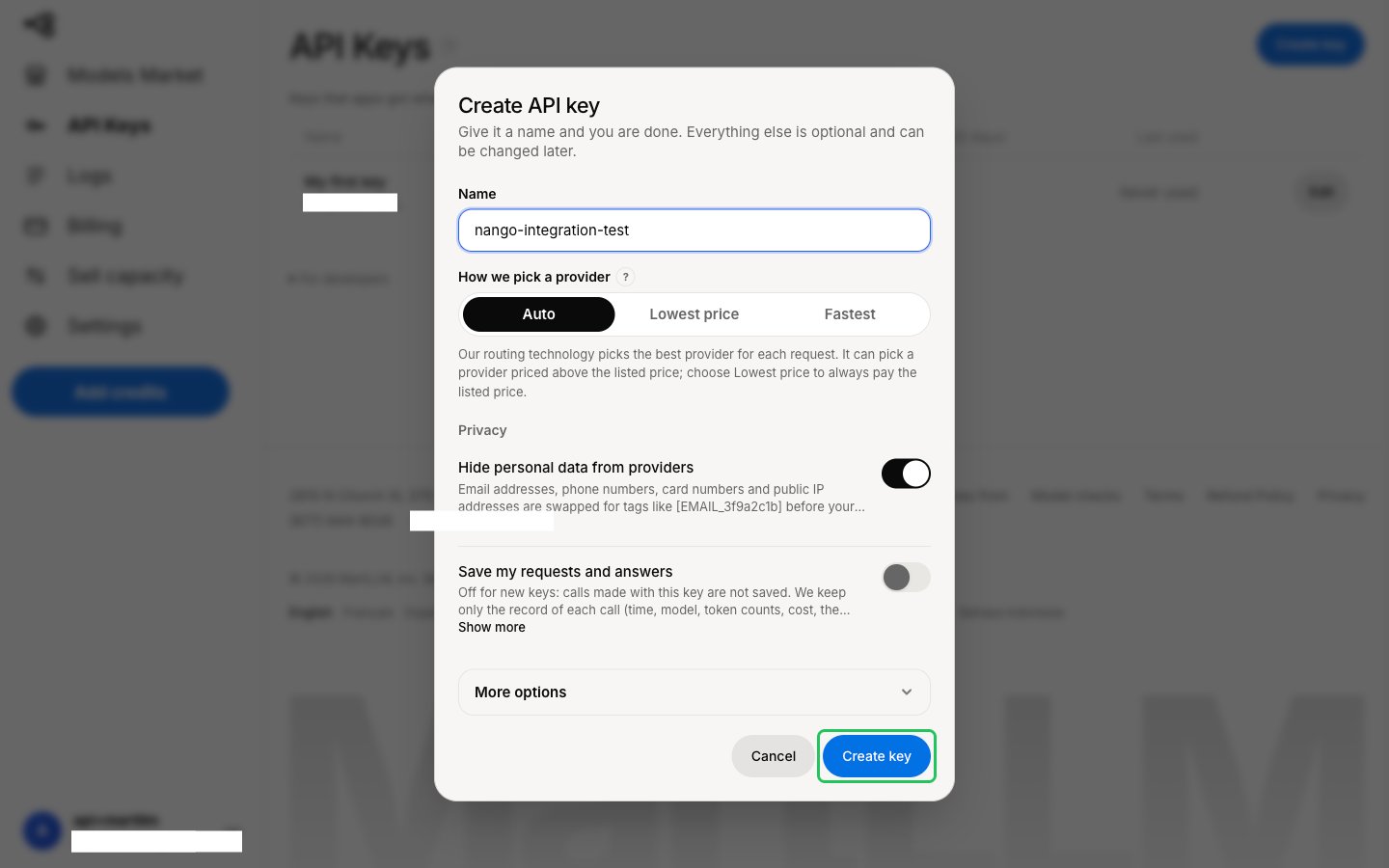
- Enter a Name for the key (for example,
nango). Spend and rate limits under More options are optional. Click Create key.
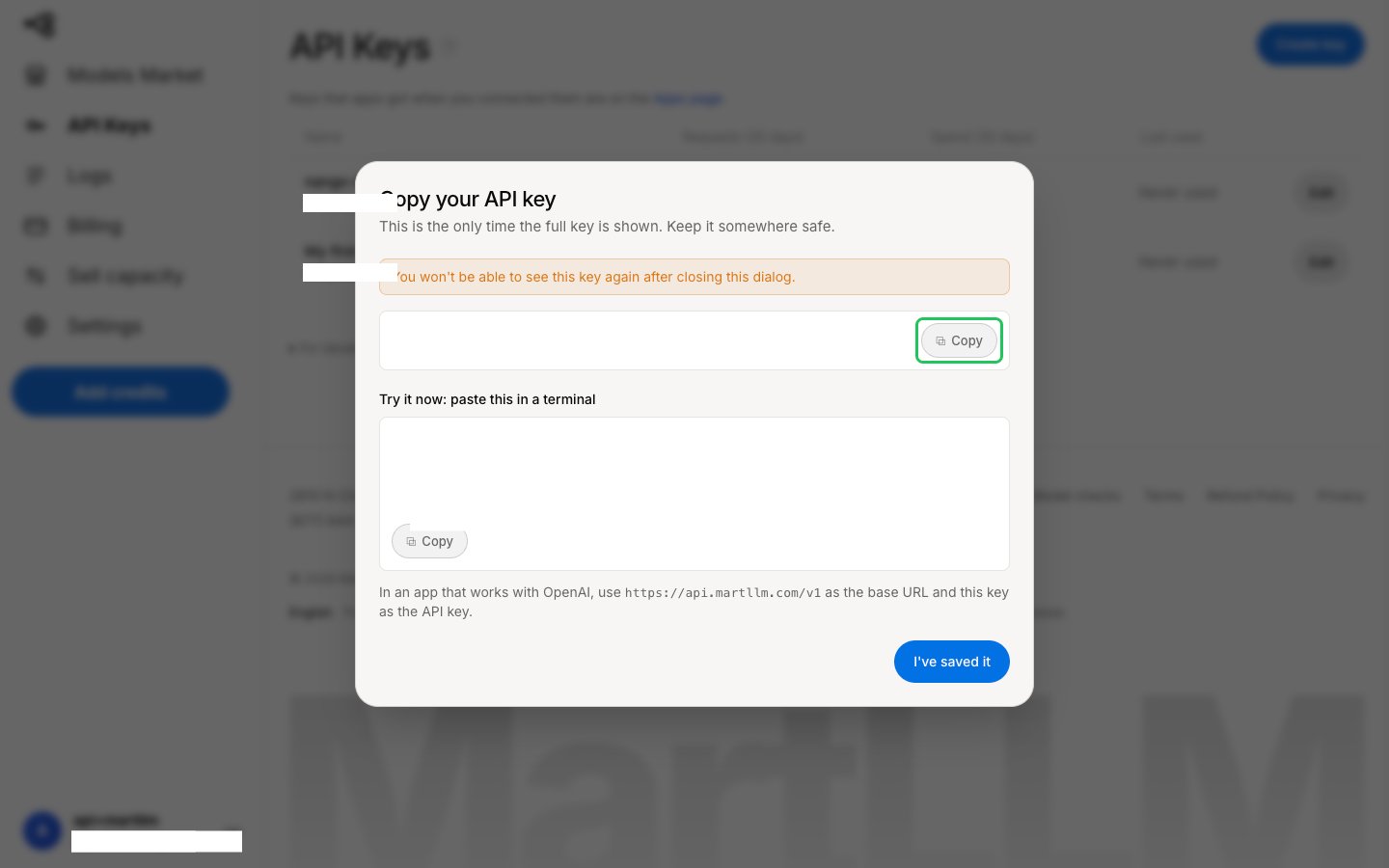
- In the Copy your API key dialog, click Copy, then I’ve saved it. The key starts with
ull_and is shown only once.
Step 2: Enter your API key in the Connect UI
- Open the form where you need to authenticate with MartLLM.
- Enter your API Key in the designated field.
- Submit the form, and you should be successfully authenticated.