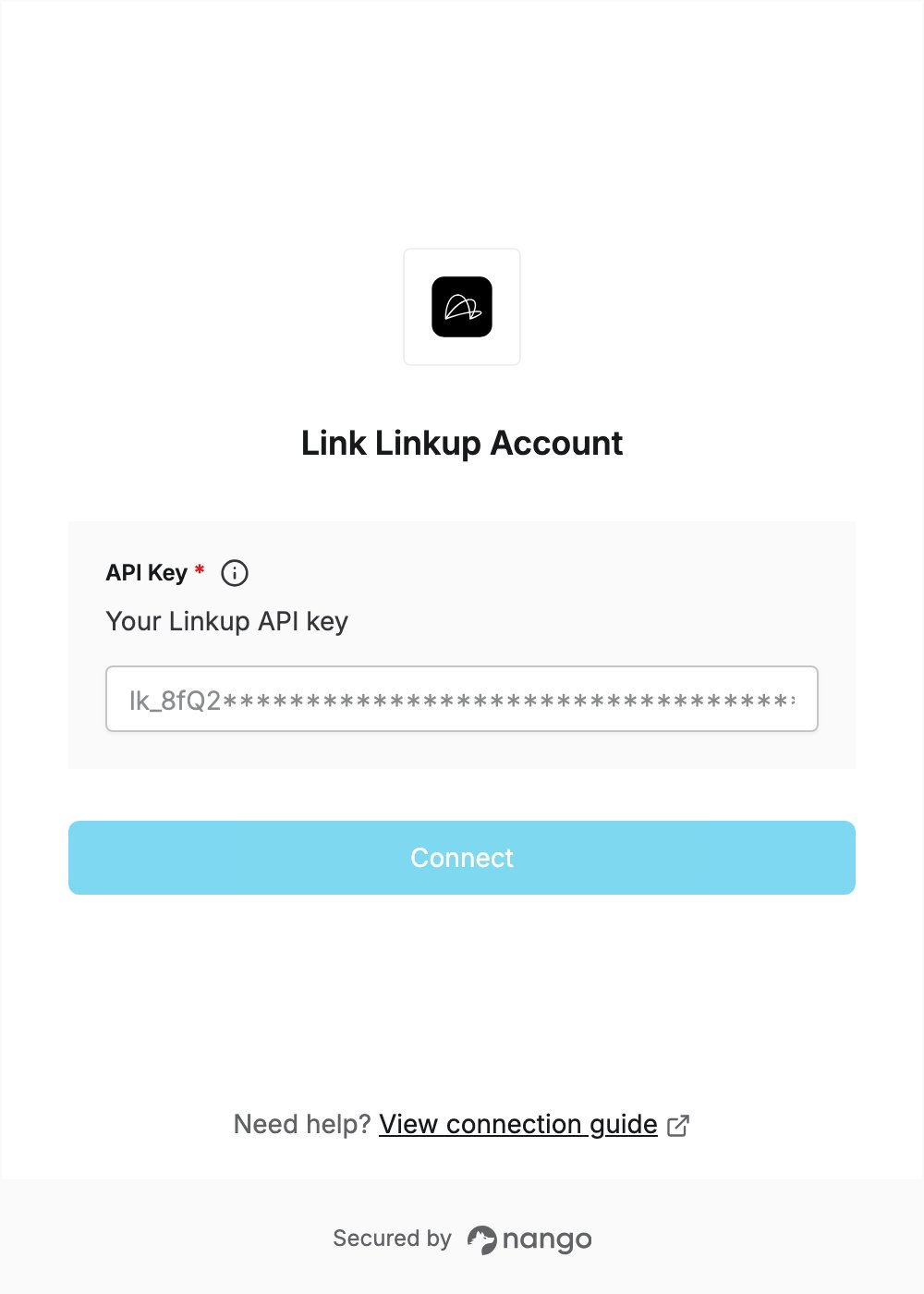
Overview
To authenticate with Linkup, you need:- API Key - A key that lets Nango call the Linkup API on behalf of your organization.
Prerequisites
- A Linkup account. You can create one for free.
Step 1: Create an API key
- Sign in to the Linkup app.
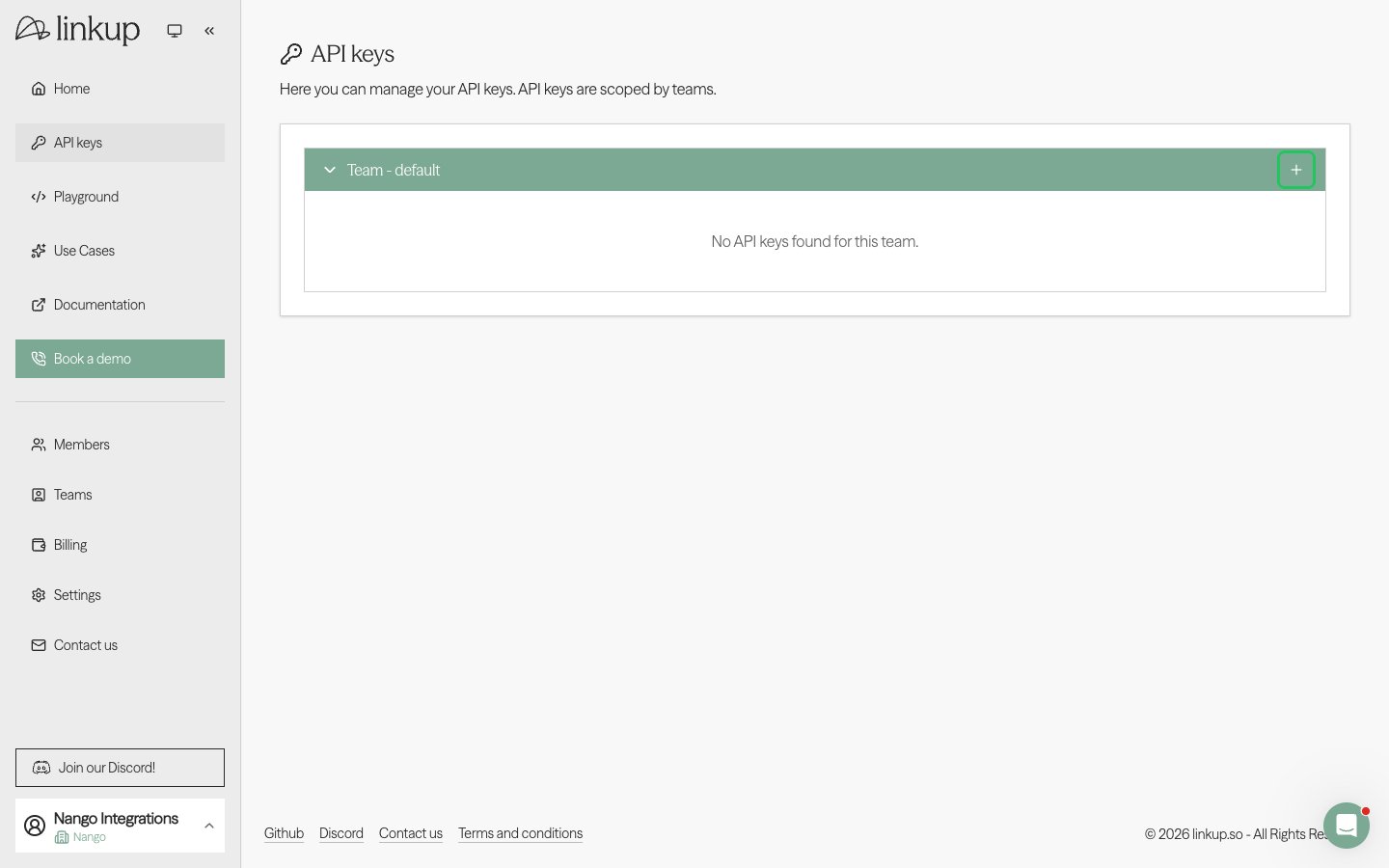
- Click API keys in the left sidebar, then click the + button next to your team (for example, Team - default).
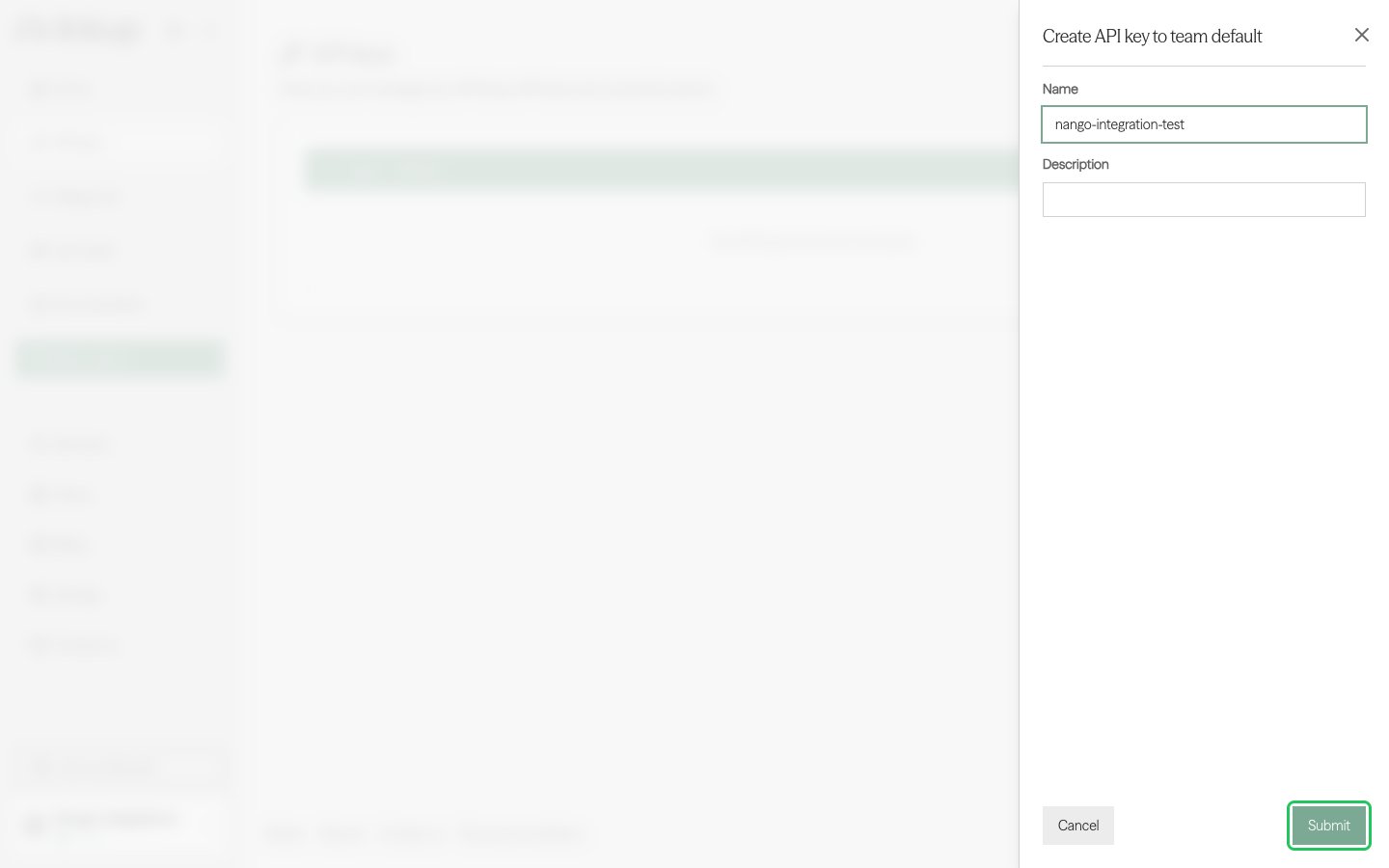
- Enter a Name and a Description for the key, then click Submit.
- In the API key created dialog, click the copy button next to the key, then click Done.
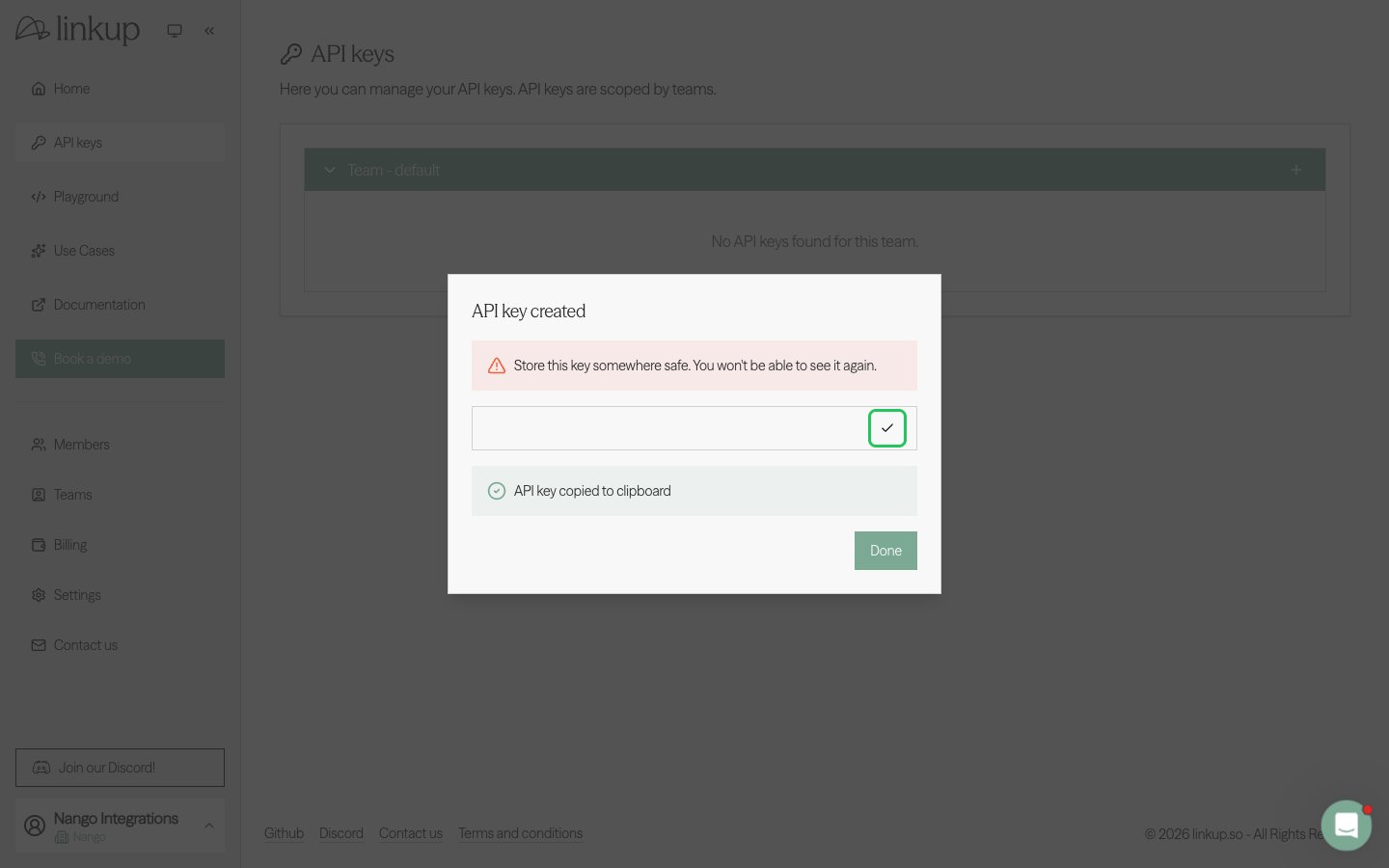
The key is shown only once. Store it somewhere safe before you close the dialog.
Step 2: Enter your API key in the Connect UI
- Open the form where you need to authenticate with Linkup.
- Enter your API Key in the designated field.
- Submit the form, and you should be successfully authenticated.