Overview
To authenticate with both Lattice, you need one key piece of information:- API Key - Your Lattice API Key
Prerequisites:
- You need to have an admin account to access Lattice API Key. If you don’t, you can sign up here
-
If it’s your first time accessing the API key, you will need to request API access from Lattice by writting them an email answering this questions:
- What is your intended use case with the API?
- Will it be used with a third-party software tool? If yes, please specify the tool.
- Once approved, you can create or revoke API keys without needing to request additional approval.
Step 1: How to Generate Lattice API Keys for Public and SCIM APIs
- Log in to your Lattice account.
-
From your dashboard, click on the
Adminicon on the left bottom corner. -
Select
Settingsthen click onAPI Keys. -
On the API Keys page you can generate the API key by clicking the
Generate API Keybutton in the top right corner.
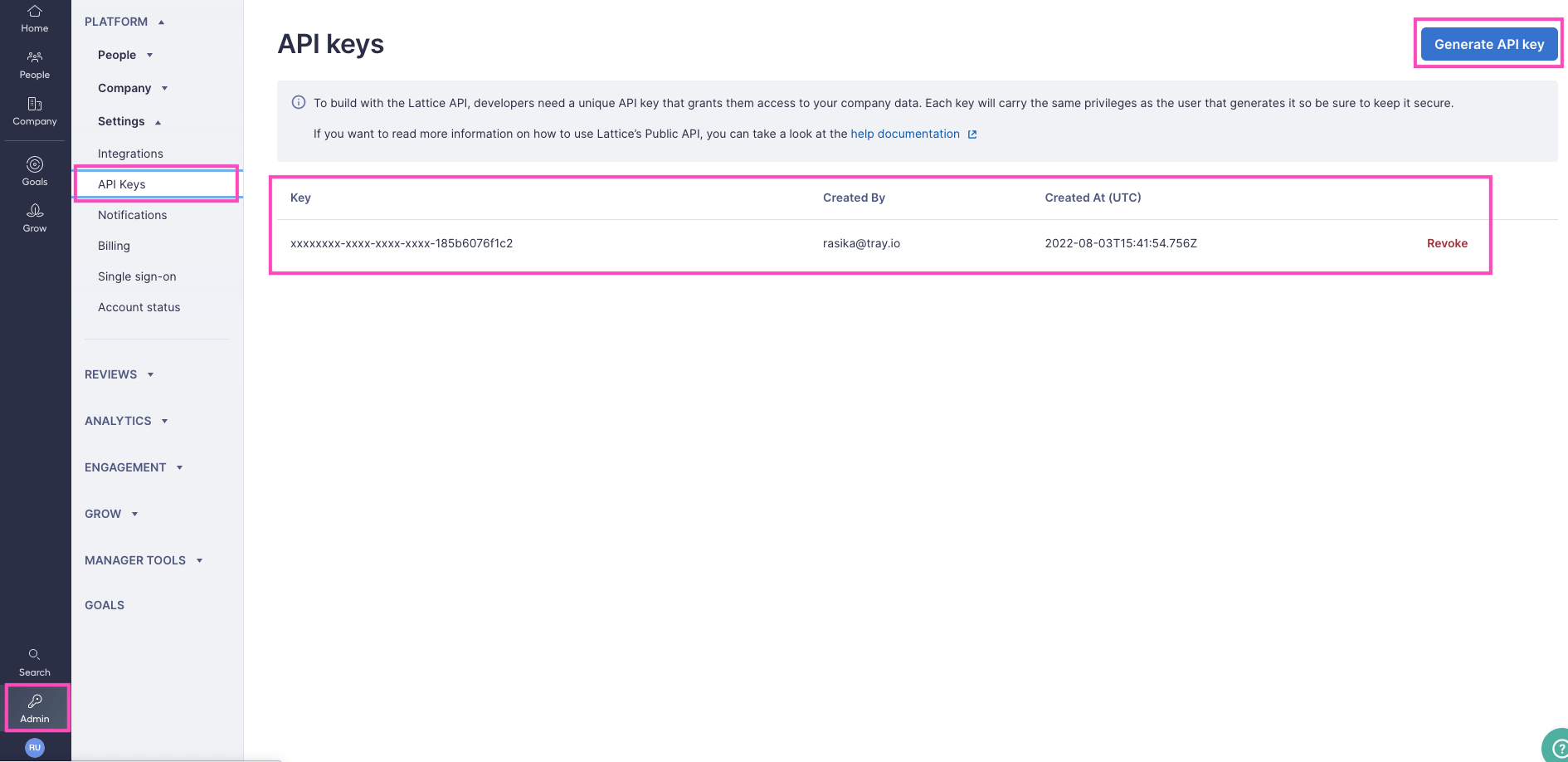
- After the key is generated, click
Copy.
The generated API key will only be shown to you in full once, so be sure to copy it before closing the window.
Step 2: Choosing your data residency
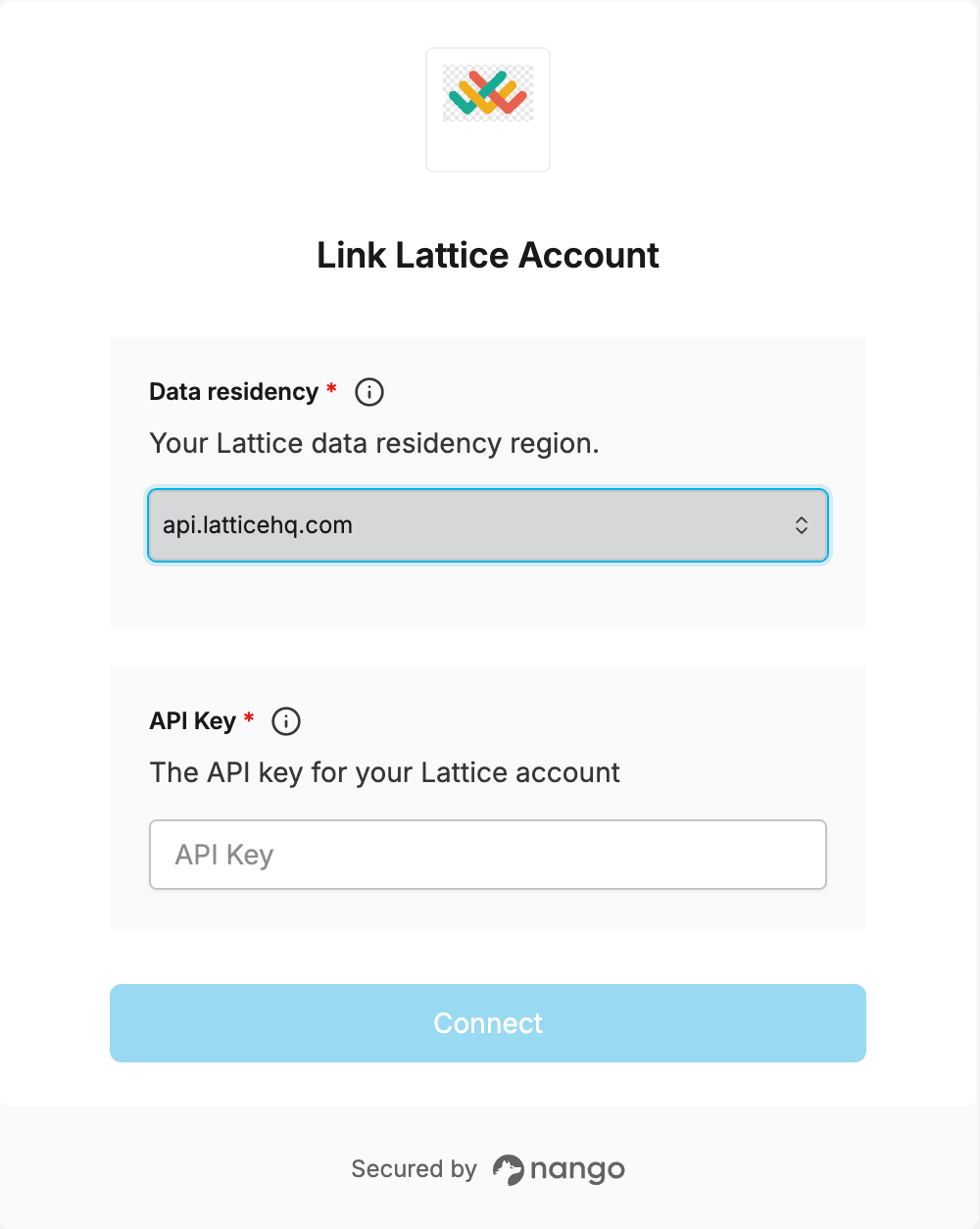
In the Data residency dropdown, selectapi.latticehq.com for US-hosted accounts, or api.emea.latticehq.com for EMEA-hosted accounts. If you’re unsure of your account’s data residency, reach out to customercare@lattice.com.
Step 3: Enter credentials in the Connect UI
Once you have your API Key:- Open the form where you need to authenticate with Lattice.
- Enter the API Key in the field provided.
- Select the Data residency you chose in step 2.
- Submit the form, and you should be successfully authenticated.