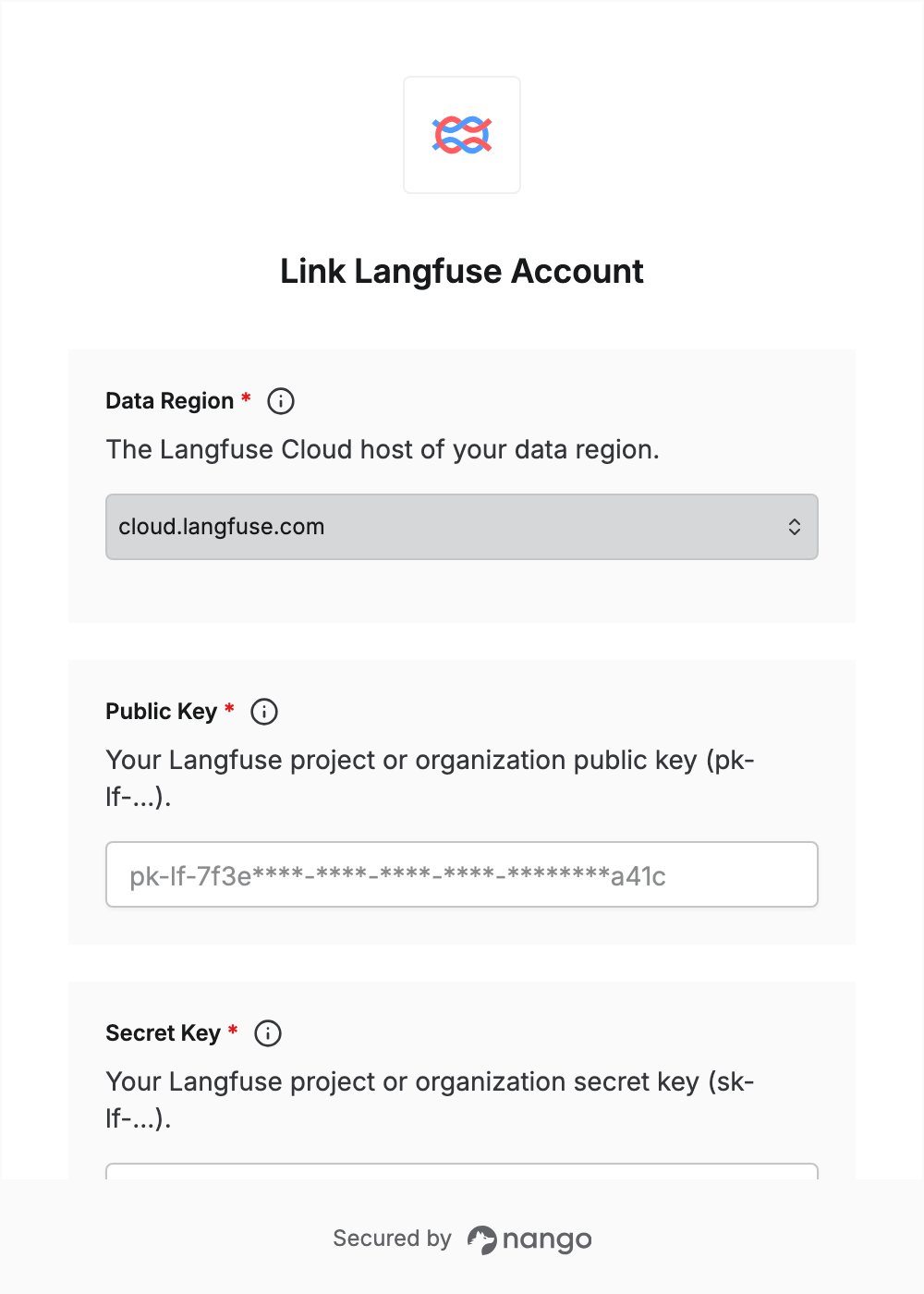
Overview
To authenticate with Langfuse, you need:- Data Region — the Langfuse Cloud region your project lives in.
- Public Key — your Langfuse public key, starting with
pk-lf-. - Secret Key — your Langfuse secret key, starting with
sk-lf-.
Prerequisites
- A Langfuse Cloud account. If you don’t have one, sign up for free.
Step 1: Find your data region
Your data region is the host in the address bar when you are signed in to Langfuse. Pick the matching value in the Data Region field:Step 2: Create your API keys
Project API keys work for project data. Organization API keys (Enterprise plan, created in Organization Settings) work the same way for the organization APIs. To create project API keys:- Sign in to Langfuse in your data region and open your project.
- In the left sidebar, click Settings, then open the API Keys tab and click Create new API keys.
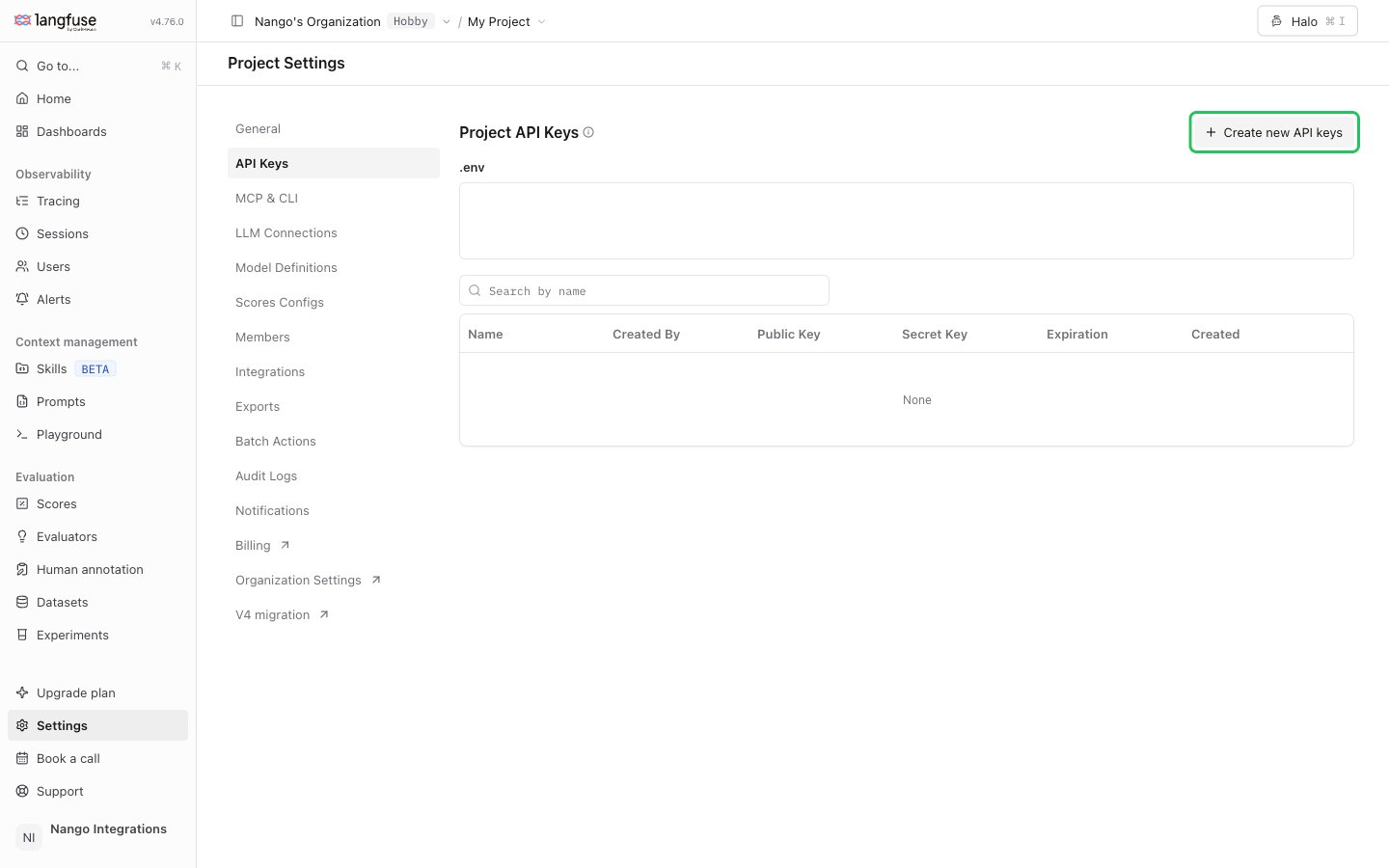
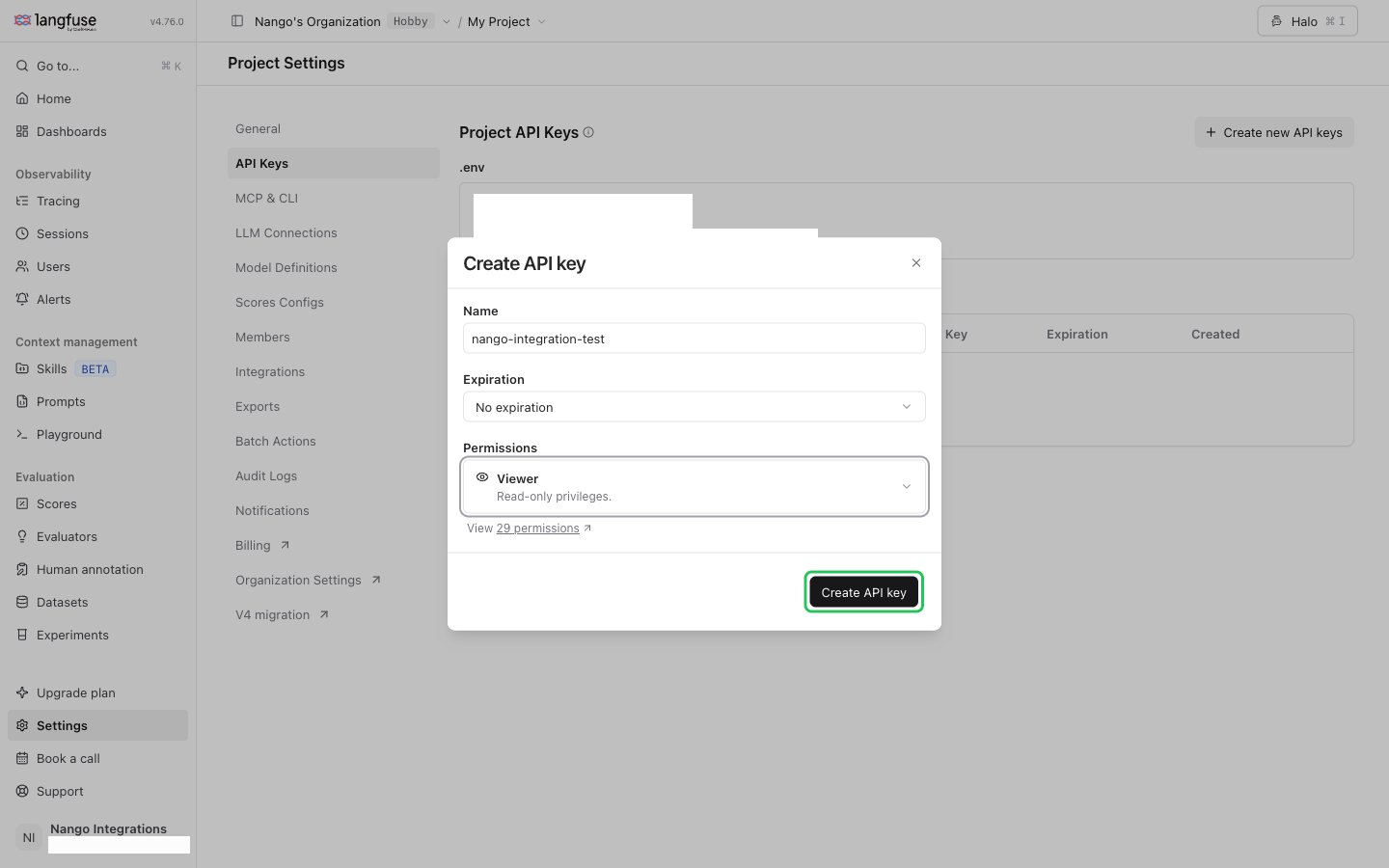
- Enter a name for the key, choose the permissions your app needs, and click Create API key.
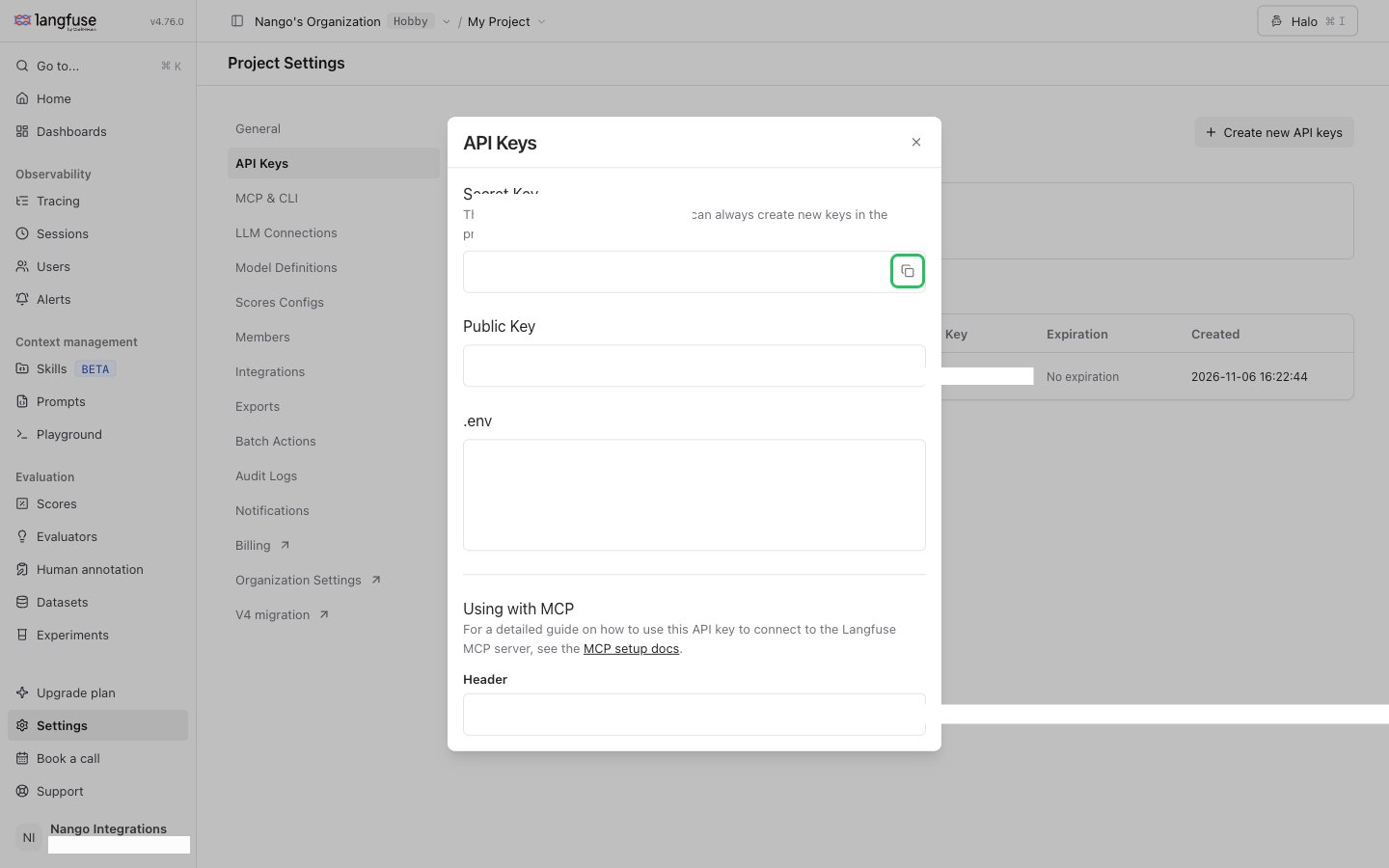
- Copy the Secret Key (
sk-lf-...) and the Public Key (pk-lf-...). Langfuse shows the secret key only once, when the key is created.
Step 3: Enter your credentials in the Connect UI
- Open the form where you need to authenticate with Langfuse.
- Select your region in the Data Region field.
- Enter your public key (
pk-lf-...) in the Public Key field and your secret key (sk-lf-...) in the Secret Key field. - Submit the form, and you should be successfully authenticated.