Overview
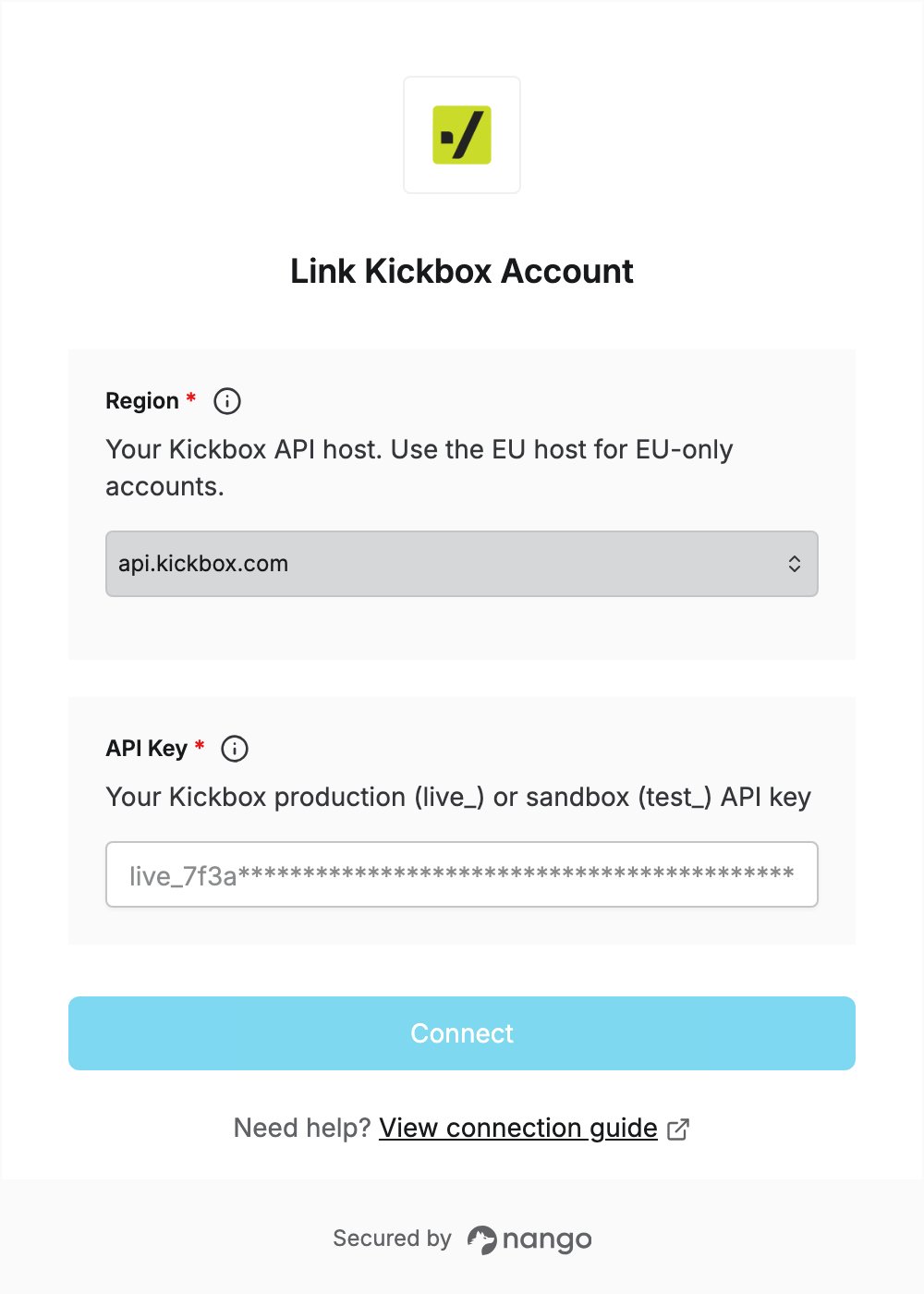
To authenticate with Kickbox, you need:- Region — the Kickbox API host for your account.
- API Key — a production (
live_) or sandbox (test_) API key from your Kickbox dashboard.
Prerequisites
- A Kickbox account. If you don’t have one, sign up for free.
Step 1: Find your region
Check the address you use to sign in to Kickbox:- If you sign in at
app.kickbox.com, chooseapi.kickbox.com. - If you have an EU-only account and sign in at
app.eu.kickbox.com, chooseapi.eu.kickbox.com.
Step 2: Create an API key
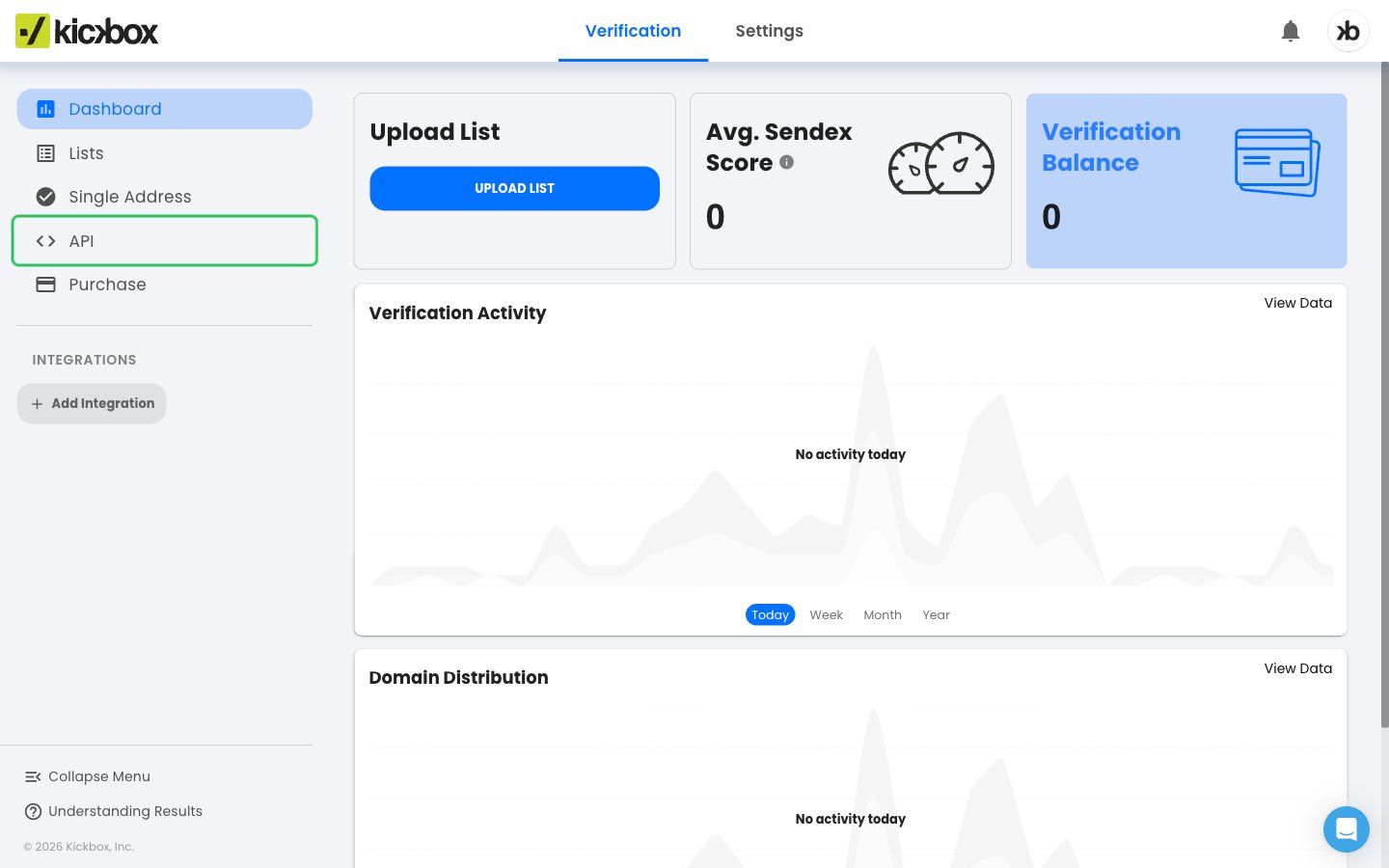
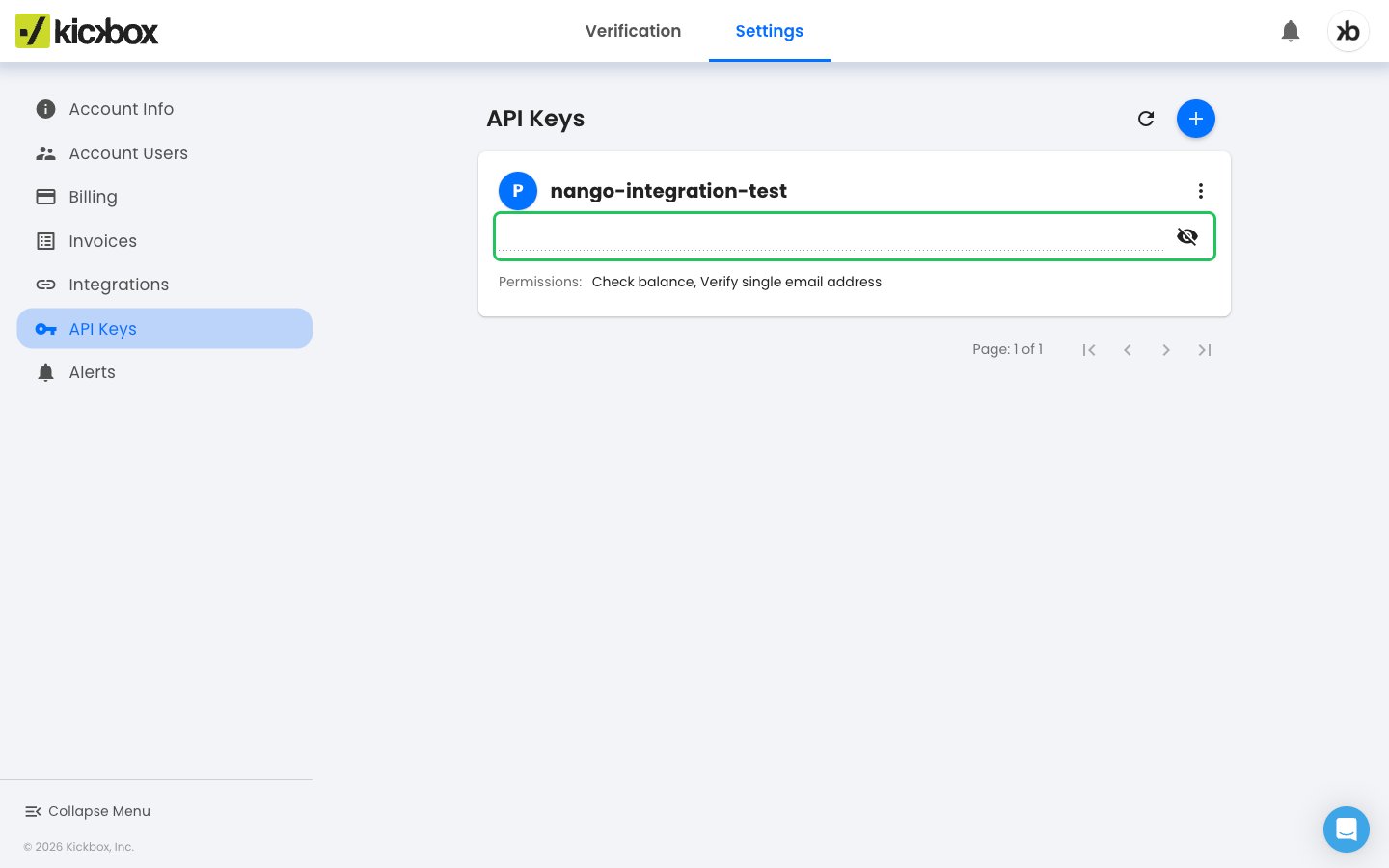
- Sign in to your Kickbox dashboard and click API in the left navigation, then click Manage Keys. This opens Settings > API Keys.
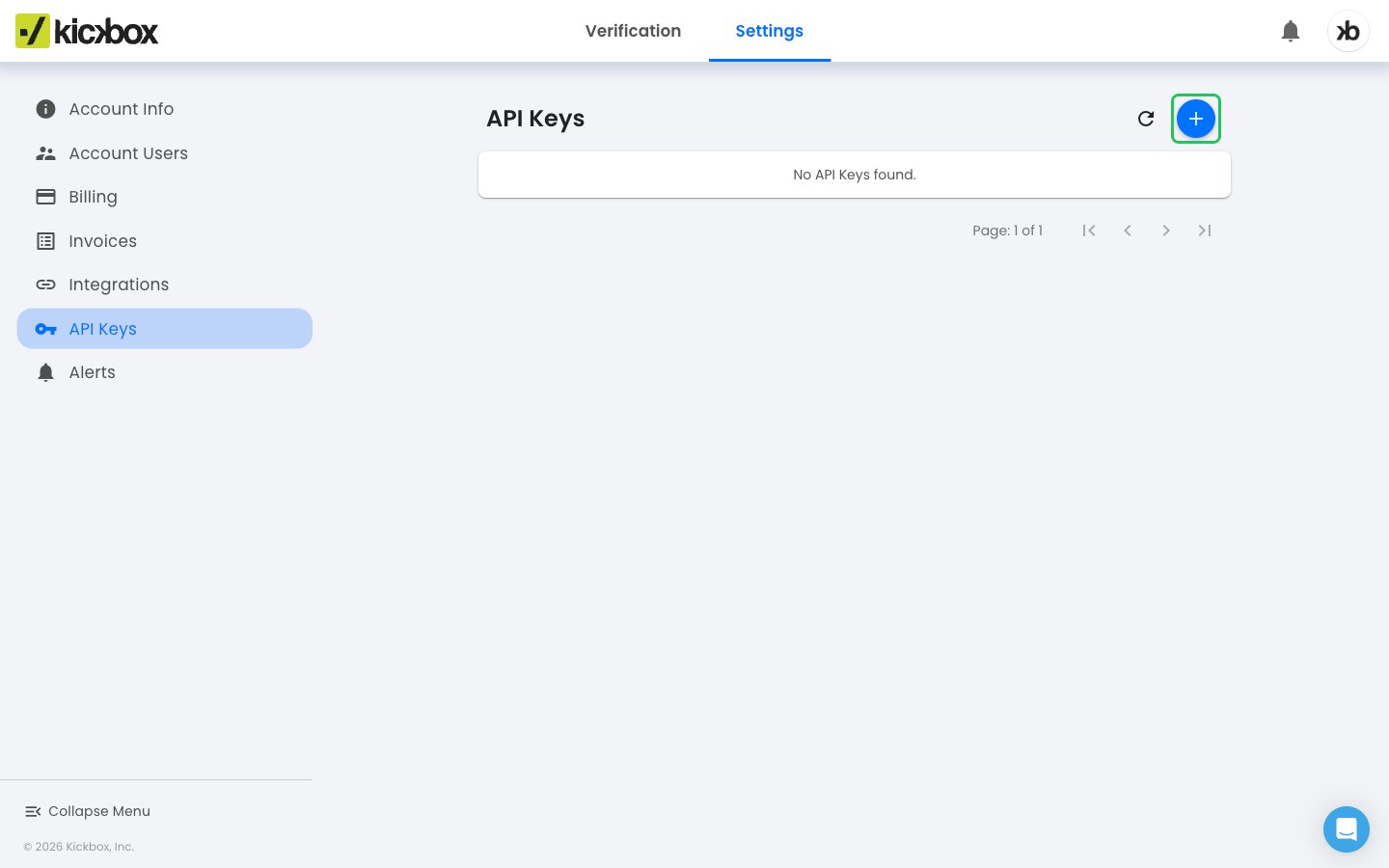
- On the API Keys page, click the blue + button at the top right to create a new key.
-
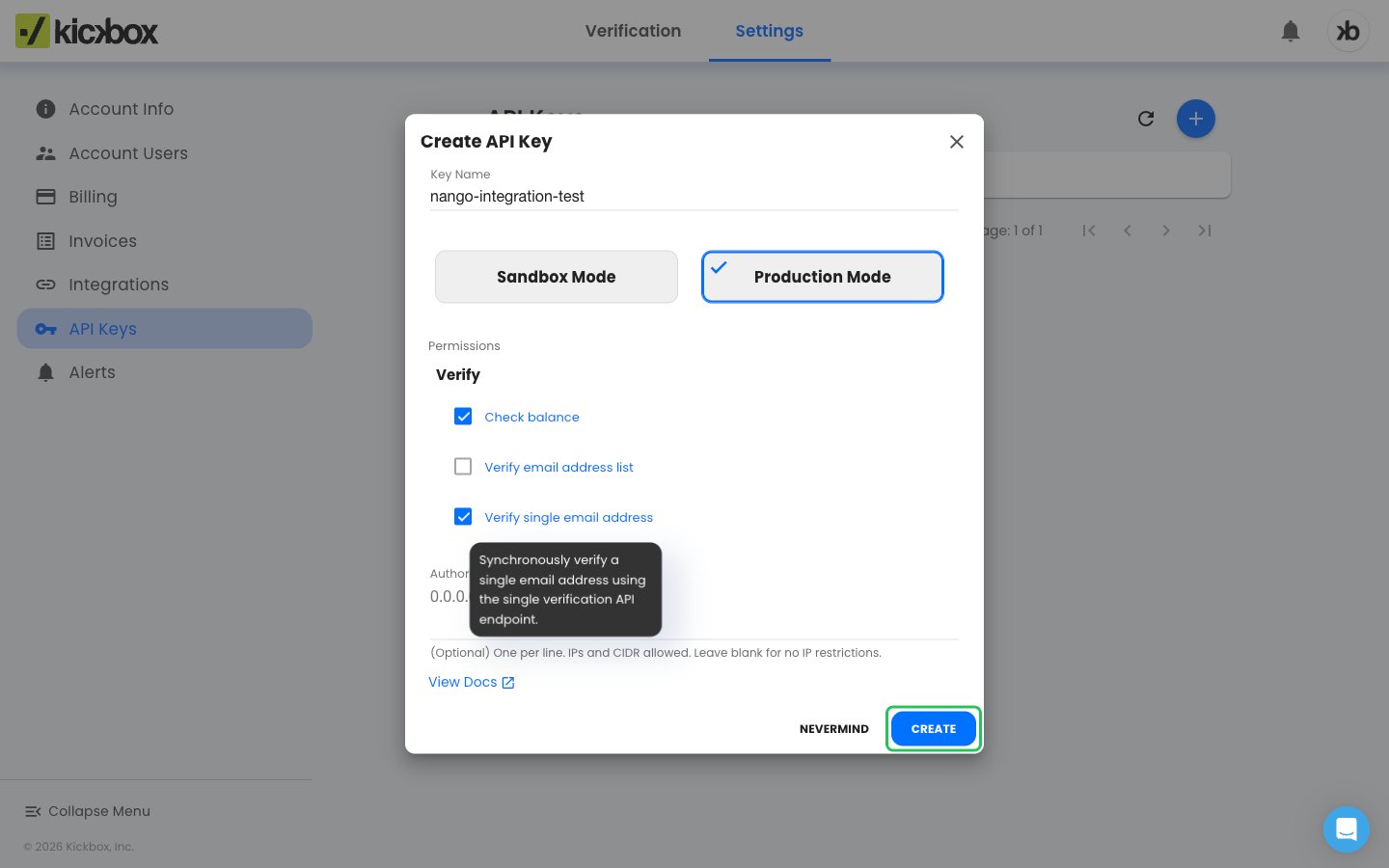
Enter a Key Name and choose a mode:
- Production Mode creates a
live_key that verifies real addresses and uses verification credits. - Sandbox Mode creates a
test_key that returns mock results without using credits.
- Production Mode creates a
- Under Permissions, tick the endpoints the key may use (for example Verify single email address), then click Create. Sandbox keys only offer Verify single email address, which is ticked for you.
- The new key appears in the list. Click the eye icon to reveal it, then copy it.
Step 3: Enter your credentials in the Connect UI
- Open the form where you need to authenticate with Kickbox.
- Choose your Region and enter your API key in the API Key field.
- Submit the form, and you should be successfully authenticated.