Overview
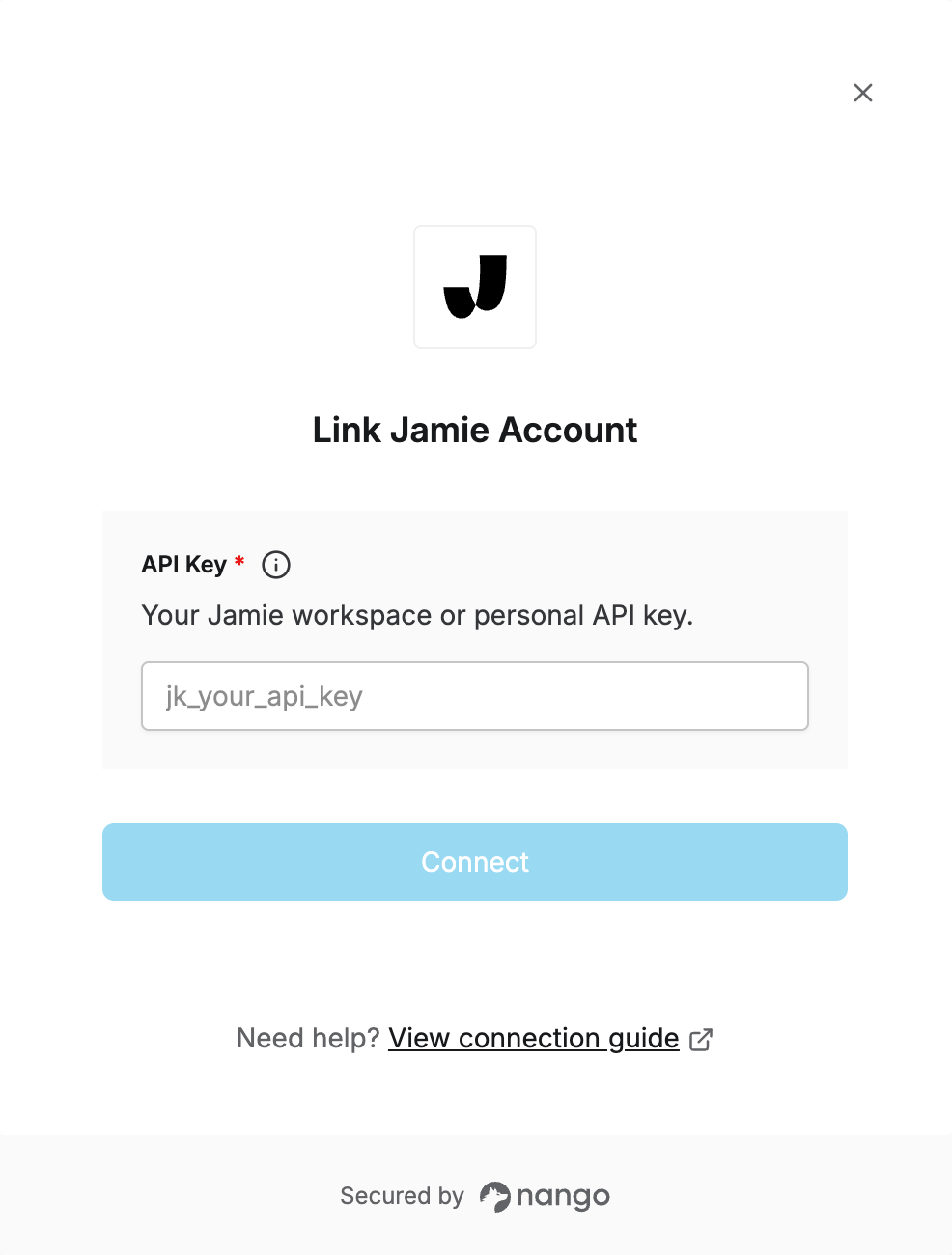
To authenticate with Jamie, you need:- API Key — A workspace or personal API key that grants access to the Jamie API.
Prerequisites
- An active Jamie account on the Pro, Team, or Enterprise plan
Instructions
Step 1: Create an API key
- Log in to your Jamie account.
- Go to Settings → Developers → API Keys.
- Click Create API Key.
- Choose the key type:
- Workspace key — access all meetings and tasks across your workspace
- Personal key — access your own meetings and tasks, plus shared meetings
- Copy the generated key immediately.
Both key types start with
jk_. Use the Request Builder in Settings → Developers → API Keys to visually construct and test requests before integrating.Step 2: Enter credentials in the Connect UI
Once you have your API key:- Open the form where you need to authenticate with Jamie.
- Enter your API Key in the designated field.
- Submit the form.