Overview
To authenticate with INGENIOUS.BUILD, you need:- Subdomain - The subdomain of your INGENIOUS.BUILD workspace.
- Client ID - The client ID for your OAuth Application.
- Client Secret - The client secret for your OAuth Application.
Prerequisites:
- You must have an INGENIOUS.BUILD account with admin access to your workspace.
Instructions:
Step 1: Finding your subdomain
- Log in to your INGENIOUS.BUILD workspace.
-
Look at the URL in your browser’s address bar:
https://<subdomain>.ingenious.build. -
The Subdomain is the part of the URL before
.ingenious.build.
Step 2: Creating an OAuth Application
- Go to Company Settings > OAuth Applications.
- Click Create Application.
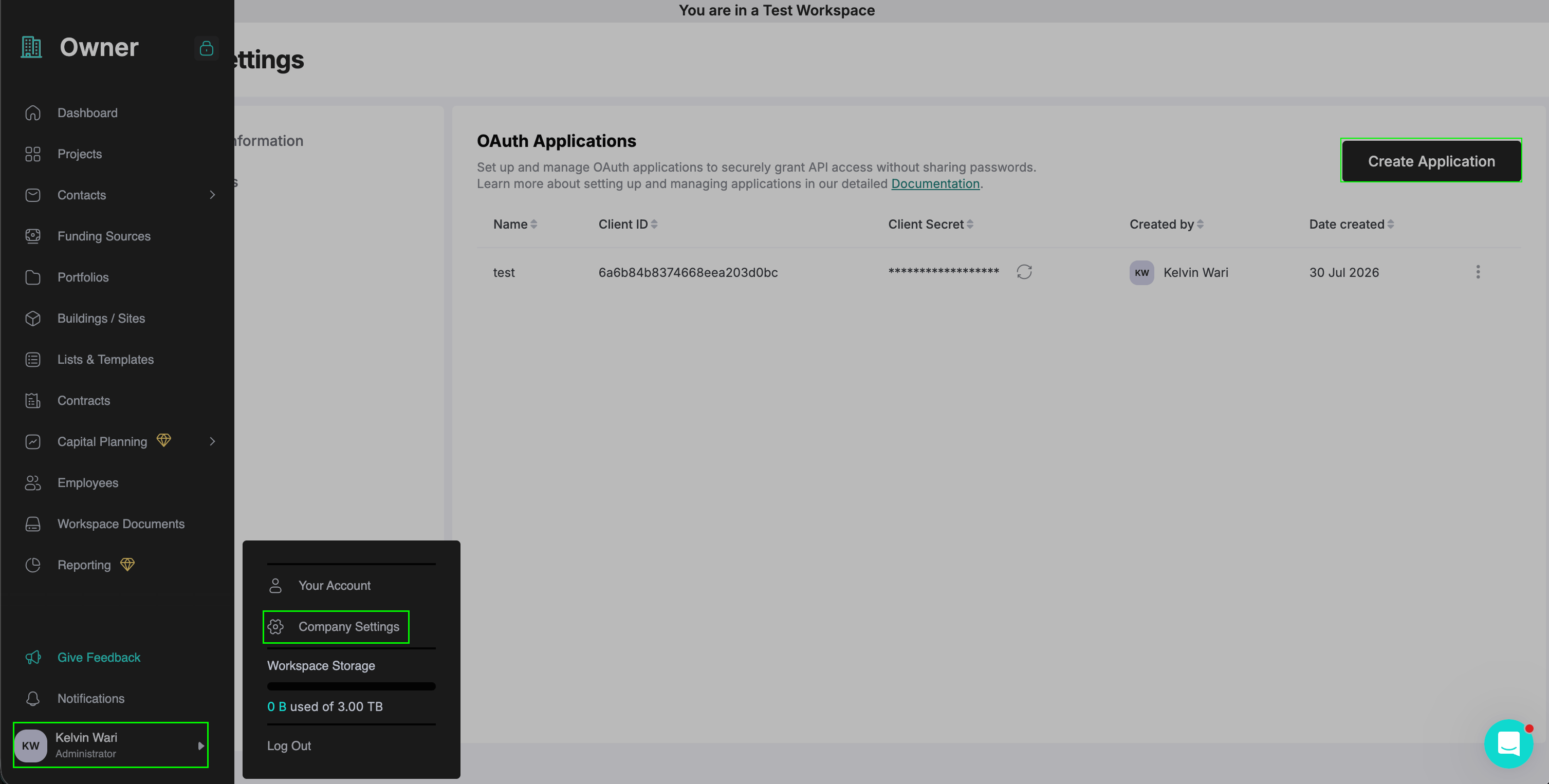
- Enter a name for the application and save.
- The system generates a Client ID and Client Secret for the application.
The Client Secret is only shown once, at creation time. Copy and store it securely — if you lose it, you’ll need to regenerate a new one from the same OAuth Application page.
This OAuth 2.0 client credentials grant provides access to all resources within the workspace. You can revoke the application at any time from Company Settings > OAuth Applications to invalidate its tokens.
Step 3: Enter credentials in the Connect UI
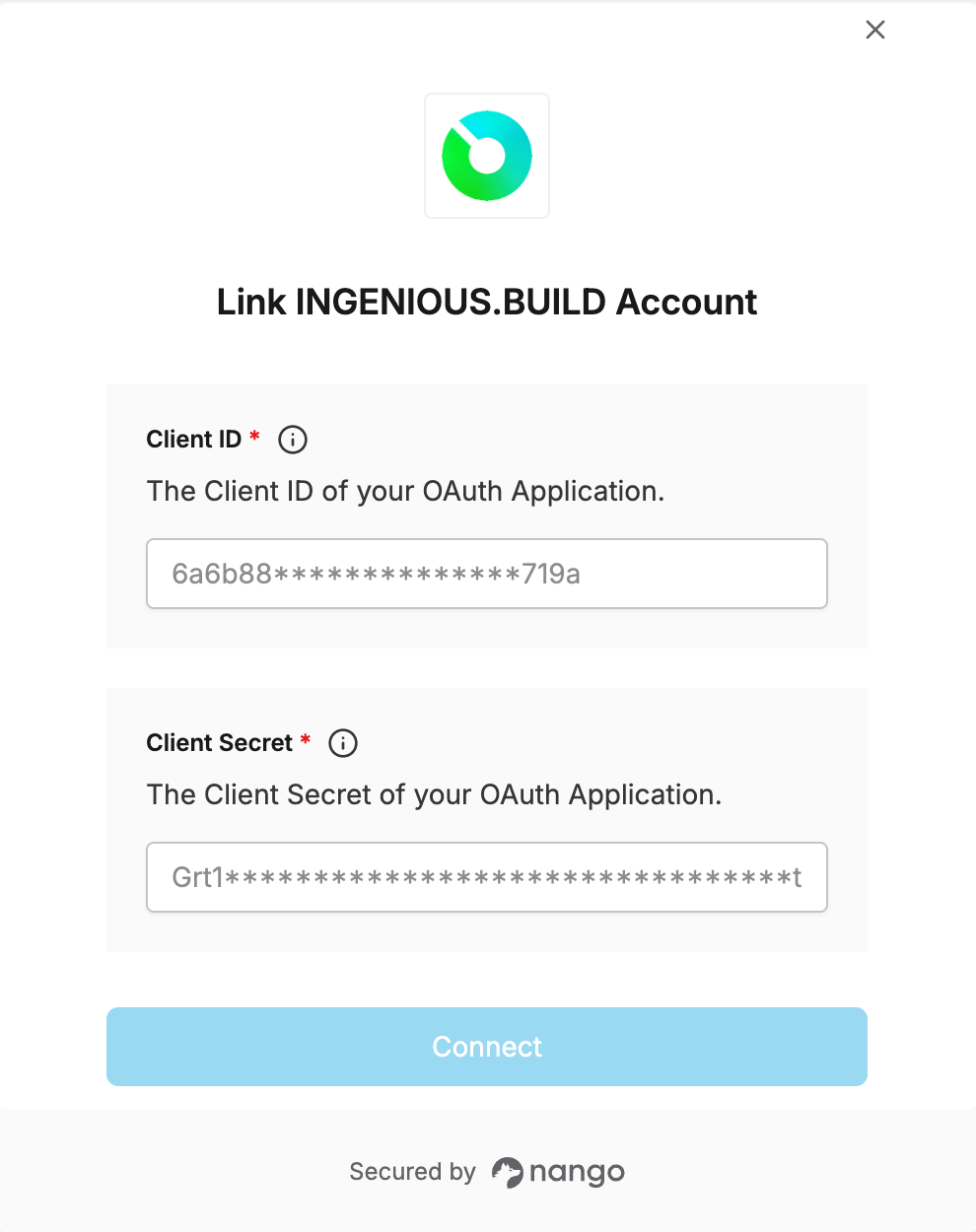
Once you have your Subdomain, Client ID, and Client Secret:- Open the form where you need to authenticate with INGENIOUS.BUILD.
- Enter your Subdomain in its designated field.
- Enter your Client ID in its designated field.
- Enter your Client Secret in its designated field.
- Submit the form, and you should be successfully authenticated.