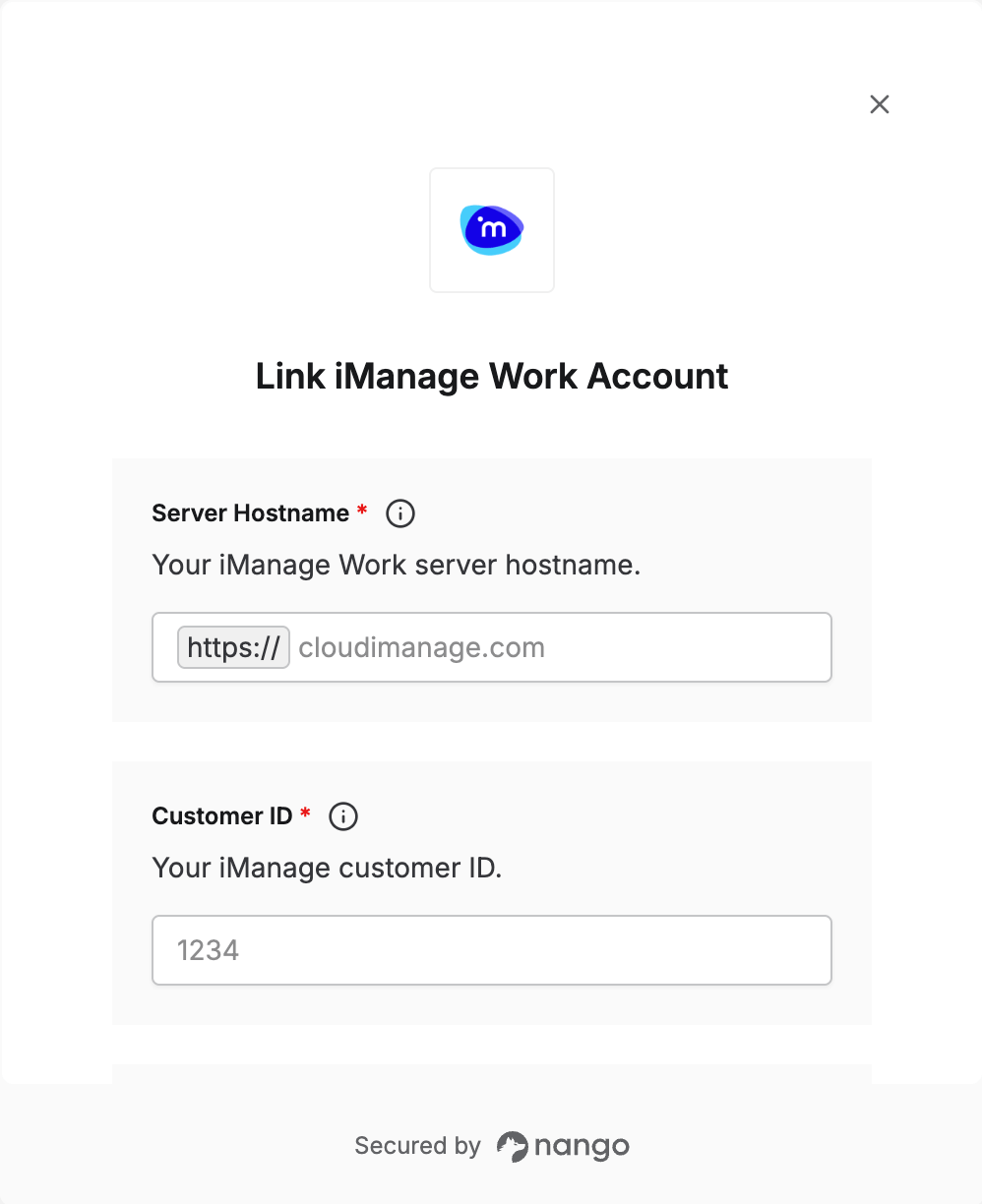
Overview
To connect with iManage Work, you need:- Server Hostname — the hostname of your iManage Work server.
- Customer ID — your numeric iManage customer ID.
- Default Library (optional) — the library to use when a request doesn’t name one.
Prerequisites
- An iManage Work account.
- Your firm’s iManage administrator has enabled the app in Control Center > Settings > Applications.
Step 1: Find your server hostname
Use the hostname of the server you sign in to, withouthttps://:
- iManage Cloud:
cloudimanage.com - Custom subdomain or on-premises server: your firm’s own hostname, for example
dms.acme.com
Step 2: Find your customer ID
Your customer ID is a number your iManage administrator gives you, for example1234.
Step 3: Choose a default library (optional)
If the app you’re connecting to should work in one library by default, enter its ID, for exampleACTIVE_US. Your administrator can tell you which libraries you have access to. Leave this blank otherwise.
Step 4: Enter your details in the Connect UI
- Open the form where you need to authenticate with iManage Work.
- Enter your Server Hostname, Customer ID, and optionally your Default Library.
- Submit the form, then sign in to iManage Work and approve access.