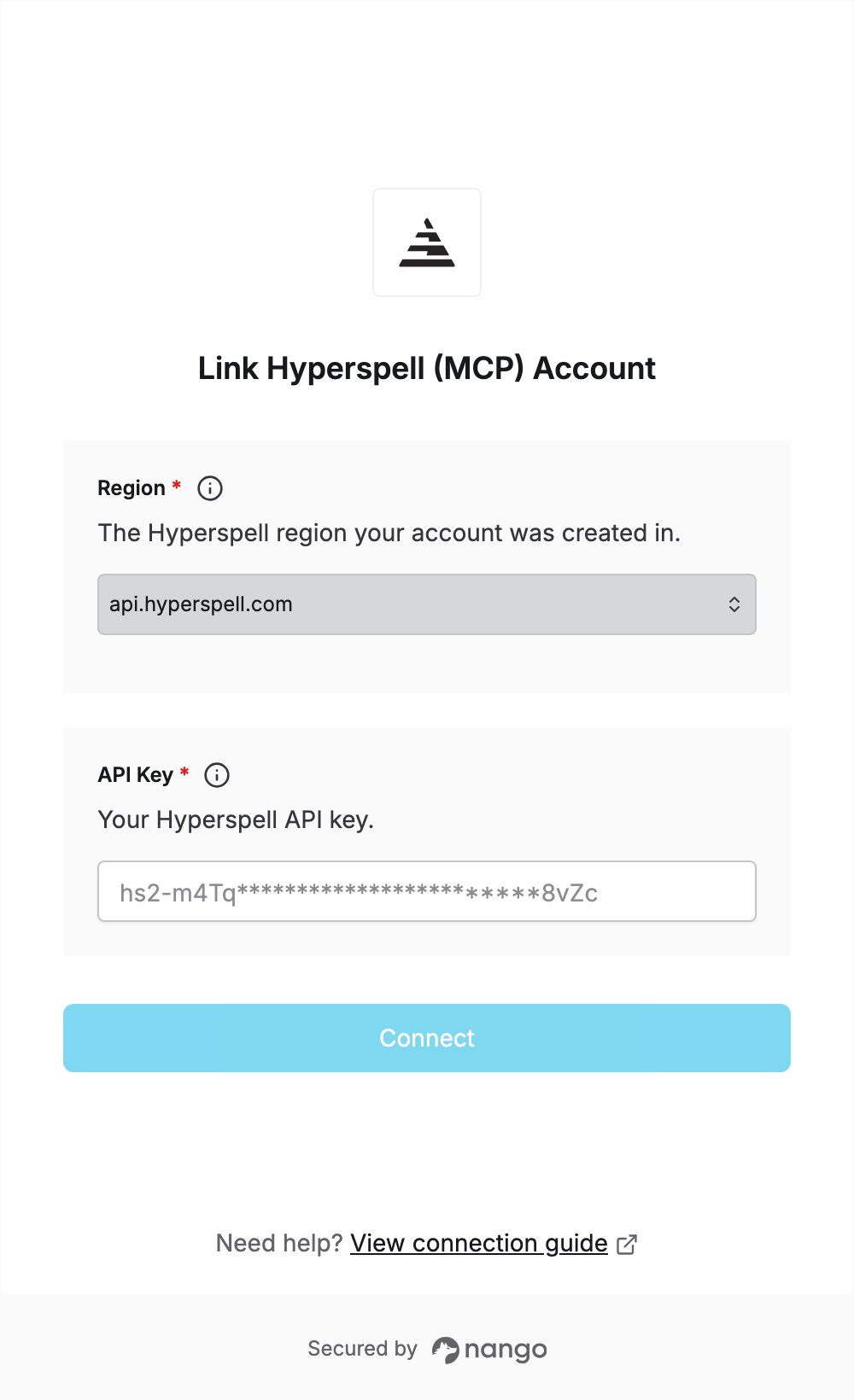
Overview
To authenticate with Hyperspell (MCP), you need:- Region — the Hyperspell region your account was created in.
- API Key — a Hyperspell API key from that region.
Prerequisites
- A Hyperspell account. Creating an organization API key requires an admin.
Step 1: Find your region
You choose a region when you create your Hyperspell account. The dashboard you sign in to tells you which one it is:
An API key only works in the region it was created in. See Data residency.
Step 2: Get your API key
Use a personal key to connect as yourself, or an organization key for a team-wide agent. Personal key- Sign in to the Hyperspell dashboard for your region.
- Go to Settings → Connect Agents and choose MCP clients.
- Copy the API key pre-filled in the dialog. This key acts as you, so treat it like a password.
- Go to Settings → API Keys and create a key.
- Copy the key. It is shown only once, at creation.
hs2-. See Connect via MCP for details.
Step 3: Enter your credentials in the Connect UI
- Open the form where you need to authenticate with Hyperspell (MCP).
- Select your Region and enter your API Key in the designated fields.
- Submit the form, and you should be successfully authenticated.