Overview
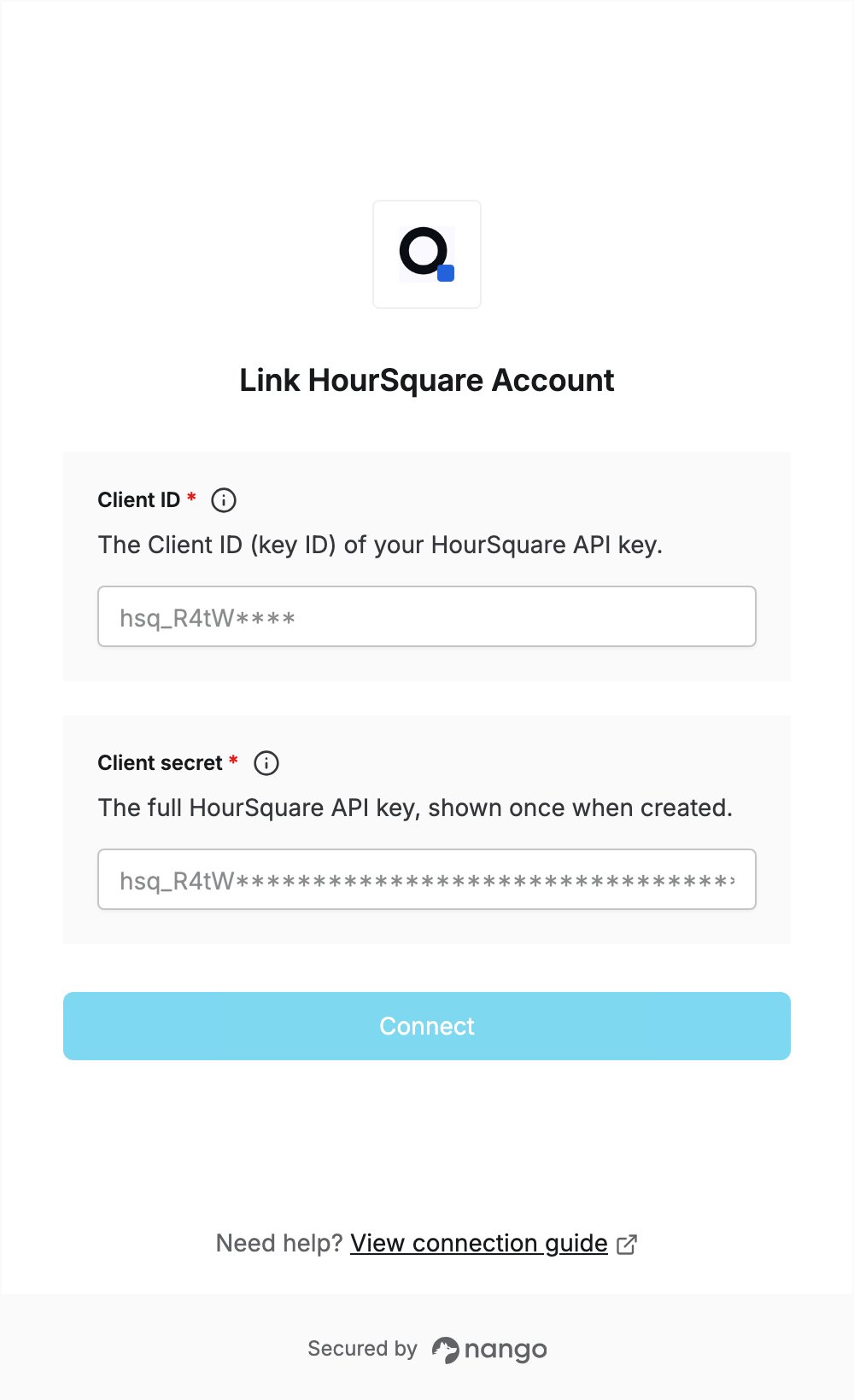
To authenticate with HourSquare, you need:- Client ID and Client secret — the two parts of a company API key created in the HourSquare Hub.
Prerequisites
- An HourSquare administrator account with the Manage API keys permission. The account creator has it.
Step 1: Create an API key
- Log in to the HourSquare Hub.
- Open Settings in the left menu, then click Sign-in & integrations.
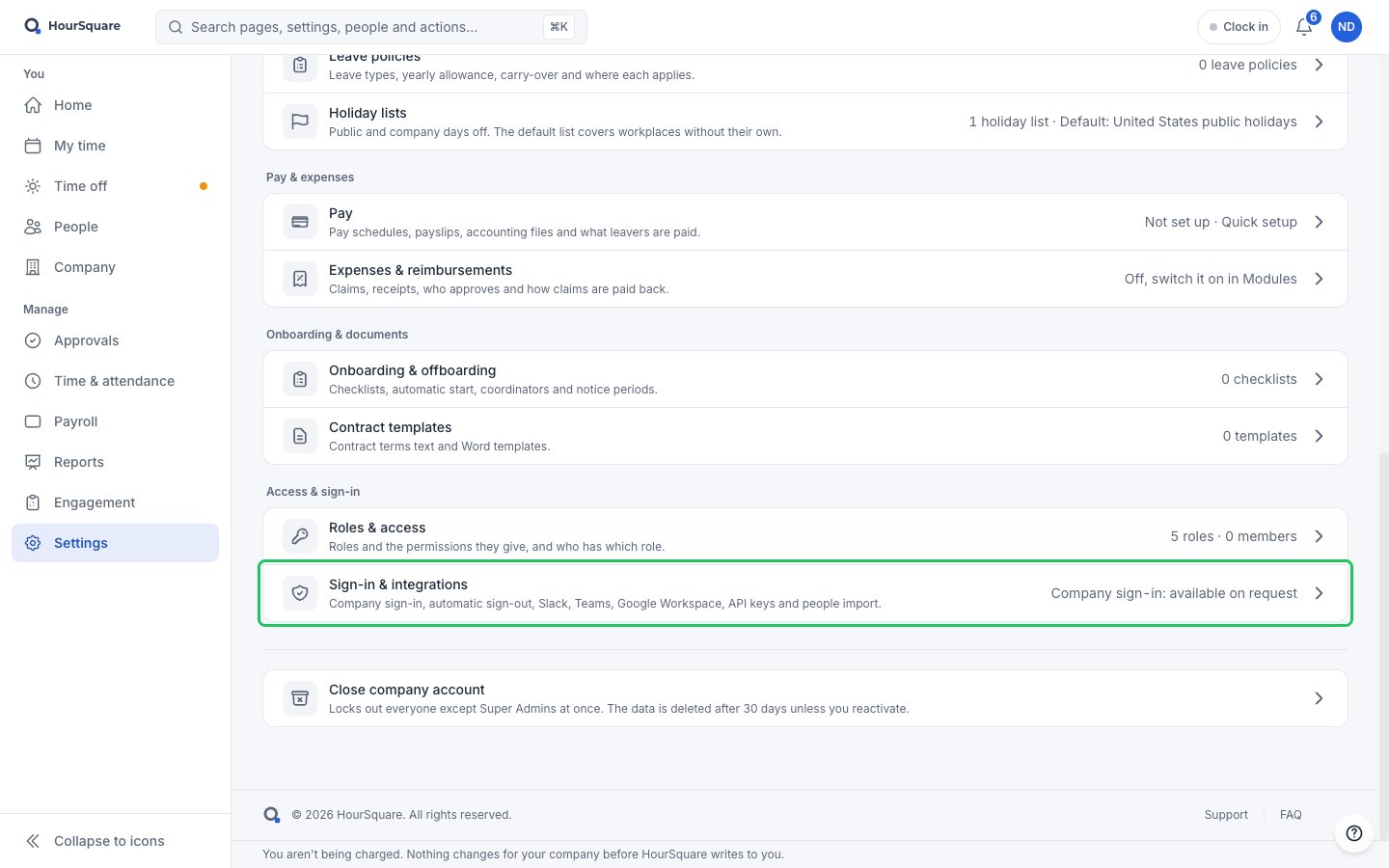
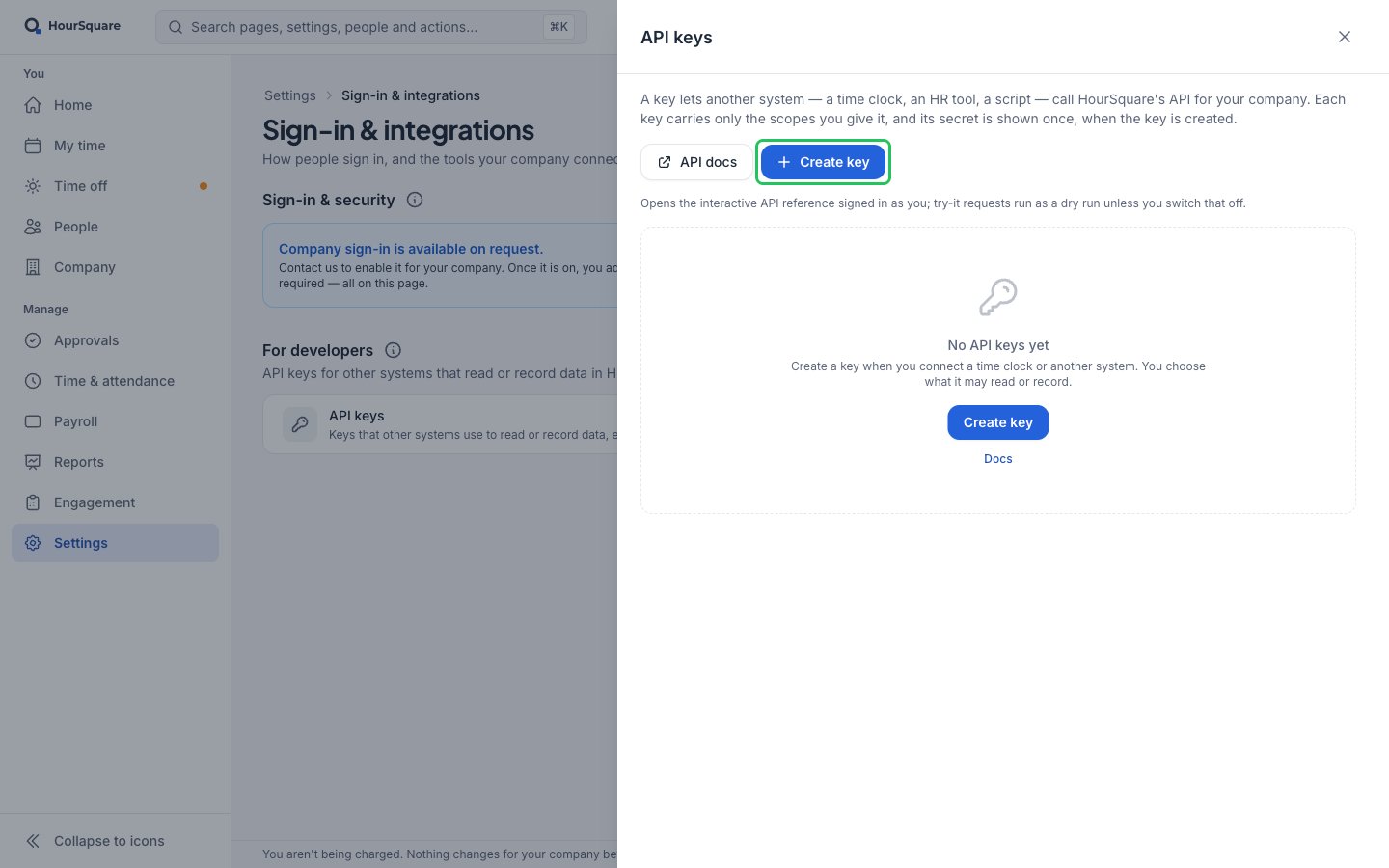
- Under For developers, click Set up next to API keys, then click Create key.
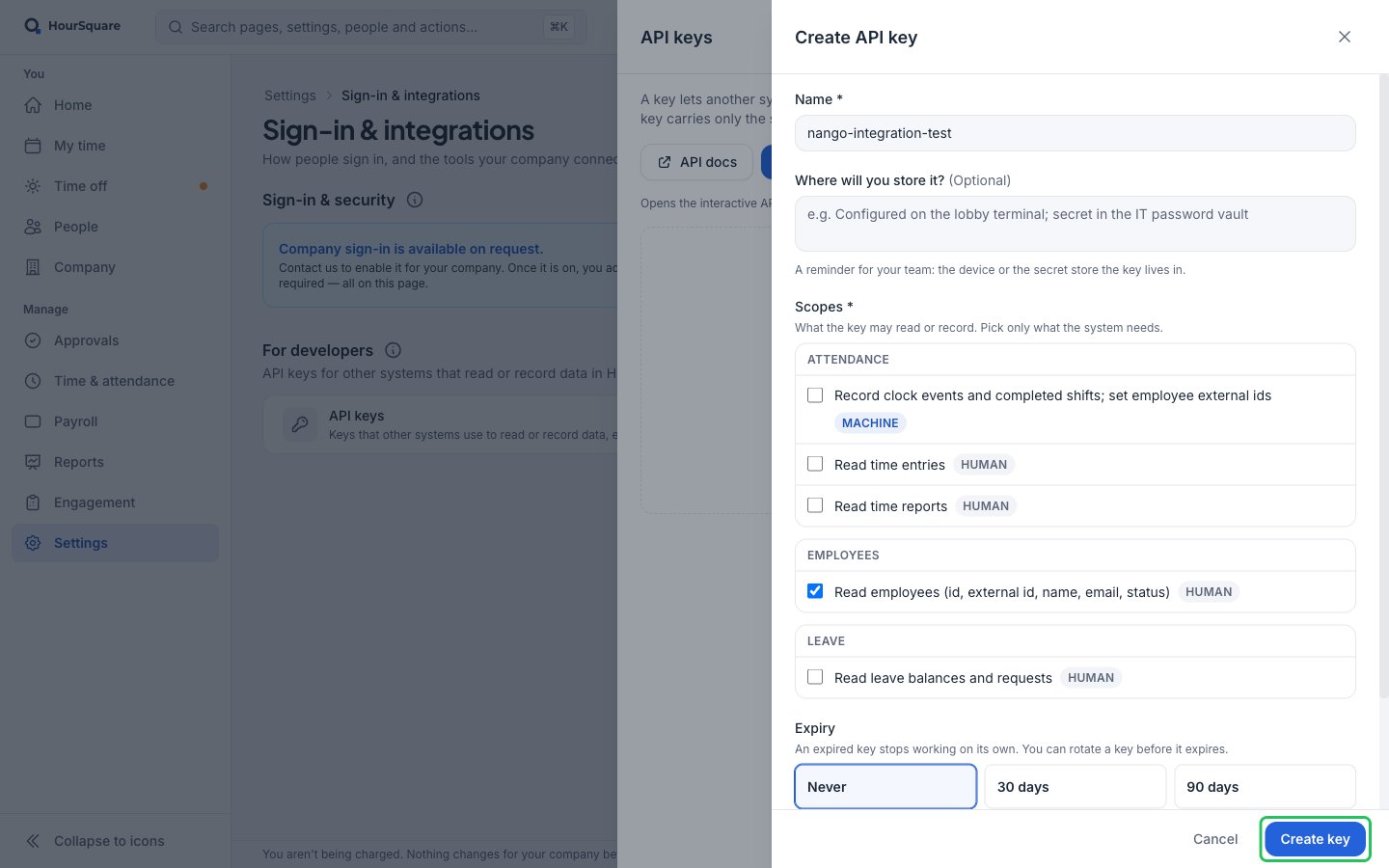
- Enter a name for the key, tick only the scopes your integration needs (for example Read employees), optionally choose an expiry, then click Create key.
- Copy the key value: this is your Client secret (it starts with
hsq_). The key ID shown with it (hsq_followed by 8 characters) is your Client ID, and it stays visible in the key list.
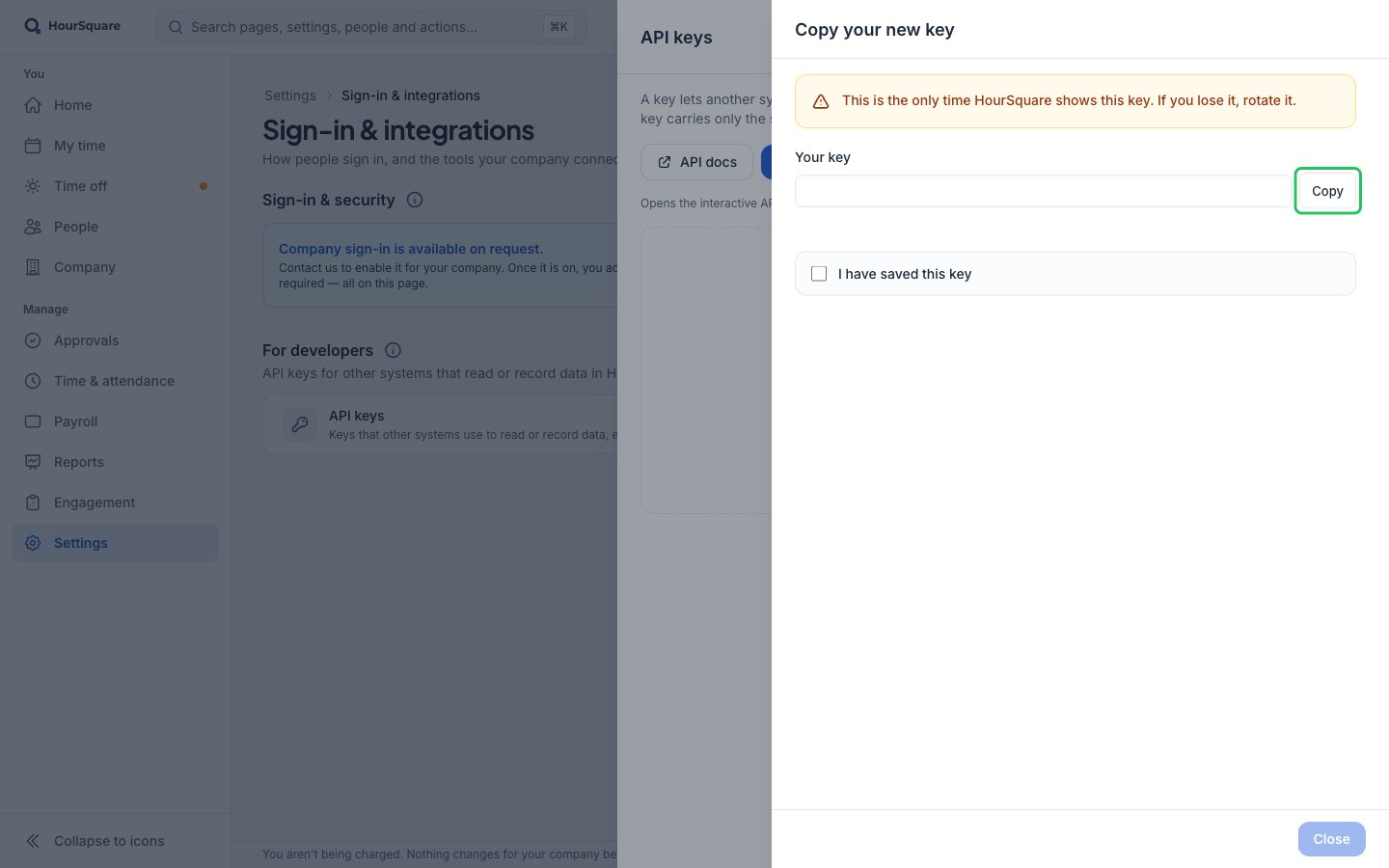
HourSquare shows the key value only once. Save it somewhere secure before closing the dialog. If you lose it, rotate the key.
Step 2: Enter your credentials in the Connect UI
- Open the form where you need to authenticate with HourSquare.
- Enter your Client ID and Client secret.
- Submit the form. Nango requests an access token with them, so a wrong, expired or revoked key is rejected here.