Overview
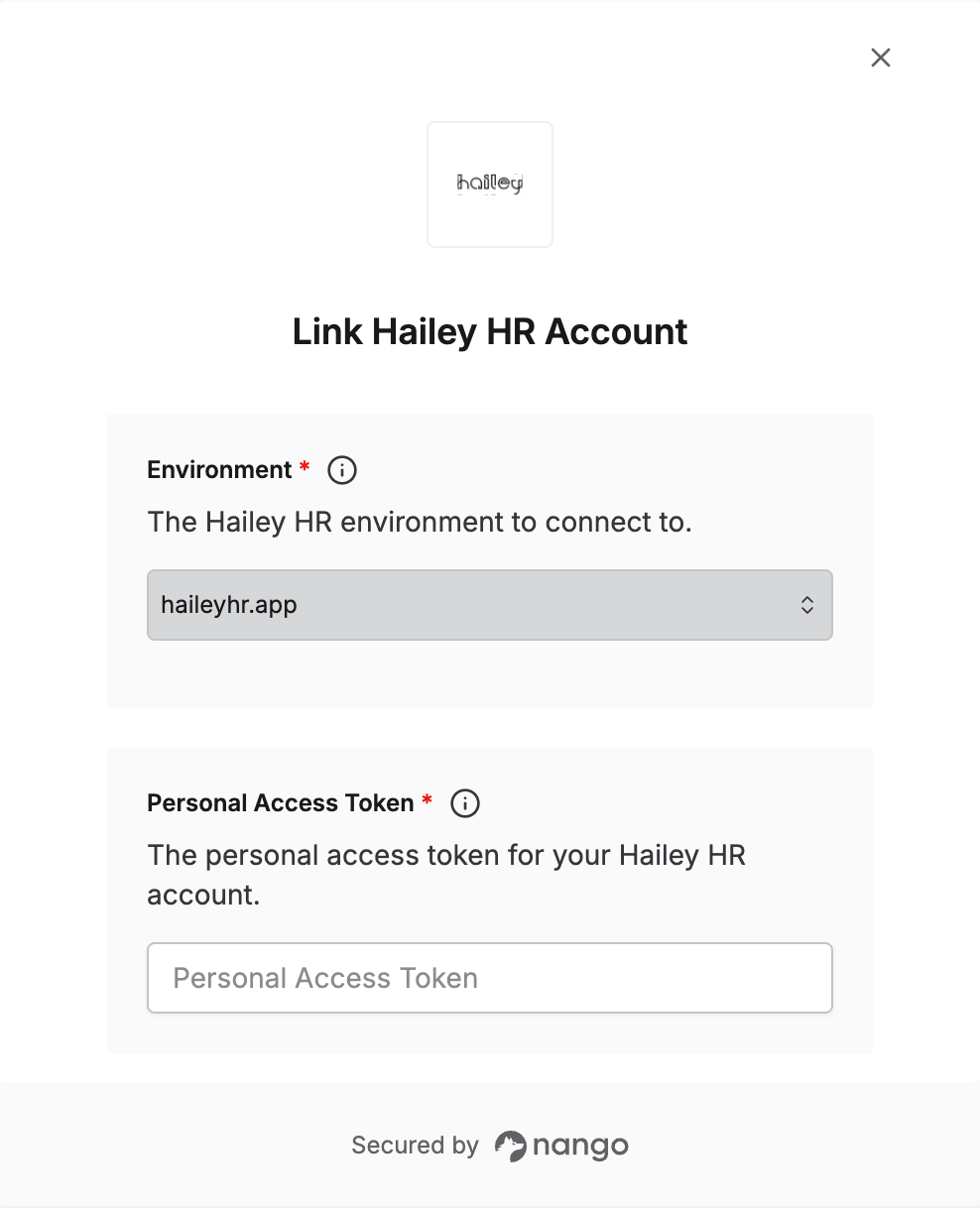
To authenticate with Hailey HR, you need:- Environment - Whether you’re connecting to production (
haileyhr.app) or the demo/sandbox (demo.haileyhr.app). - Personal Access Token - A token that grants secure access to the Hailey HR API, carrying the same rights as the account that generated it.
Prerequisites:
- You must have a Hailey HR account with the “View & edit - Integrations” right (administrators have this by default).
Instructions:
Step 1: Selecting your environment
- To connect to your live Hailey HR account, use
haileyhr.app. - To connect to Hailey’s demo/sandbox environment, use
demo.haileyhr.app.
Step 2: Generating your personal access token
- Log in to Hailey HR, click your profile picture/initials in the bottom left corner, then click Access tokens.
- Click Generate new key, name the token, and generate it.
- Copy the token immediately — Hailey HR only shows it once, and it can’t be retrieved again after the window closes.
The token carries the same permissions as the account that generated it. To avoid depending on a specific employee’s account, consider generating the token from a dedicated service account rather than a personal one. Tokens are valid for one year; Hailey HR emails a reminder to company admins one week and one day before expiration.
Step 3: Enter credentials in the Connect UI
Once you have your Personal Access Token:- Open the form where you need to authenticate with Hailey HR.
- Select your Environment.
- Enter your Personal Access Token in the field provided.
- Submit the form, and you should be successfully authenticated.