Overview
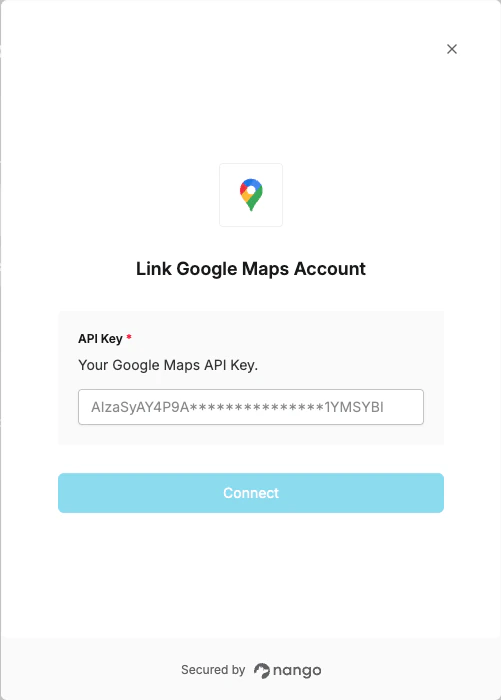
To authenticate with Google Maps, you will need:- API Key - Your Google Maps API key for authentication.
Prerequisites:
- You must have a Google account with billing enabled in Google Cloud Platform.
Instructions:
Step 1: Create a Google Cloud Project
- Log in to the Google Cloud Console.
- Click the project dropdown at the top and select New Project.
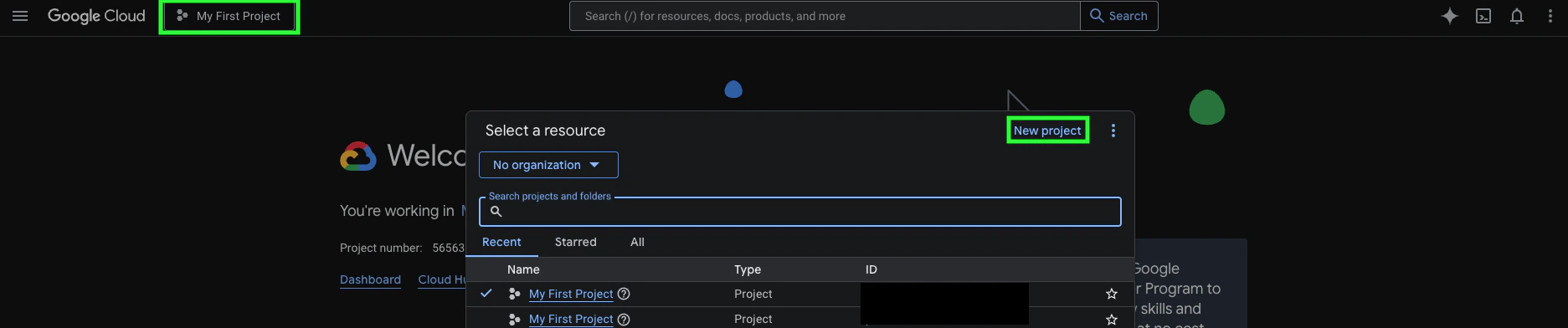
- Enter a Project Name, then click Create.
- Select your new project from the dropdown once it’s created.
Step 2: Enable the APIs you need
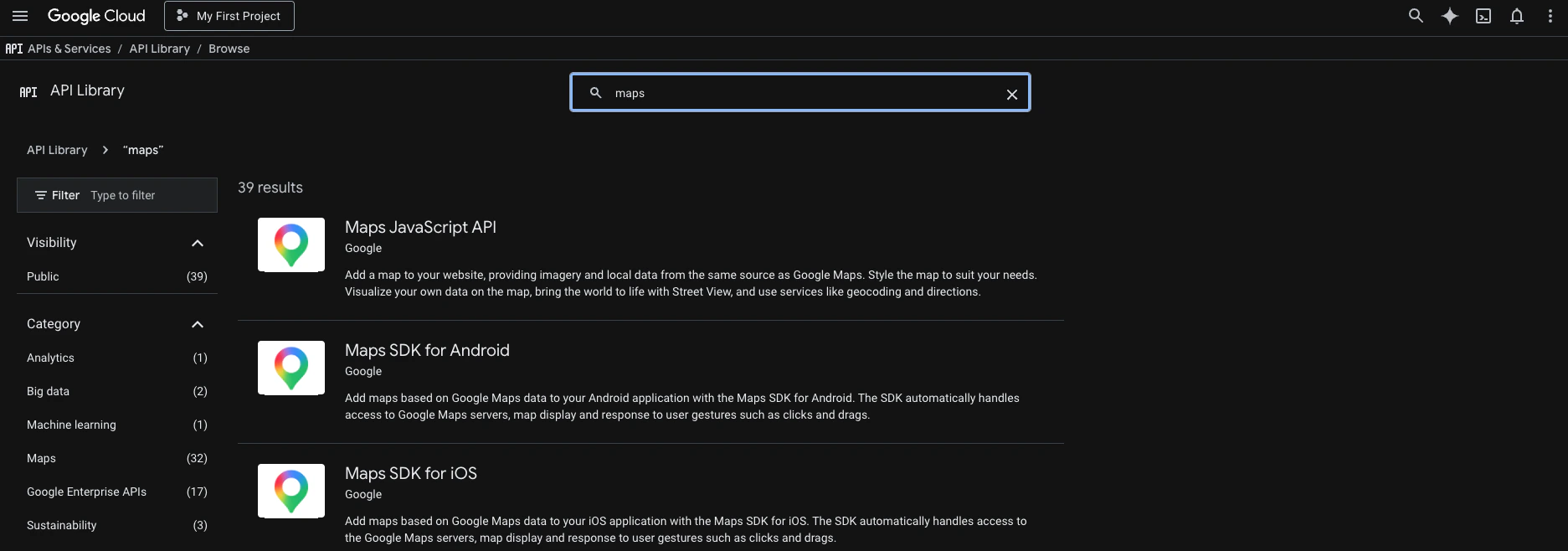
- Go to APIs & Services > Library.
- Search for the Google Maps APIs you need (e.g. Geocoding API, Places API, Directions API) and click Enable for each.
Step 3: Obtain your Google Maps API Key
- In the left sidebar, go to APIs & Services > Credentials.
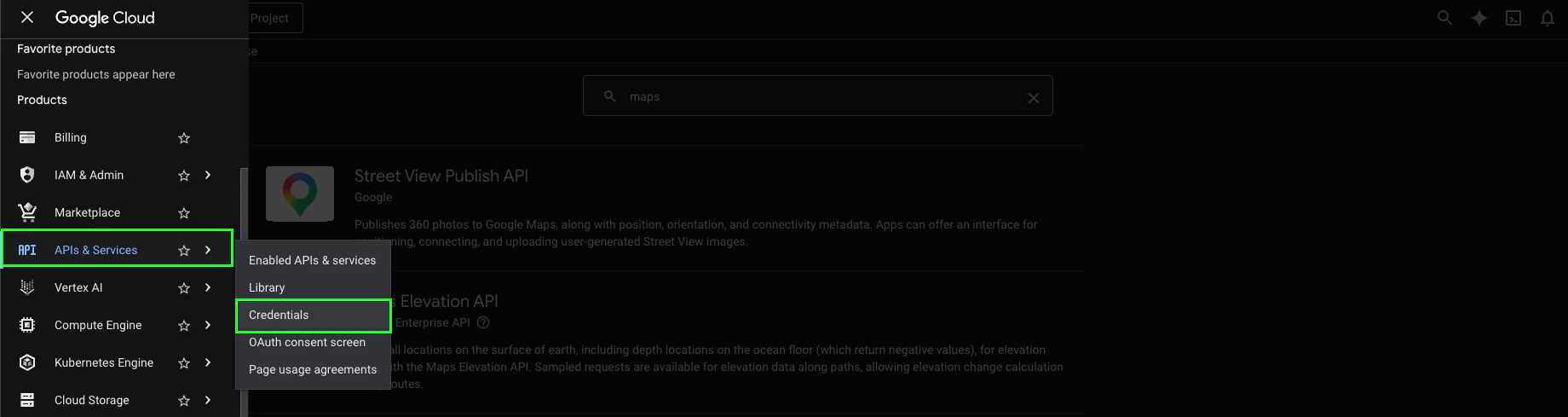
- Click + Create Credentials, select API key, enter a name, and select the APIs you enabled earlier.

- Copy the API key value shown and store it in a safe place.
Step 4: Enter your API Key in the Connect UI
- Open the form where you need to authenticate with Google Maps.
- Enter your API Key in the field provided.
- Submit the form to complete authentication.