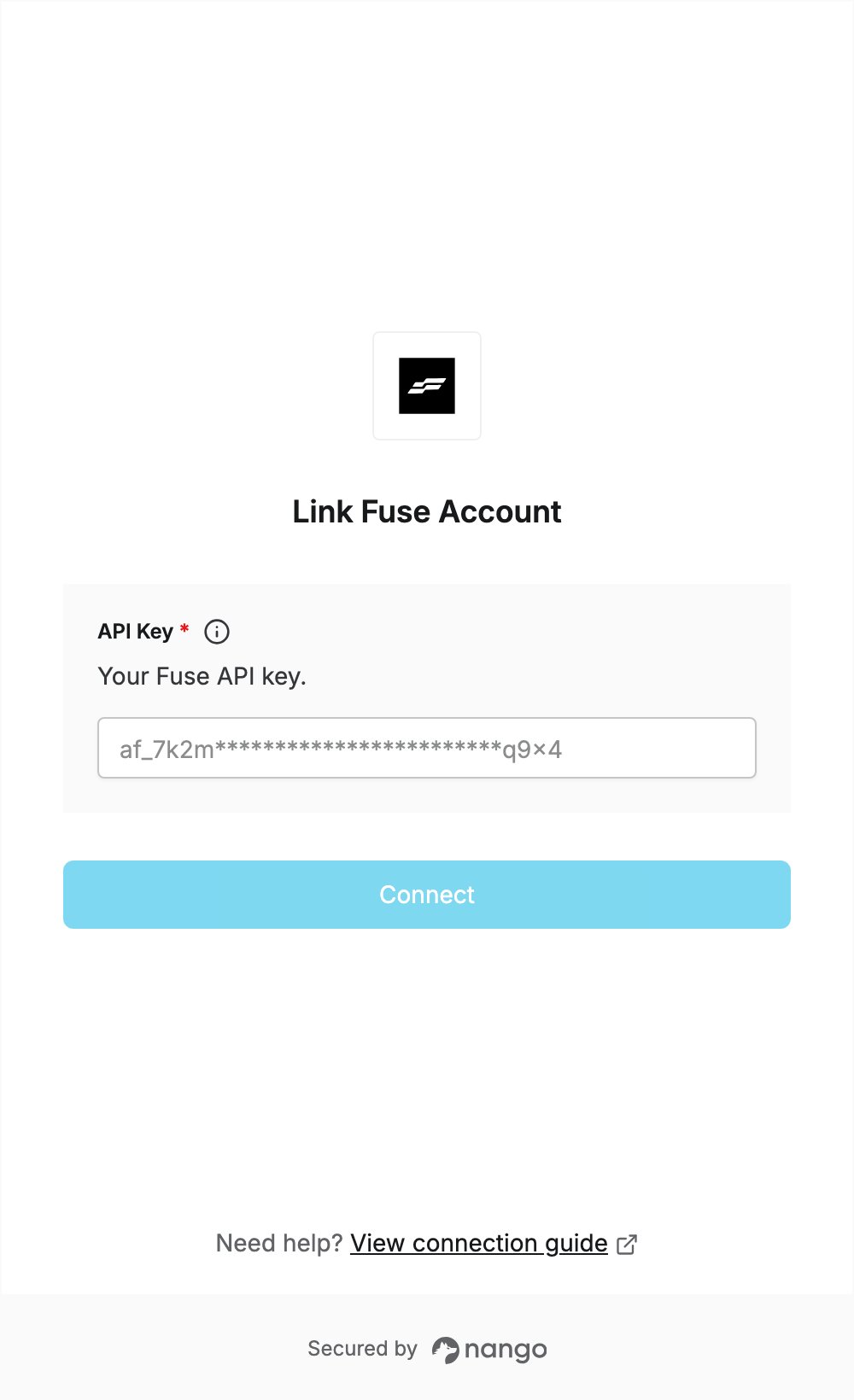
Overview
To authenticate with Fuse, you need:- API Key - a Fuse API key, created in API Cockpit.
Prerequisites
- A Fuse account.
Step 1: Create your API key
- Sign in to the Fuse app.
- Open the profile menu (your initials, top right) and click Settings.
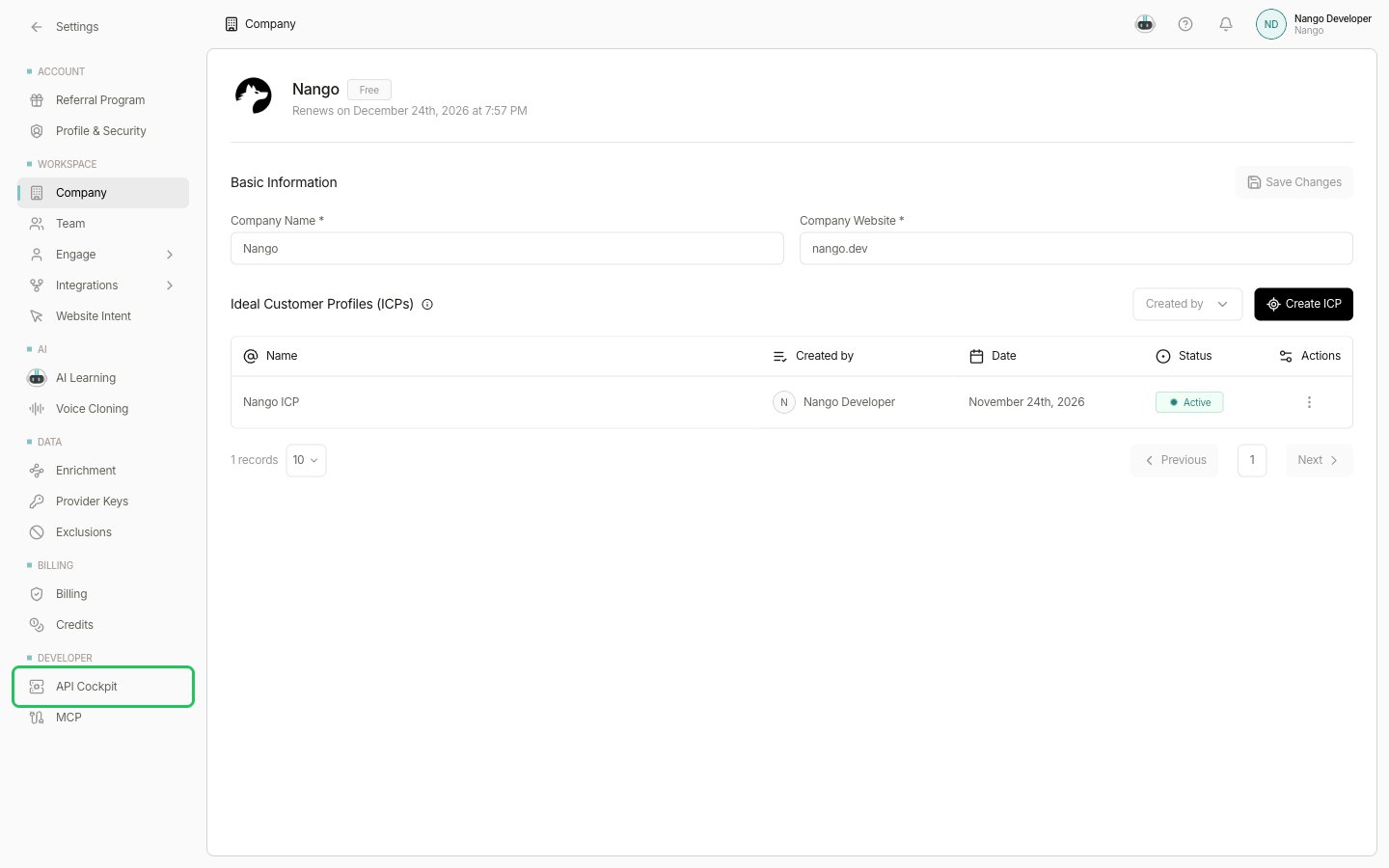
- In the left sidebar, under Developer, click API Cockpit.
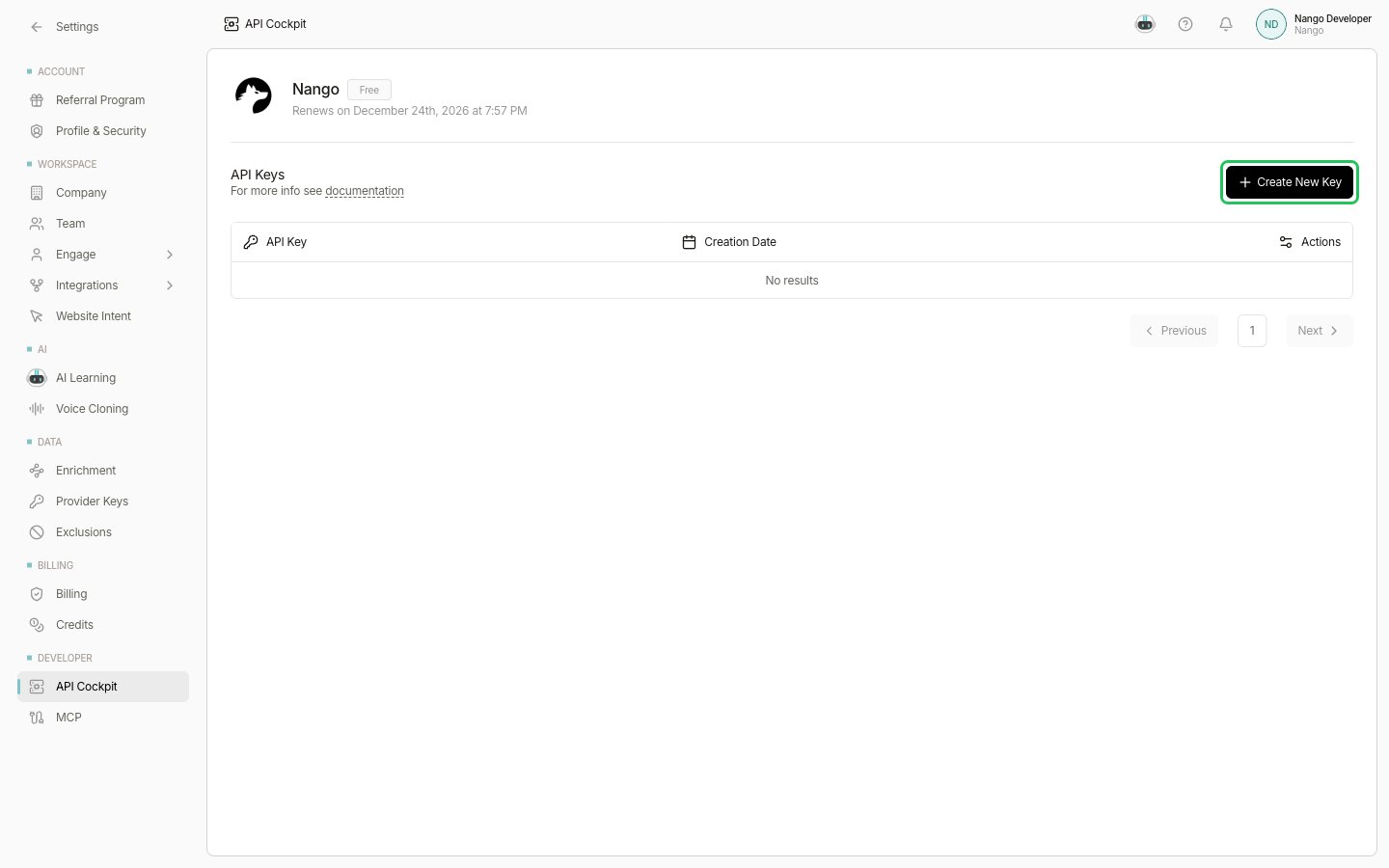
- Click Create New Key, then click Create API Key in the dialog.
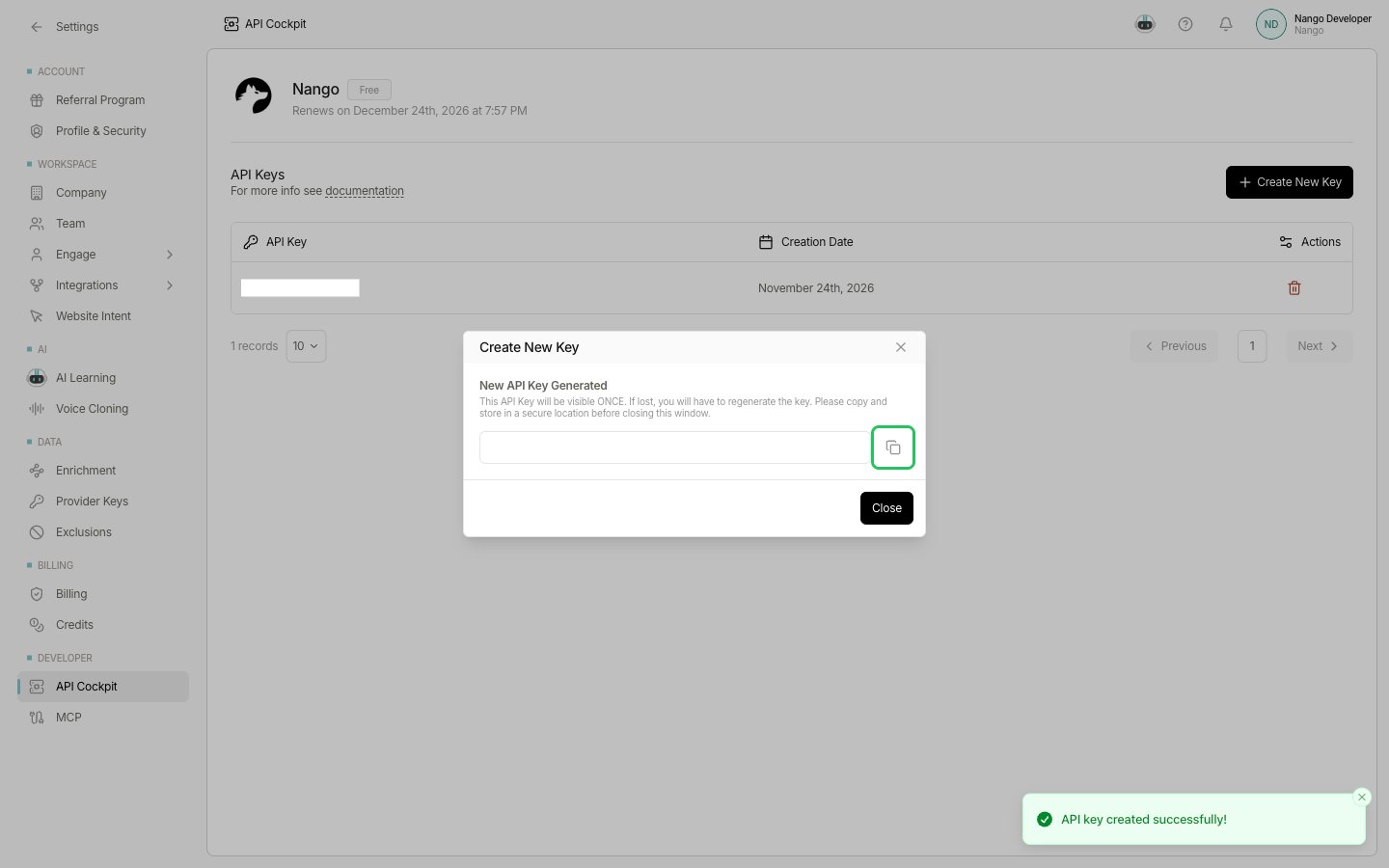
- Copy the key from the New API Key Generated dialog. It starts with
af_. Fuse shows the full key only once, so copy it before you click Close.
Step 2: Enter your API key in the Connect UI
- Open the form where you need to authenticate with Fuse.
- Enter your API Key in the designated field. There is no password to enter.
- Click Connect. Nango checks the key with Fuse and rejects it if it is wrong.