Overview
To authenticate with Formcarry, you need:- API Key — a Formcarry API key that starts with
fc_live_. Your team’s original (legacy) key from before the API Keys page existed also works.
Prerequisites
- A Formcarry account. The free plan can create API keys; sign up here.
- The account owner must have verified their email address. Until then, every key is refused.
Step 1: Create an API key
- Sign in to Formcarry and click API Keys in the top navigation.
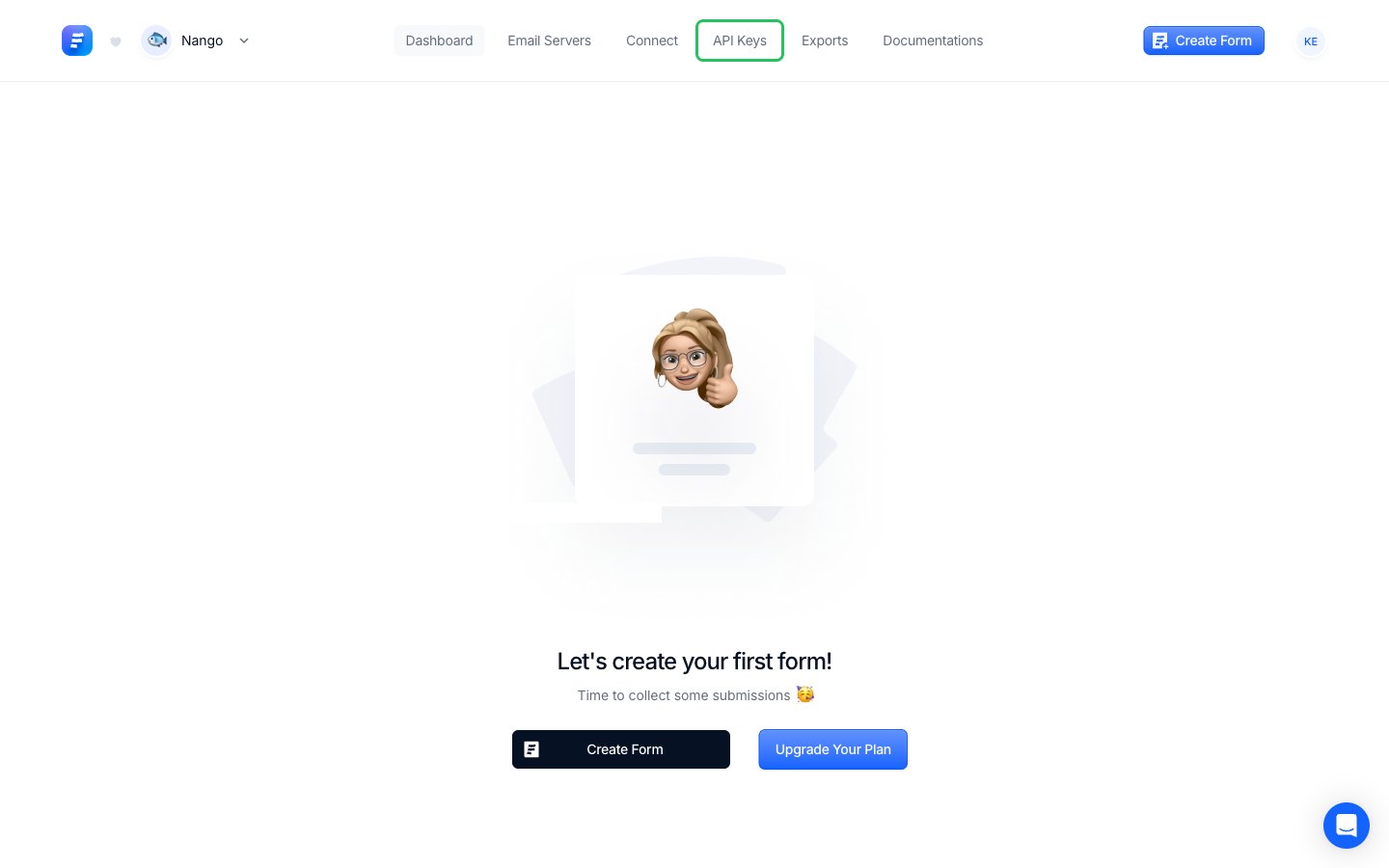
- Click Create key.
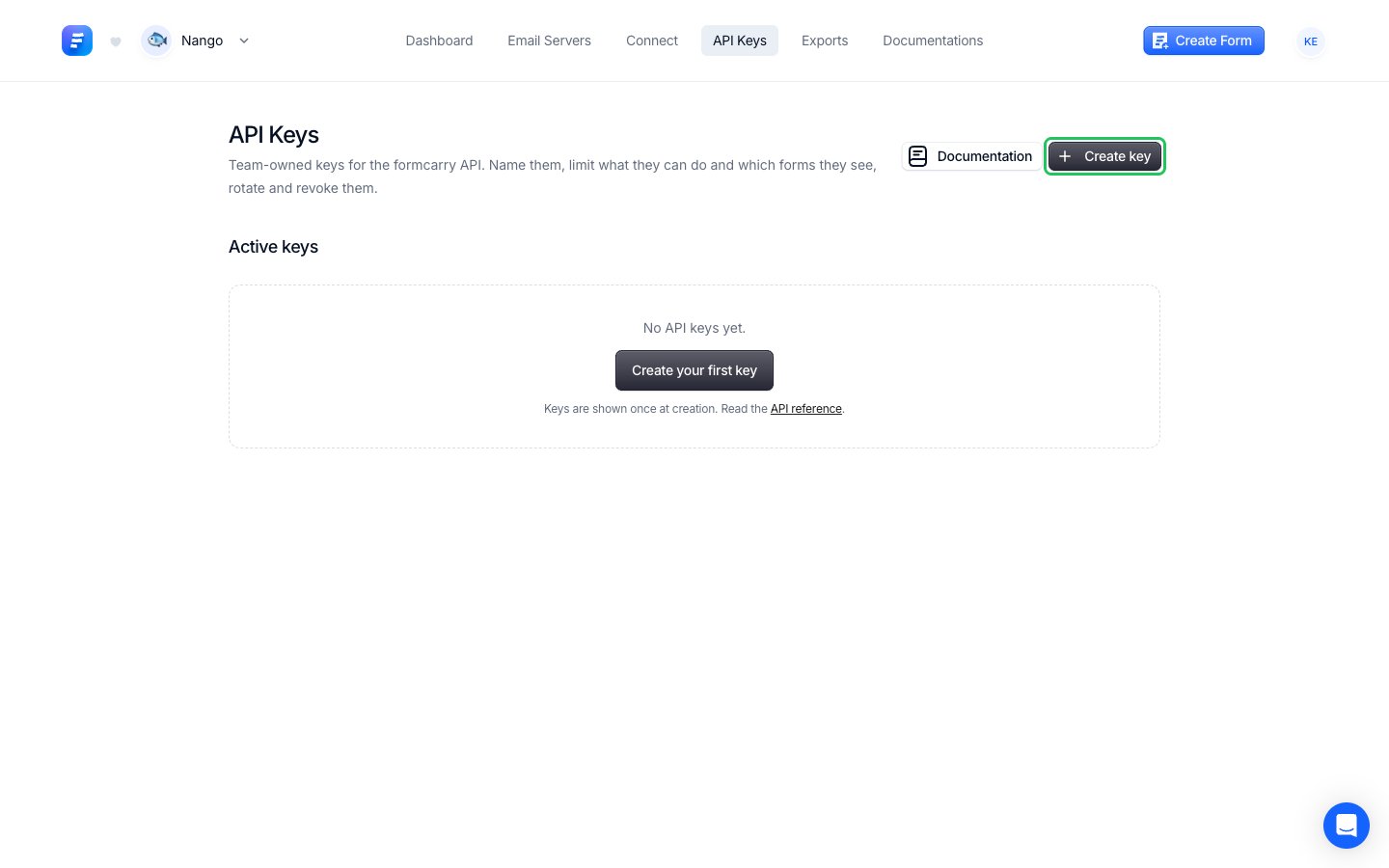
- Enter a Name for the key.
- Under Scopes, keep Full access (every scope), or uncheck it and select only the scopes your integration needs: Read forms, Write forms, Read submissions or Write submissions.
- Under Form access, choose All forms, including ones created later, or Only these forms to limit the key to some forms.
- Click Create key.
Scopes and form access cannot be changed after the key is created. To change them, create a new key.
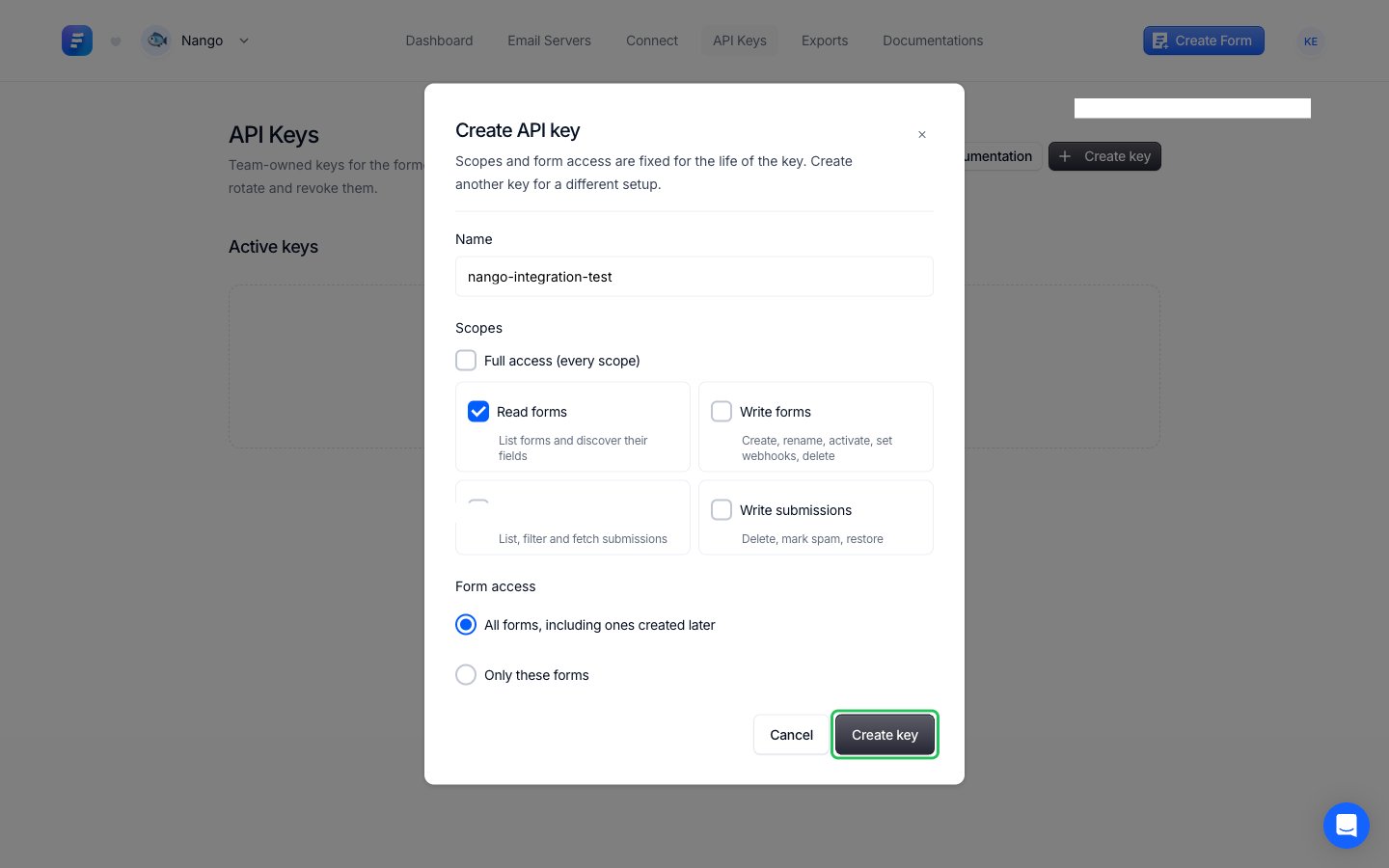
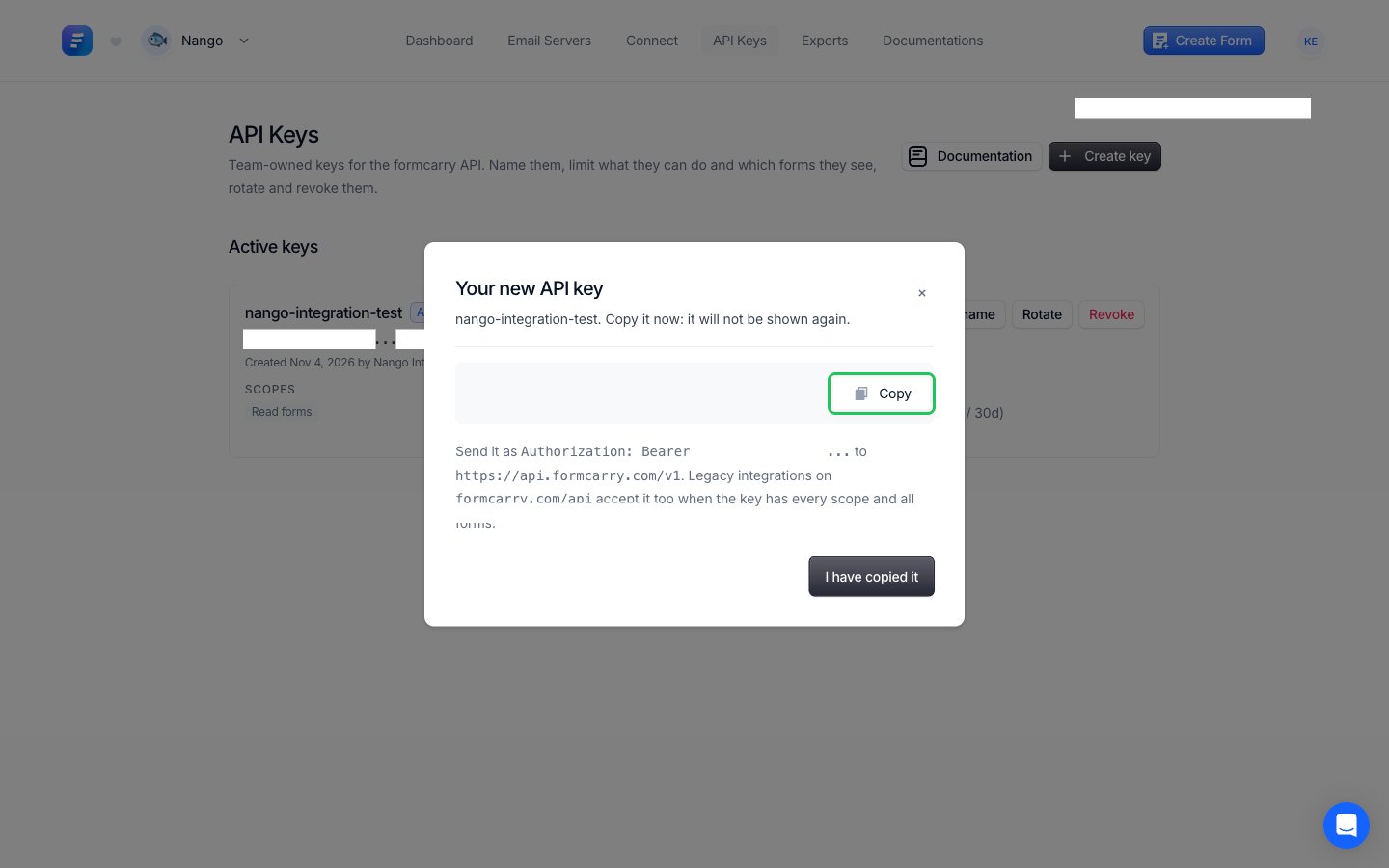
- Click Copy to copy the key. It starts with
fc_live_and is shown only once.
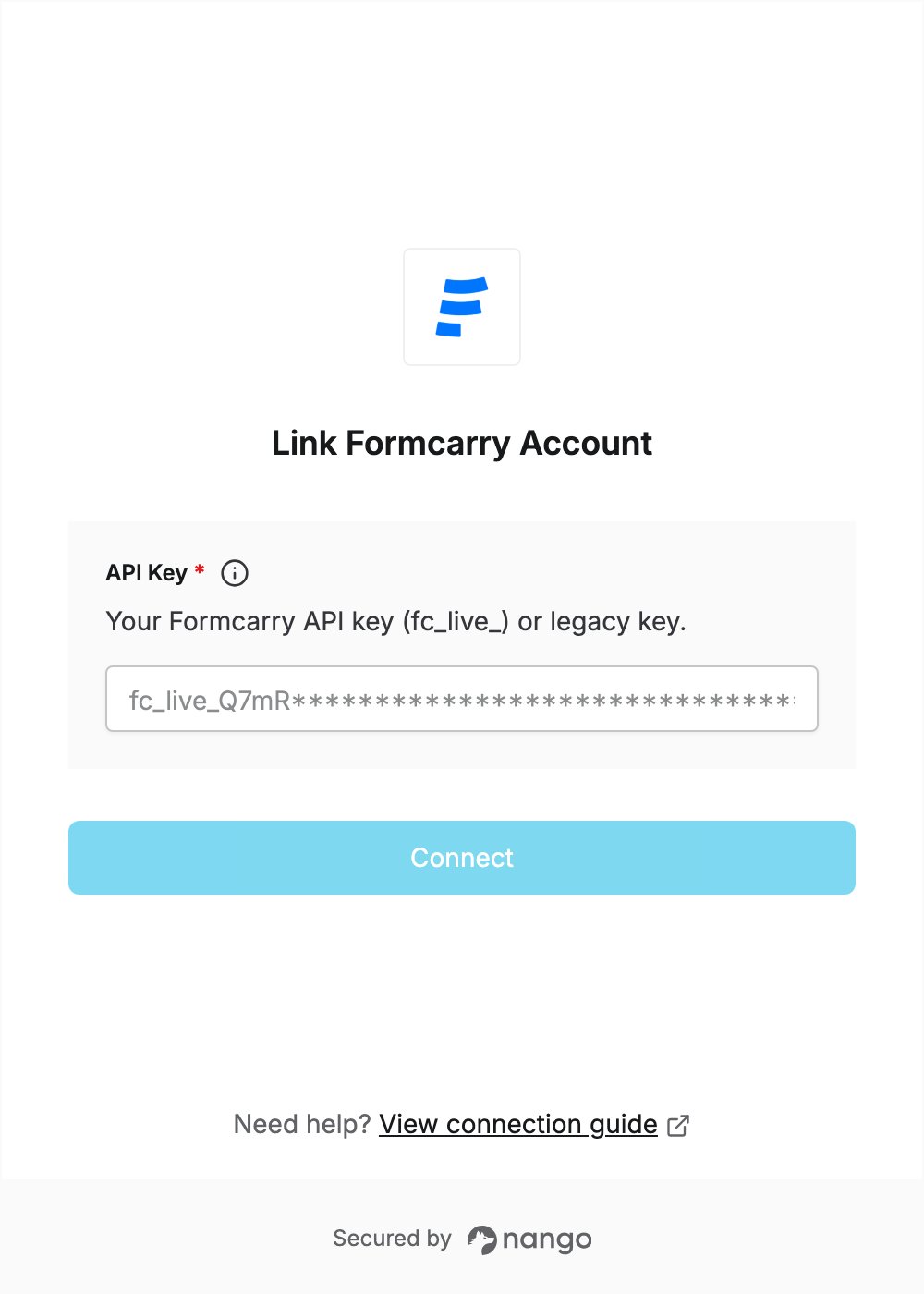
Step 2: Enter your API key in the Connect UI
- Open the form where you need to authenticate with Formcarry.
- Enter your API Key in the designated field.
- Click Connect.